
Transcription Usage Details Report
The Transcription Usage Details report totals the transcription minutes your system has used, broken down by Voicemail Transcription and Call Transcription. Both features run on the built-in AI engine, and this report is where you review how much of that capacity you have consumed. This page explains how to open the report and what each metric means.
Before you begin
Section titled “Before you begin”Your PBX (Private Branch Exchange, the phone system itself) must be running firmware version 84.22.0.138 or later.
Open the report
Section titled “Open the report”-
Log in to the Cloud Voice Dashboard at https://portal.voice.izt.cloud and click Login to open your phone system’s management portal with full administrator access, then go to Reports and Recordings > Call Reports.
-
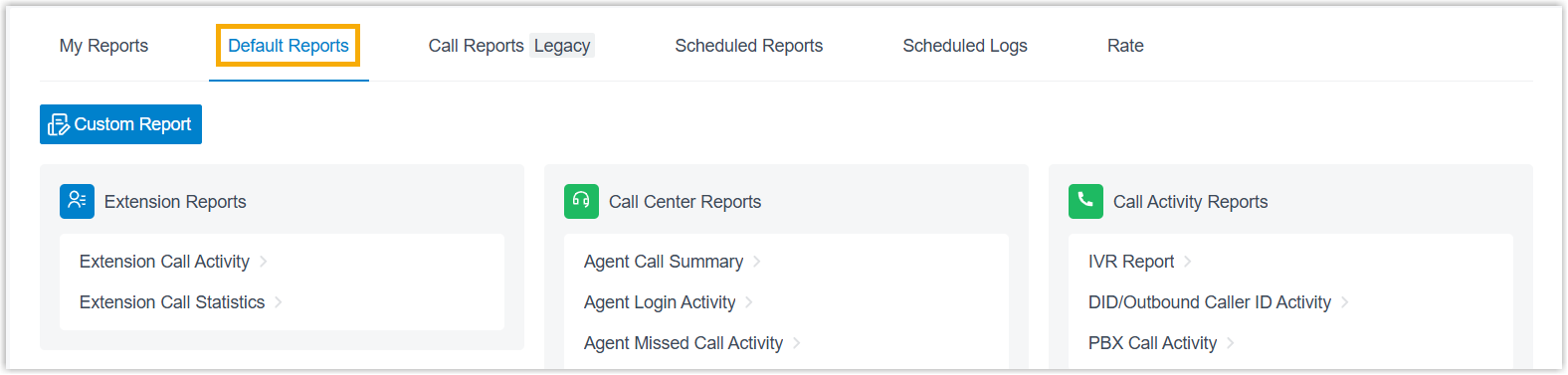
Select the Default Reports tab.
-
In the AI Reports pane, click Transcription Usage Details.
-
In the Time field, choose the date range the report should cover.

The matching results appear on the page.

Adjust the columns (optional)
Section titled “Adjust the columns (optional)”Tailor the layout so the figures you care about stay in view.
| Action | How to do it |
|---|---|
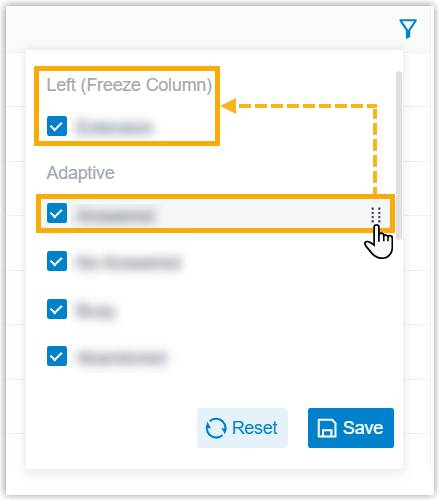
| Choose which columns appear | Click the column filter icon and select the columns you want to display. |
| Freeze a column | Click the drag handle next to a field, then drag it to Left (Freeze Column) or Right (Freeze Column) so it stays visible while you scroll. |
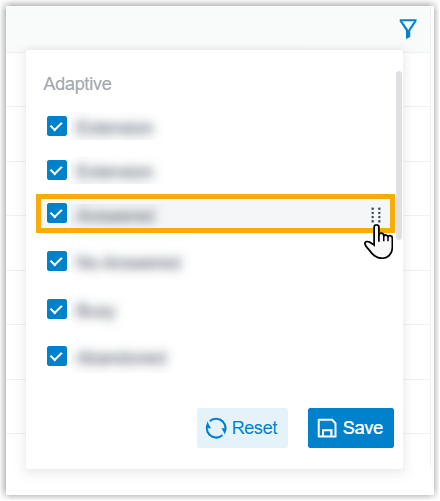
| Reorder columns | Click the drag handle next to a field and drag it to the position you want. |

Save or export the report (optional)
Section titled “Save or export the report (optional)”You can keep the report for repeat use, have it emailed on a schedule, or download a copy for offline analysis.
Send it on a schedule
Section titled “Send it on a schedule”- At the bottom of the page, click Add to Scheduled Reports.
- Fill in the remaining options as described in Schedule Automatic Call Report Delivery via Email.
Download a copy
Section titled “Download a copy”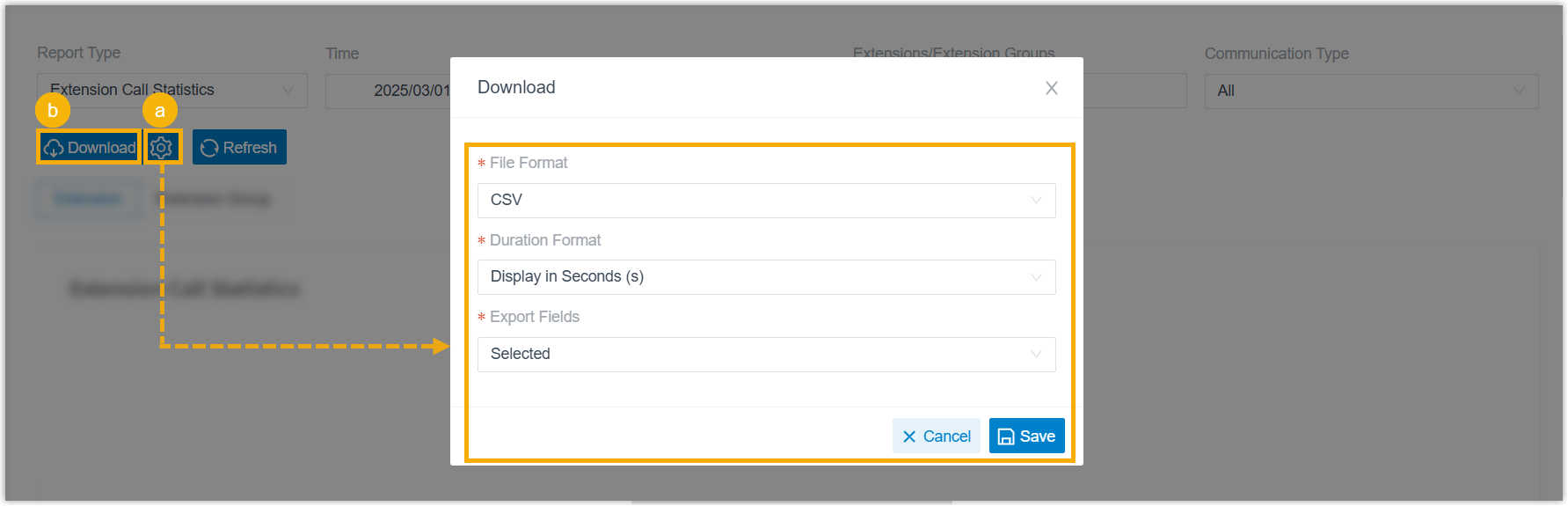
-
(Optional) Open the download settings to adjust how the file is generated, then save your changes:
- File Format: the file type to export: CSV, XLS, HTML, or PDF.
- Duration Format: how every duration field is shown: Display in Second (s) or Display as HH:MM:SS.
- Export Fields: which fields to include: All or Selected.
-
Click Download.
Report metrics
Section titled “Report metrics”| Metric | Description |
|---|---|
| Transcription Event | The kind of transcription that was run: Voicemail Transcription or Call Transcription. |
| Usage (mins) | The transcription minutes used during the selected period. Partial minutes round up to the next whole minute, for example, 3 minutes and 57 seconds counts as 4 minutes. |
Question about this page?
Ask the AI assistant. It starts from this page, then searches the rest of the docs.
Ask Cloud Voice AI
Answers are AI-generated from the docs and may contain mistakes. Verify with the linked pages.