
Time Condition Overview
A time condition lets Cloud Voice treat calls differently depending on when they happen. By defining distinct periods, such as business hours, outside business hours, and holidays, you can send each call to the destination that makes sense for the current time of day or date. This saves you from manually changing call routing every morning and evening.
A time condition draws on a time group: a named set of time periods you define once (for example, the days and hours that count as business hours). The PBX (Private Branch Exchange, the phone system that switches your calls) compares the current time against that time group and picks the matching destination.
Once you have created a time condition, you can attach it to several features so that call handling follows your schedule automatically.
Where you can apply a time condition
Section titled “Where you can apply a time condition”Extension presence switch
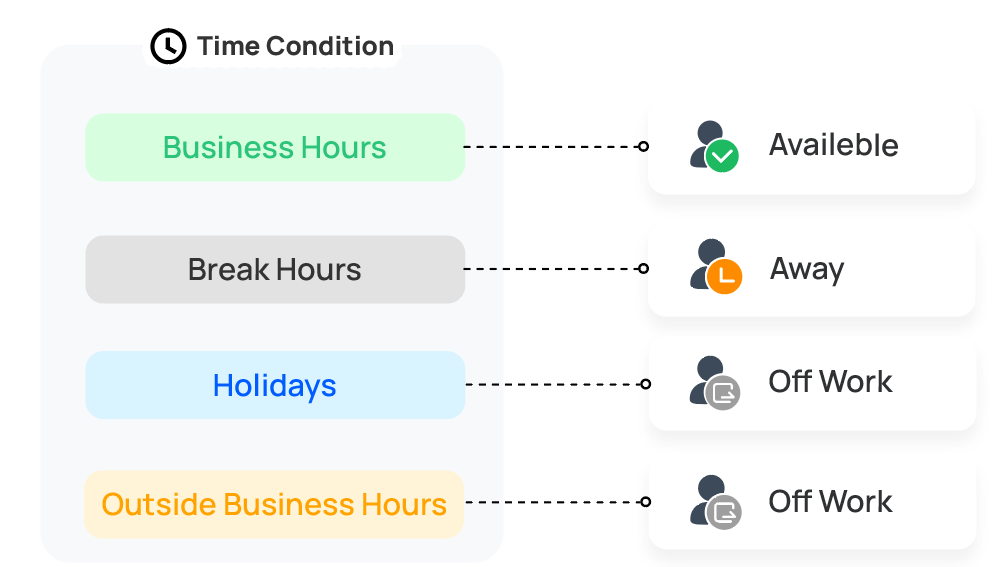
Section titled “Extension presence switch”An extension’s presence status can change on its own as the active period changes. When the current time condition switches, the extension’s presence follows it. For example, while the PBX is in the business-hours period, the extension is set to Available automatically.
Inbound route
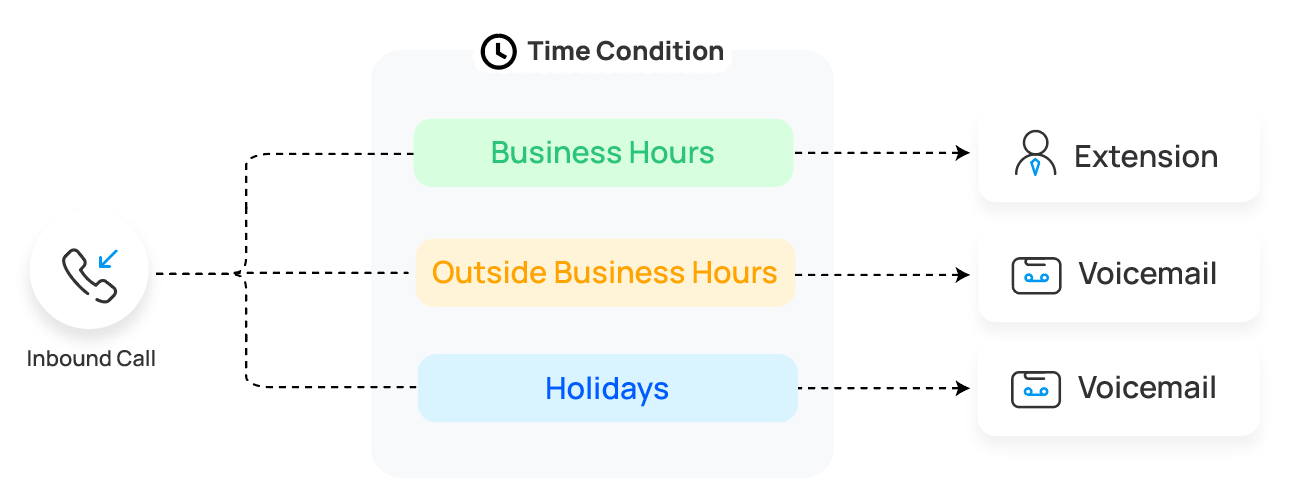
Section titled “Inbound route”A time condition can decide where an inbound call goes based on the date and time it arrives. When a call reaches the PBX, the system compares the current date and time, evaluated in the time zone you specify, against the associated time group and forwards the call to the matching destination. For example, business-hours calls go to a receptionist while after-hours calls go to voicemail.
For details, see Set up an Inbound Route.
Outbound route
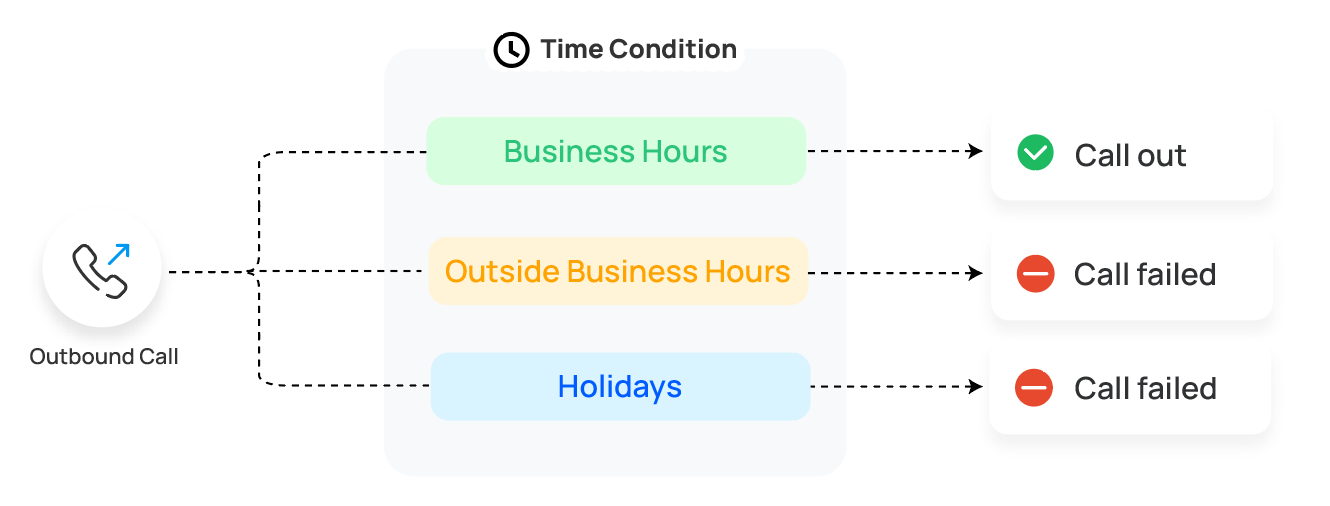
Section titled “Outbound route”A time condition can restrict when an outbound route may be used. When someone places a call, the system checks the current date and time, in the specified time zone, against the associated time group. The call is only allowed to go out if the time falls within a permitted period. This is useful for limiting certain routes (for example, expensive international trunks) to business hours only.
For details, see Set up an Outbound Route.
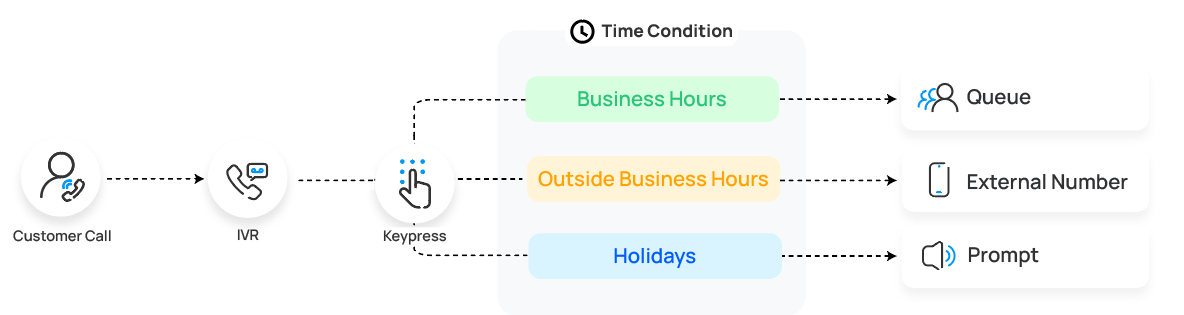
A time condition can control where an IVR (Interactive Voice Response, the automated “press 1 for sales” menu) key-press leads based on the date and time. When a caller reaches an IVR and presses a key, the system evaluates the current date and time in the specified time zone against the associated time group, then routes the call accordingly. You can apply one time condition to every key, or set a different time condition for each key press.
For details, see Set Key Events Based on Time Conditions.
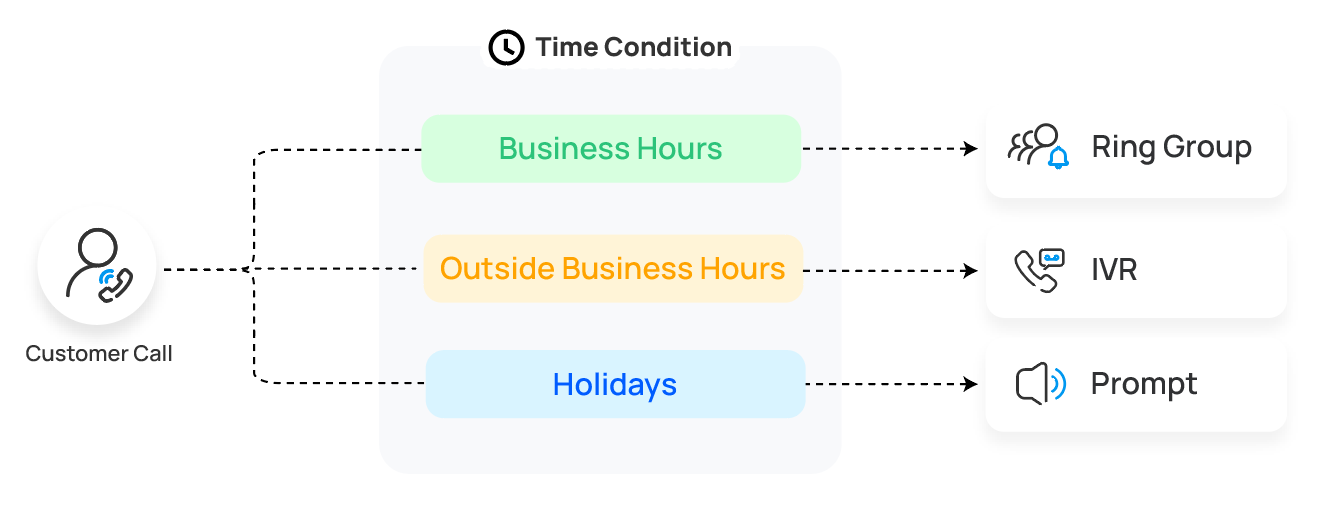
Ring group
Section titled “Ring group”A time condition can control where calls sent to a ring group are delivered. By default, a ring group accepts calls in every period. You can instead have it accept calls only during business hours and send calls in other periods to a different destination.
For details, see Create a Ring Group.
Call queue
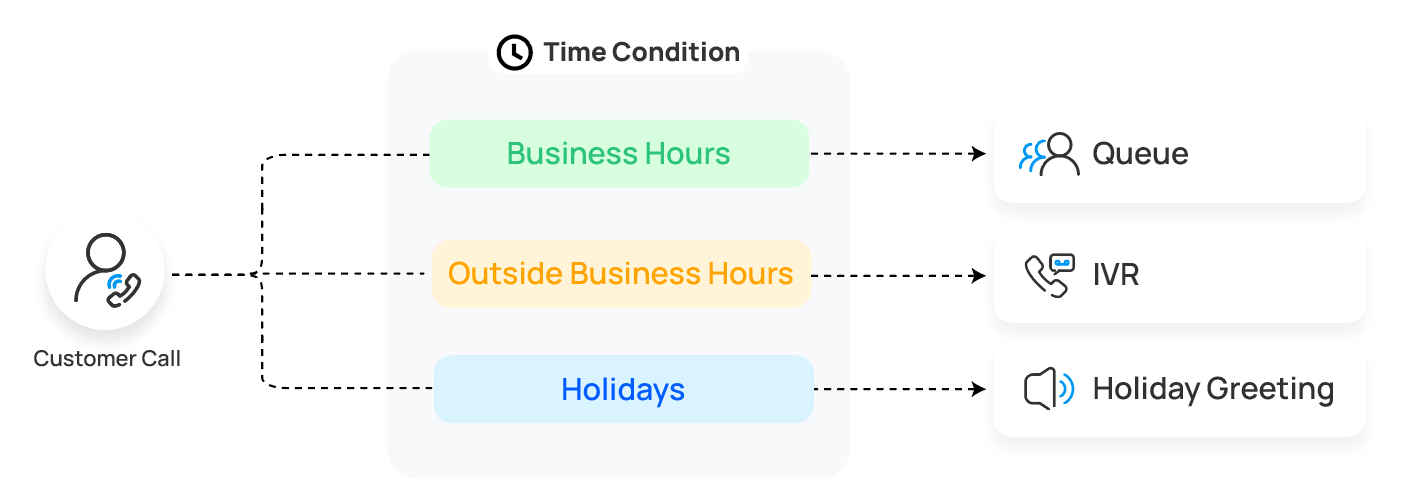
Section titled “Call queue”A time condition can control where calls sent to a call queue are delivered. By default, a queue accepts calls in every period. You can instead have it accept calls only during business hours and route calls in other periods to a different destination.
For details on routing queue calls by time condition, see the call queue setup in the Contact Center documentation.
Overriding a time condition
Section titled “Overriding a time condition”A time-based inbound route follows the system clock to route calls. Occasionally you may need to force the business open or closed regardless of the schedule, for example to close early for an event or open on a holiday. You can grant permission to specific users so they can override the time condition for calls coming through the route.
For details, see Override Time Condition for Inbound Calls.
Question about this page?
Ask the AI assistant. It starts from this page, then searches the rest of the docs.
Ask Cloud Voice AI
Answers are AI-generated from the docs and may contain mistakes. Verify with the linked pages.