
Control an Incompatible IP Phone by Cloud Voice App Desktop Client
CTI (Computer Telephony Integration) mode lets you pair a desk phone with the Cloud Voice App desktop client even when the phone itself is not on the CTI-compatible list. An IP phone (Internet Protocol phone: a desk phone that connects over your network) registered to your extension links to the app, and the app becomes an on-screen control panel. You dial, answer, and manage calls from the desktop client, while the audio (talking and listening) stays on the physical phone.
Use this when a technician or user prefers the comfort of a handset for audio but wants the point-and-click convenience of the app for handling calls.
When to use this
Section titled “When to use this”Follow these steps only for IP phones that are not among the CTI-compatible models. If your phone is on the supported list, it works with CTI directly and no extra setup is needed.
To confirm whether your model qualifies for native CTI support, check the compatible Yealink, Fanvil, Snom, and Grandstream devices in the CTI overview.
Before you begin
Section titled “Before you begin”Confirm that the IP phone is registered with the same extension that you use to sign in to the Cloud Voice App desktop client.
Switch the desktop client to CTI mode
Section titled “Switch the desktop client to CTI mode”- Sign in to the Cloud Voice App desktop client.
- In the top-right corner, click the CTI icon
 .
. - Choose your connected IP phone from the drop-down list.
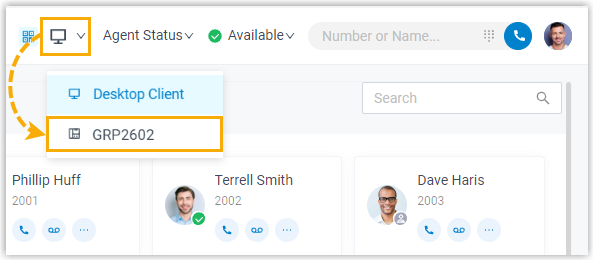
What you can control
Section titled “What you can control”With the phone linked, you can run these call actions from the desktop client while the audio runs on the IP phone:
- Place and end calls
- Reject an incoming call
- Hold and resume a call
- Blind transfer a call (send the call to another number without speaking to that person first)
- Record a call
Question about this page?
Ask the AI assistant. It starts from this page, then searches the rest of the docs.
Ask Cloud Voice AI
Answers are AI-generated from the docs and may contain mistakes. Verify with the linked pages.