
View or Change a Member's User Type Across Multiple Groups
An extension group is a set of extensions that administrators manage together. When one person belongs to several extension groups, they may hold a different role in each. Rather than opening each group in turn, you can inspect and adjust all of an extension’s user types from the extension’s own settings. This page walks through both tasks.
View a member’s user type in every group
Section titled “View a member’s user type in every group”-
In the PBX (private branch exchange, your hosted phone system) web portal, open Extension and Trunk > Extension, then click the edit icon (
 ) next to the extension you want to check.
 -
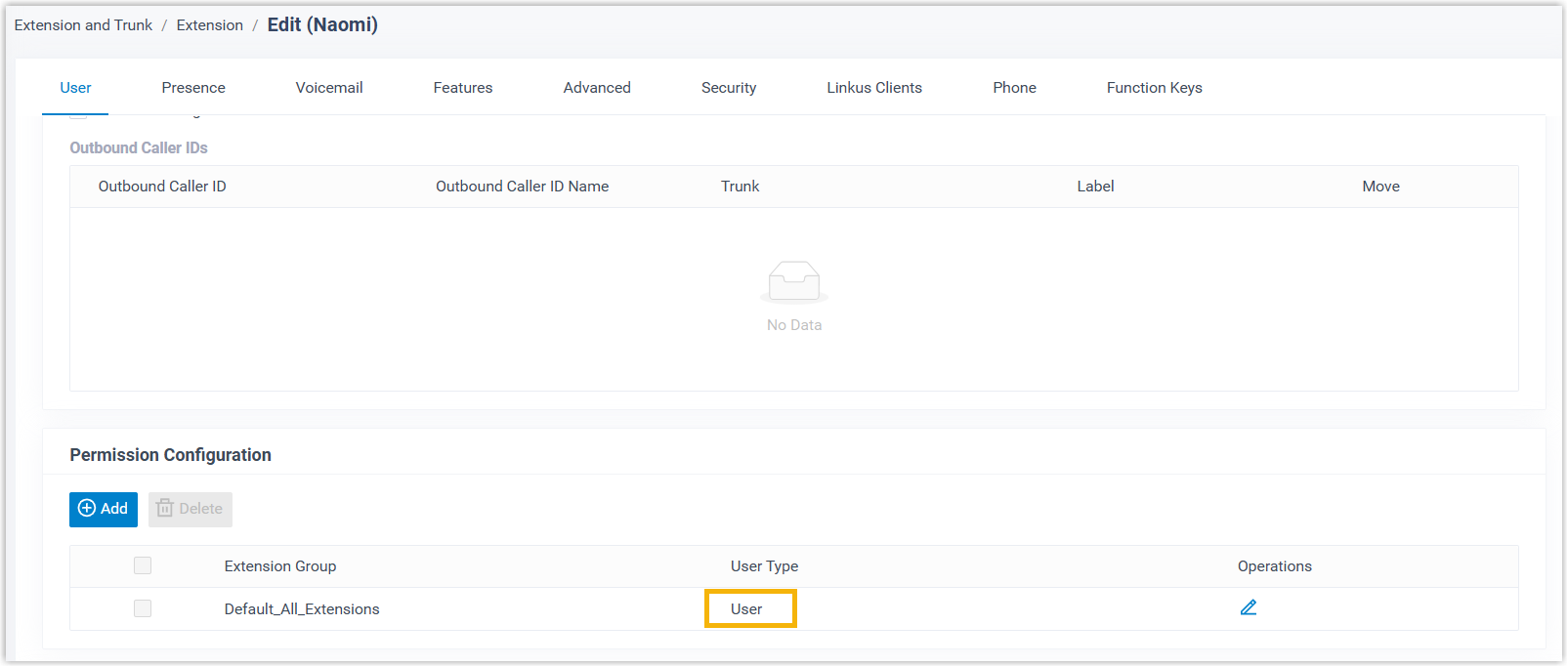
On the User tab, scroll to the Permission Configuration section. Every group the extension belongs to is listed here, and the User Type column shows the role the member holds in each one.
Change a member’s user type in one or more groups
Section titled “Change a member’s user type in one or more groups”-
In the PBX web portal, open Extension and Trunk > Extension, then click the edit icon (
) next to the extension. -
On the User tab, scroll to the Permission Configuration section and update the role for a group: a. Click the edit icon (
) next to the group you want to change.
b. Choose a role from the User Type drop-down list:- Manager or User grants the member the full set of permissions defined for that role.
- Custom lets you select individual permission checkboxes, so you can grant only the specific permissions this member needs.
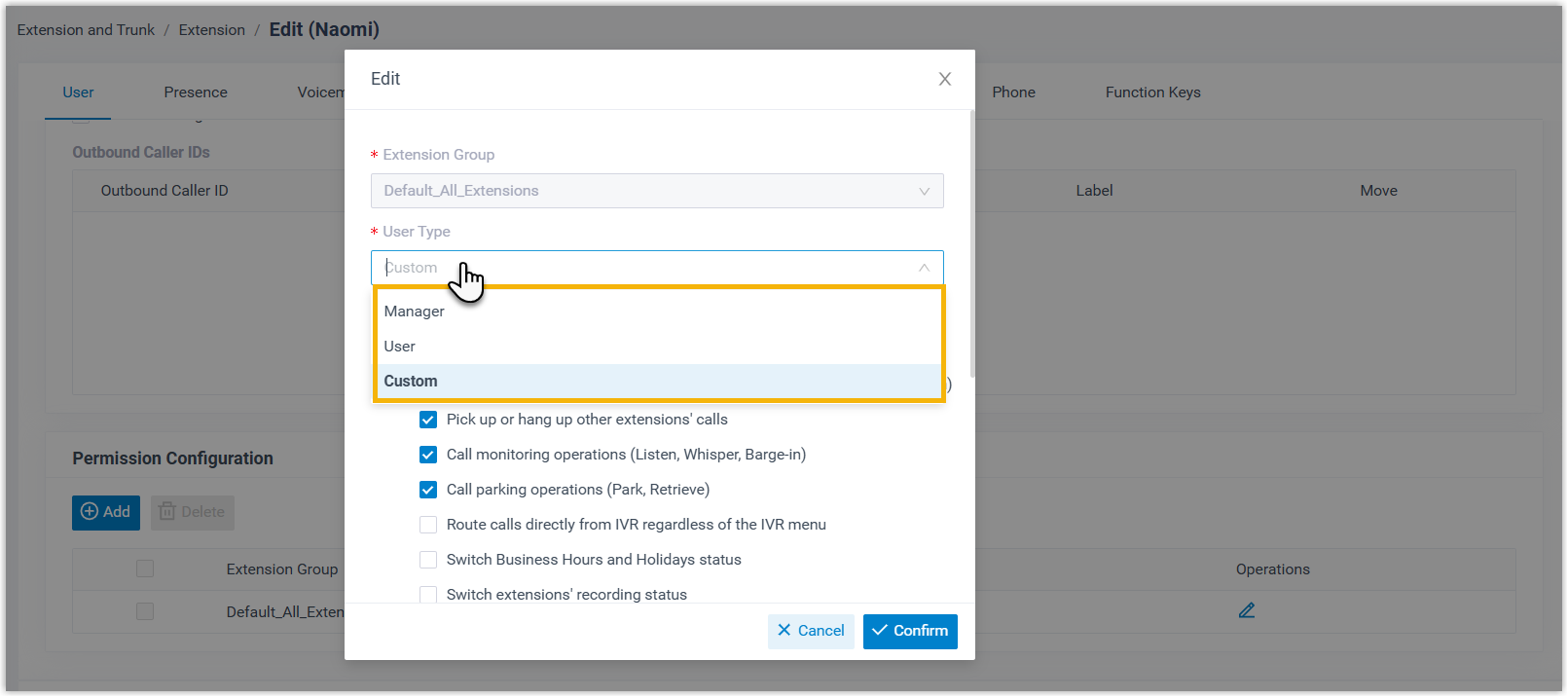 c. Click Confirm.
 -
Repeat step 2 for any other groups whose roles you want to adjust.
-
Click Save.
The member’s roles and permissions are updated in each group you changed.
Question about this page?
Ask the AI assistant. It starts from this page, then searches the rest of the docs.
Ask Cloud Voice AI
Answers are AI-generated from the docs and may contain mistakes. Verify with the linked pages.