
Manage Event Logs
Cloud Voice records every notable system event in its event logs, giving you a running history you can review whenever you need to trace what happened and when. This page explains how to find specific events, open a log for details, export logs, and clear unread markers.
Search for events
Section titled “Search for events”-
Sign in to the PBX (Private Branch Exchange, the phone system’s admin portal) web portal and open System > Event Notification > Event Logs.
-
Narrow the list using any combination of the search filters, then run the search.
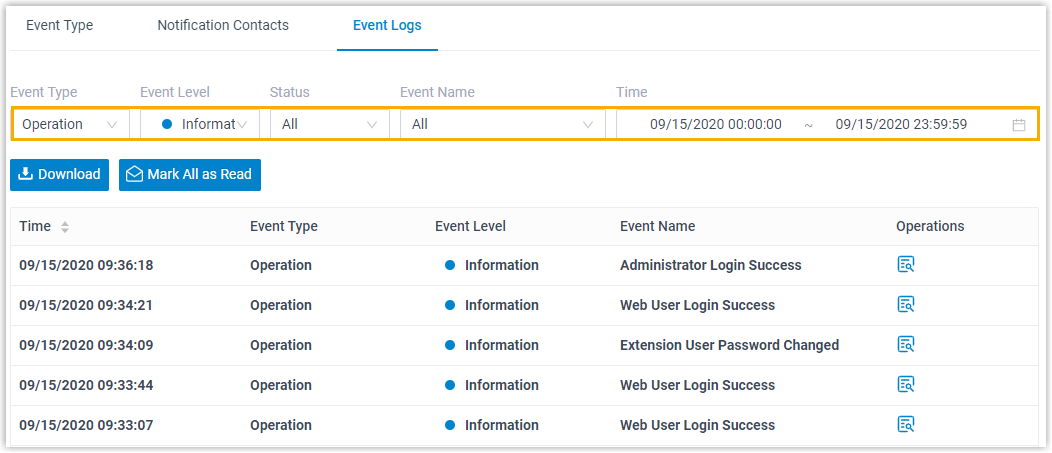
- Event Type: Show every event, or limit results to one category of event.
- Event Level: Show every event, or limit results to a single severity level.
- Status: Show every event, or filter by acknowledgement status (read or unread).
- Event Name: Show every event, or target one named event.
- Time: Choose a start date and end date to bound the results.
Events that match your filters appear in the list.
Work with the results
Section titled “Work with the results”Once the matching events are listed, you can act on them in a few ways.
- Open a single event. Click the view icon
 next to any entry to see its full details. Opening an event automatically marks it as read.
 - Export the results. Click Download to save every event currently returned by your search.
- Acknowledge everything at once. Click Mark All as Read to clear the unread status on all events in the current results.
Question about this page?
Ask the AI assistant. It starts from this page, then searches the rest of the docs.
Ask Cloud Voice AI
Answers are AI-generated from the docs and may contain mistakes. Verify with the linked pages.