
Pick up a Call for a Group Member
A function key lets a user keep an eye on the call activity of an extension group they belong to and answer a call that is ringing on another member’s device. Once assigned, the key works from both the Cloud Voice App and a provisioned IP phone. This page covers two approaches: a Speed Dial key that grabs the next ringing call from any group the user is in, and a BLF (Busy Lamp Field) key that watches one specific group and shows its calls in real time. A BLF key monitors and displays call status on the device; a Speed Dial key only dials the pickup code and does not show any status.
Before you start
Section titled “Before you start”To use a function key on a physical IP phone, the phone must already be connected to Cloud Voice and linked to the user’s extension through auto provisioning. If you have not done this yet, see:
Pick up a call from any group
Section titled “Pick up a call from any group”Use a Speed Dial key when the user simply needs to answer the next ringing call without caring which group it belongs to. Pressing the key dials the pickup feature code and answers the first ringing call across every group the extension is a member of.
Assign the function key
Section titled “Assign the function key”-
Sign in to the Cloud Voice management portal, go to Extension and Trunk > Extension, and open the extension you want to edit.
-
Select the Function Keys tab.
-
Configure a key with the following values:
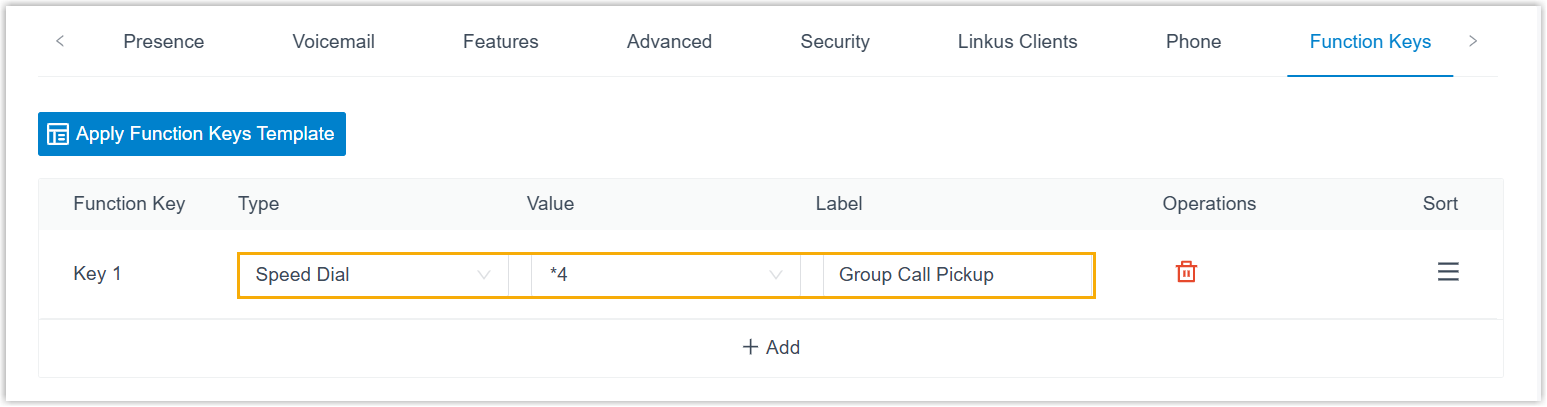
- Type: Select Speed Dial.
- Value: Enter the pickup feature code (the default is
*4). - Label: Optional. Text you enter here is shown as the key’s on-screen label.
-
Click Save.
Reprovision the phone
Section titled “Reprovision the phone”If the extension is tied to an IP phone, push the change to the phone so the new key takes effect:
- Go to Auto Provisioning > Phones.
- Click the refresh icon
 next to the phone assigned to this extension.
Result
Section titled “Result”- When any member of a group the extension belongs to has an incoming call, the user can press the key to answer it immediately.
- The member whose call was picked up sees a missed call entry in the Cloud Voice App or on their IP phone.
Pick up a call from a specific group
Section titled “Pick up a call from a specific group”Use a BLF key when the user needs to watch one particular group and see, at a glance, whether calls are ringing on its members. The key also lets the user choose which call to answer when several are ringing.
Requirements
Section titled “Requirements”- Cloud Voice is running firmware
84.23.0.83or later. - To use this on the Cloud Voice App for mobile, users must update to at least:
- Cloud Voice App for iOS: version
5.26.15or later - Cloud Voice App for Android: version
5.26.10or later
- Cloud Voice App for iOS: version
Assign the function key
Section titled “Assign the function key”-
Sign in to the Cloud Voice management portal, go to Extension and Trunk > Extension, and open the extension you want to edit.
-
Select the Function Keys tab.
-
Configure a key with the following values:
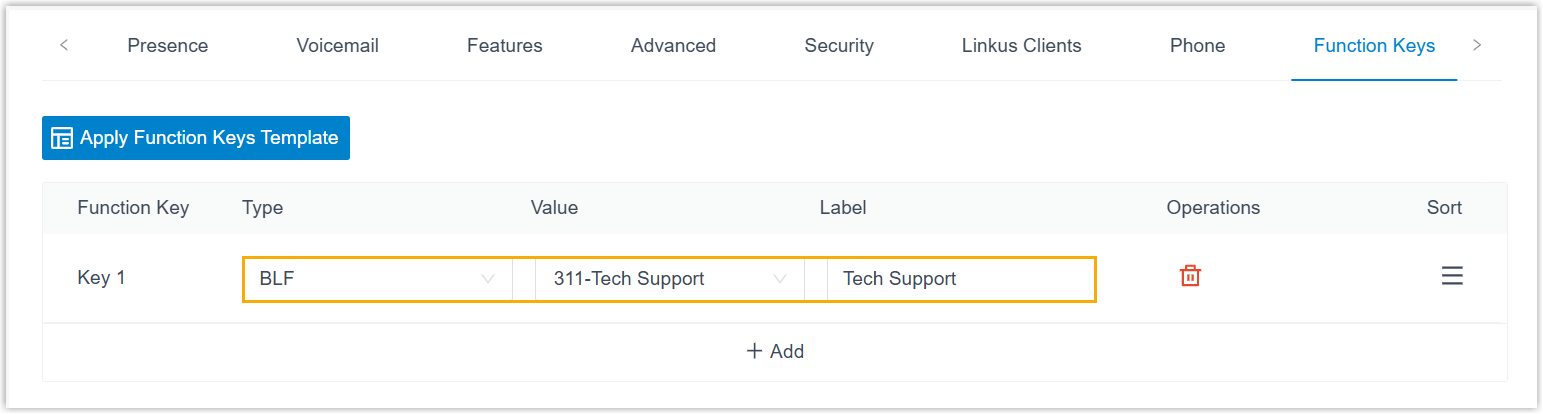
- Type: Select BLF.
- Value: Select the extension group you want to monitor (the extension must be a member of it).
- Label: Optional. Text you enter here is shown as the key’s on-screen label.
-
Click Save.
Reprovision the phone
Section titled “Reprovision the phone”If the extension is tied to an IP phone, push the change to the phone so the new key takes effect:
- Go to Auto Provisioning > Phones.
- Click the refresh icon next to the phone assigned to this extension.
Result
Section titled “Result”The BLF key reflects the group’s incoming call activity in real time. What the user sees depends on the device:
| Device | Indicator |
|---|---|
| Cloud Voice App |  No calls are ringing in the monitored group. No calls are ringing in the monitored group. |
 One call is ringing in the group. One call is ringing in the group. | |
 Two calls are ringing in the group. Two calls are ringing in the group. | |
 Three or more calls are ringing in the group. Three or more calls are ringing in the group. | |
 The monitored group no longer exists. The monitored group no longer exists. | |
| IP phone | Solid green: No calls are ringing in the group. |
| Flashing red: At least one call is ringing on a member of the group. |
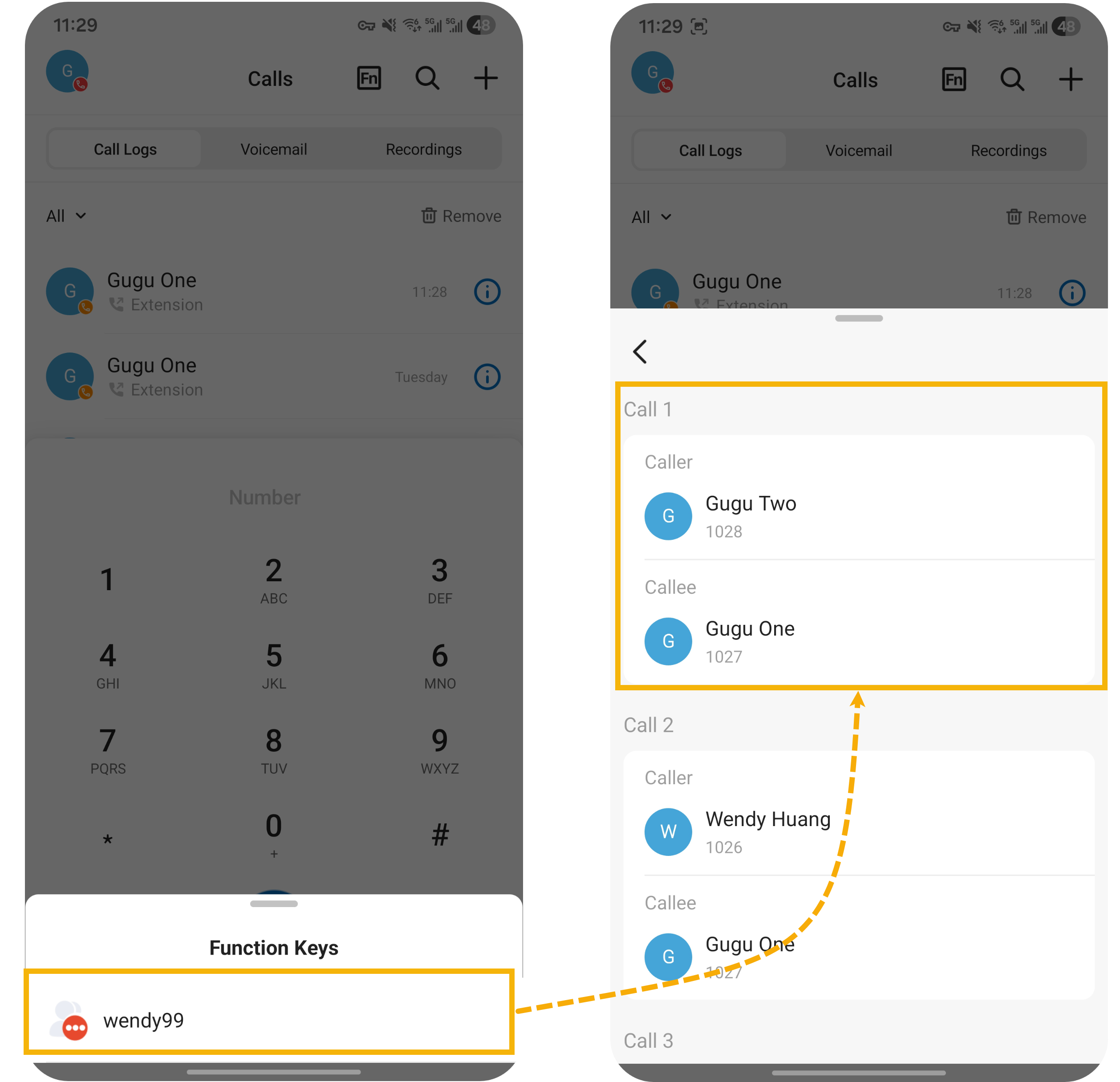
When more than one call is ringing, the key can list them so the user can choose which to answer.
Cloud Voice App (up to 10 calls at once):
-
To answer the first ringing call, click the key directly on the web or desktop app.
-
To choose a specific call, hover over the key (web and desktop) or tap it (mobile), then click or tap the call you want from the list.
Cloud Voice App (web and desktop) Cloud Voice App (mobile) 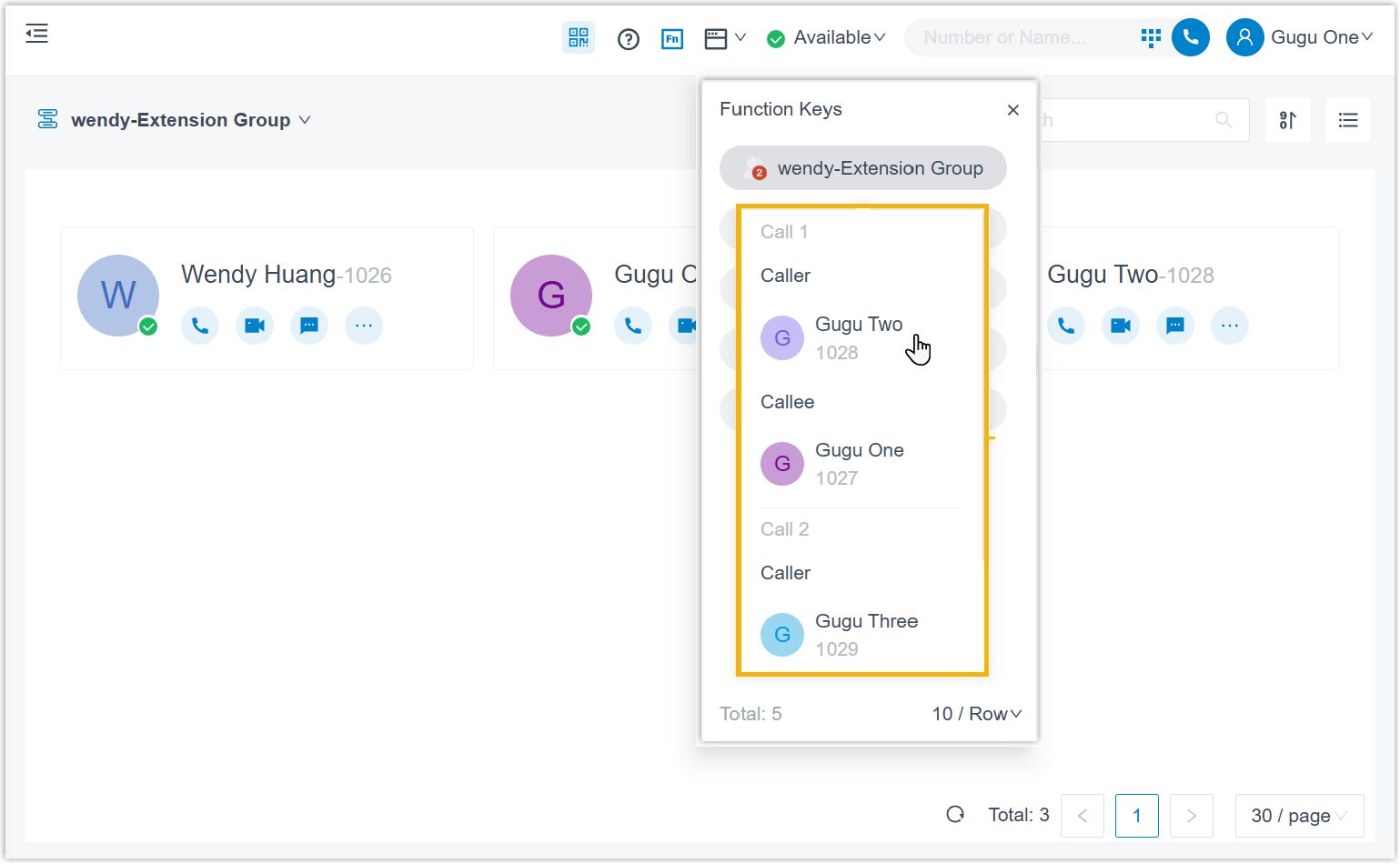
IP phone (up to 2 calls at once):
- To answer the first ringing call, press the BLF key directly.
- To choose a specific call, tap the one you want from the list on the phone screen.
After the call is picked up, the member whose call was answered sees a missed call entry in the Cloud Voice App or on their IP phone.
Question about this page?
Ask the AI assistant. It starts from this page, then searches the rest of the docs.
Ask Cloud Voice AI
Answers are AI-generated from the docs and may contain mistakes. Verify with the linked pages.