
Allow Users to Add Notes to Calls
The Call Note feature lets your users attach tags and written remarks to calls, so any important details or decisions from a conversation are recorded alongside it. Because the notes stay with the call, they are easy to look back on later or pass along to a colleague. This page walks you through enabling the feature and choosing the call scenarios in which notes are allowed.
Requirements
Section titled “Requirements”Your Cloud Voice system must be running firmware version 84.18.0.102 or later.
Enable call notes
Section titled “Enable call notes”-
Sign in to the PBX (Private Branch Exchange) web portal and open PBX Settings > Preferences.
-
Switch on Call Note.
-
Choose the call scenarios in which users may add notes.
Setting What it does Calls from Queue Queue agents can add tags and remarks during a queue call or in the wrap-up time (the pause after a call ends before the agent is offered the next one), and later review or edit those notes from the matching call log. Calls from Ring Group Ring group members can add tags and remarks during a ring group call, and later review or edit those notes from the matching call log. Calls to Voicemail Extension users can add tags and remarks to calls that were routed to their extension’s voicemail, from the matching call log. Calls to Extensions Extension users can add tags and remarks during calls they answer, and later review or edit those notes from the matching call log. Outbound Calls Extension users can add tags and remarks during outbound calls they place, and later review or edit those notes from the matching call log. -
Click Save.
Result
Section titled “Result”Call Note is now active. Within the scenarios you enabled, users can tag a call with a pre-defined disposition code and jot down remarks to capture key information, either while the call is in progress or once it has ended. Users add and manage these notes from the Cloud Voice App.
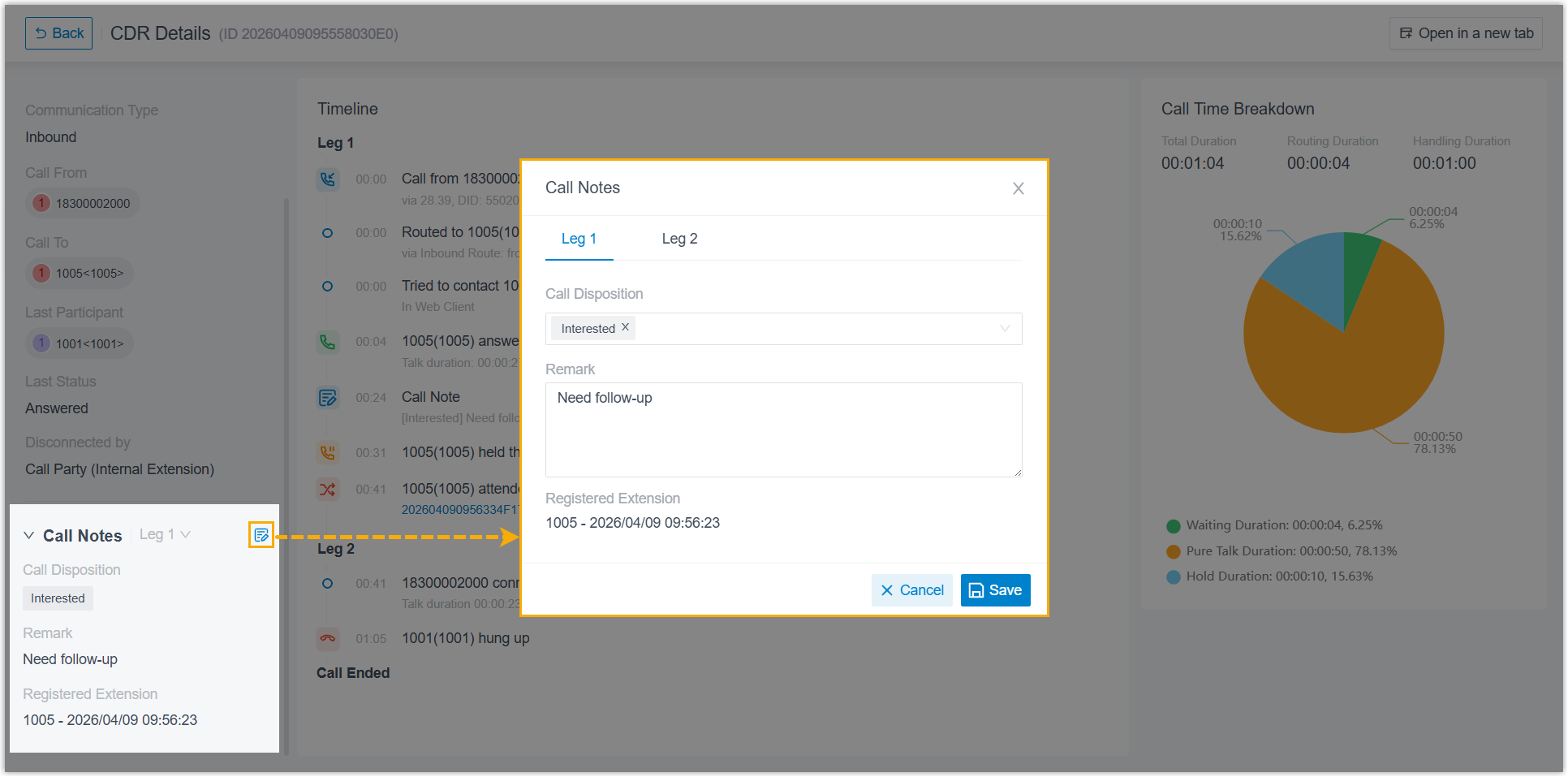
As an administrator, you can also review and, if needed, edit the notes for any call from the CDR details. Go to Reports and Recordings > CDR > CDR (Advanced), then click the details icon  for the call you want.
Question about this page?
Ask the AI assistant. It starts from this page, then searches the rest of the docs.
Ask Cloud Voice AI
Answers are AI-generated from the docs and may contain mistakes. Verify with the linked pages.