
Grant Hotel Management Permission
Cloud Voice ships with a dedicated Hotel Manager role that unlocks the hotel service configuration page (Hotel Management). Assigning this role to one or more extension users lets front-desk colleagues help run the hotel service, so you do not have to handle every hotel task from the main administrator account.
You can grant the permission to a single extension or to several extensions at the same time. Both methods are covered below.
Assign the role to one user
Section titled “Assign the role to one user”-
Sign in to the Cloud Voice admin portal and go to Extension and Trunk > Extension.
-
Find the extension you want to update and click the edit icon
 next to it.
 -
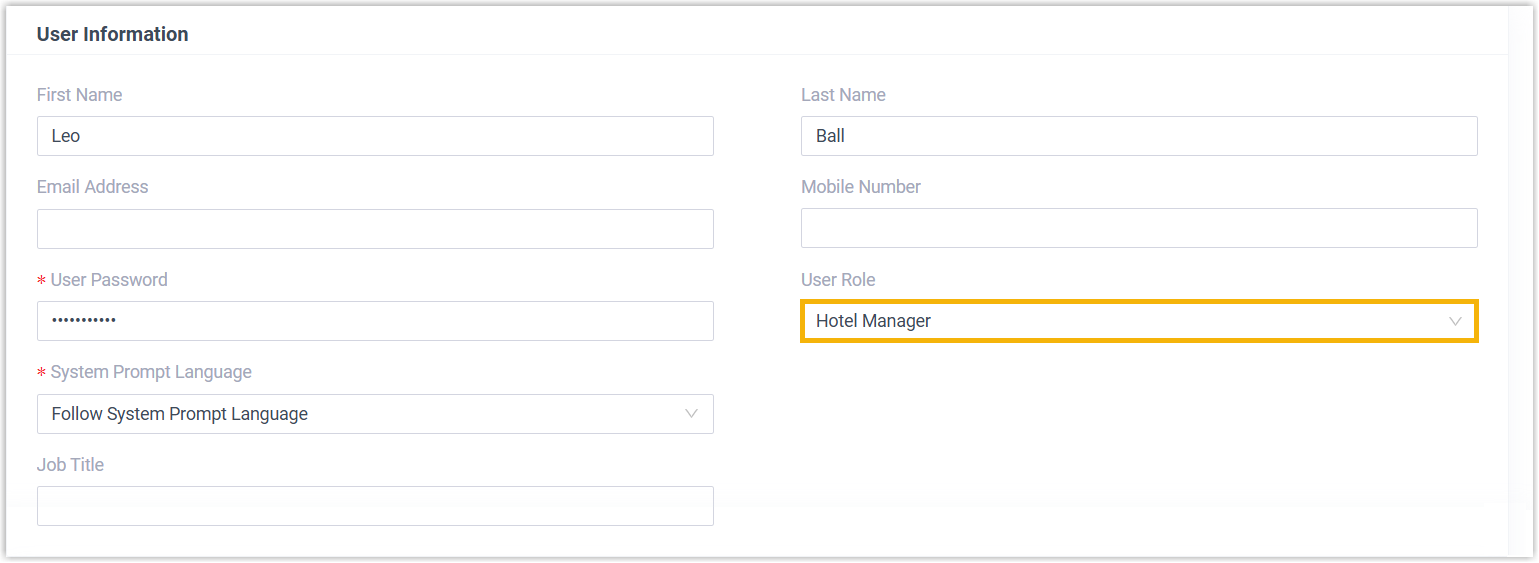
In the User Information section, open the User Role drop-down list and choose Hotel Manager. This is the step that actually grants the user access to the Hotel Management page.
-
Click Save, then Apply.
Assign the role to several users
Section titled “Assign the role to several users”-
Sign in to the Cloud Voice admin portal and go to Extension and Trunk > Extension.
-
Select the checkbox for each extension you want to update, then click Edit.
-
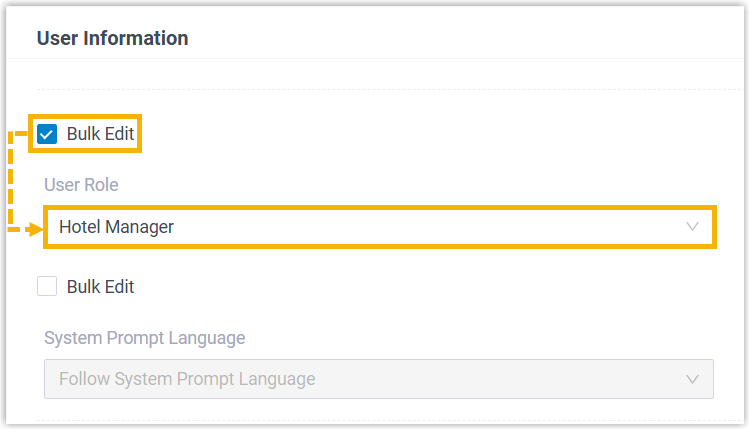
In the User Information section, tick Bulk Edit and choose Hotel Manager from the drop-down list.
-
Click Save, then Apply.
Question about this page?
Ask the AI assistant. It starts from this page, then searches the rest of the docs.
Ask Cloud Voice AI
Answers are AI-generated from the docs and may contain mistakes. Verify with the linked pages.