
Set Do Not Disturb (DND)
When a guest asks not to be disturbed, your front desk can put an occupied room’s phone into Do Not Disturb (DND) straight from the Room Panel. DND silences incoming calls to that room. Turning the setting back off restores incoming calls as soon as the guest is ready to take them. You set DND one room at a time, so it never affects any other room.
A room’s phone line in the system is called its extension, and each extension has a presence status that shows whether it is available for calls. Setting DND changes both the room phone’s behavior and that presence status.
Toggle DND for a room
Section titled “Toggle DND for a room”-
Sign in to the Cloud Voice App (Desktop or Web) and go to Hotel Management > Room Panel. The Room Panel is the front-desk view where each room appears as its own tile.
-
On the tile of a checked-in room, click the DND icon
 in the top-right corner. A short menu opens where you choose to enable DND (silence the room) or disable it (let calls through) for that room’s phone.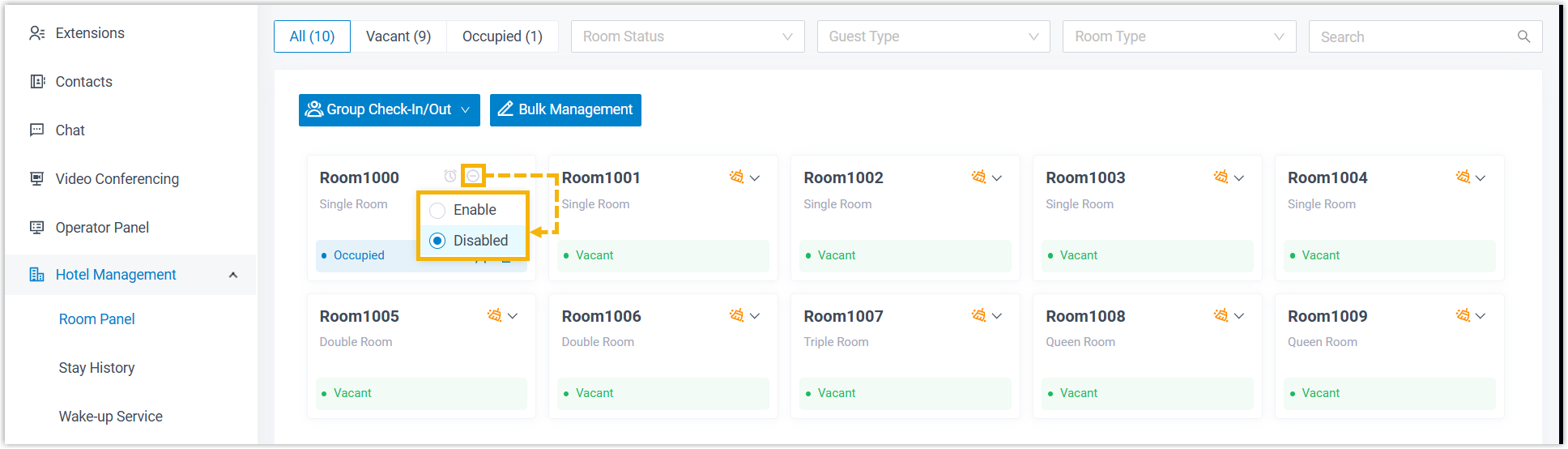
What happens next
Section titled “What happens next”The change applies immediately to the room phone, and the presence of its extension updates to match:
- DND on sets the extension’s presence to Do Not Disturb, and the room phone stops accepting incoming calls.
- DND off returns the presence to Available, and the room phone can receive calls again.
Question about this page?
Ask the AI assistant. It starts from this page, then searches the rest of the docs.
Ask Cloud Voice AI
Answers are AI-generated from the docs and may contain mistakes. Verify with the linked pages.