
Update Scheduled Wake-up Calls
When a guest asks to reschedule a wake-up call they have already booked, your front desk makes the change from the Cloud Voice App (Desktop or Web). You can edit calls for a single room or for several guests in one pass.
Update wake-up calls from the Wake-up Service panel
Section titled “Update wake-up calls from the Wake-up Service panel”The dedicated Wake-up Service panel is the place to go when you want to edit scheduled calls for one guest or for several at the same time.
-
Sign in to the Cloud Voice App (Desktop or Web) and go to Hotel Management > Wake-up Service > Wake-Up Task.
-
Filter the list down to the room or rooms belonging to the guest you want. Filtering keeps the task list short so you do not edit the wrong room.
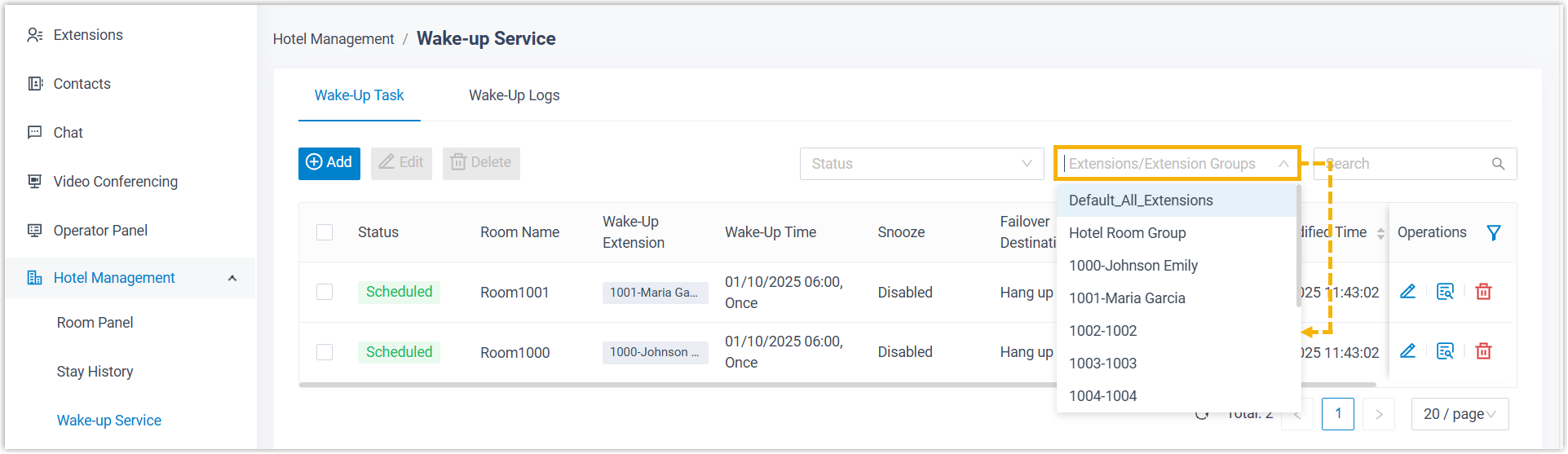
-
Tick the checkbox for each task you want to change, then click Edit and adjust the settings as needed.
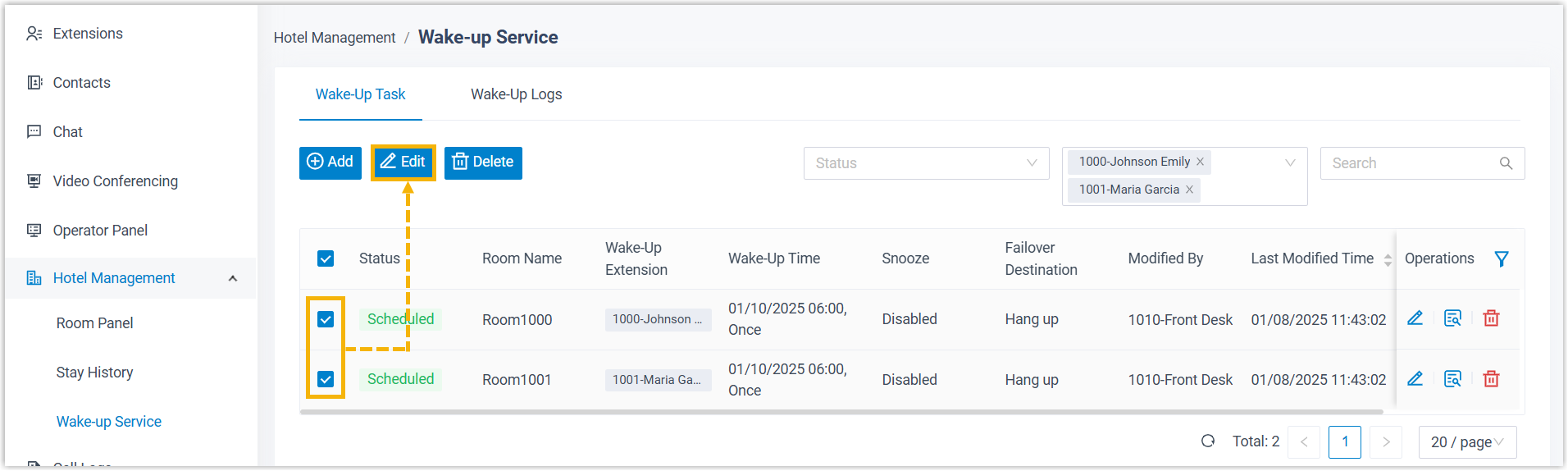
-
Click Save.
Update wake-up calls from the Room Panel
Section titled “Update wake-up calls from the Room Panel”When the change affects just one guest, the Room Panel is the faster route.
-
Sign in to the Cloud Voice App (Desktop or Web) and go to Hotel Management > Room Panel.
-
In the top-right corner of the room’s tile, click the wake-up icon
 . This icon appears on a room’s tile once a wake-up call is scheduled for it.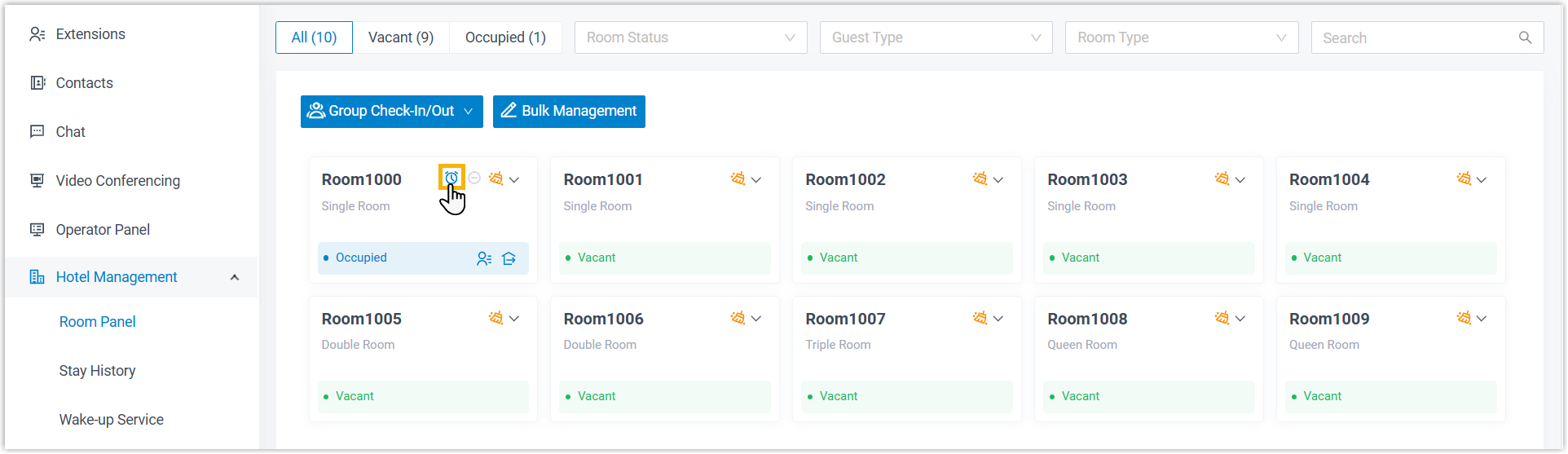
-
In the panel that opens on the right, click the edit icon
 and change the wake-up task as needed.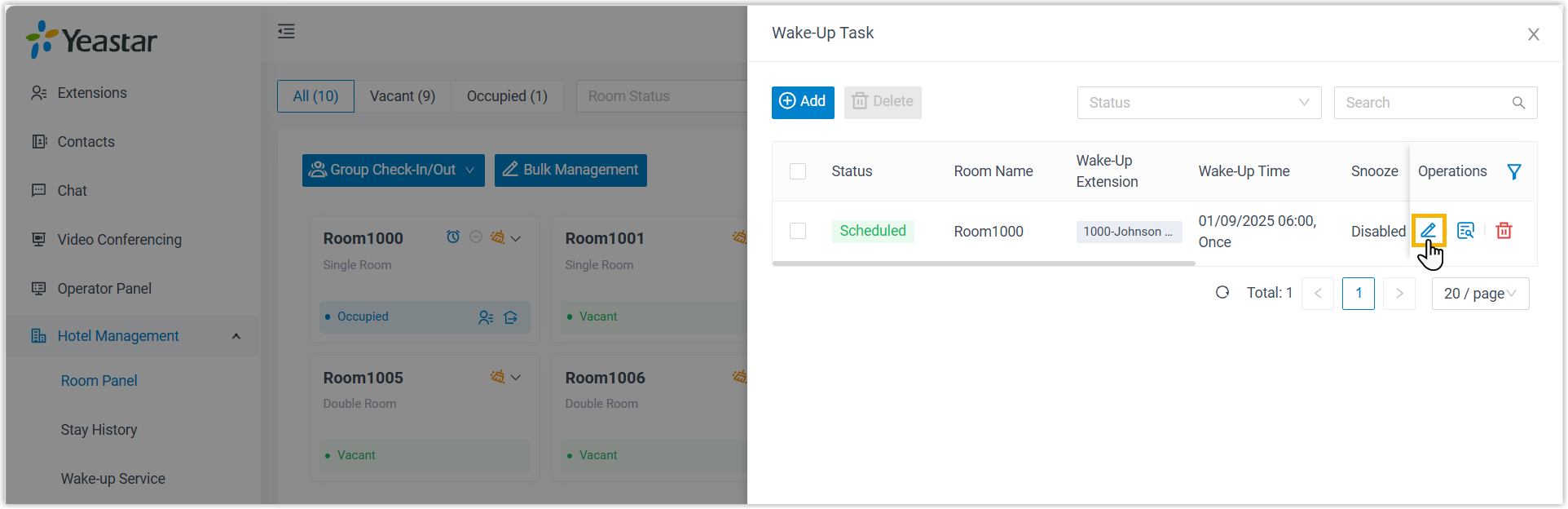
-
Click Save.
Question about this page?
Ask the AI assistant. It starts from this page, then searches the rest of the docs.
Ask Cloud Voice AI
Answers are AI-generated from the docs and may contain mistakes. Verify with the linked pages.