
Schedule Call Reports to Track Call Activity
Call reports give you a detailed picture of the calls made to and from guest rooms, which is useful for tracking usage and reconciling charges. Rather than opening the portal to pull each report by hand, you can set a report to run on a repeating schedule and be emailed to whoever needs it. This page covers the reports available for hotel call activity and how to schedule one for delivery.
Reports you can schedule
Section titled “Reports you can schedule”Several reports focus on hotel call activity. A couple of telephony terms show up in them: PBX (Private Branch Exchange) is the phone system itself, and a trunk is the line that connects that system to the outside telephone network, so charges “over specific trunks” are the cost of calls that left the building over a given carrier line. The table below summarizes what each report tells you.
| Report | What it shows |
|---|---|
| Extension Call Statistics | A summary of how many calls room extensions have placed and answered. |
| Extension Call Activity | An hourly, daily, and monthly breakdown of calls placed and answered on room extensions. |
| PBX Call Activity | An hourly, daily, and monthly breakdown of total external calls on specific trunks alongside internal calls. |
| Extension Call Accounting | A summary of the charges for outbound calls placed from room extensions over specific trunks. |
| Extension Call Accounting Details | A per-call breakdown of the charges for each outbound call placed from room extensions over specific trunks. |
You can work with these reports two ways: open them directly in the management portal whenever you need them, or schedule them for automatic delivery by email. The steps below cover scheduling.
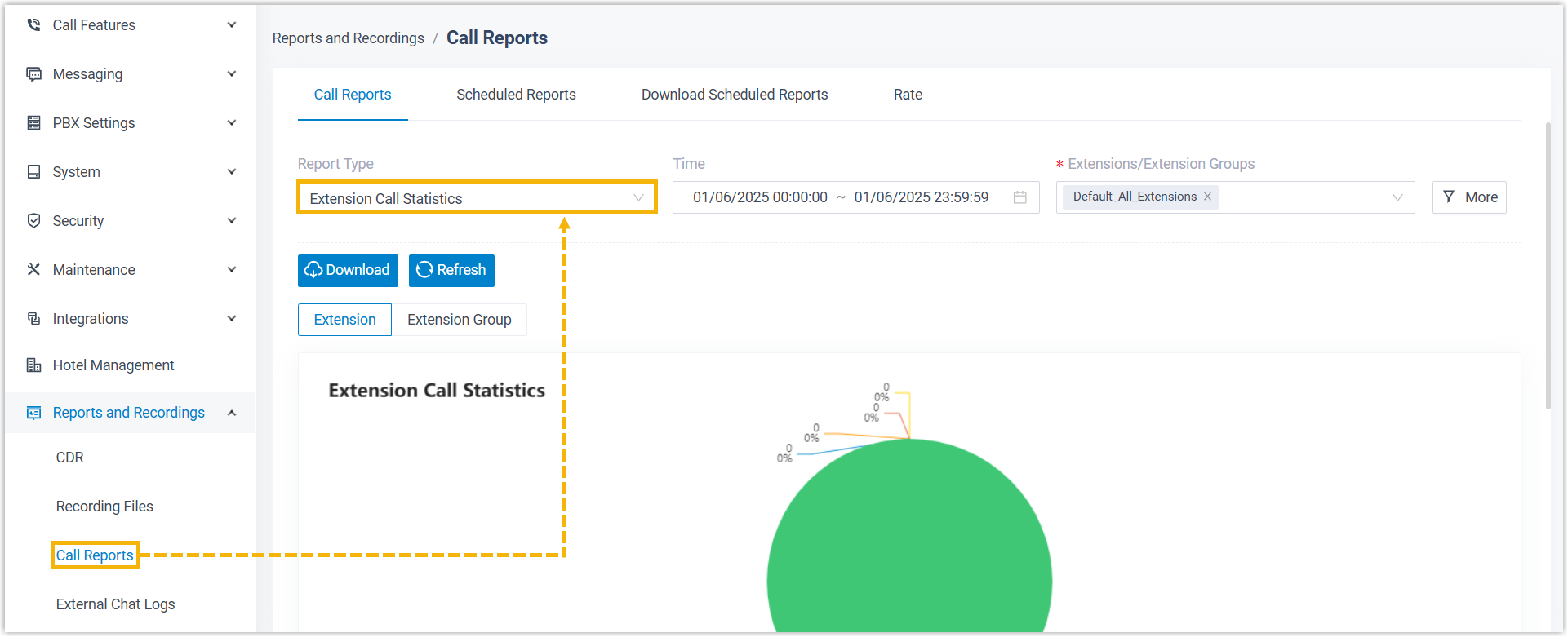
Schedule a report
Section titled “Schedule a report”-
Sign in to the Cloud Voice management portal and go to Reports and Recordings > Call Reports > Scheduled Reports.
-
Click Add Report.
-
Fill in the settings for the schedule.
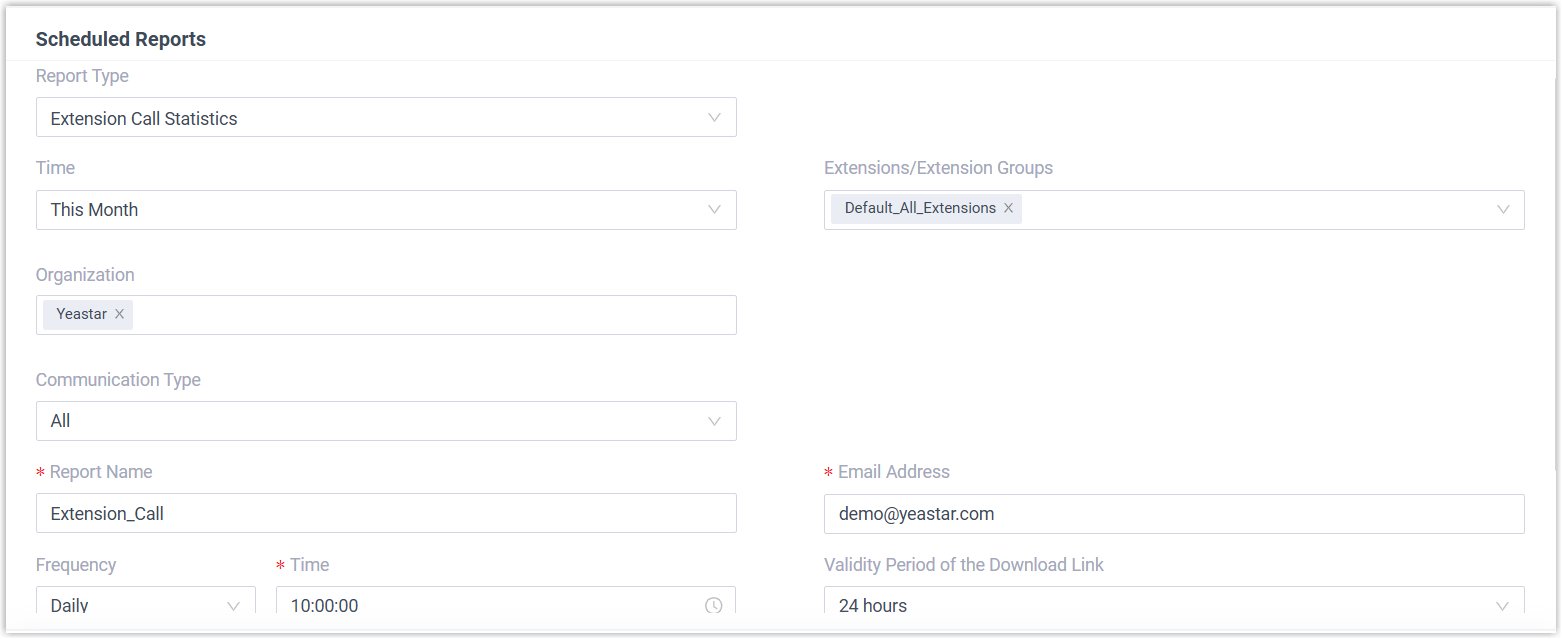
Setting Description Report Type Choose which call report to run. Time Choose the time frame the report should cover. Extensions/Extension Groups Choose one or more extensions or groups to include in the report. Report Name Give the report a name you will recognize. Email Address Enter the address (or addresses) that should receive the report. Frequency Set how often the report is sent. Validity Period of the Download Link Set how long the report’s download link stays active. Once it expires, recipients can no longer download the report from the link. File Format Choose the download format: CSV, XLS, or PDF. Send Attachment Turn on to also include the report as a file attachment on the email. -
Click Save.
Result
Section titled “Result”At each scheduled time, the system generates the report and emails it to the recipients you specified.
Question about this page?
Ask the AI assistant. It starts from this page, then searches the rest of the docs.
Ask Cloud Voice AI
Answers are AI-generated from the docs and may contain mistakes. Verify with the linked pages.