
View and Manage Guest Stay History
Stay History gives the front desk a running record of every guest visit. From this view you can look up past stays, export the records for reporting, and clear out entries you no longer need.
View stay history
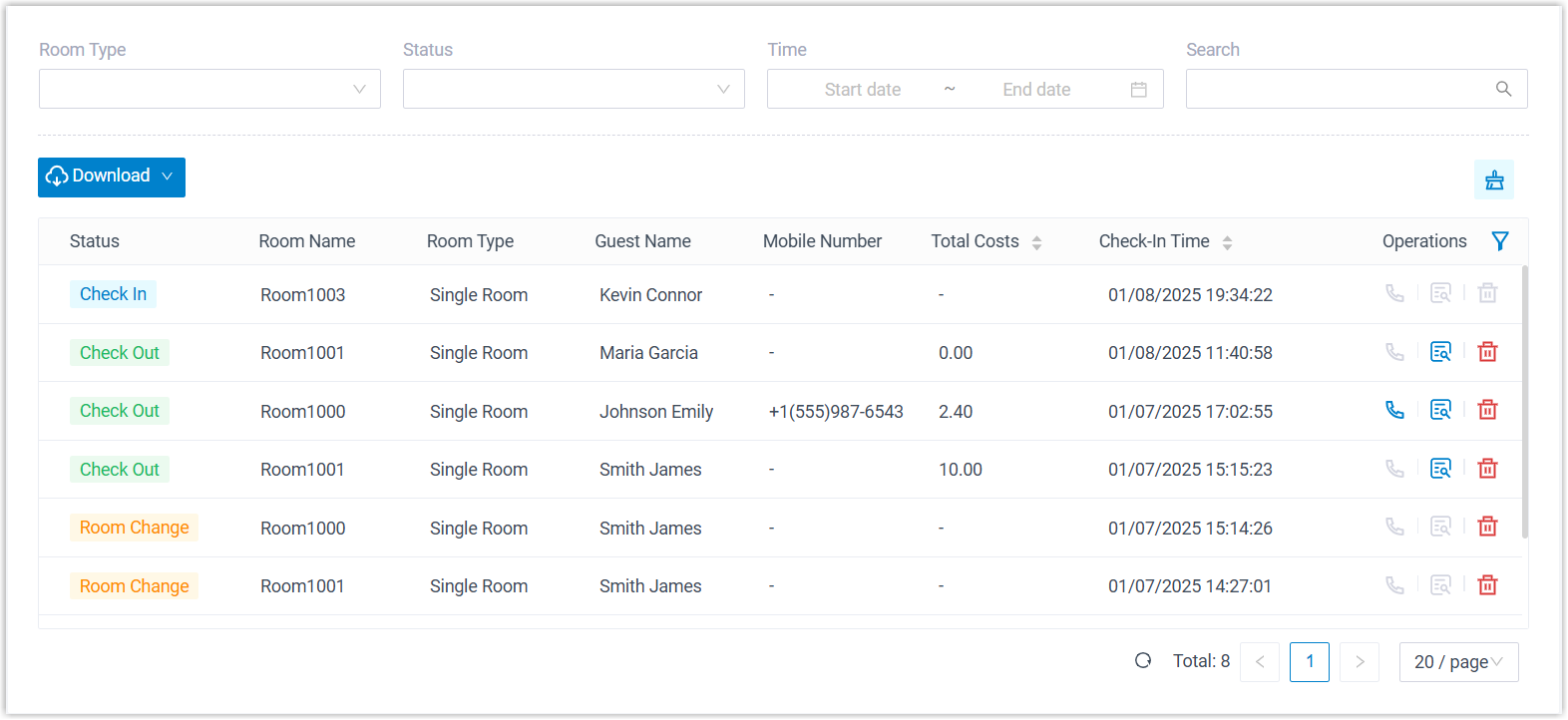
Section titled “View stay history”- Sign in to the Cloud Voice App (Web or Desktop) and open Hotel Management > Stay History.
The list shows every guest stay the system has on file.
Download stay history
Section titled “Download stay history”You can export the entire log at once or narrow it to a specific set of stays before exporting. Either option saves the records as a .csv file (comma-separated values, which opens in any spreadsheet app such as Excel or Google Sheets) on your computer.
Export every stay record
Section titled “Export every stay record”-
Sign in to the Cloud Voice App (Web or Desktop) and open Hotel Management > Stay History.
-
Click Download, then choose Download All Data.
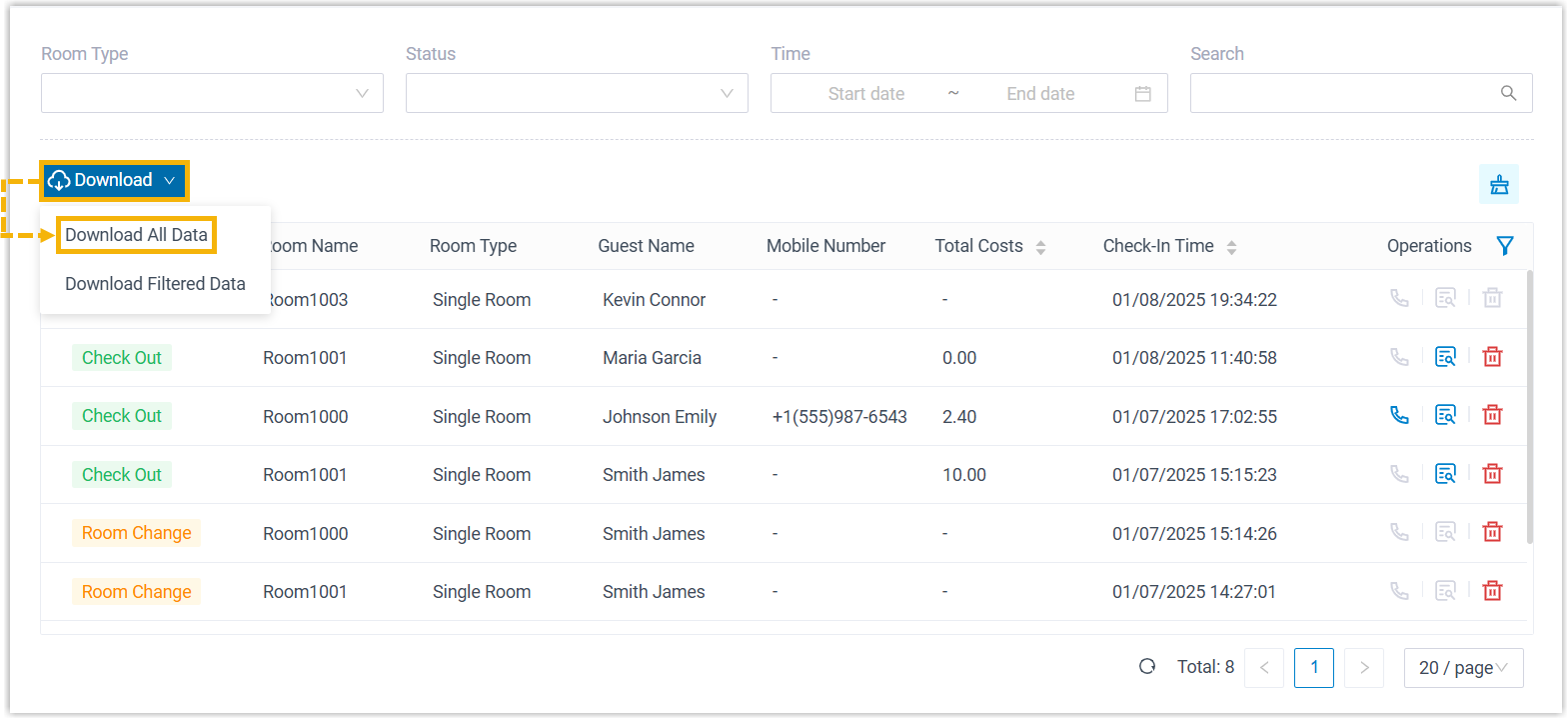
The complete stay history is saved to your computer as a .csv file.
Export selected stay records
Section titled “Export selected stay records”-
Sign in to the Cloud Voice App (Web or Desktop) and open Hotel Management > Stay History.
-
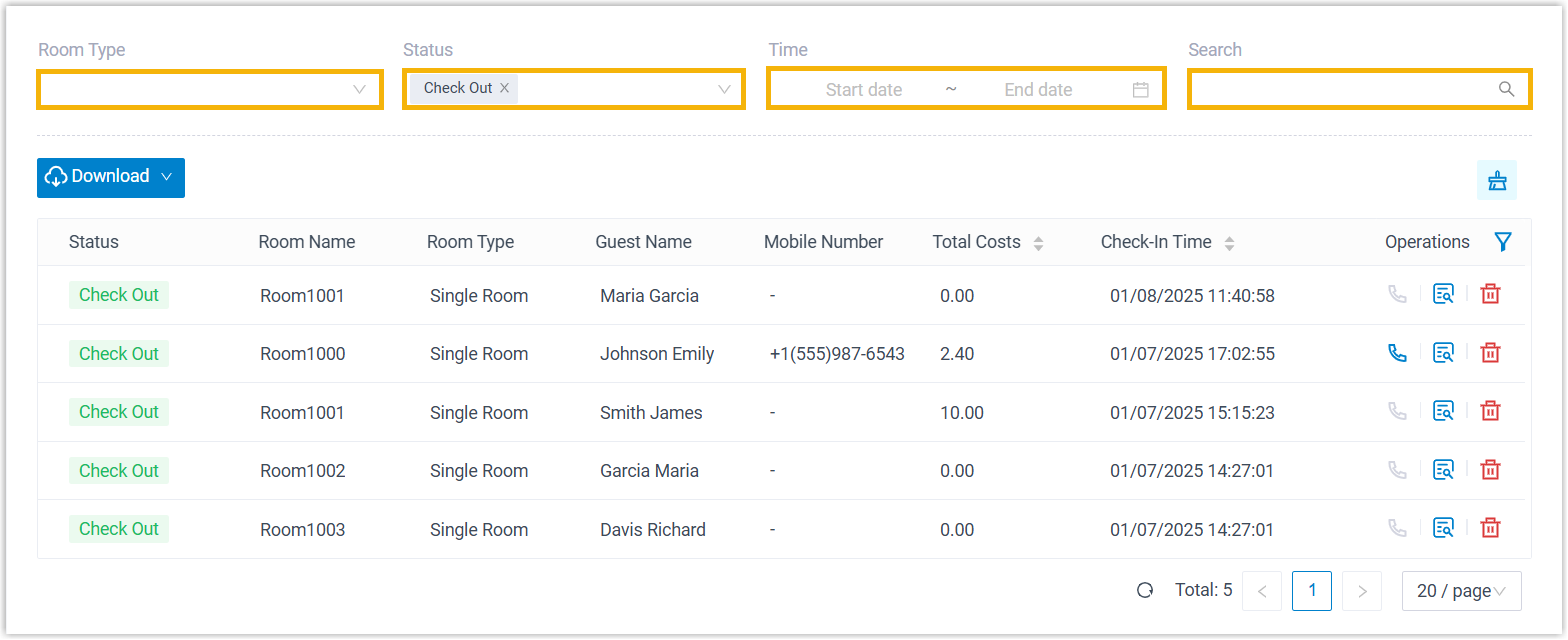
Apply filters until only the stays you want to export remain in the list.
-
Click Download, then choose Download Filtered Data.
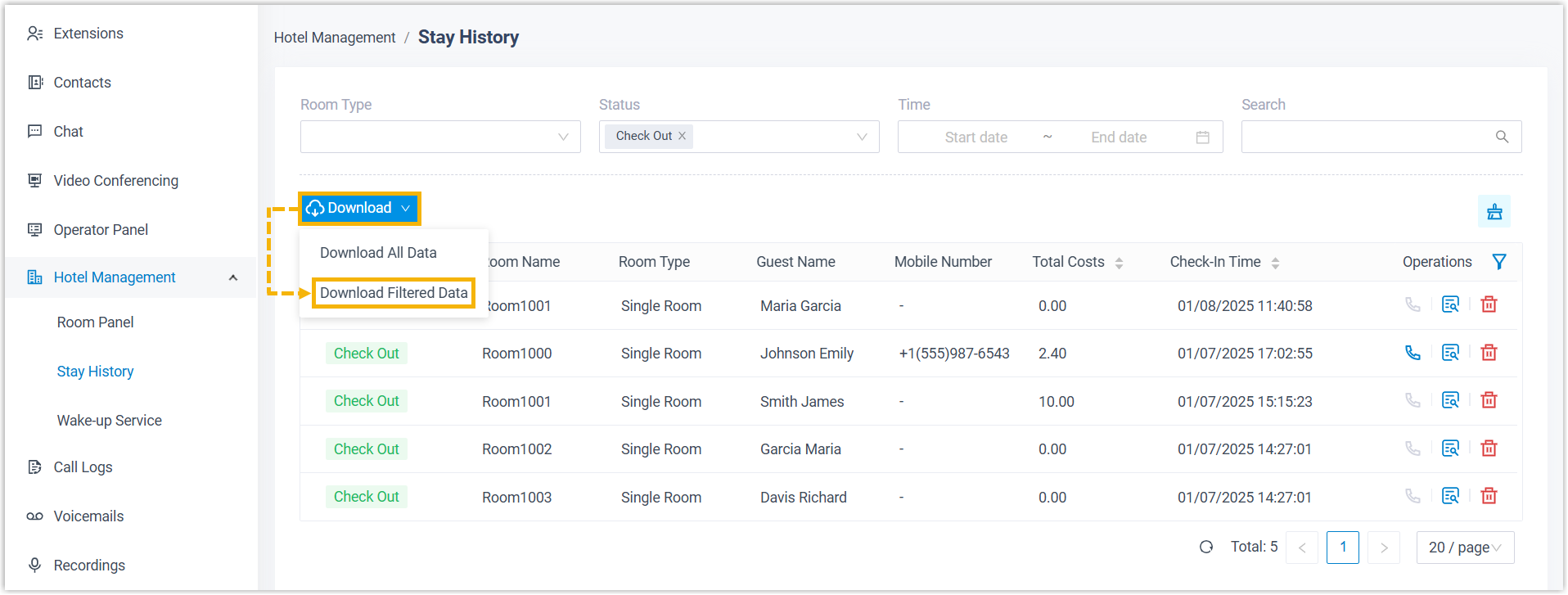
The filtered stay records are saved to your computer as a .csv file.
Delete stay history
Section titled “Delete stay history”- Sign in to the Cloud Voice App (Web or Desktop) and open Hotel Management > Stay History.
- Remove records in one of two ways:
-
To remove individual records, click the delete icon
 on the row, then confirm with OK.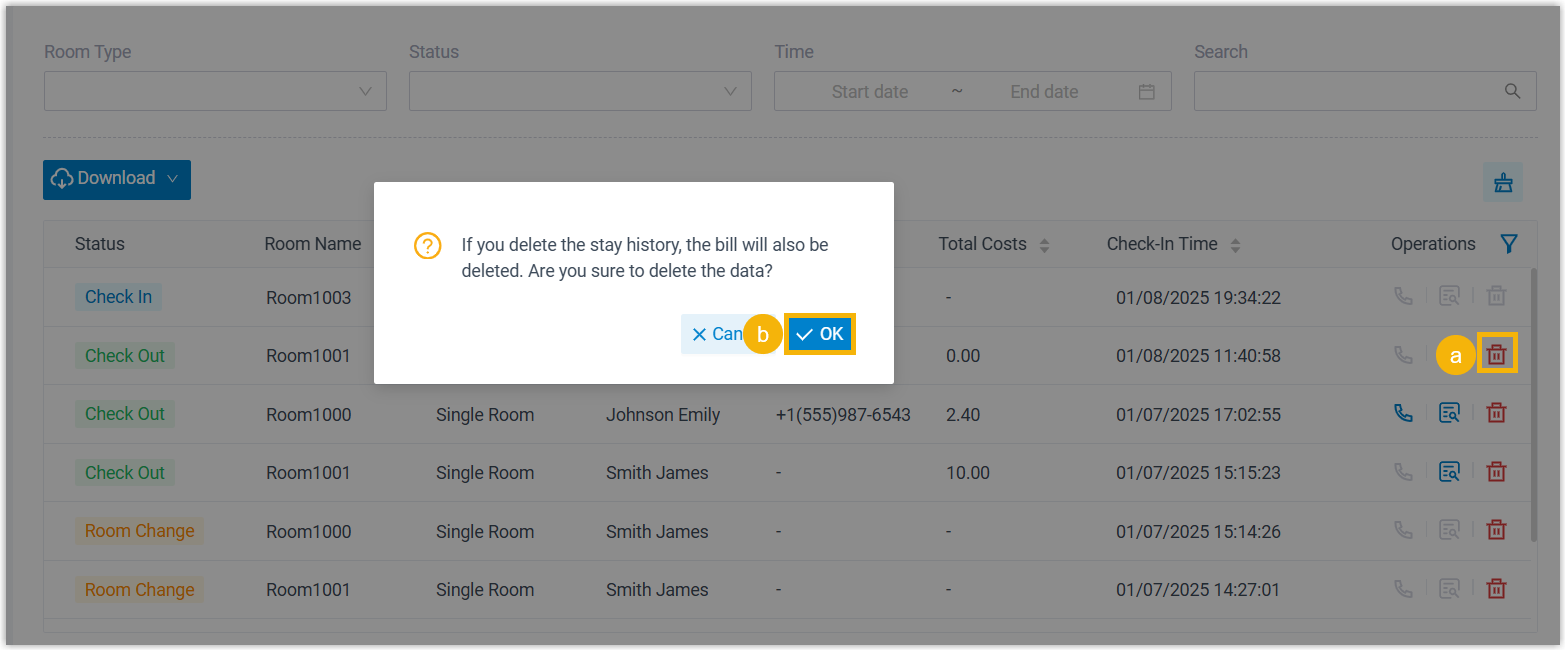
-
To remove every record at once, click the clear icon
 , then confirm with OK.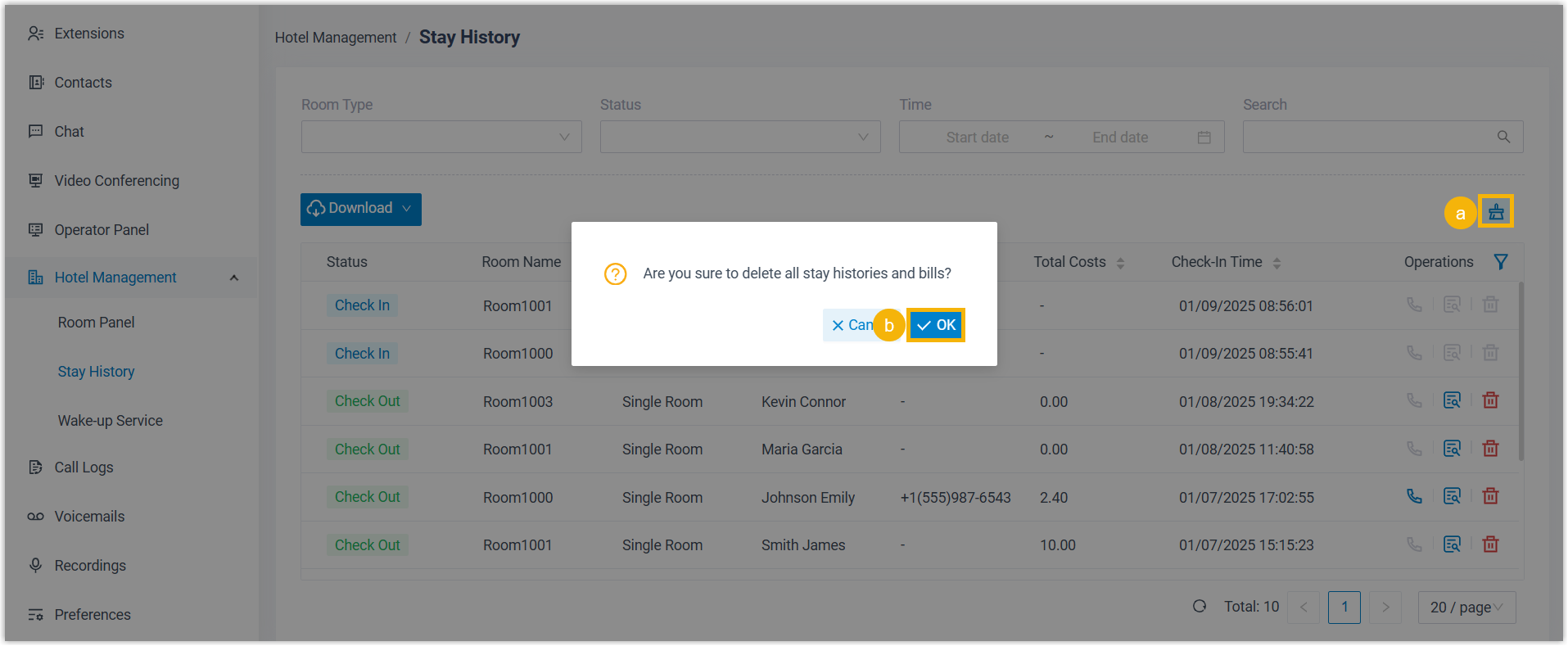
-
Question about this page?
Ask the AI assistant. It starts from this page, then searches the rest of the docs.
Ask Cloud Voice AI
Answers are AI-generated from the docs and may contain mistakes. Verify with the linked pages.