
Delete Scheduled Wake-up Calls
When a guest no longer needs a wake-up call, the reservation can be cleared in a few ways. Your front desk can remove scheduled calls from the Cloud Voice App (Desktop or Web), and guests can also cancel their own wake-up calls straight from the in-room phone without calling the front desk.
Delete wake-up calls from the Wake-up Service panel
Section titled “Delete wake-up calls from the Wake-up Service panel”Use the dedicated Wake-up Service panel when you want to clear scheduled calls for one or several guests at the same time.
-
Sign in to the Cloud Voice App (Desktop or Web) and go to Hotel Management > Wake-up Service > Wake-Up Task.
-
Filter the list down to the room or rooms belonging to the guest you want.
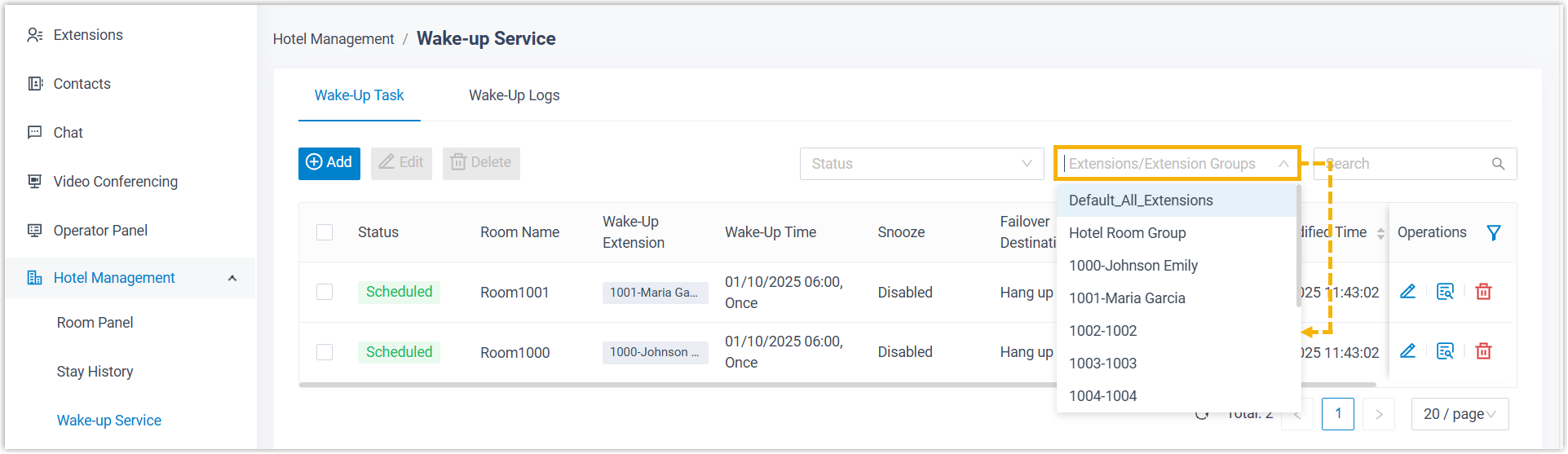
-
Tick the checkbox for each task you want to remove, click Delete, then confirm with OK.
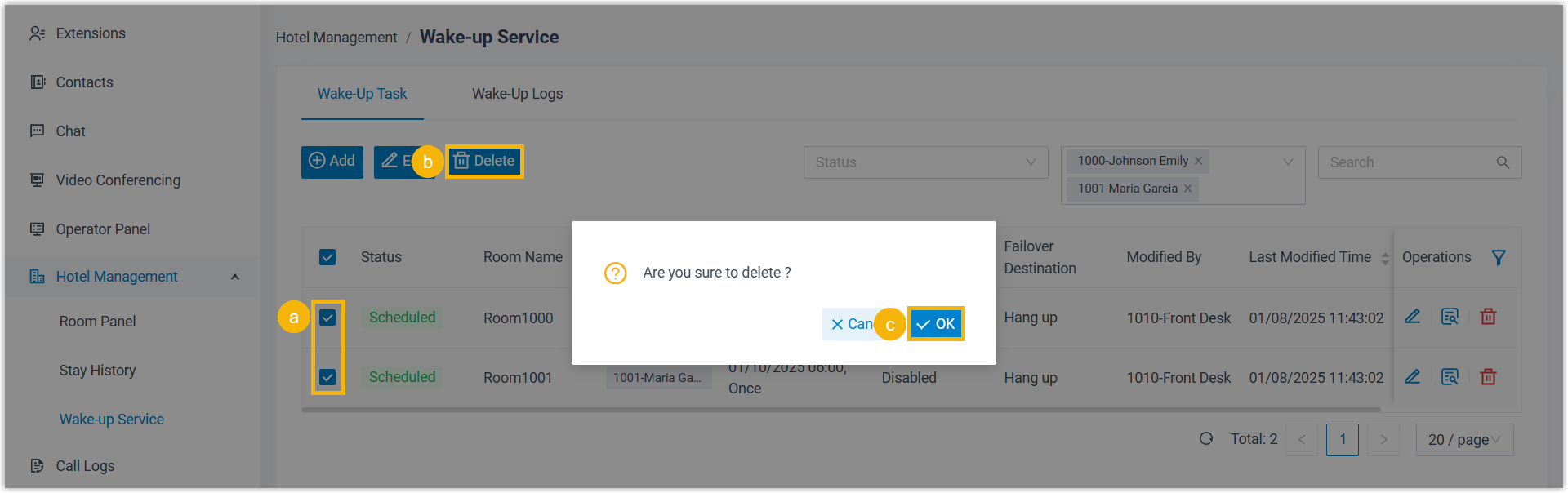
Delete wake-up calls from the Room Panel
Section titled “Delete wake-up calls from the Room Panel”The Room Panel is the quickest route when you only need to adjust a single guest’s room.
-
Sign in to the Cloud Voice App (Desktop or Web) and go to Hotel Management > Room Panel.
-
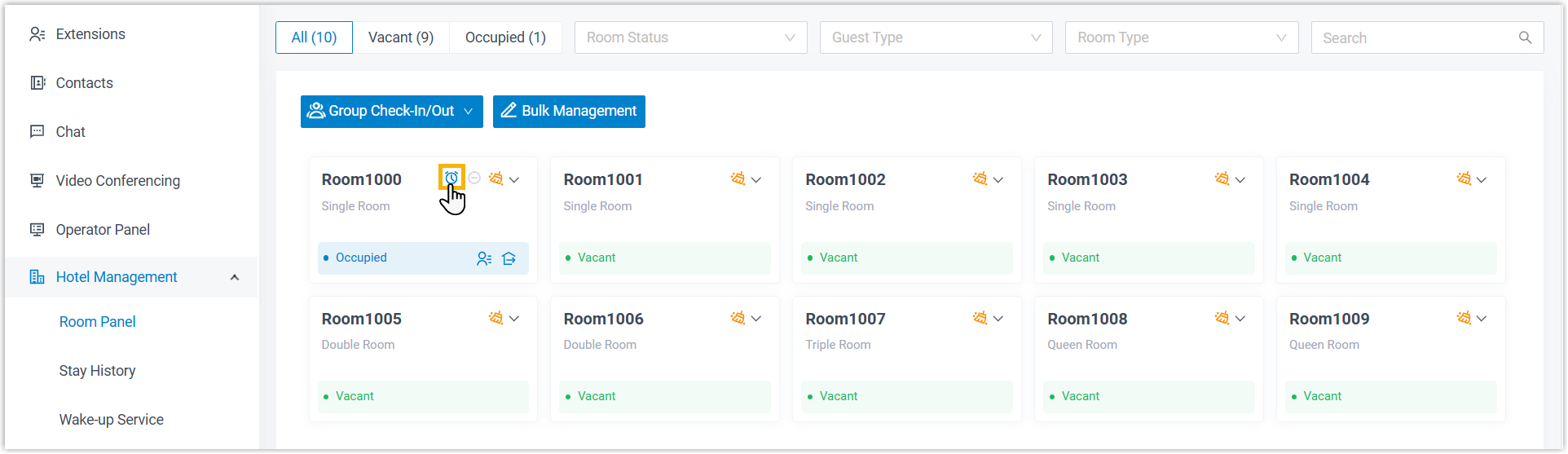
In the top-right corner of the room’s tile, click the wake-up icon
 .
.
-
In the panel that opens on the right, tick the checkbox for each task you want to remove, click Delete, then confirm with OK.
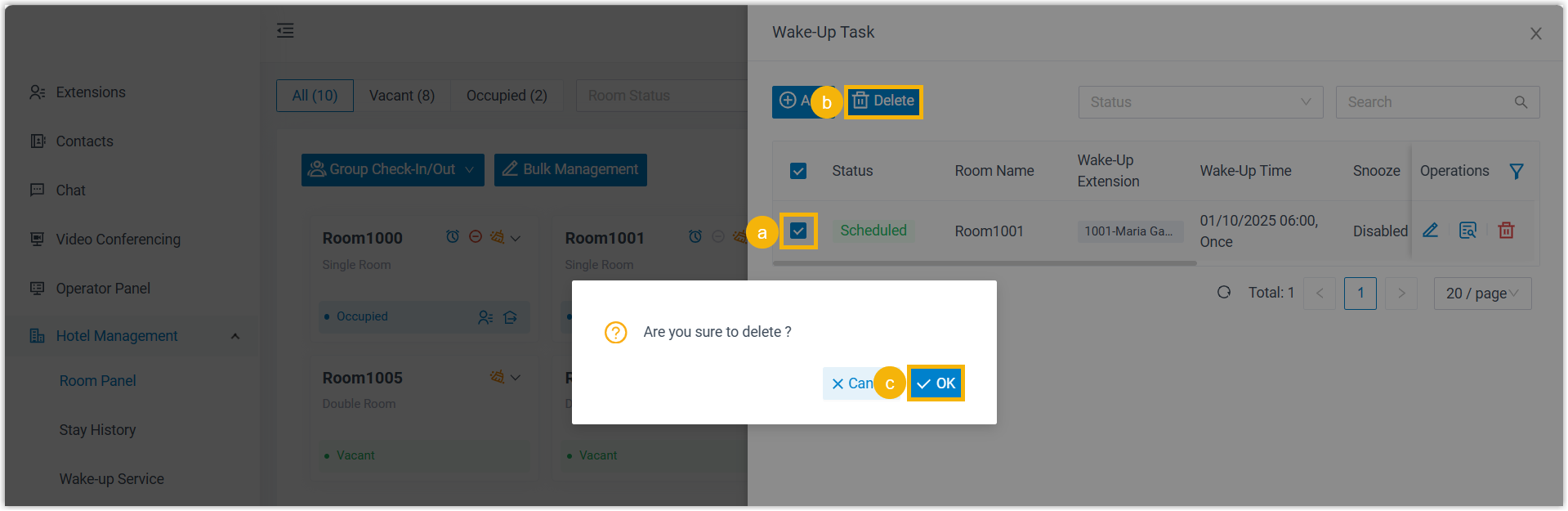
Let guests delete wake-up calls from the room phone
Section titled “Let guests delete wake-up calls from the room phone”Guests can cancel their own wake-up calls by dialing the wake-up number and following the spoken menu. This takes load off the front desk. To make it available, ask your hotel manager for the wake-up number, then share it with guests along with the steps below.
Dialing the wake-up number connects the guest to an IVR (Interactive Voice Response, an automated menu the guest navigates by pressing keypad digits). Those key presses are sent as DTMF (dual-tone multi-frequency, the tones a phone makes when you press a key), so the guest just listens and presses the number the recording asks for.
After dialing the wake-up number, the guest hears the main menu:
“Please choose your operation. Press 1 to add wake-up calls. Press 2 to query wake-up calls. Press 3 to delete wake-up calls. Press 0 to delete all wake-up calls. Press # to exit.”
Delete one or more wake-up calls
Section titled “Delete one or more wake-up calls”-
Dial the wake-up number from the room phone to reach the main menu.
-
Press
3. The system lists the scheduled calls and prompts:“You have {number} wake-up calls. First {wakeup_time}… Please enter the number of the wakeup call you want to delete. Or, Press 0 to delete all wakeup calls. Press * to cancel.”
-
Enter the number of the wake-up call to remove. The system confirms with “Operate Successfully.”
-
Hang up, or repeat steps 2 and 3 to delete another wake-up call.
Delete all wake-up calls
Section titled “Delete all wake-up calls”-
Dial the wake-up number from the room phone to reach the main menu.
-
Press
0. The system prompts:“Press 1 to delete all wake-up calls. Or, Press * to cancel.”
-
Press
1to confirm. The system responds with “Operate Successfully.” -
Hang up.
Question about this page?
Ask the AI assistant. It starts from this page, then searches the rest of the docs.
Ask Cloud Voice AI
Answers are AI-generated from the docs and may contain mistakes. Verify with the linked pages.