
Move Rooms
When a guest asks to switch rooms, front-desk staff can reassign the stay in a few steps from the Room Panel, keeping the guest’s charges intact.
Restrictions
Section titled “Restrictions”A single guest can be moved across at most 10 rooms.
Move a guest to a new room
Section titled “Move a guest to a new room”-
Sign in to the Cloud Voice App (Desktop or Web) and open Hotel Management > Room Panel.
-
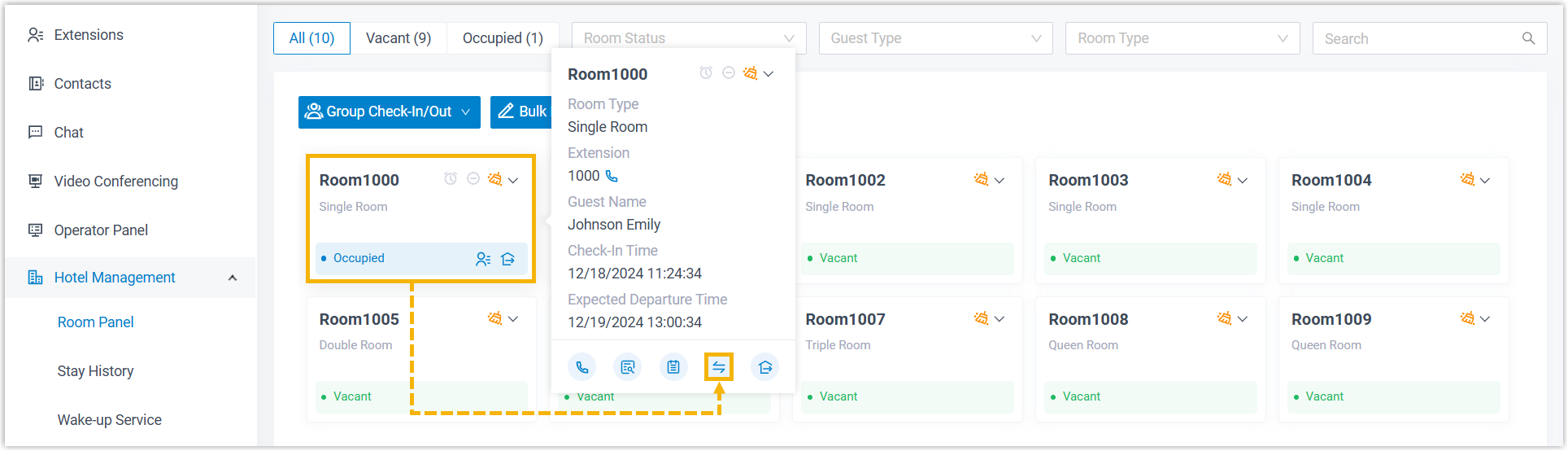
Select the room the guest is currently checked into, then click the move-room icon
 .
.
-
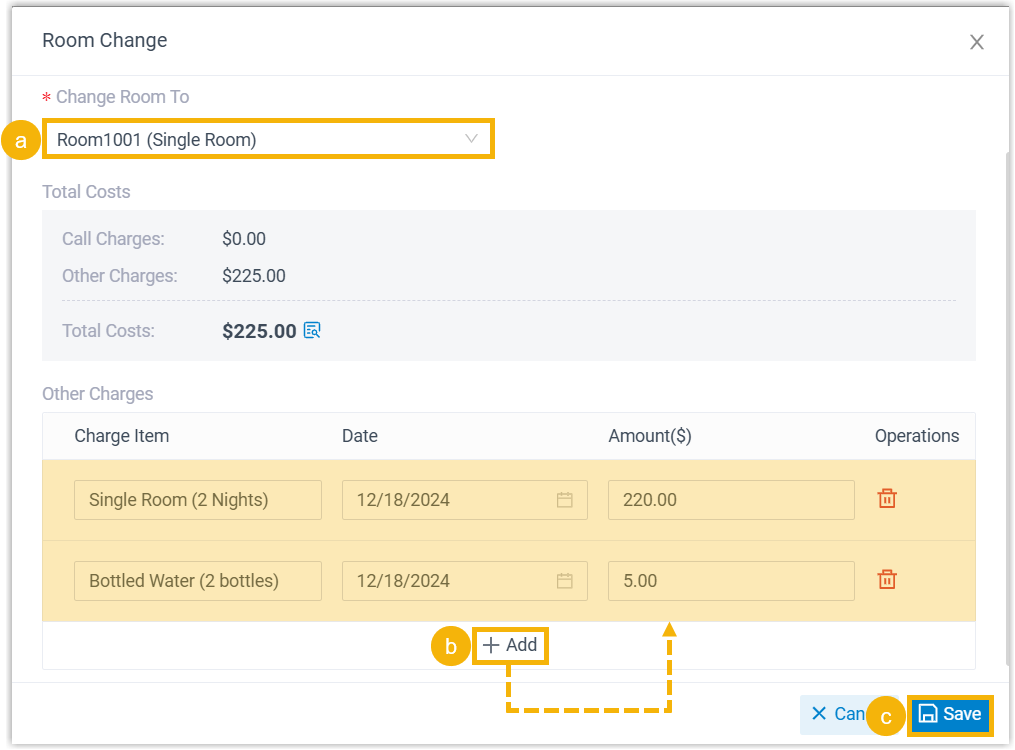
In the dialog that appears, set up the transfer:
-
From the Change Room To drop-down, choose the guest’s new room.
-
Under Other Charges, click Add to record any charges for the room the guest is leaving.
-
Click Save.
-
Result
Section titled “Result”-
The guest is reassigned to the new room.
-
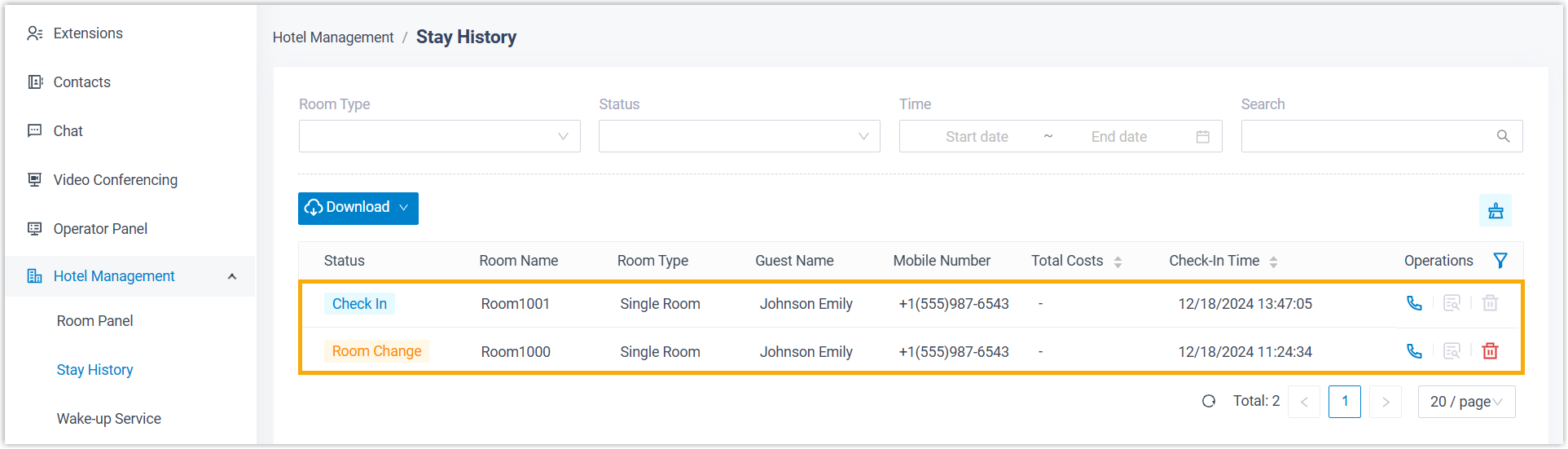
The previous stay is closed out and labeled Room Change in the stay history, while a fresh stay record for the new room is opened and labeled Check In.
Question about this page?
Ask the AI assistant. It starts from this page, then searches the rest of the docs.
Ask Cloud Voice AI
Answers are AI-generated from the docs and may contain mistakes. Verify with the linked pages.