
Manage Guest Calls
Front desk staff often need to act on guest calls in real time, such as moving a call to a different room, holding a call while they track down a guest, or steering an incoming call to the right department. The Operator Panel in the Cloud Voice App gives you a live, single-screen view of active calls and the controls to manage them, so you do not have to juggle handset button sequences.
To get started, open the Cloud Voice App on desktop or in the browser and go to Operator Panel.
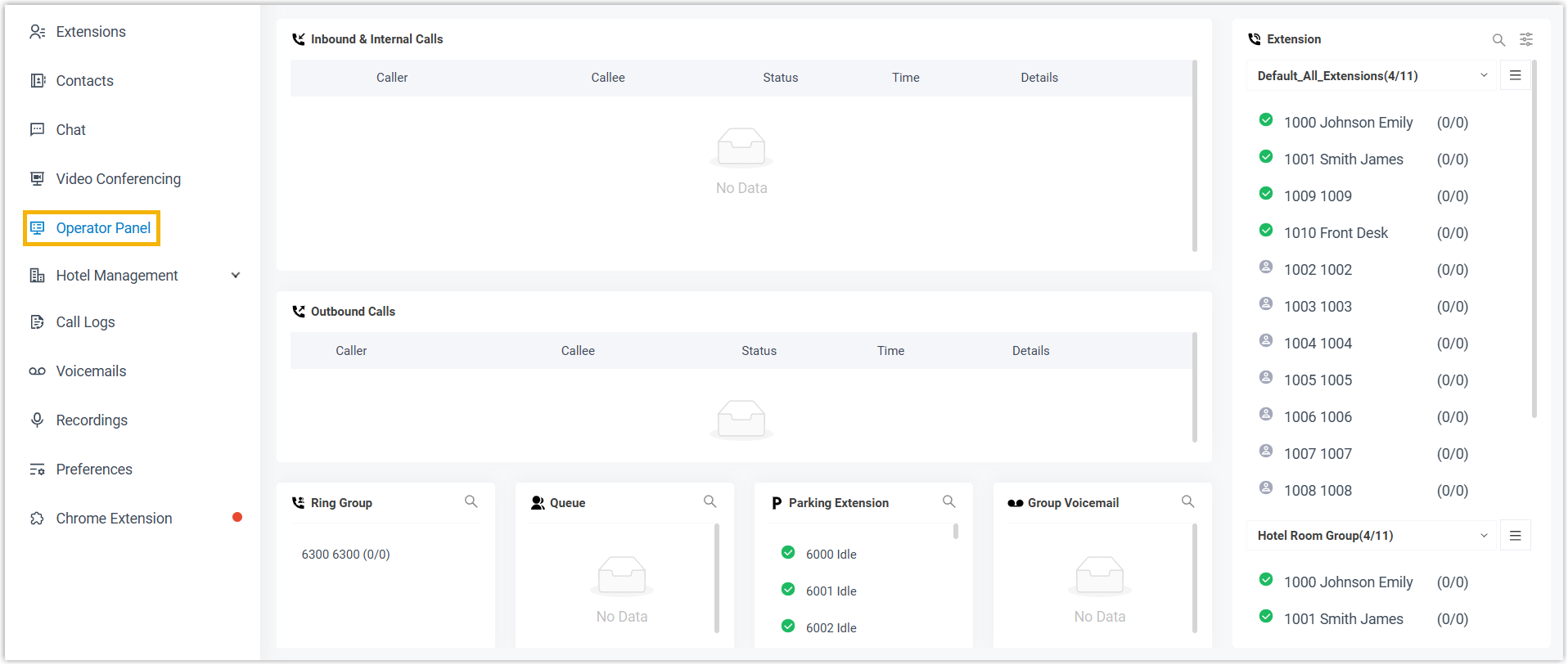
The actions you can take depend on the privileges your hotel manager has assigned to you. The tasks below reflect the default front desk privileges.
Redirect a call
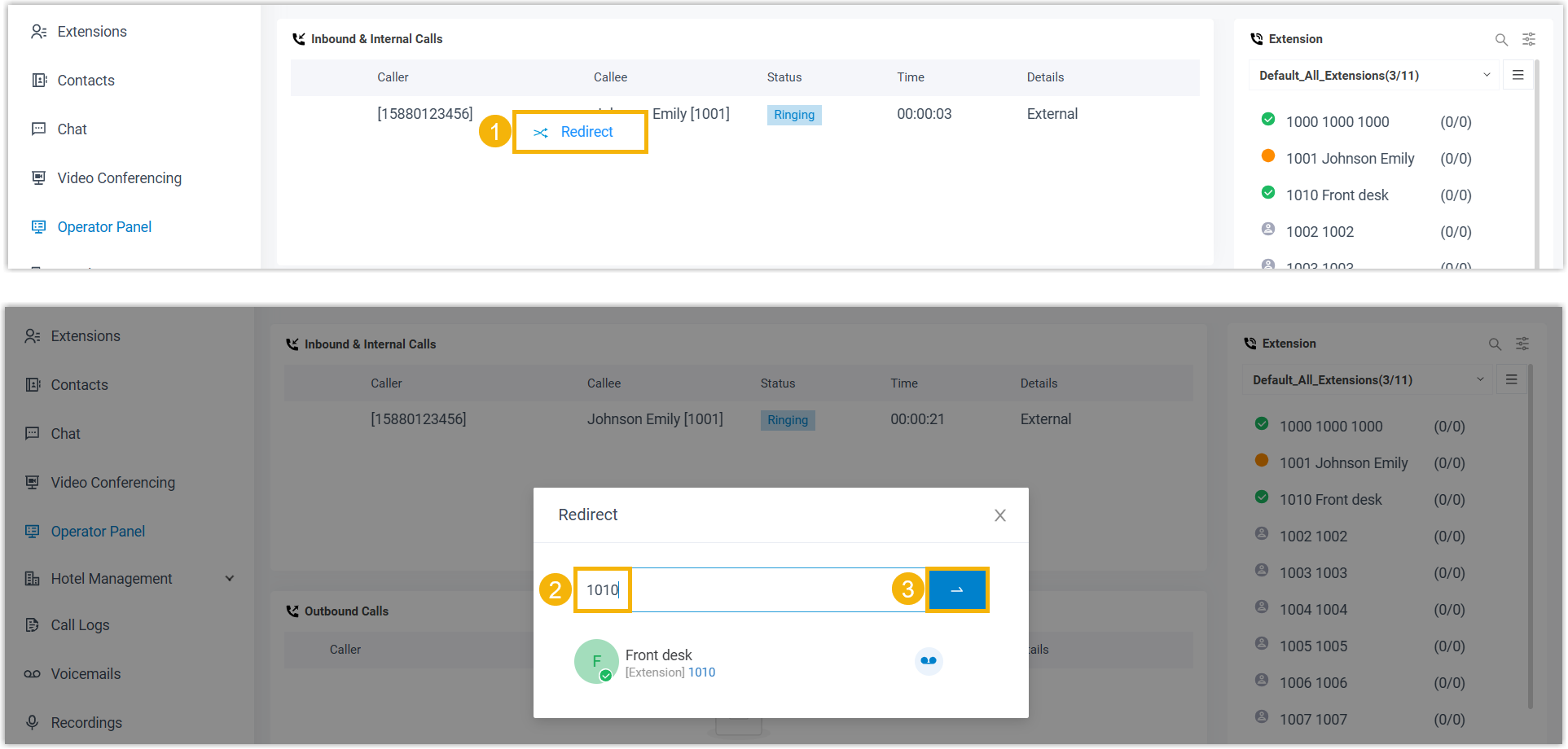
Section titled “Redirect a call”Redirect a ringing call to another destination before it is answered, so the guest reaches the right room or department without waiting on the front desk first.
- Find the ringing (not yet answered) call in the Operator Panel.
- Choose Redirect on that call.
- Select the extension, room, or destination you want the call to ring at instead.
Transfer a call
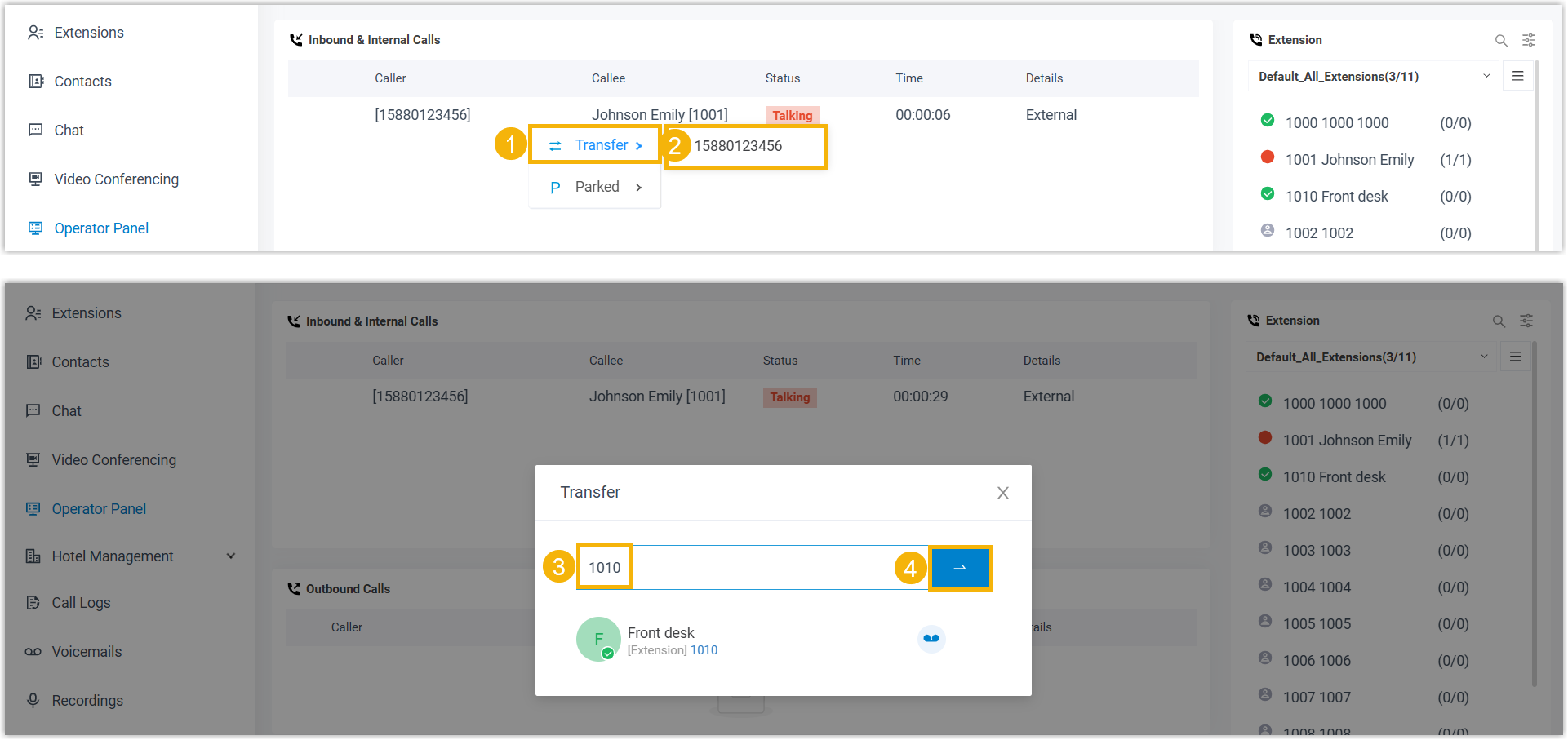
Section titled “Transfer a call”Transfer a call that is already connected to another extension or room. Use this when a guest is speaking with the front desk and needs to be moved elsewhere.
- While on the connected call, choose Transfer in the Operator Panel.
- Select the target extension or room.
- Complete the transfer to hand the guest over.
Drag and drop to an extension
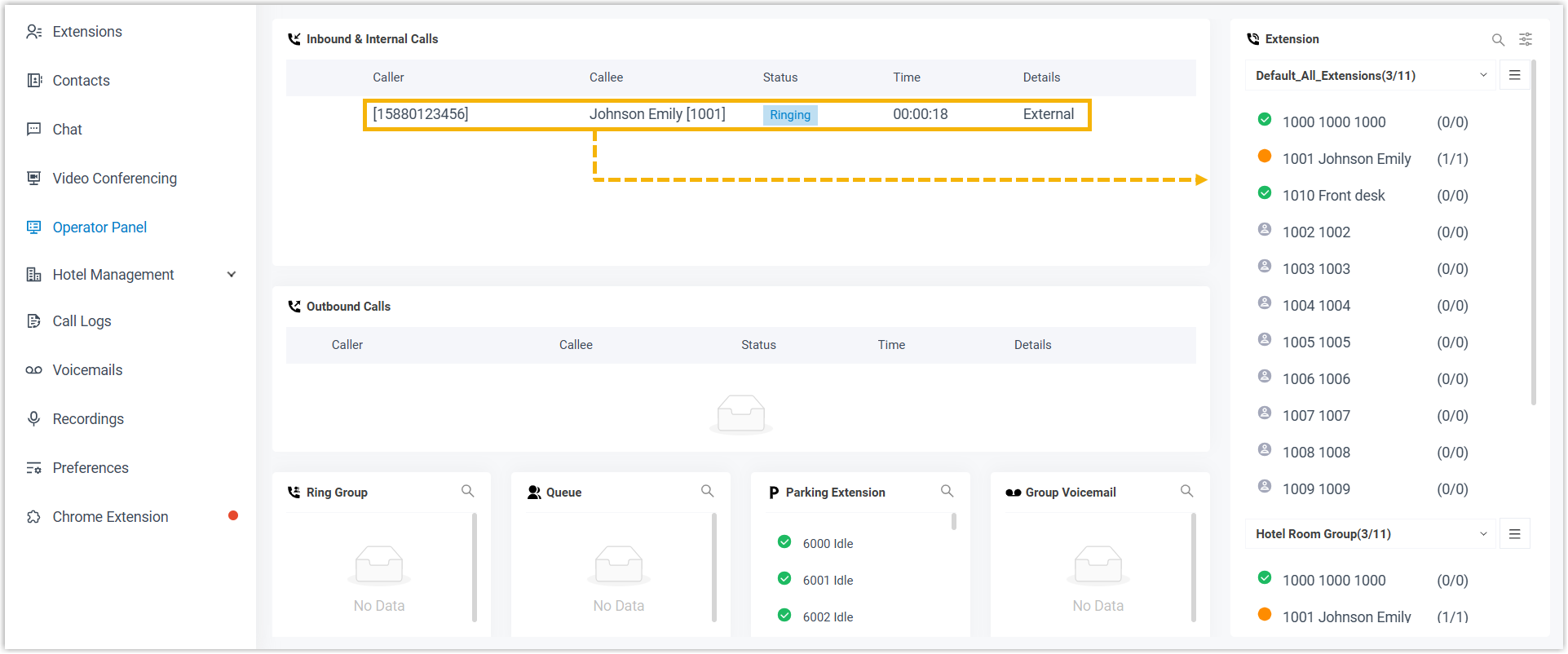
Section titled “Drag and drop to an extension”For a quick transfer, drag the active call and drop it onto the target extension shown in the Operator Panel. This does the same thing as a transfer, without opening a separate dialog.
Park a call
Section titled “Park a call”Parking places a call on hold in a shared parking slot instead of on your own line. The call waits there until someone retrieves it, which is useful when you need to locate a guest or free your line briefly. Because the slot is shared, the call can be picked up from any extension, not just yours.
- On the active call, choose Park.
- Note the parking slot the call is placed in, so you (or a colleague) can retrieve it.

Retrieve a call
Section titled “Retrieve a call”Retrieve a parked call to reconnect to it and continue the conversation.
- Locate the parked call or its parking slot in the Operator Panel.
- Choose Retrieve to reconnect to the caller.

Question about this page?
Ask the AI assistant. It starts from this page, then searches the rest of the docs.
Ask Cloud Voice AI
Answers are AI-generated from the docs and may contain mistakes. Verify with the linked pages.