
Add a Fax Cover Page
A fax cover page is the first sheet of an outbound fax. It usually carries the essentials at a glance: who the fax is from, who it is for, and a short note. In the Cloud Voice App you can build your own cover pages and reuse them whenever you send a fax.
Before you start
Section titled “Before you start”- Your system administrator must have given you permission to send faxes. Without it, the Fax Management area is not available to you.
- You can keep up to 10 custom cover pages of your own.
Prepare the cover page file
Section titled “Prepare the cover page file”The cover page is uploaded as a finished PDF (Portable Document Format), so create the layout first and export it to PDF. Make sure the file meets these limits:
- Format: PDF (
.pdf) - Size: under 5 MB
Add a cover page
Section titled “Add a cover page”-
Open the creation form.
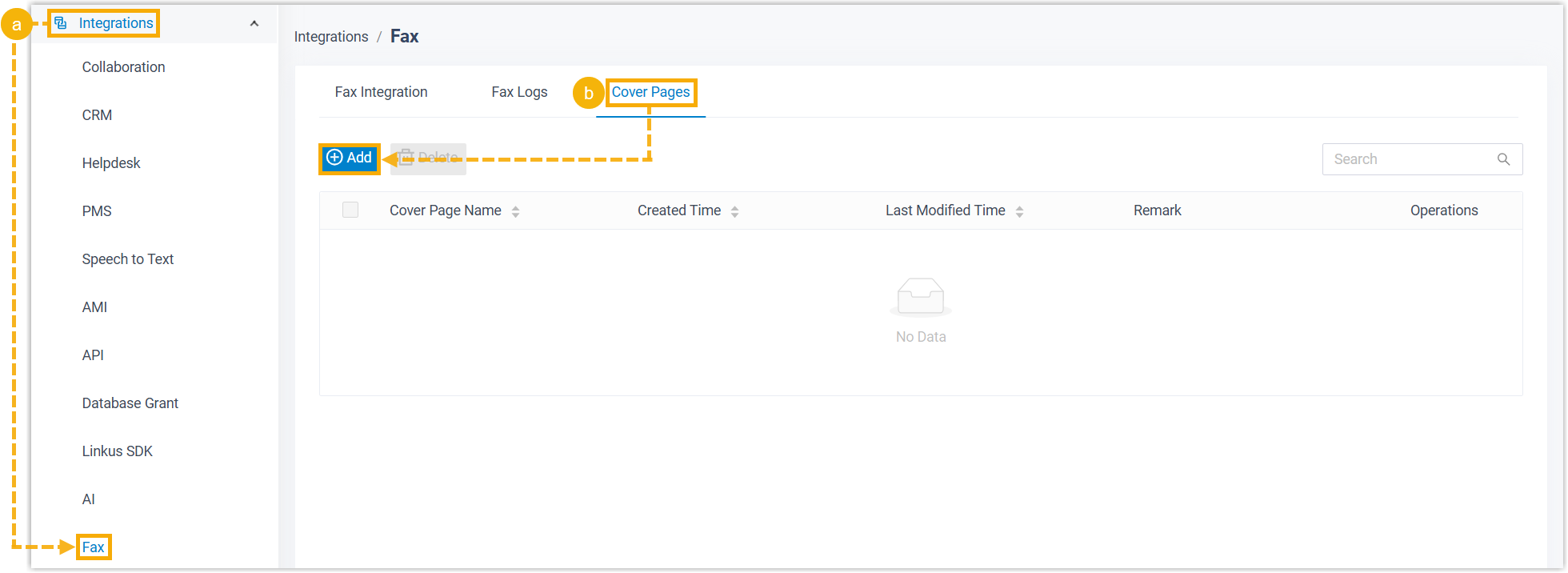
a. Sign in to the Cloud Voice App and go to Fax Management > Cover Pages. Any cover pages your administrator has published appear in this list, and you can select those when sending a fax too.
b. Click Add to start a custom cover page.
-
Fill in the details.

Setting Description Cover Page Name A name that helps you recognize the cover page. Remark A short description. Cover Page File Click Upload and choose your PDF file. -
Click Save.
Result
Section titled “Result”-
The new cover page is saved and shown in the list. To check it, click the preview icon (
 ) to open the cover page in a browser tab.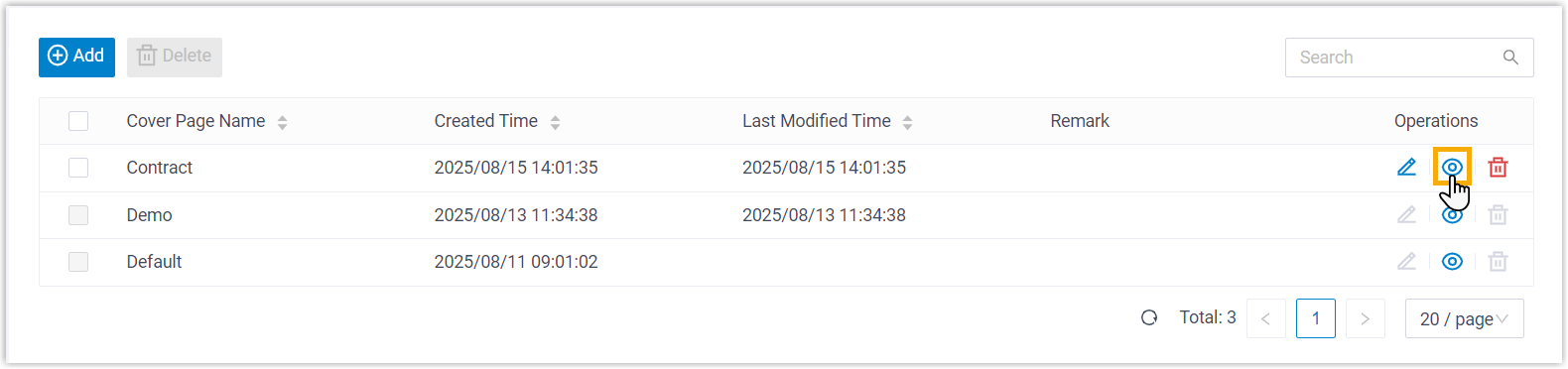
-
The cover page is now available to select when you send an outbound fax from the Cloud Voice App.
Question about this page?
Ask the AI assistant. It starts from this page, then searches the rest of the docs.
Ask Cloud Voice AI
Answers are AI-generated from the docs and may contain mistakes. Verify with the linked pages.