
Set Ringtones for Incoming Calls
You can choose which ringtone the Cloud Voice App plays when a call comes in. Set one tone for every call, or give different callers their own sound so you can tell a colleague, a customer, or a specific contact apart before you even look at your phone.
How ringtone rules work
Section titled “How ringtone rules work”You manage ringtones inside each Cloud Voice App separately. A tone you pick on your phone stays on that device only and does not carry over to the desktop or web app.
Your administrator can also assign a ringtone at the platform level for certain call flows, such as a ring group, a call queue, or an IVR (Interactive Voice Response, the automated phone menu that answers and routes callers). Those platform-assigned tones reach you when you belong to the ring group or queue, or when your extension is set as an IVR destination.
When more than one rule could apply to the same call, the app plays the tone from the highest-ranked rule below:
- A distinctive ringtone set for a contact or phonebook
- A ringtone assigned by the platform
- A distinctive ringtone set for internal or external calls
- Your default ringtone
Before you begin
Section titled “Before you begin”Update the Cloud Voice App to at least the version for your platform:
- iOS: 5.17.8 or later
- Android: 5.17.9 or later
The hosted platform side of this feature is maintained by IZT, so no action is needed there.
Turn on ringtones
Section titled “Turn on ringtones”-
On the Calls page, tap your account in the top-left corner.
-
Turn on Play Ringtone.

With this on, the app rings for incoming calls. With it off, incoming calls stay silent.
-
Go to Settings > Audio Options > Ringtone.
Set a default ringtone
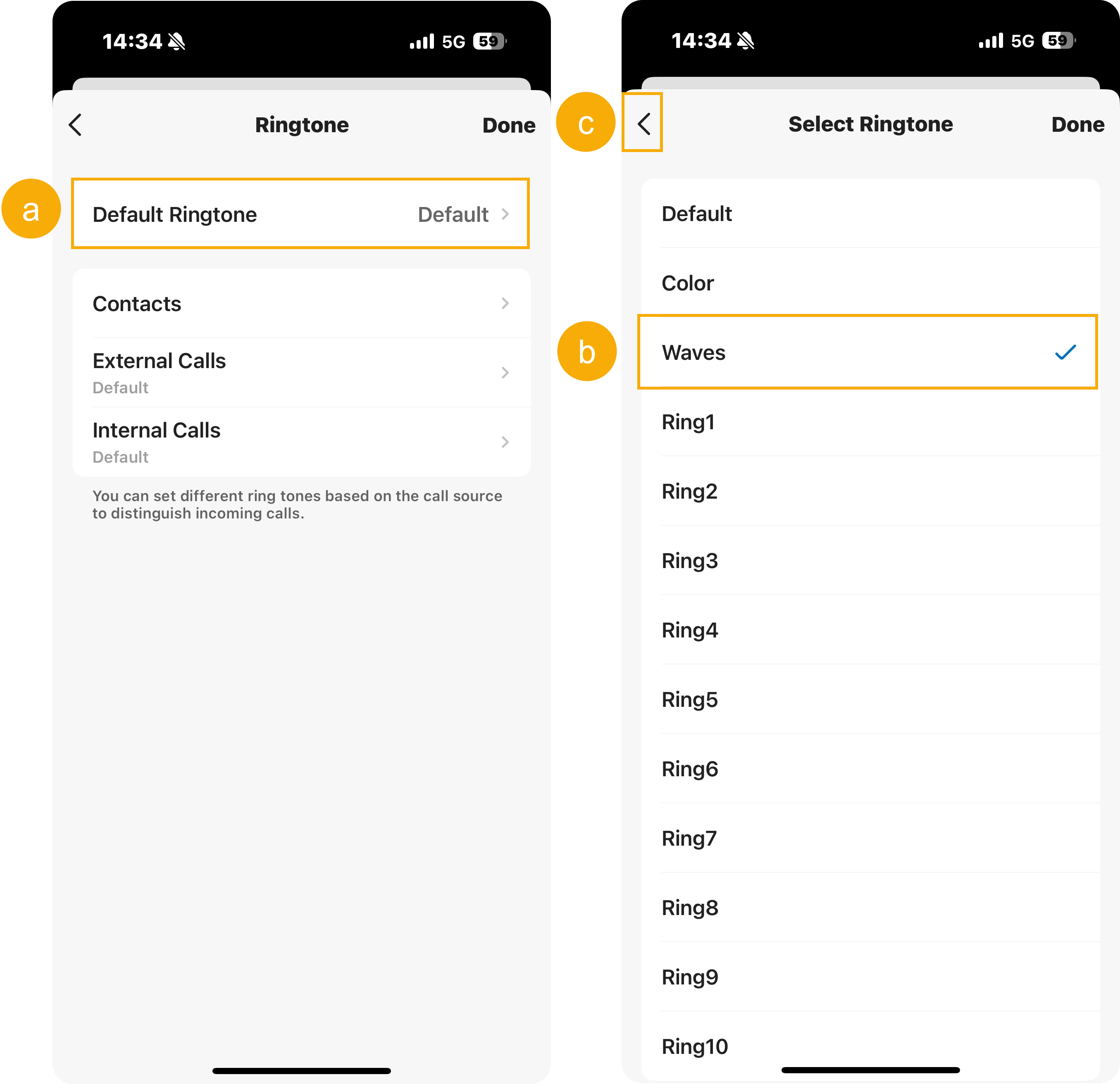
Section titled “Set a default ringtone”The default ringtone plays for every incoming call that has no distinctive tone of its own.
-
Tap Default Ringtone.
-
In the list, tap the tone you want.
-
Tap the back arrow in the top-left corner to return to the ringtone settings.
Assign ringtones by call source
Section titled “Assign ringtones by call source”Beyond the default tone, you can give specific callers their own sound.
Contacts or phonebooks
Section titled “Contacts or phonebooks”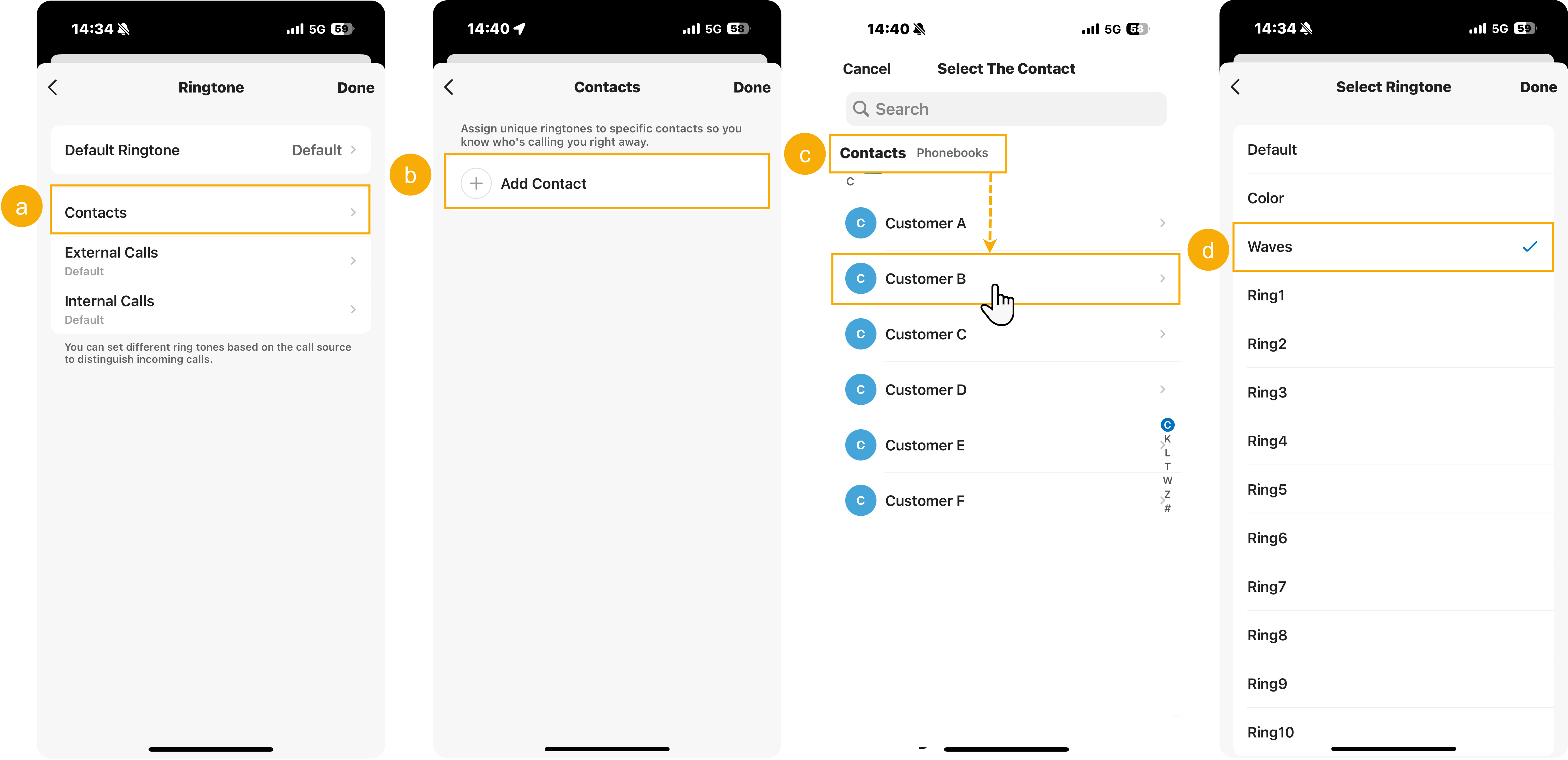
-
Tap Contacts.
-
On the Contacts page, tap Add Contact to start a new rule.
-
Open the Contacts or Phonebooks tab, then pick the contact (company or personal) or the phonebook whose contacts you want to cover.
-
On the Select Ringtone page, tap the tone to assign. Calls from that contact or phonebook now play your chosen sound.
-
Go back to the Contacts page and repeat steps 2 through 4 to add more rules.
External calls
Section titled “External calls”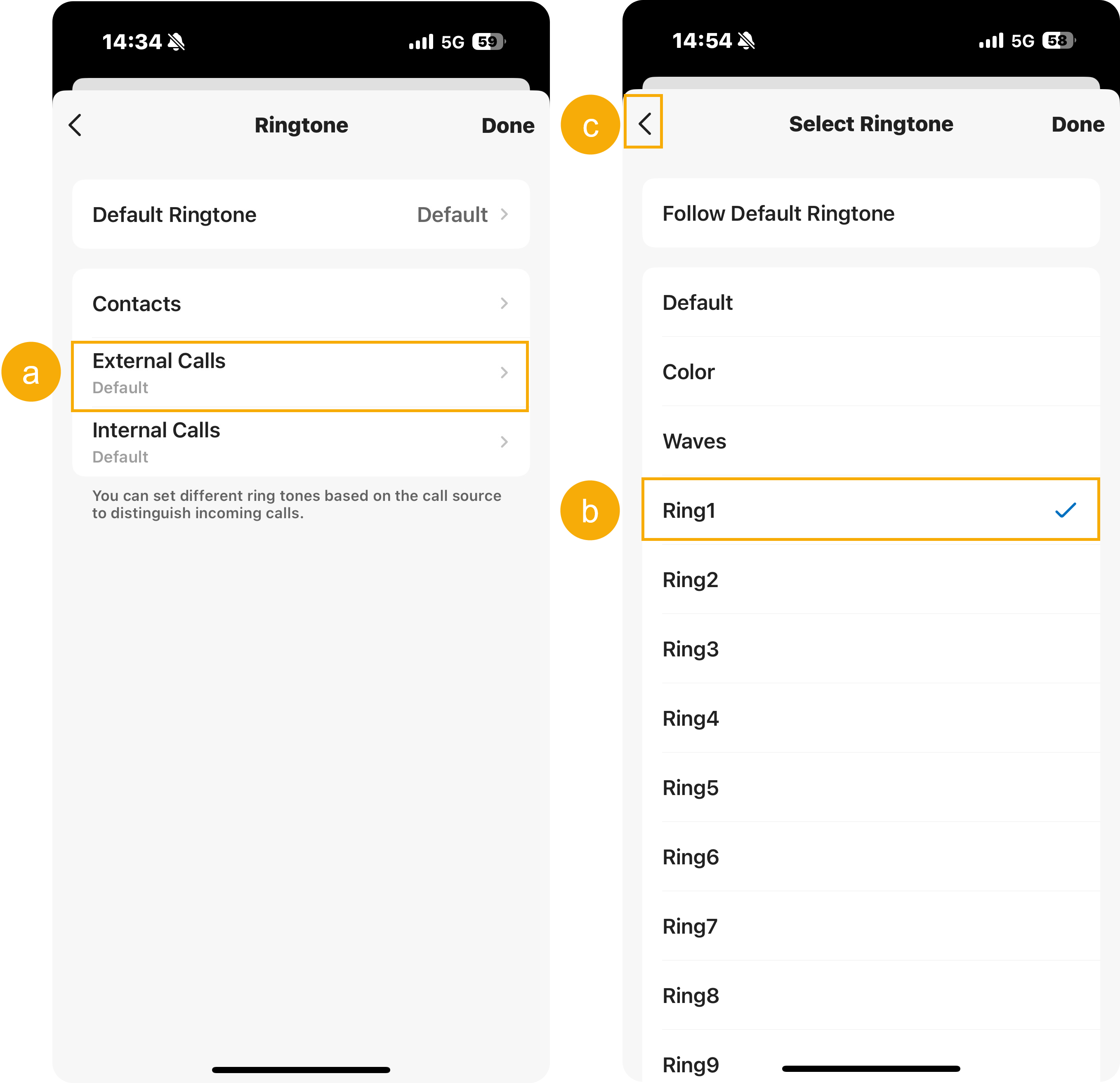
- Tap External Calls.
- Tap the tone you want. Calls from outside numbers now use it.
- Tap the back arrow in the top-left corner to return.
Internal calls
Section titled “Internal calls”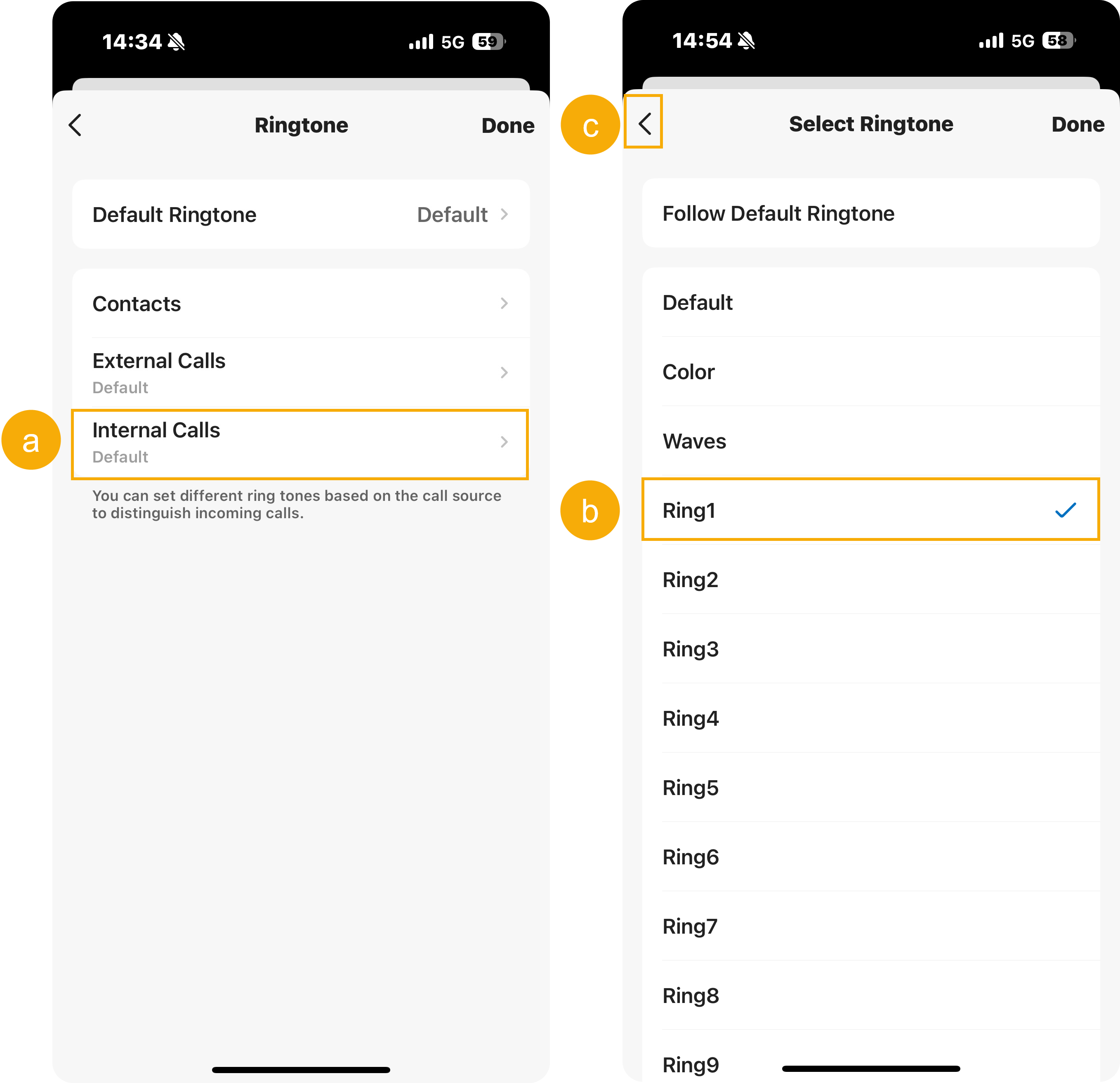
- Tap Internal Calls.
- Tap the tone you want. Calls from other extensions now use it.
- Tap the back arrow in the top-left corner to return.
Save your choices
Section titled “Save your choices”When you have finished, tap Done in the top-right corner to apply your ringtone settings.
Question about this page?
Ask the AI assistant. It starts from this page, then searches the rest of the docs.
Ask Cloud Voice AI
Answers are AI-generated from the docs and may contain mistakes. Verify with the linked pages.