
Make a Conference Call
The conference feature in the Cloud Voice App lets you spin up an ad-hoc call and bring several people onto the line at once, wherever you happen to be. It is the fastest way to get a group talking without scheduling anything in advance.
Start a conference call
Section titled “Start a conference call”-
In the bottom-right corner of the Cloud Voice App, tap Conference.
-
Tap Create Conference.
You can also tap the add icon
 in the top-right corner to start a new conference.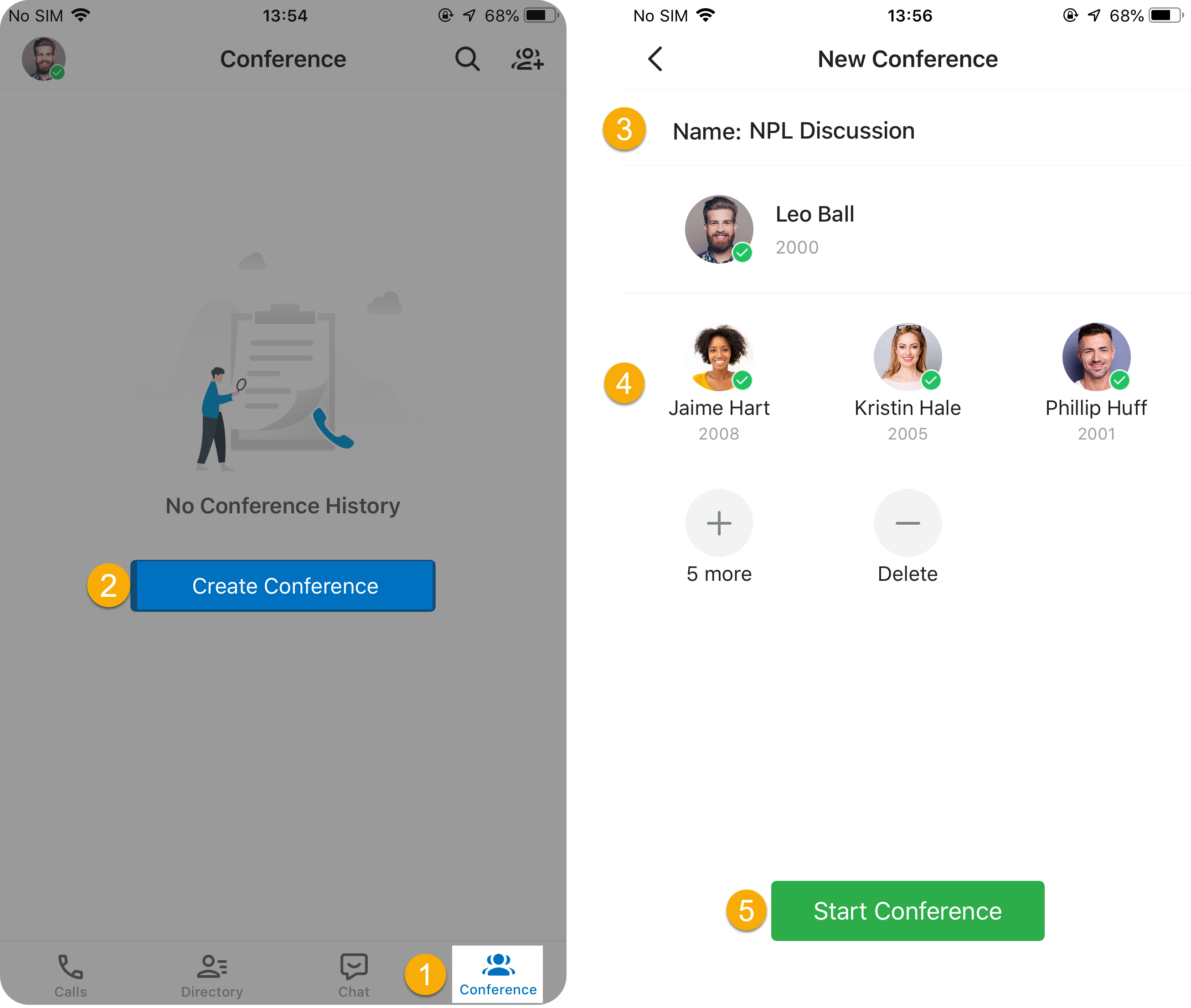
-
Optional: In the Name field, replace the default name with a subject for the conference.
-
Add the people you want on the call:
-
Tap the add-participants icon
 .
. -
Choose the participants you want, then tap OK.
Depending on who you select, a prompt may appear:
- The contact has more than one number: Tap the number you want to dial.
- The contact has a single, external number: Tap the number to dial it as is, or tap the prefix icon
 to add an outbound prefix first. An outbound prefix is the digit or code your phone system requires to reach an outside line (for example, dialing 9 before the number) before the call goes out.
Added someone by mistake? Tap the remove icon
 , then tap the delete icon
  at the top-right of the participant you want to drop.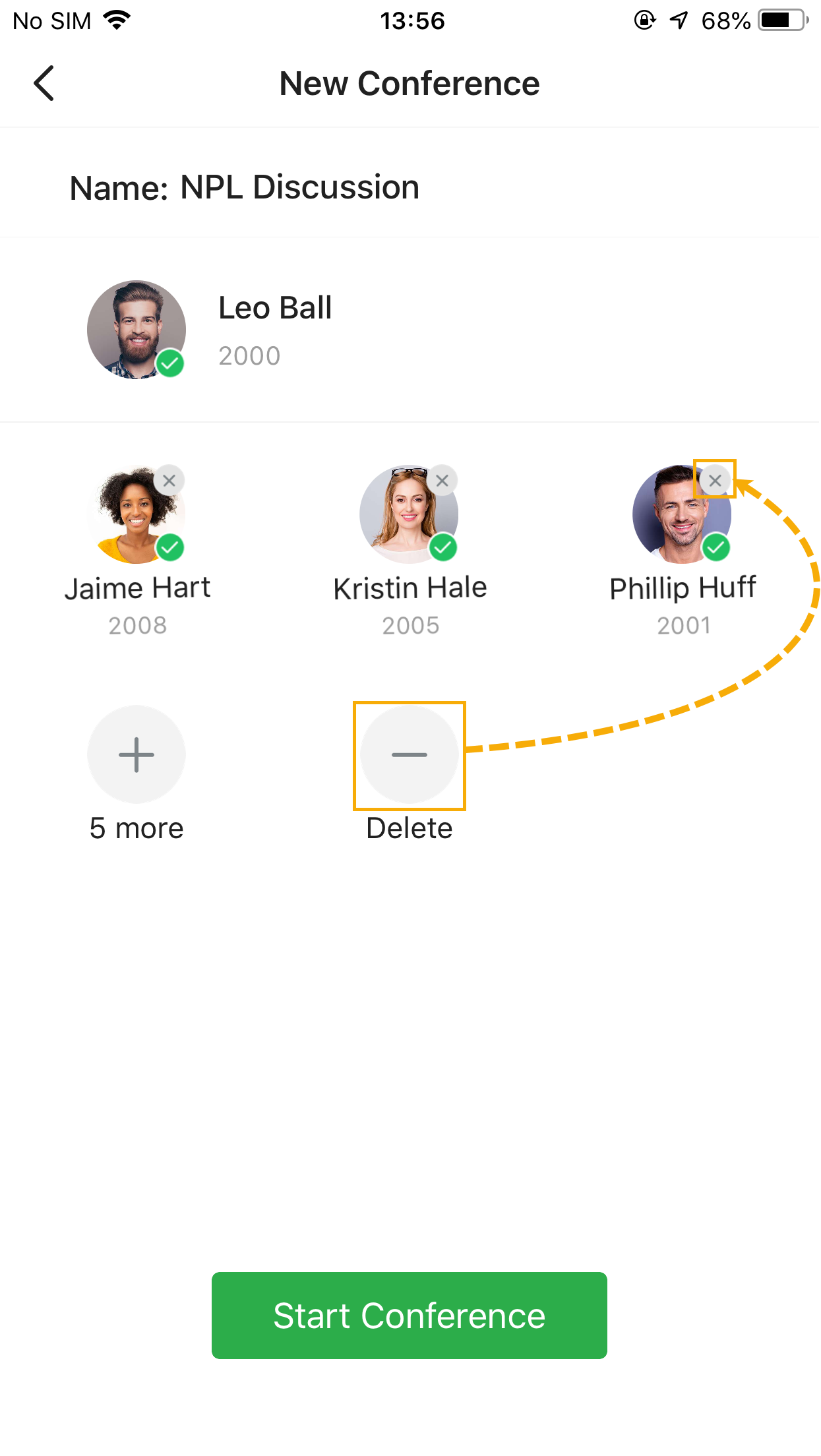
-
-
Tap Start Conference.
Track who has joined
Section titled “Track who has joined”Each invited participant receives a call, and the call screen shows the status of everyone you invited:
 The participant has answered.
 The participant’s phone is ringing.
 The participant did not answer or lost connection. Tap the participant, then tap Call Again to place a new call.
Question about this page?
Ask the AI assistant. It starts from this page, then searches the rest of the docs.
Ask Cloud Voice AI
Answers are AI-generated from the docs and may contain mistakes. Verify with the linked pages.