
Check and Manage Voicemails
The desktop Cloud Voice App keeps all of your voicemail messages in one place, where you can play them back, read AI transcriptions, return calls, forward messages to colleagues, and clean up your list. This page walks through each of those tasks.
Open your voicemails
Section titled “Open your voicemails”In the desktop Cloud Voice App, select Voicemails to open your message list.
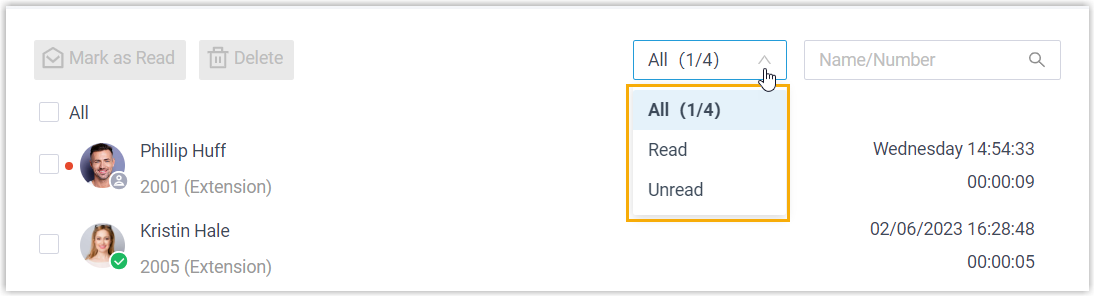
To narrow the list, choose a read status (for example, unread only) from the filter control.
Listen to a message
Section titled “Listen to a message”- Point at the message you want to hear.
- On the right, click play
 .
.
Playing an unread message marks it as read.
Read or edit a transcription
Section titled “Read or edit a transcription”-
Point at the message.
-
On the right, click the transcript icon
 or
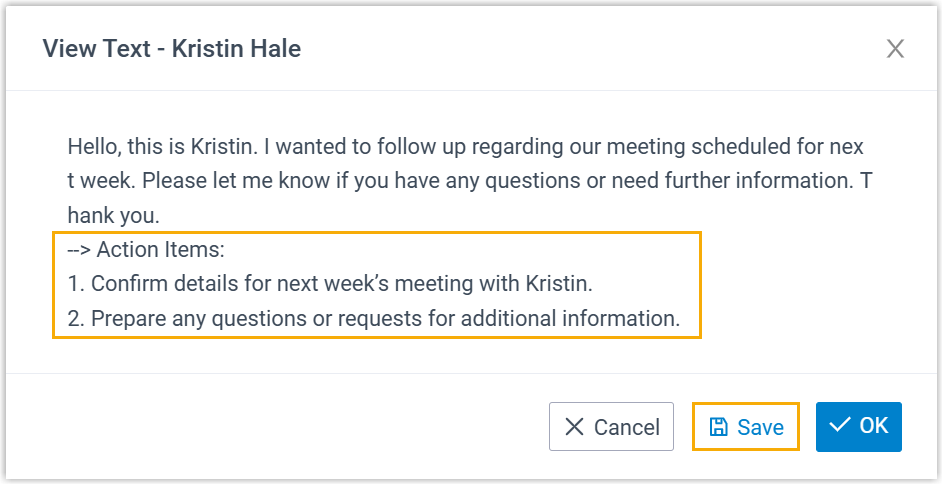
or  . The transcribed text opens in a pop-up window.
 -
For an AI-generated transcript (AI, artificial intelligence), which carries the
 marker, click Edit to make corrections.
 -
Adjust the wording, then click Save.
-
Click OK to close the window.
Return a call
Section titled “Return a call”You can dial the caller straight from a voicemail entry in either of these ways:
- Double-click the message.
- Point at the message and click call
 .
.
Download a message
Section titled “Download a message”- Point at the message.
- On the right, click download
 .
.
Mark messages read or unread
Section titled “Mark messages read or unread”To change a single message:
- Right-click the message.
- Choose Mark as Read or Mark as unread.
To mark several messages read at once:
- Select the checkbox beside each message you want to update.
- In the top menu, click Mark as Read.
Forward messages to other extensions
Section titled “Forward messages to other extensions”To forward one message:
- Point at the message.
- On the right, click forward
 .
. - In the extension list that appears, select one or more extensions.
- Click OK in the lower-right corner. A Voicemail forwarded successfully. confirmation appears.
To forward several messages at once:
- Select the checkbox beside each message you want to send.
- In the top menu, click Forward.
- In the extension list that appears, select one or more extensions.
- Click OK in the lower-right corner. A Voicemail forwarded successfully. confirmation appears.
Delete messages
Section titled “Delete messages”To delete one message:
- Point at the message.
- On the right, click delete
 .
. - Click OK to confirm.
To delete several messages at once:
- Select the checkbox beside each message you want to remove.
- In the top menu, click Delete.
- Click OK to confirm.
Question about this page?
Ask the AI assistant. It starts from this page, then searches the rest of the docs.
Ask Cloud Voice AI
Answers are AI-generated from the docs and may contain mistakes. Verify with the linked pages.