
Disable Microsoft Outlook Integration
If you no longer want your calls and contacts linked between the Cloud Voice App and Outlook, you can remove the connection. Disabling it takes two parts: first switch off the integration inside the Cloud Voice App, then deactivate its add-in inside Outlook. An add-in is a small companion program that plugs Cloud Voice features (such as click-to-call and contact matching) into Outlook. This process applies only to Outlook for Windows.
Step 1. Turn off the integration in the Cloud Voice App
Section titled “Step 1. Turn off the integration in the Cloud Voice App”-
Sign in to the Cloud Voice App on your desktop and open Preferences > Outlook Integration.
-
Switch off Enable Outlook Integration.

-
Click Save.
Step 2. Deactivate the add-in in Outlook
Section titled “Step 2. Deactivate the add-in in Outlook”-
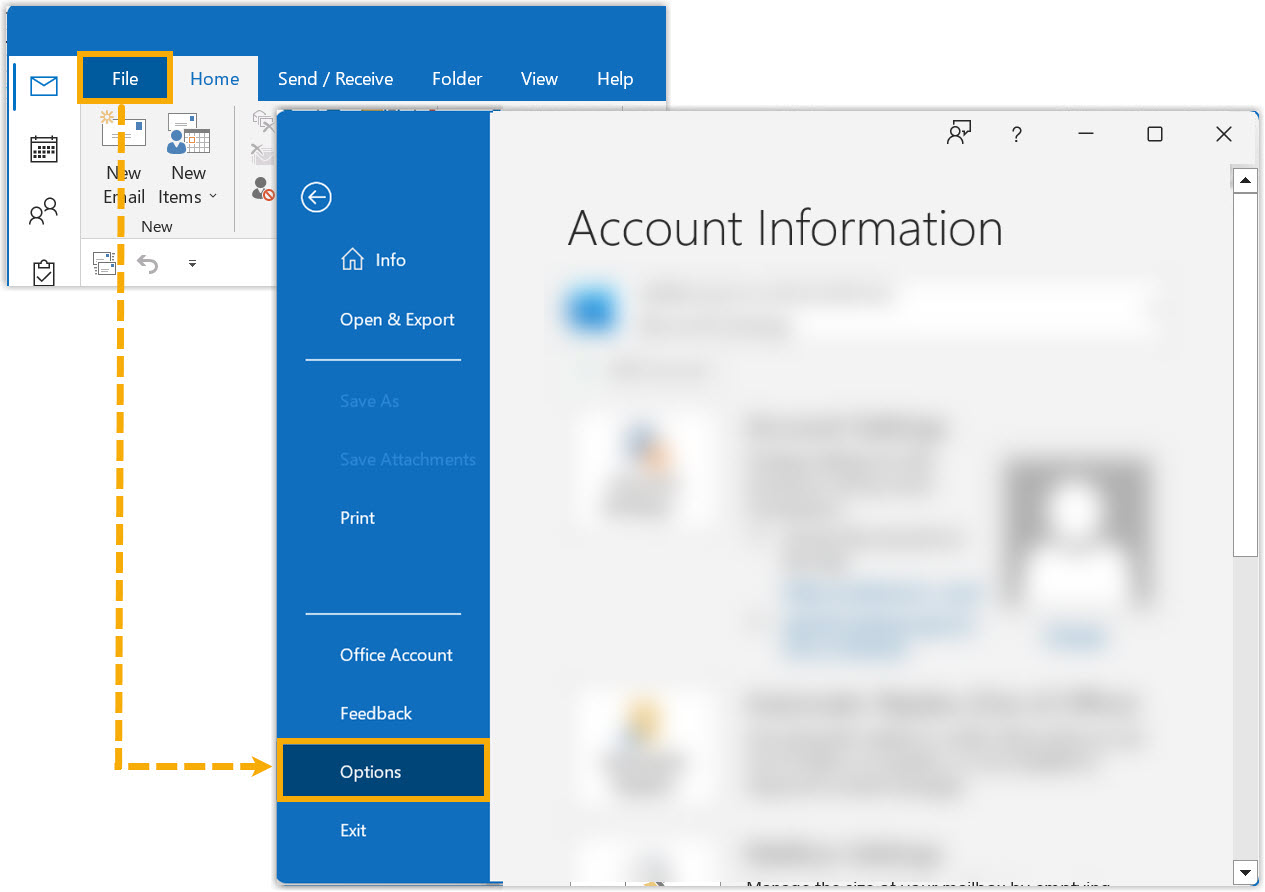
Open Outlook and go to File > Options.
-
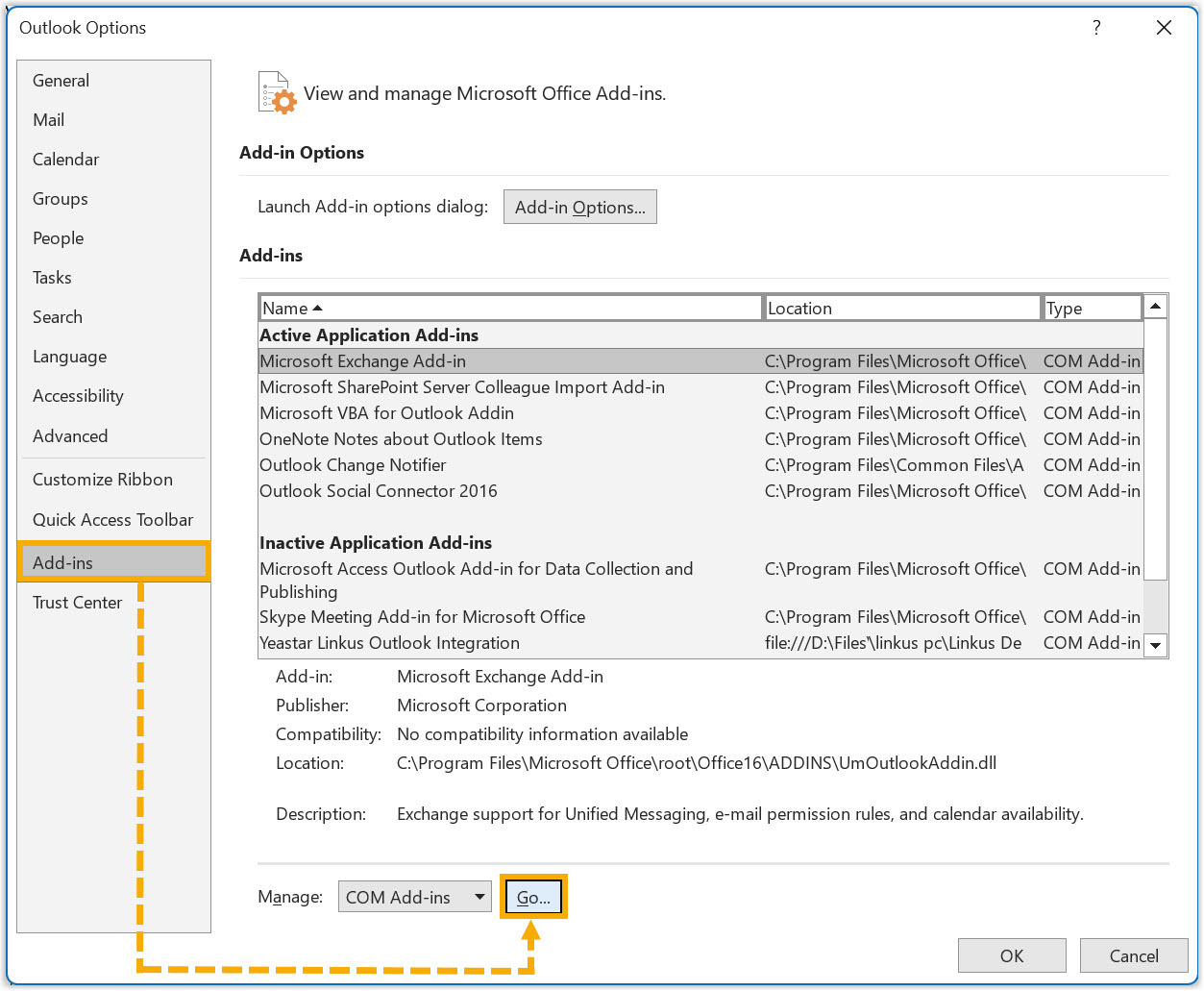
In the Options window, select Add-ins, then click Go….
-
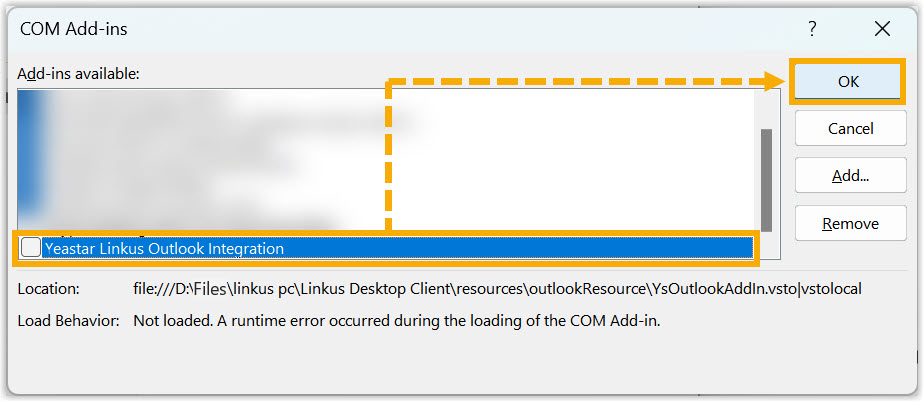
In the add-ins dialog, clear the Cloud Voice Outlook Integration checkbox and click OK.
Result
Section titled “Result”The link between the Cloud Voice App and Outlook is now off, and every feature that relied on the Outlook integration stops working.
Question about this page?
Ask the AI assistant. It starts from this page, then searches the rest of the docs.
Ask Cloud Voice AI
Answers are AI-generated from the docs and may contain mistakes. Verify with the linked pages.