
Automatically Switch Presence Status Based on Business Hours and Holidays
Your presence status is the availability label teammates see for your extension (for example, Available or Outside Business Hours). Rather than updating it by hand each time the workday starts or ends, you can tie it to your organization’s schedule. Assign a presence status to different time periods and the Cloud Voice App will apply the right one automatically as business hours and holidays change.
Set up scheduled presence
Section titled “Set up scheduled presence”-
On the Calls page, tap your account in the top-left corner.
-
Open Settings > Advanced > Switch Business Hours Status.
-
Assign a presence status to each time period:
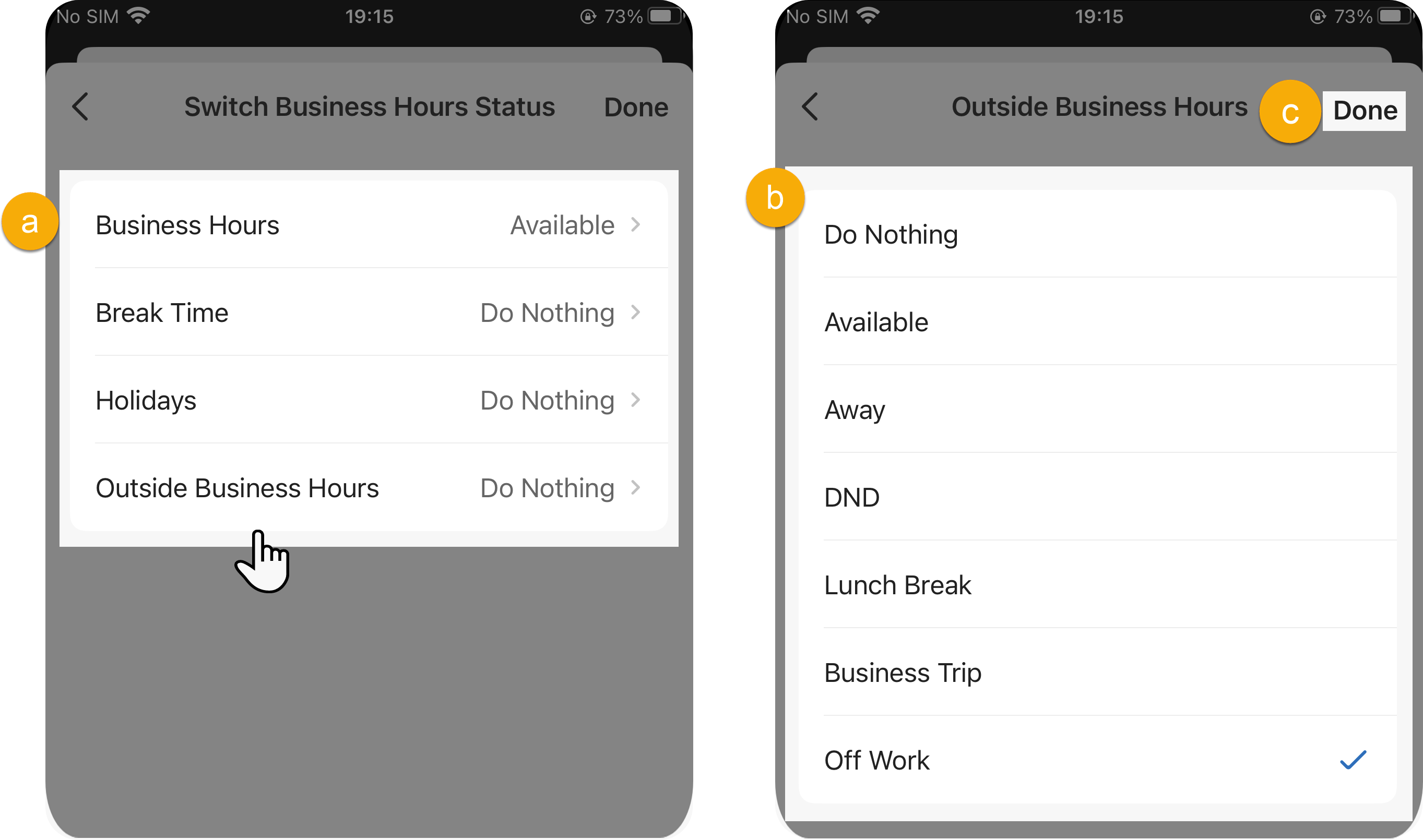
a. Tap the time period you want to set.
b. Choose the presence status to use during that period.
c. Tap the save control in the top-right corner to confirm your changes.
What happens next
Section titled “What happens next”From now on, your presence follows the schedule instead of staying fixed. As each time period begins, the Cloud Voice App switches to the status you assigned to it. For instance, if 18:00 falls outside working hours, your presence changes to the status you mapped to Outside Business Hours at that time.
Question about this page?
Ask the AI assistant. It starts from this page, then searches the rest of the docs.
Ask Cloud Voice AI
Answers are AI-generated from the docs and may contain mistakes. Verify with the linked pages.