
Make a Video Call
Video calls let you see and talk to a coworker or any contact saved in your Contacts. You can launch one from the dialpad or straight from your Extensions list.
Before you start
Section titled “Before you start”- Confirm that your setup meets the requirements for web calling.
- Make sure your audio and video devices are configured and working.
Call from the dialpad
Section titled “Call from the dialpad”- Enter the number you want to reach using either method below:
-
Type the number into the search bar at the top of the window.
-
Click the keypad icon
 and key in the number.
-
- Click the HD (high definition) video icon
 to dial.
Your camera turns on automatically as soon as you place the call, so be ready to appear on video. Once the other person answers, you can see each other.
Call from the Extensions list
Section titled “Call from the Extensions list”-
In the left navigation bar, click Extensions.
-
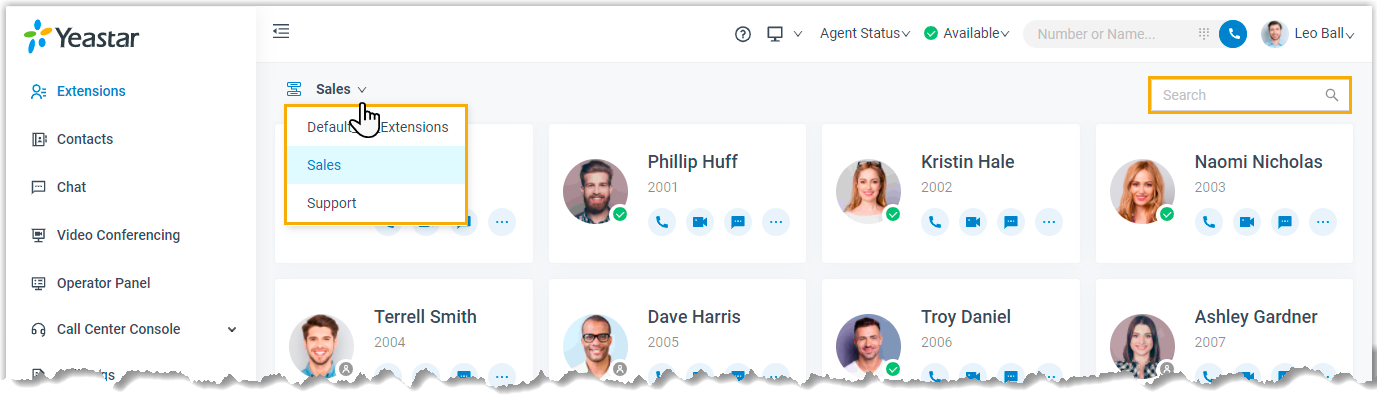
Locate the colleague you want to reach:
-
Open the group drop-down
 and choose the group that person belongs to.
 -
In the search bar, type a name, number, or email address.
-
-
Click the camera icon
 to place the call.
Your camera turns on automatically as soon as you place the call, so be ready to appear on video. Once the other person answers, you can see each other.
Question about this page?
Ask the AI assistant. It starts from this page, then searches the rest of the docs.
Ask Cloud Voice AI
Answers are AI-generated from the docs and may contain mistakes. Verify with the linked pages.