
Configure AI Voicemail Transcription
AI (artificial intelligence) voicemail transcription converts the messages left in your mailbox into readable text, so you can scan, search, and manage voicemails without listening to each recording. Set your preferences once in the Cloud Voice App and they carry over to every Cloud Voice App you are signed in to.
Before you begin
Section titled “Before you begin”Confirm the following before you set up transcription:
- The Cloud Voice platform is running firmware 84.19.0.110 or later.
- Your system administrator has turned on AI Voicemail Transcription and given your extension permission to use it.
Configure your transcription settings
Section titled “Configure your transcription settings”-
Sign in to the Cloud Voice App and open Preferences > AI.
-
Under Voicemail Transcription, adjust the settings for your needs.
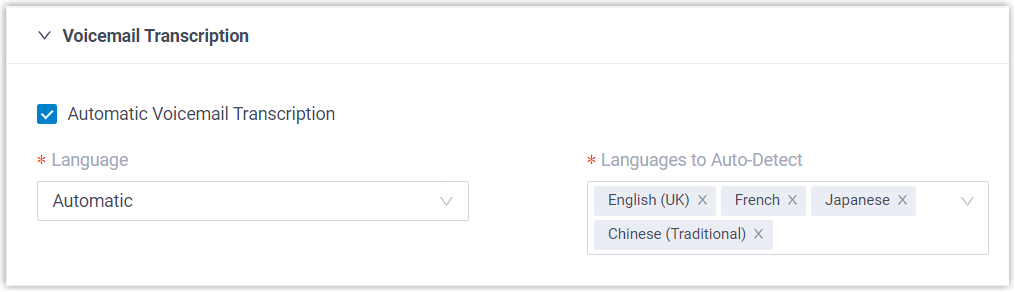
Setting What it does Automatic Voicemail Transcription Controls whether new voicemails are transcribed on arrival. It is on by default. Turn it off if you would rather start transcription yourself for individual messages. Language Choose the language your messages are transcribed into. Languages to Auto-Detect Choose the languages the system should recognize and transcribe automatically. -
Click Save.
View and edit your transcriptions
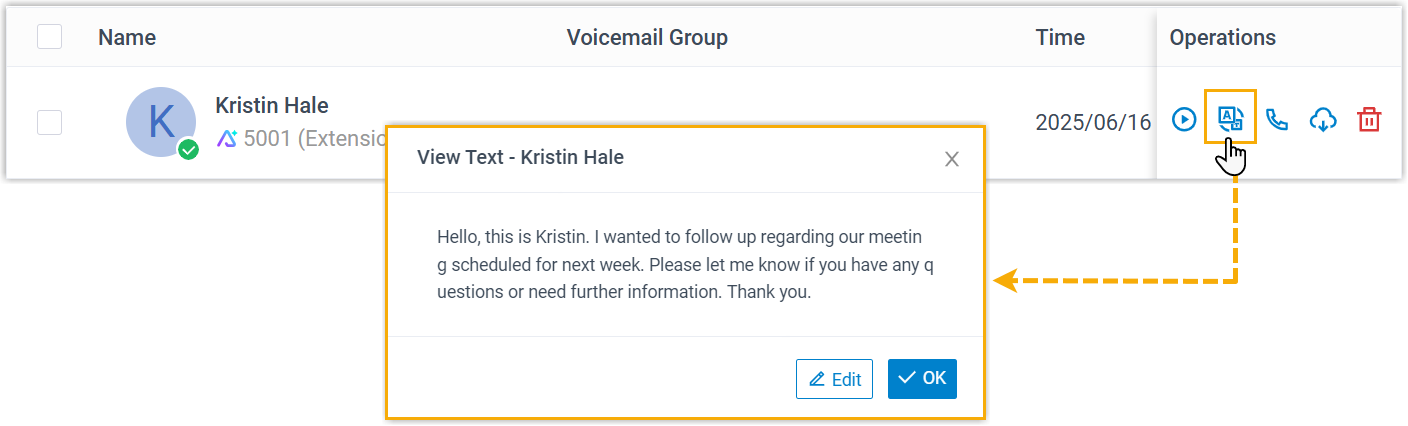
Section titled “View and edit your transcriptions”Once transcription is set up, messages left in your mailbox are converted to text in your chosen language, either automatically or when you trigger it. A transcribed message carries an AI marker  ; click the transcription icon
  to read the text.
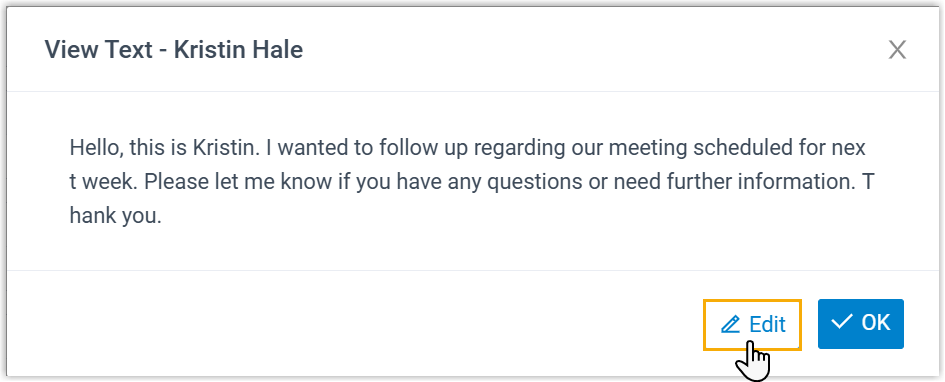
If a transcription needs cleaning up, click Edit to fix misheard names, clarify wording, or add your own notes for later.
Question about this page?
Ask the AI assistant. It starts from this page, then searches the rest of the docs.
Ask Cloud Voice AI
Answers are AI-generated from the docs and may contain mistakes. Verify with the linked pages.