
Cloud Voice App for Mobile: Quick Start Guide
The Cloud Voice App turns your smartphone into your office extension, so you can reach colleagues and customers with your business identity wherever you are. This page is a short tour of what the mobile app can do and points you to the detailed instructions for each feature.
Install the app
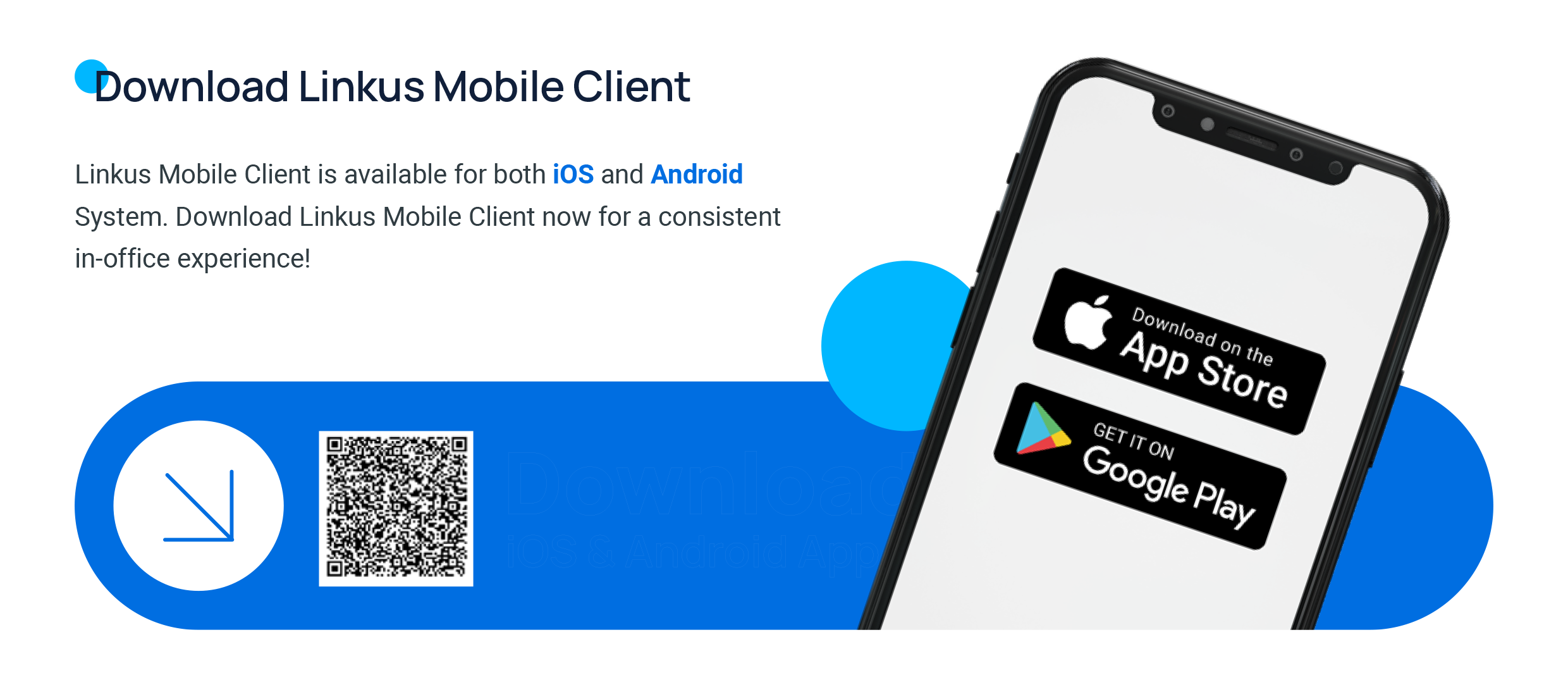
Section titled “Install the app”The Cloud Voice App runs on both iOS and Android. Download it from the App Store or Google Play, install it on your phone, and you are ready to sign in.
Sign in in seconds
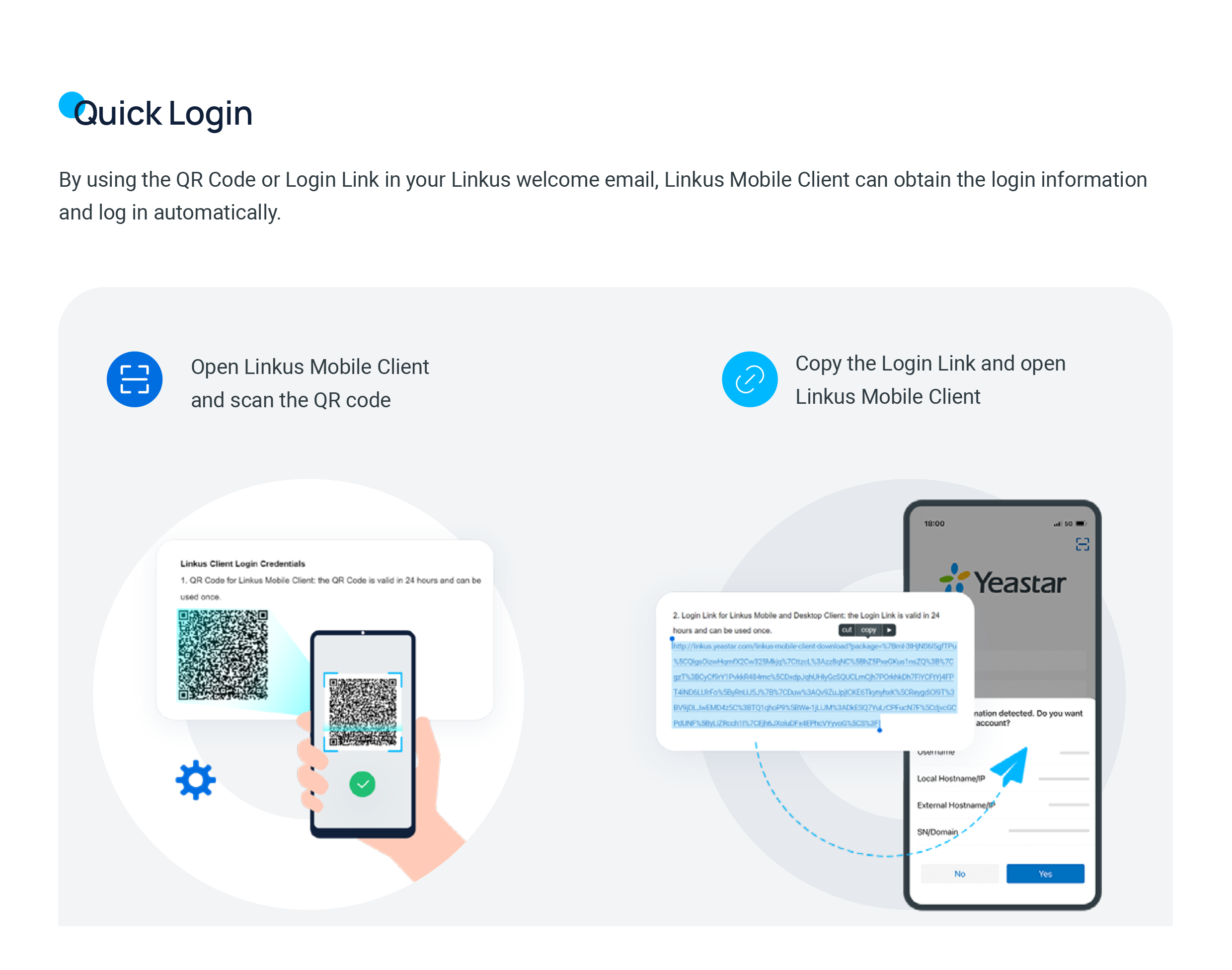
Section titled “Sign in in seconds”When your extension is set up, you receive a welcome email that contains a QR (Quick Response) code and a login link. Either one lets the app pull in your connection details and sign you in automatically, so you never type server addresses by hand:
- Open the app and scan the QR code from the email.
- Or, with the app already installed, copy the login link from the email and open it.
Find anyone in one directory
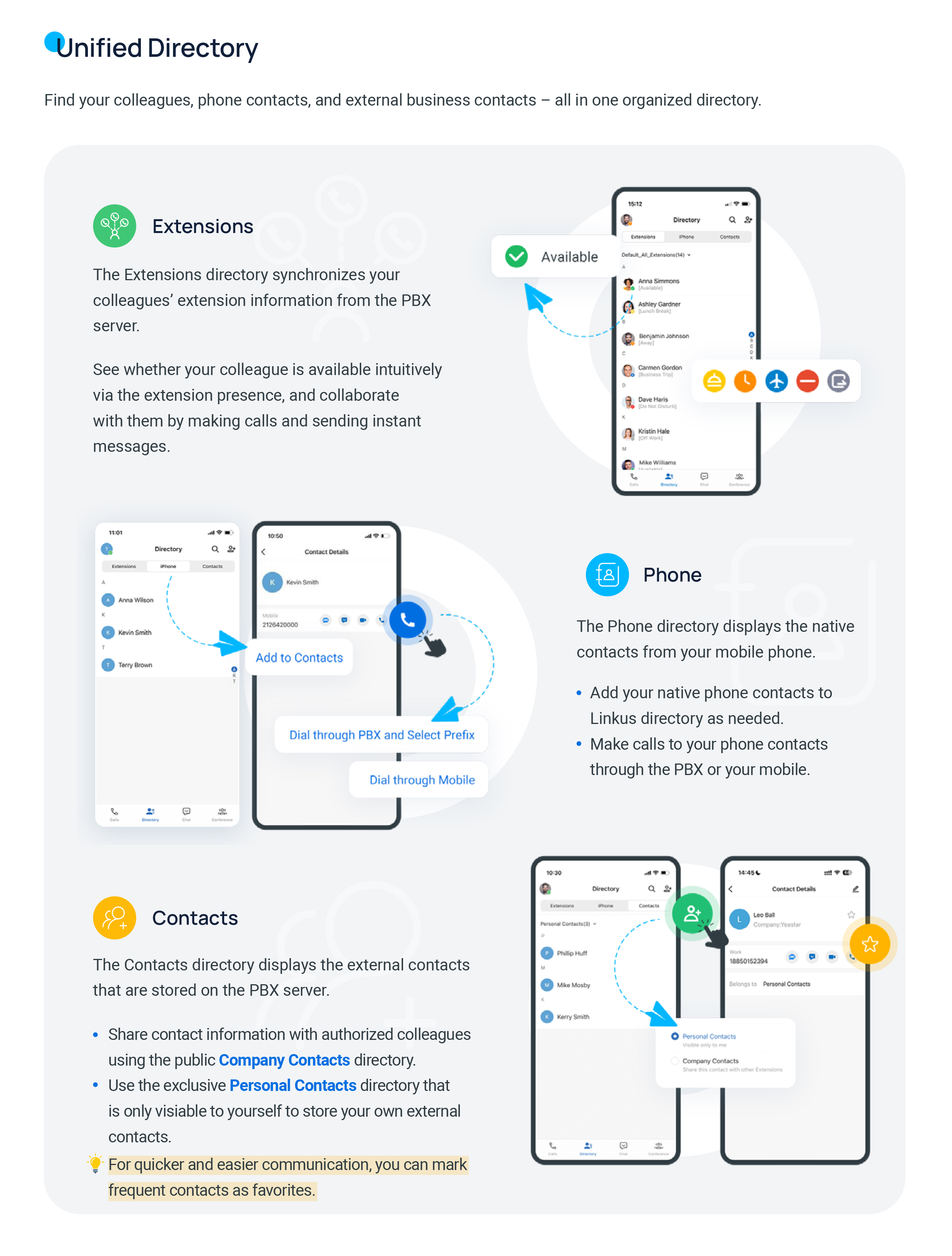
Section titled “Find anyone in one directory”The app brings your colleagues, phone contacts, and saved business contacts together in a single directory with three tabs:
- Extensions: Your coworkers, synced from the phone system. Each entry shows a presence status so you can tell at a glance who is available before you call or message them.
- Phone: The native contacts stored on your device. Call them through the phone system or through your mobile line, and add any of them to the app’s directory when you want them close at hand.
- Contacts: External contacts held on the phone system. Company Contacts are shared with the colleagues who are allowed to see them, while Personal Contacts stay private to you.
Make and control calls
Section titled “Make and control calls”Calling goes well beyond dialing a number:
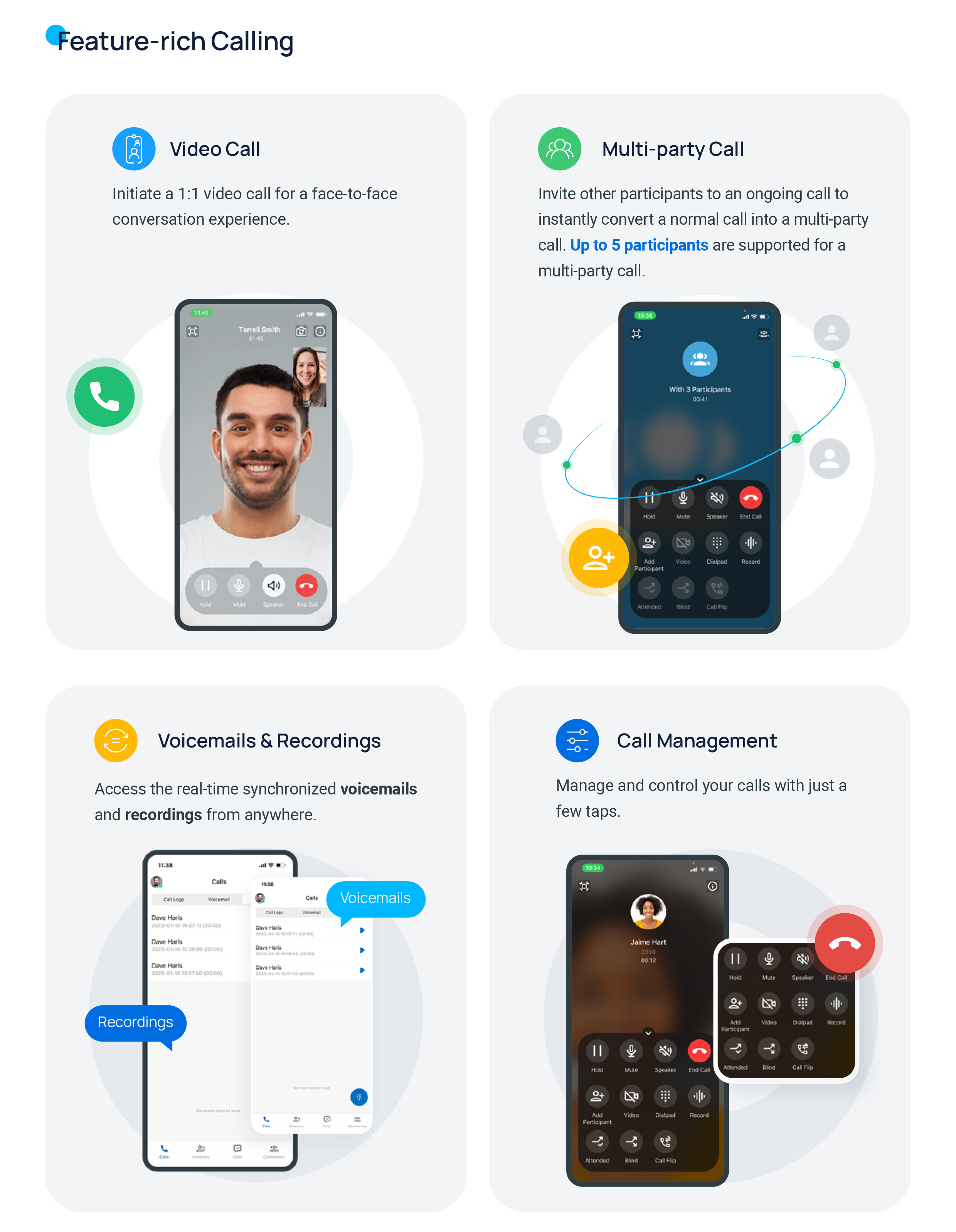
- Video calls: Start a one-to-one video call for a face-to-face conversation.
- Multi-party calls: Pull extra people into an active call to turn it into a group conversation.
- Voicemails and recordings: Your voicemails and call recordings sync in real time, so you can play them back from anywhere.
- In-call controls: Hold, mute, switch to speaker, open the dialpad, add participants, record, and transfer, all a tap or two away.
Move a call between devices, and let AI take notes
Section titled “Move a call between devices, and let AI take notes”You do not have to stay on one device for the whole call:
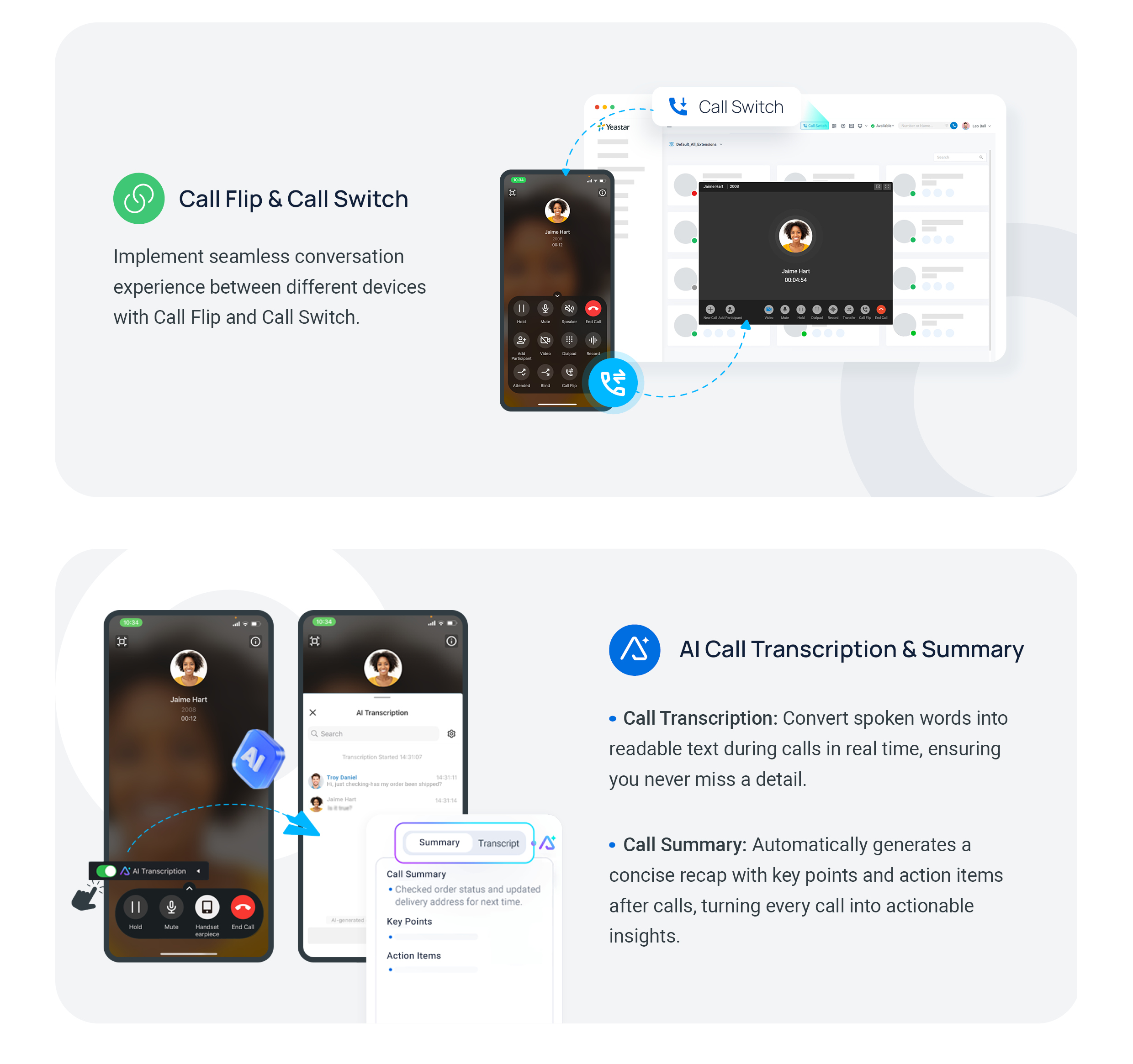
- Call Flip and Call Switch hand a live conversation from your phone to another device (or the other way) without interrupting it.
- AI Call Transcription uses AI (artificial intelligence) to convert speech to readable text during the call, so nothing slips past you.
- AI Call Summary produces a concise recap after the call, complete with key points and action items, turning the conversation into something you can act on.
Start a conference on the spot
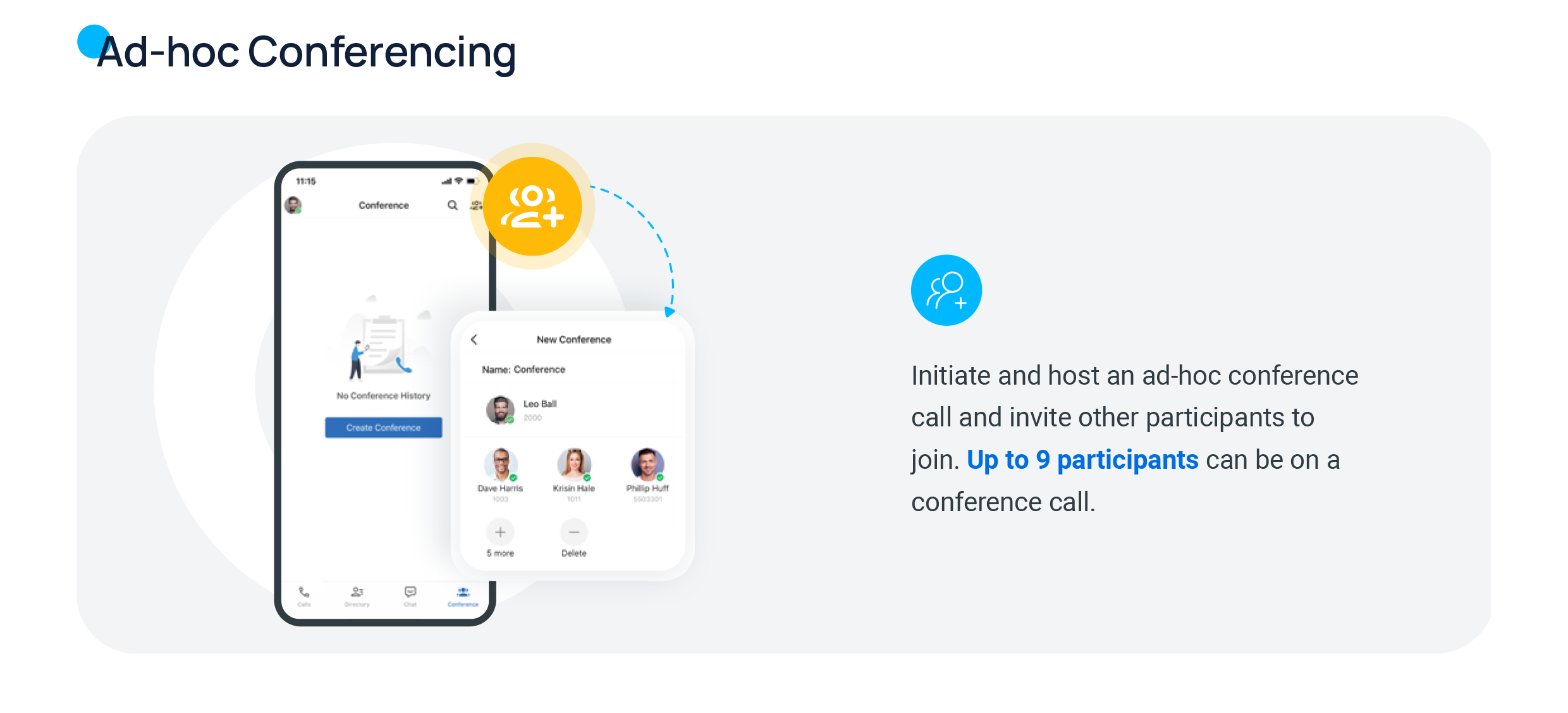
Section titled “Start a conference on the spot”Need more than a quick group call? Start an ad-hoc (set up on the spot, no advance booking) conference and invite people to join.
Message inside and outside your team
Section titled “Message inside and outside your team”The app handles both internal and external conversations:
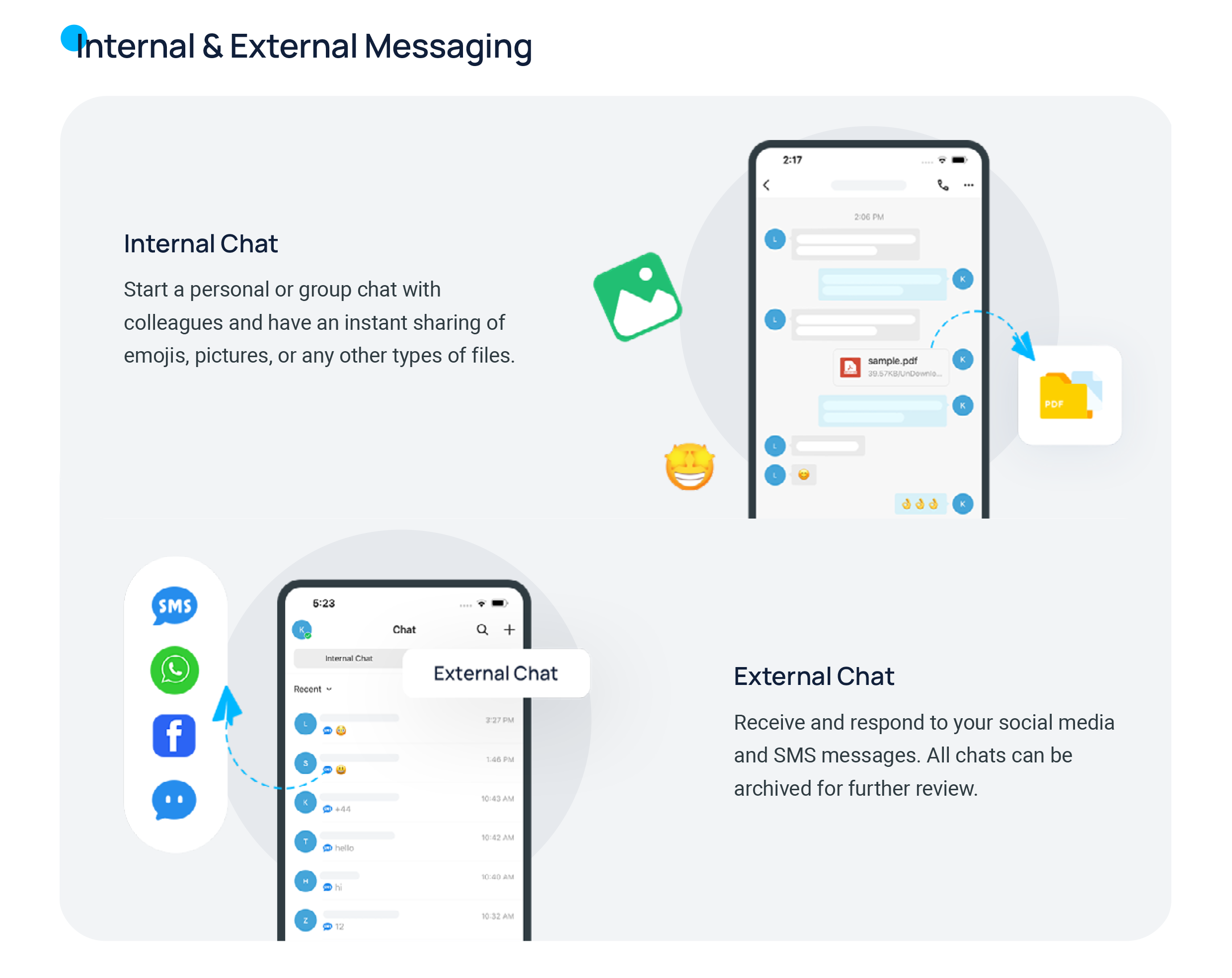
- Internal chat: Start a one-to-one or group chat with colleagues and share emojis, pictures, and files instantly.
- External chat: Receive and reply to SMS (Short Message Service, ordinary text messages) and social-media messages from your customers, and archive any conversation for later reference.
Set your presence
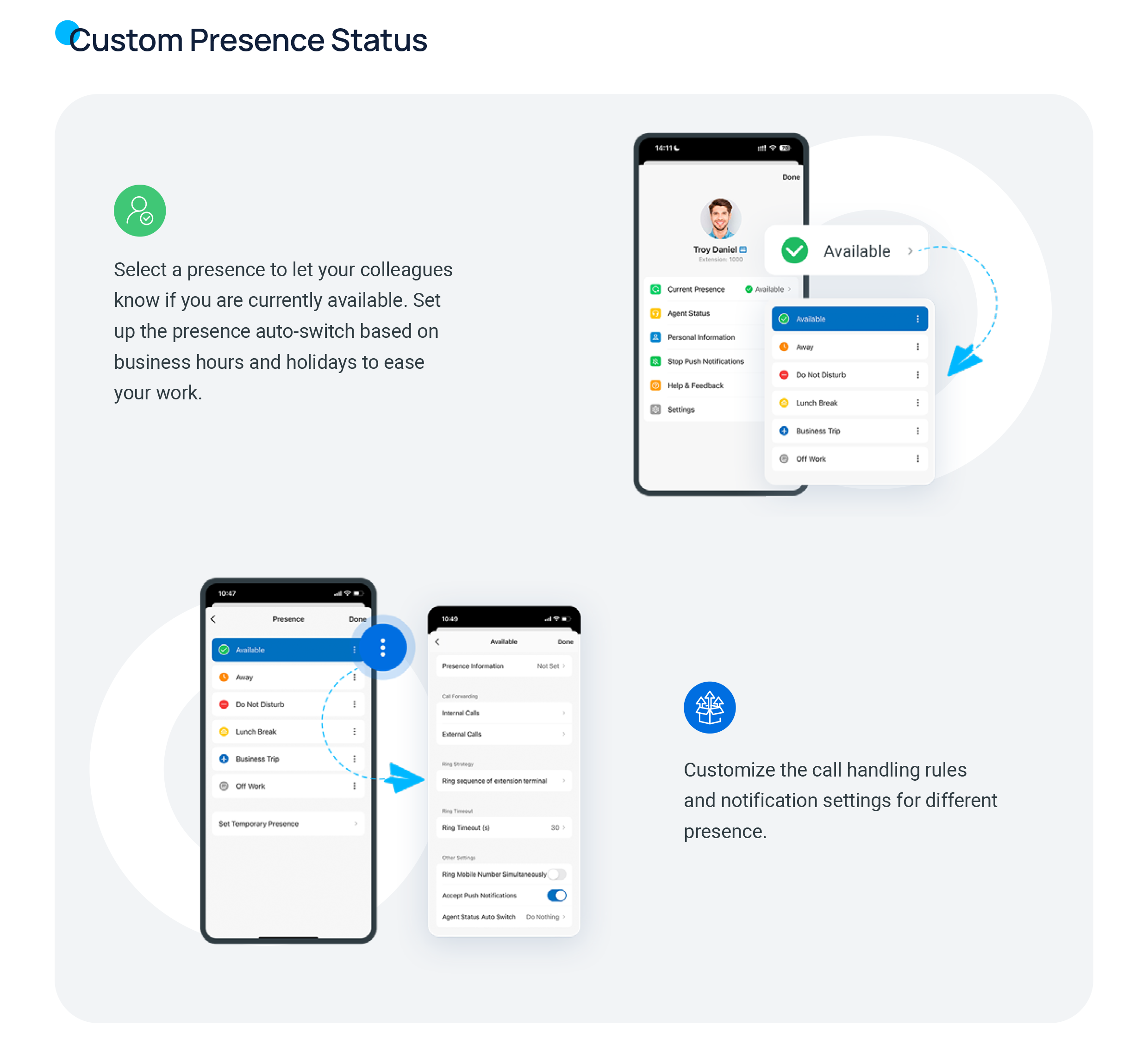
Section titled “Set your presence”Choose a presence status so colleagues know whether you are reachable, with options such as Available, Away, Do Not Disturb, Lunch Break, Business Trip, and Off Work. You can also:
- Have your presence switch automatically according to your business hours and holidays.
- Give each status its own call-handling and notification rules, including call forwarding, ring strategy and timeout, ringing your mobile at the same time, and whether push notifications come through.
Pick a light or dark look
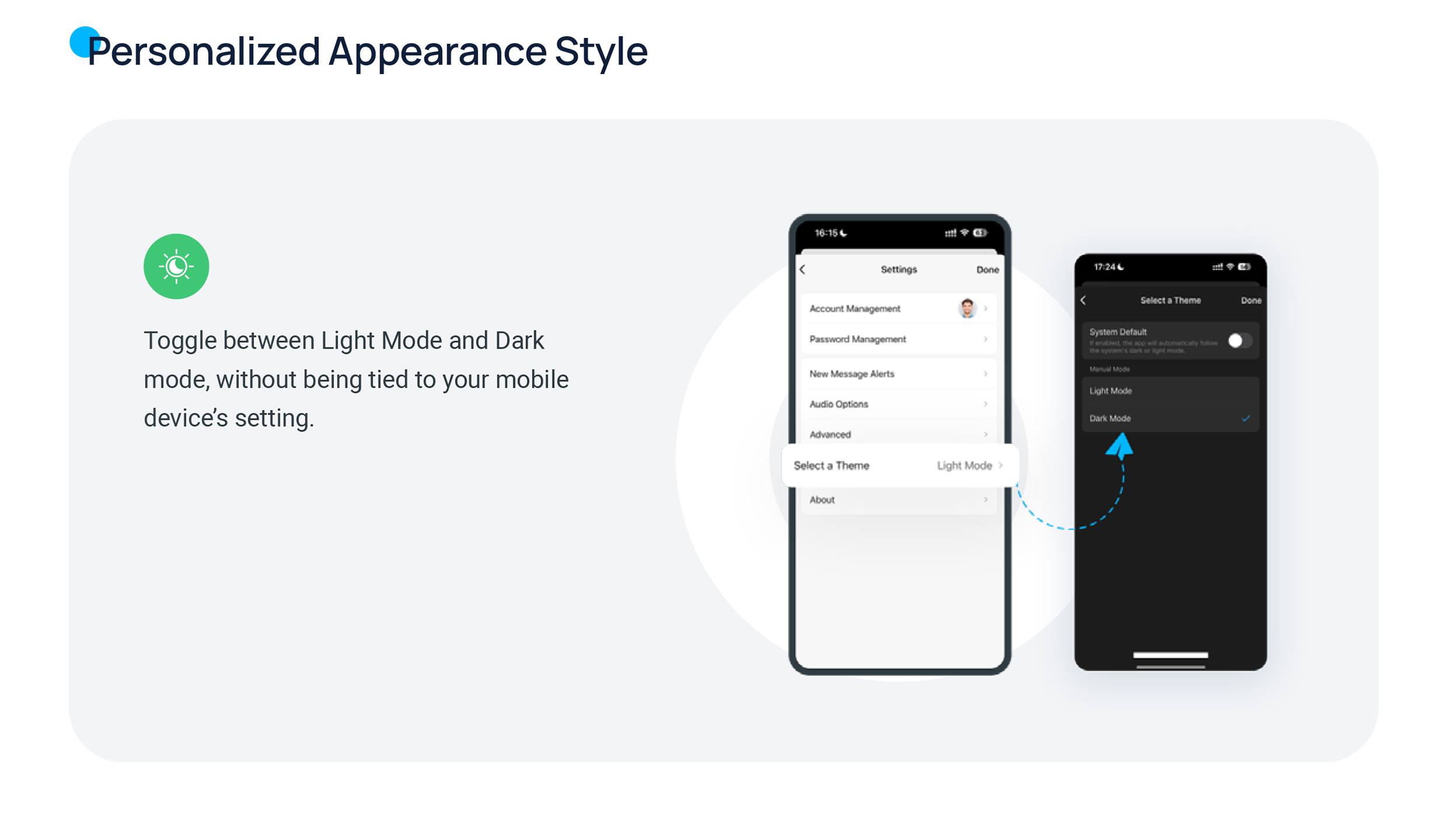
Section titled “Pick a light or dark look”Switch the app between Light Mode and Dark Mode independently of your phone’s system setting, or let it follow the system. See theme settings for the details.
Question about this page?
Ask the AI assistant. It starts from this page, then searches the rest of the docs.
Ask Cloud Voice AI
Answers are AI-generated from the docs and may contain mistakes. Verify with the linked pages.