
Park a Call
Parking a call puts it on hold at a numbered slot instead of at your own extension. Once parked, the call waits on that number until someone dials it back, so you can move to a different device or hand the conversation off to a teammate without ending it. You can let the system assign a slot for you or send the call to a parking number you choose.
Parking types
Section titled “Parking types”The Cloud Voice App gives you two ways to park an active call:
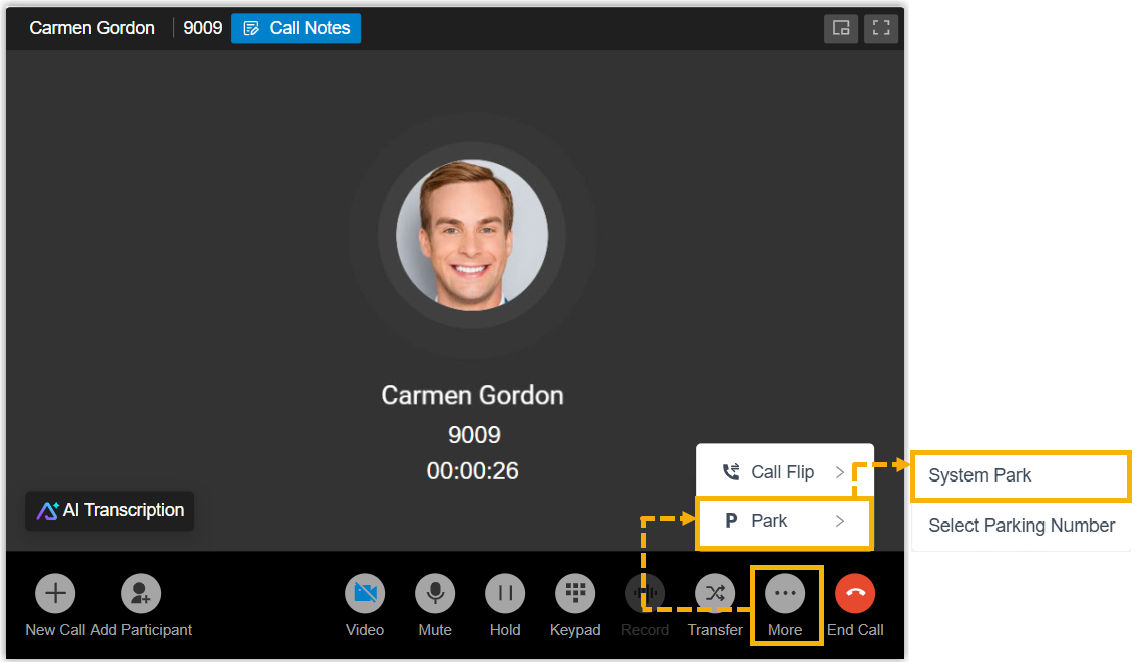
- System Park: The system picks the next free parking number and tells you which one it used. Choose this when you simply need to switch devices or pass the call to whoever is available. You can then dial that number from another device or share it with your team for a quick pickup.
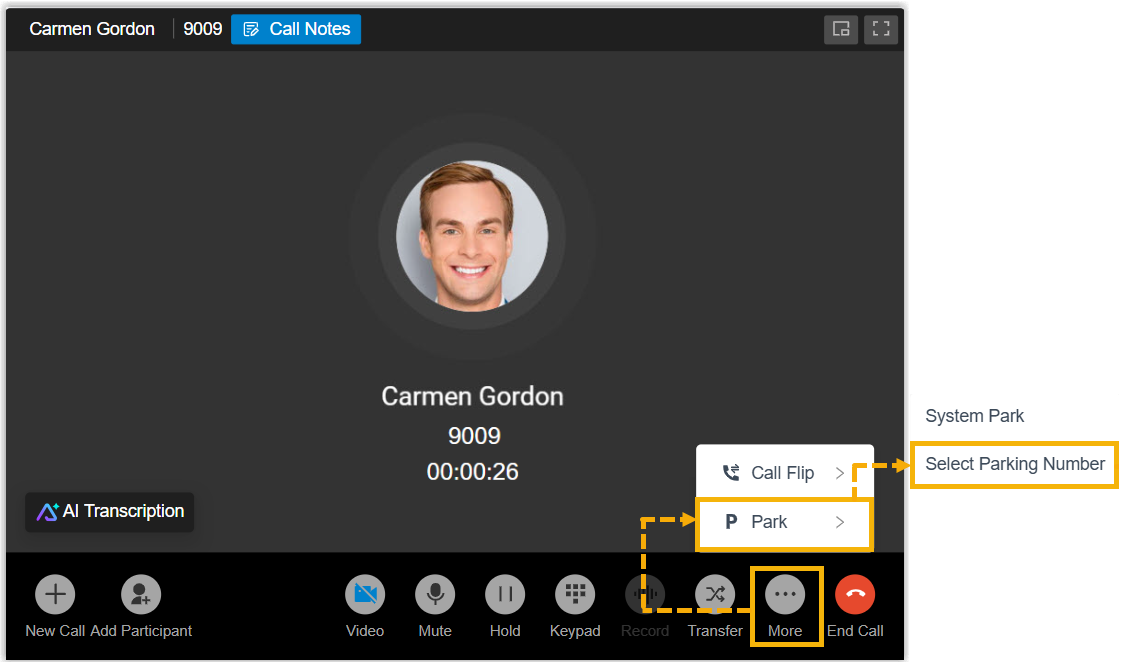
- Selected Park Number: You pick the parking number yourself. Choose this when teams or people have their own dedicated parking numbers. For example, to hand a caller off to a specific department, park the call on that department’s shared number so any of its members can retrieve it and continue the conversation.
Park a call on a system-assigned parking number
Section titled “Park a call on a system-assigned parking number”Requirements
- Your Cloud Voice system is running firmware
84.21.0.66or later. - Your system administrator has enabled the Call Parking feature code.
Example
You are on a call in a public area and need to continue it in a conference room. Park the call, walk over, and dial the parking number on the conference room’s IP phone to resume where you left off.
Steps
During an active call, click More > Park in the call window, then choose System Park.
Result
-
The system parks the call on the first available parking number and shows a toast confirming which one, for example, “The call has been parked at 6000.”
-
To retrieve the call, dial that parking number from any device with a registered extension.
Park a call on a specified parking number
Section titled “Park a call on a specified parking number”Requirements
- Your Cloud Voice system is running firmware
84.21.0.66or later. - Your system administrator has enabled the Directed Call Parking feature code.
Example
Each department has its own parking number, such as 6004 for Sales. When a caller needs another department’s help, park the call on that department’s number. Anyone in the department can then dial the number to pick up the call and assist the customer right away.
Steps
-
During an active call, click More > Park in the call window, then choose Selected Park Number.
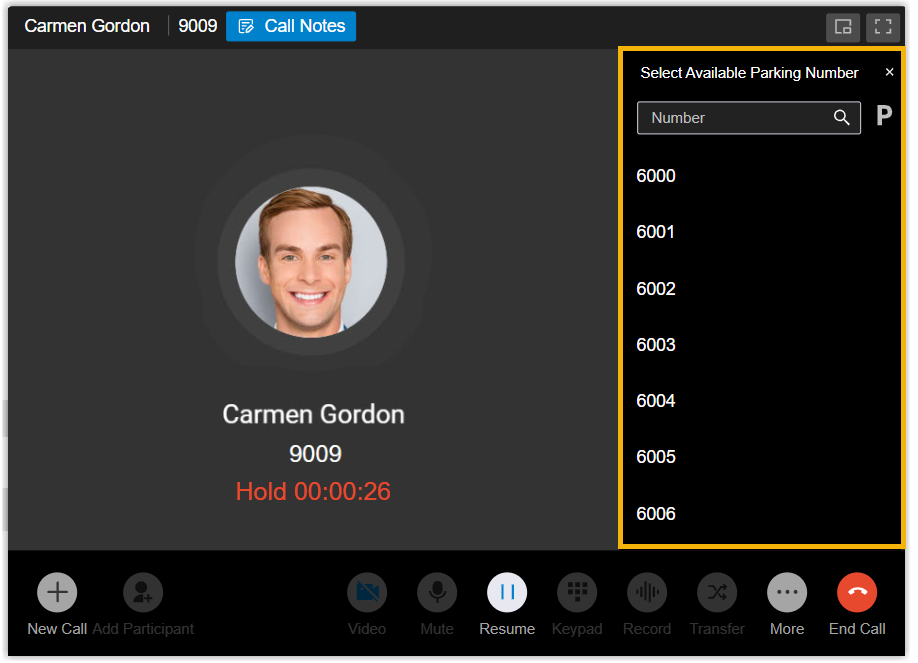
The call goes on hold and the currently available parking numbers appear in the right-hand panel.
-
In the panel, choose a parking number in one of these ways:
-
Browse or search the list and select the number you want.
-
Type the number into the search bar, then click the park icon
 next to it.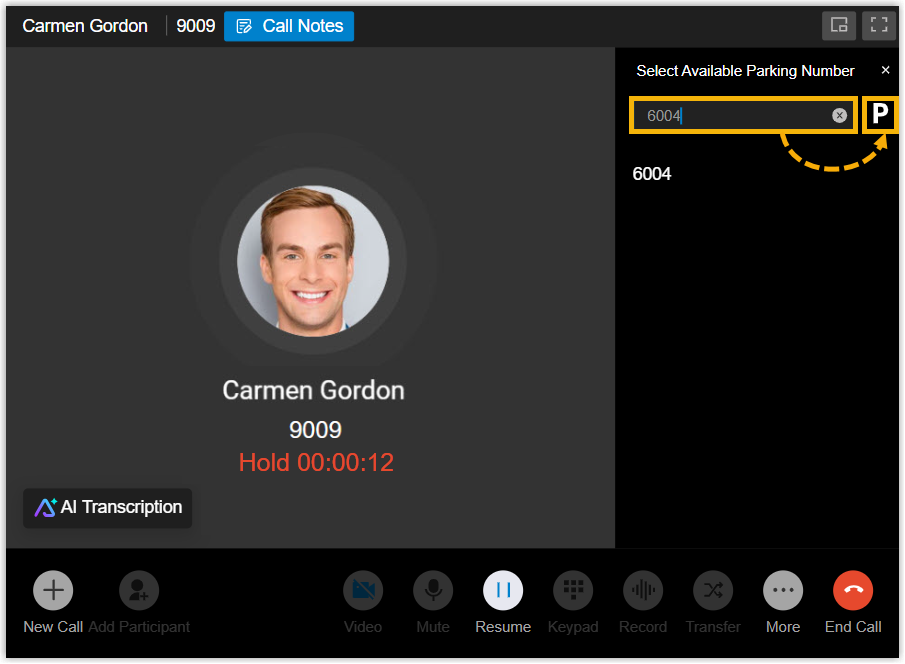
-
Result
-
The call is parked on the number you chose, and a toast confirms it, for example, “The call has been parked at 6004.”
-
Anyone in the department can retrieve the call by dialing the parking number or by pressing the associated Park & Retrieve function key.
Question about this page?
Ask the AI assistant. It starts from this page, then searches the rest of the docs.
Ask Cloud Voice AI
Answers are AI-generated from the docs and may contain mistakes. Verify with the linked pages.