
Switch Call Recording Status
When your administrator turns on recording for a queue, calls in that queue begin recording the moment they connect. If you hold the right permissions, you can take control of recording while a call is in progress: pause it so sensitive details are not captured, resume it afterward, or begin recording a call that was never set to be recorded in the first place.
Before you begin
Section titled “Before you begin”The controls available to you depend on the permissions your administrator has assigned:
- Change your own recording status: Your extension needs either the Pause/Resume permission or the Start/Pause/Resume permission.
- Change another agent’s recording status: You need the Switch agent’s recording status permission.
Pause recording during a call
Section titled “Pause recording during a call”-
In the Cloud Voice App (web or desktop), open Call Center Console > Queue Panel.
-
In the Active Calls panel, move your pointer over the call that is recording.
-
Right-click the call and choose Pause Recording.
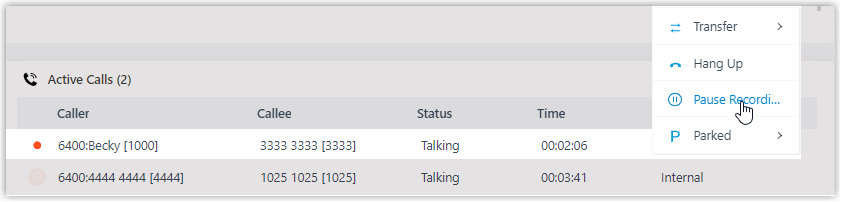
The recording indicator stops flashing and switches to the paused state
 .
.
Start or resume recording during a call
Section titled “Start or resume recording during a call”-
In the Active Calls panel, move your pointer over the call.
-
Right-click the call and choose Recording.
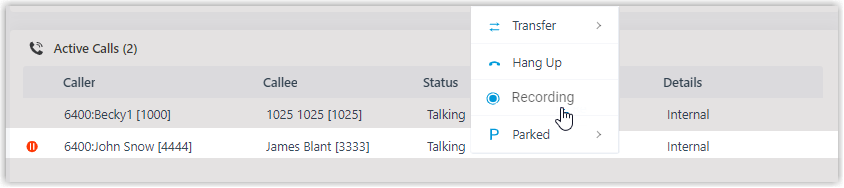
The indicator returns to the active recording icon
 and begins flashing again.
Question about this page?
Ask the AI assistant. It starts from this page, then searches the rest of the docs.
Ask Cloud Voice AI
Answers are AI-generated from the docs and may contain mistakes. Verify with the linked pages.