
Set up Call Popup
Call popup brings a caller’s Dynamics 365 record into view while you are on the phone. Dynamics 365 is a CRM (Customer Relationship Management) system, the place where your organization stores contact and account information. You can have the record appear on its own at a point you choose during the call, or you can leave that off and open the record yourself when you need it. This page walks through both options.
Configure call popup
Section titled “Configure call popup”-
Sign in to the Cloud Voice App for Dynamics 365 plugin, then click the preferences icon
 .
. -
Open the Dynamics Integration tab.
-
Choose how you want the contact record to open:
Open it automatically
To have the CRM contact page appear on its own for inbound calls:
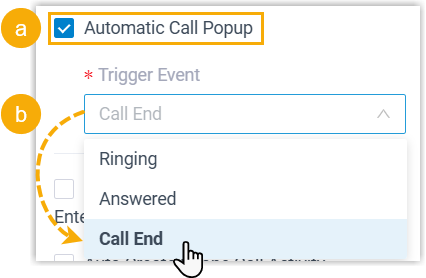
- Select the Automatic Call Popup checkbox.
- From the Trigger Event drop-down, pick the point in the call when the record should open:
- Ringing: opens as soon as an inbound call from a CRM contact starts ringing.
- Answered: opens once you answer an inbound call from a CRM contact.
- Call End: opens after you hang up with a CRM contact.
Open it manually
Leave the Automatic Call Popup checkbox cleared if you would rather pull up the record yourself during the call.
-
Click Save.
What happens next
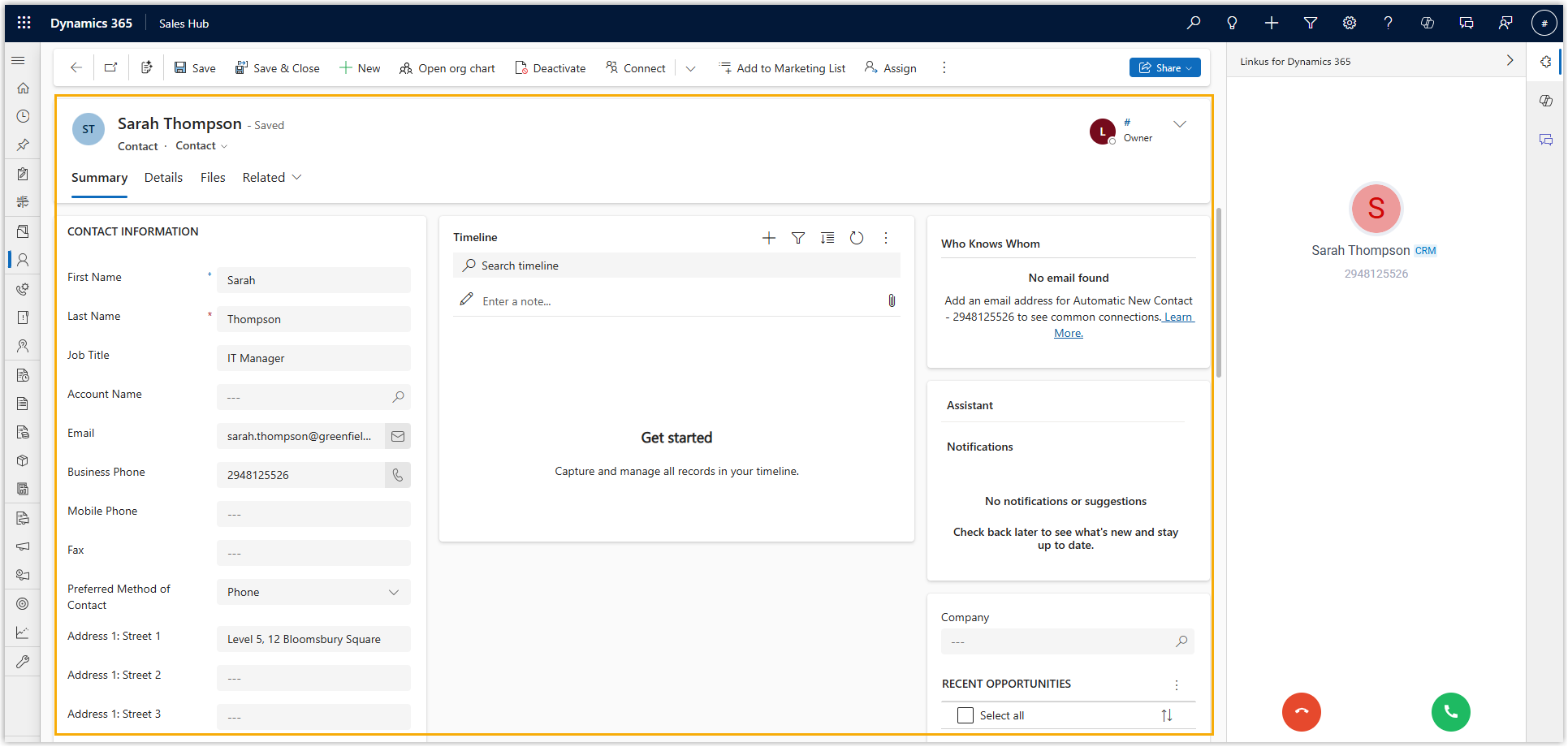
Section titled “What happens next”If automatic call popup is on, the moment your chosen trigger event occurs on an inbound call from a CRM contact, that contact’s details open in the Dynamics 365 interface so you can see who is calling.
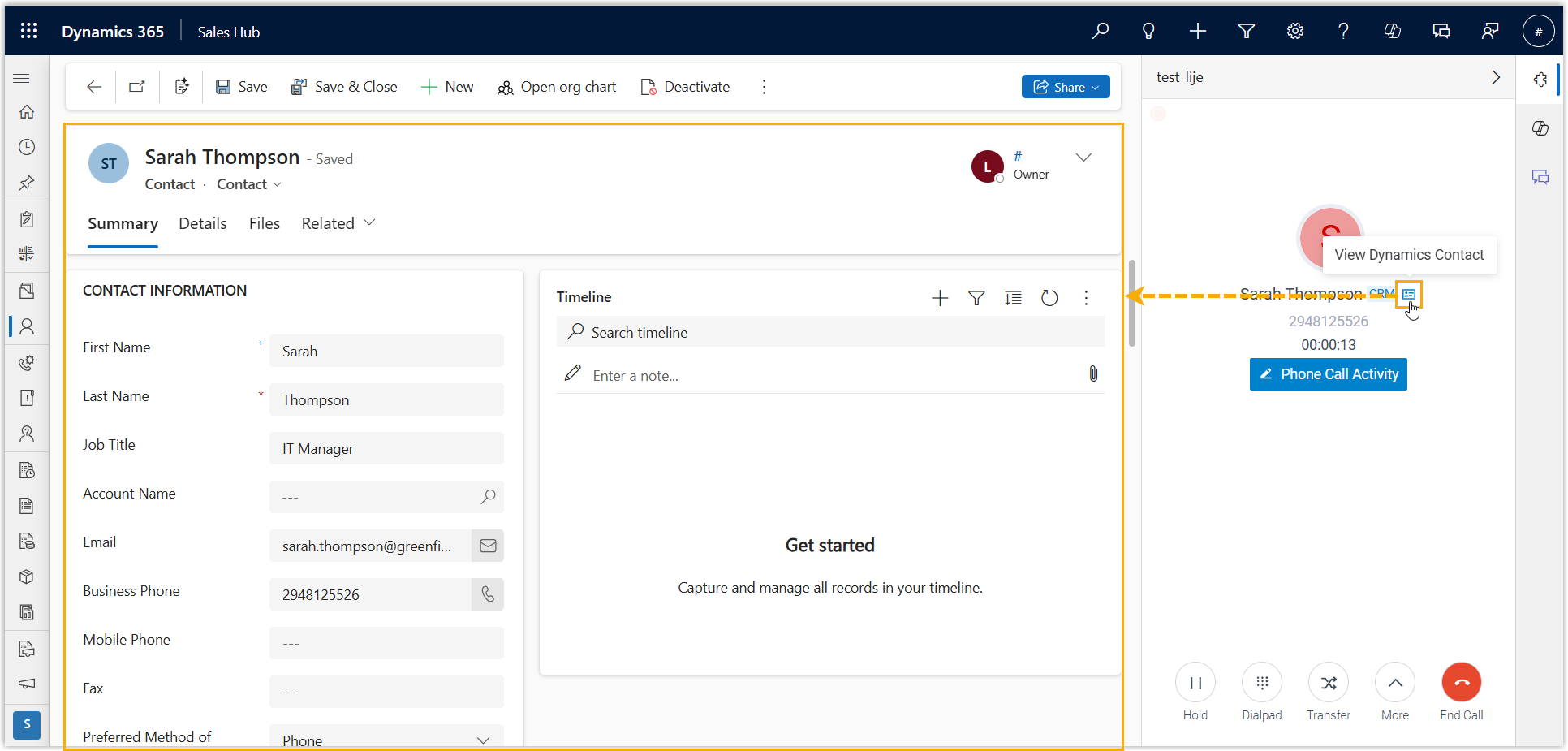
If automatic call popup is off, click the contacts icon  on the call window at any time during a call with a CRM contact to open their details.
Question about this page?
Ask the AI assistant. It starts from this page, then searches the rest of the docs.
Ask Cloud Voice AI
Answers are AI-generated from the docs and may contain mistakes. Verify with the linked pages.