
Call Flip Overview
Call Flip hands an active call off from one device to another in mid-conversation. As long as the user’s extension (their internal phone identity in the system) is registered, meaning signed in, on both devices, the call moves across without a pause or a dropped connection, so the person on the other end never notices the switch.
When you’d use it
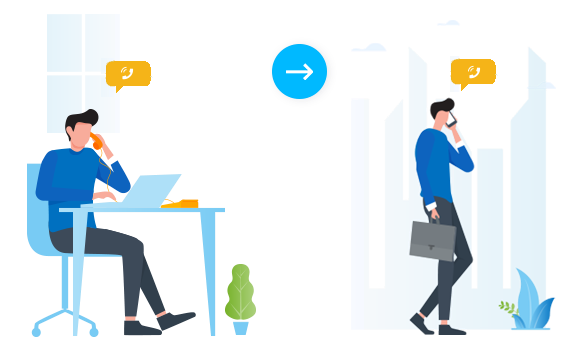
Section titled “When you’d use it”Picture a sales rep taking a customer call at their desk who suddenly needs to head out of the office. Rather than ending the call and calling back, they flip it straight to their mobile phone and keep talking as they walk out the door.
Ways to flip a call
Section titled “Ways to flip a call”Extension users have two ways to flip an in-progress call. Both reach the same result, so the right one to reach for depends on the device the user is holding.
Use the Call Flip button
Section titled “Use the Call Flip button”Clicking the Call Flip button shows the user every other device their extension is registered on. They pick the device they want, and the call moves there. No other devices ring, so the handoff is silent.

This method works from the Cloud Voice App on mobile, desktop, and in the browser, including when the browser client runs as a Google Chrome extension.
Dial the Call Flip feature code
Section titled “Dial the Call Flip feature code”When a user dials the Call Flip feature code, every other device their extension is registered on rings at the same time. The user answers on whichever device they want, and the call is handed over to it.
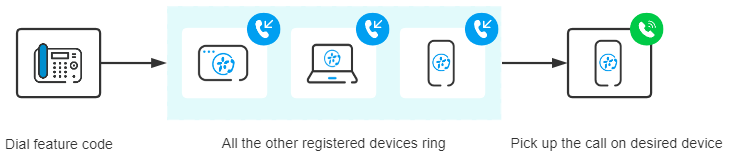
Once the Call Flip feature code is turned on in Cloud Voice, this method is available from every endpoint, including plain desk phones that do not run the Cloud Voice App.
- To turn the feature code on, see Enable ‘Call Flip’ feature code.
- For the steps a user follows to flip a call this way, see Flip an Active Call by Dialing a Feature Code.
Question about this page?
Ask the AI assistant. It starts from this page, then searches the rest of the docs.
Ask Cloud Voice AI
Answers are AI-generated from the docs and may contain mistakes. Verify with the linked pages.