
Auto Provision LDAP for IP Phones
LDAP (Lightweight Directory Access Protocol) is a standard way for a device to look up contacts in a shared directory over the network. Instead of programming the LDAP directory into each handset by hand, you can deliver the settings to your supported IP phones (network-connected desk phones) through Auto Provisioning. Auto Provisioning pushes configuration to the phone for you, so once the phone reprovisions, users can search the shared contacts stored on your Cloud Voice PBX straight from the device.
Supported IP phones
Section titled “Supported IP phones”The steps below apply to the models listed in Auto Provisioning - Supported Devices.
Prerequisites
Section titled “Prerequisites”Before you begin, confirm the following:
- Your PBX is running version 84.6.0.24 or later.
- You have set up the PBX as an LDAP server. This is where the phone reads its contacts from, so it must exist before Auto Provisioning has anything to point the phone at.
- The phone is already connected to Cloud Voice through Auto Provisioning and has an extension assigned. For details, see Auto Provision IP Phones Remotely via RPS Method or Auto Provision IP Phones Remotely with Proxy.
Procedure
Section titled “Procedure”-
Sign in to the PBX web portal and go to Auto Provisioning > Phones, then click the edit icon
 next to the phone you want to configure.
 -
On the Phone tab, scroll to the LDAP Directory section and configure the fields to suit your directory.
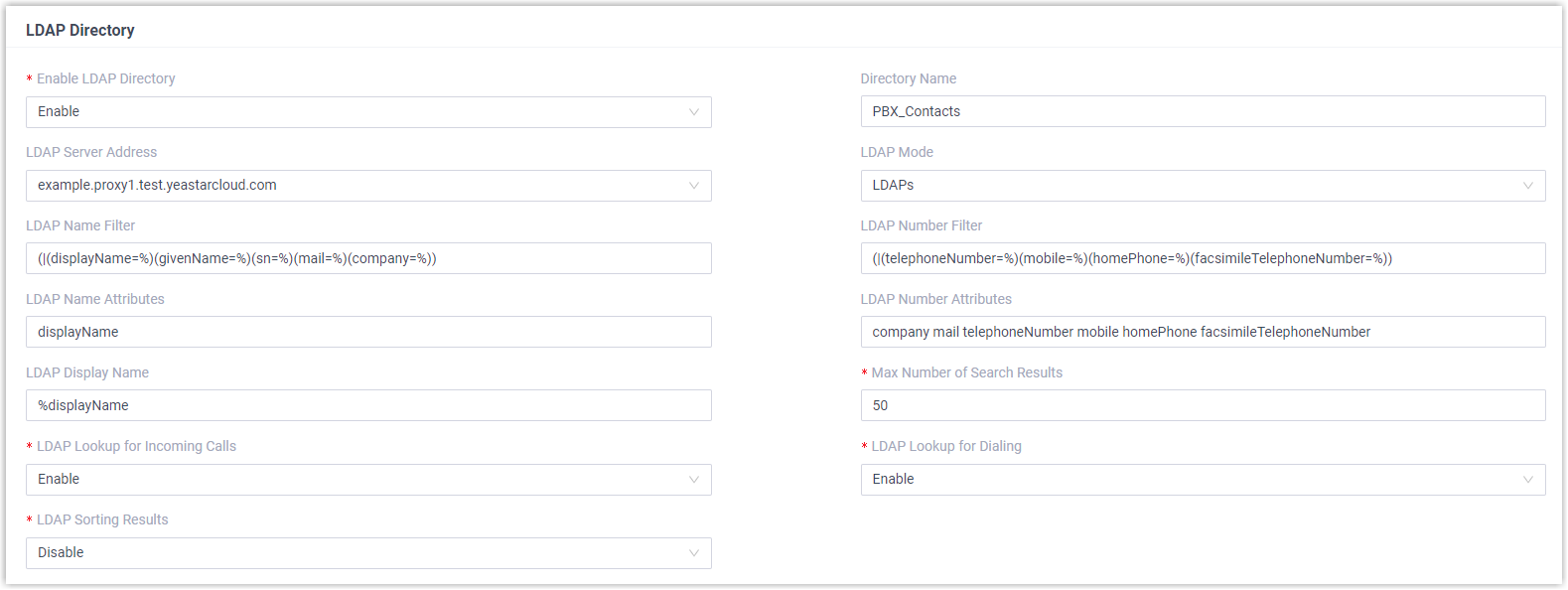
Setting Description Example Enable LDAP Directory Turn the LDAP directory feature on or off. Enable Directory Name A name for the LDAP directory. PBX_Contacts LDAP Server Address The LDAP server address of your Cloud Voice PBX. Use the address shown on your PBX LDAP server page. example.proxy1.cloudvoice.example.com LDAP Mode The connection mode between the LDAP server and the phone. LDAPs is the encrypted version (LDAP over TLS). LDAPs LDAP Name Filter Name attributes used when the phone looks up a contact by name. (|(displayName=%)(givenName=%)(sn=%)(mail=%)(company=%))LDAP Number Filter Number attributes used when the phone searches by number. (|(telephoneNumber=%)(mobile=%)(homePhone=%)(facsimileTelephoneNumber=%))LDAP Name Attributes Name attributes each record returns. Separate multiple attributes with a space. displayName LDAP Number Attributes Number attributes each record returns. You can list more than one. telephoneNumber mobile homePhone LDAP Display Name The name shown for each record on the phone’s screen. %displayName Max Number of Search Results The maximum number of results the server returns. 50 LDAP Lookup for Incoming Call Whether the phone runs an LDAP search when a call comes in. Enabled LDAP Lookup for Callout Whether the phone runs an LDAP search when placing a call. Enabled LDAP Sorting Results Whether the phone sorts results in alphabetical and numerical order. Enabled -
Click Save. The page returns to Auto Provisioning > Phones.
-
Click the reprovision icon
 beside the phone to push the new settings.
 -
In the confirmation dialog, click OK.
Result
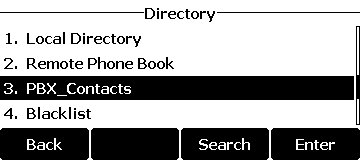
Section titled “Result”Users can now search the shared directory directly on the phone under Menu > Directory.
Question about this page?
Ask the AI assistant. It starts from this page, then searches the rest of the docs.
Ask Cloud Voice AI
Answers are AI-generated from the docs and may contain mistakes. Verify with the linked pages.