
Set up Basic Emergency Calling
Basic emergency calling lets anyone on your phone system reach help fast when something goes wrong. You define an emergency number, decide which extensions may use it, and choose the trunks that carry the call out. This page walks you through that setup in Cloud Voice.
Procedure
Section titled “Procedure”-
Sign in to the PBX (Private Branch Exchange, your phone system) web portal and go to Call Control > Emergency Number, then click Add.
-
In the General section, define the emergency number and who can dial it.
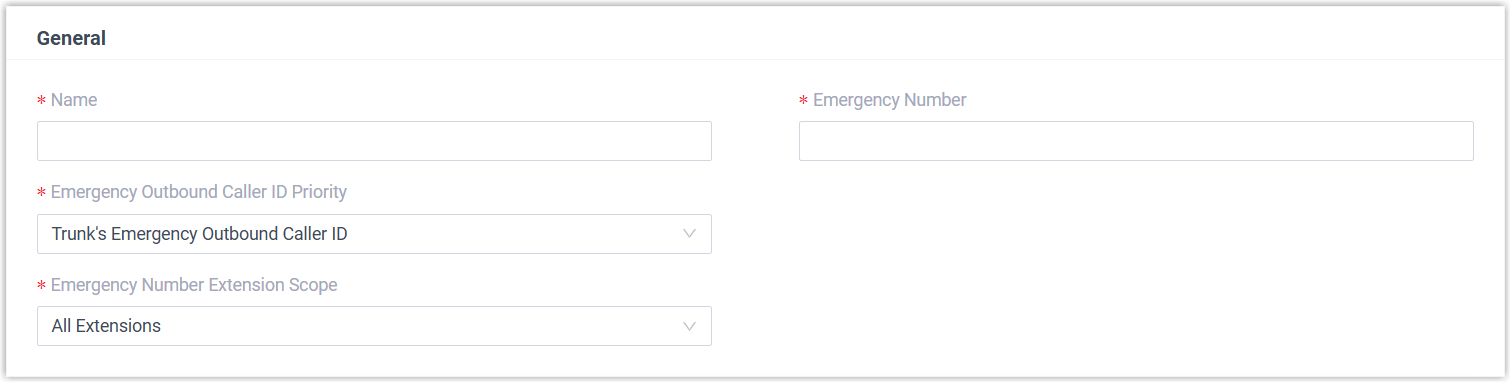
Setting Description Name A label that helps you recognize this emergency number later. Emergency Number The number users dial to reach emergency services. Emergency Outbound Caller ID Priority Leave this at its default value. Emergency Number Extension Scope Controls which extensions may dial this number.
All Extensions: Every extension can place the call through any of the emergency trunks you define in the Outbound Rules section.
Specific Extensions: Only the extensions you name can place the call, and only through the matching emergency trunk in Outbound Rules. Choosing this option adds fields below where you select those extensions. -
In the Outbound Rules section, choose the trunks that carry emergency calls.
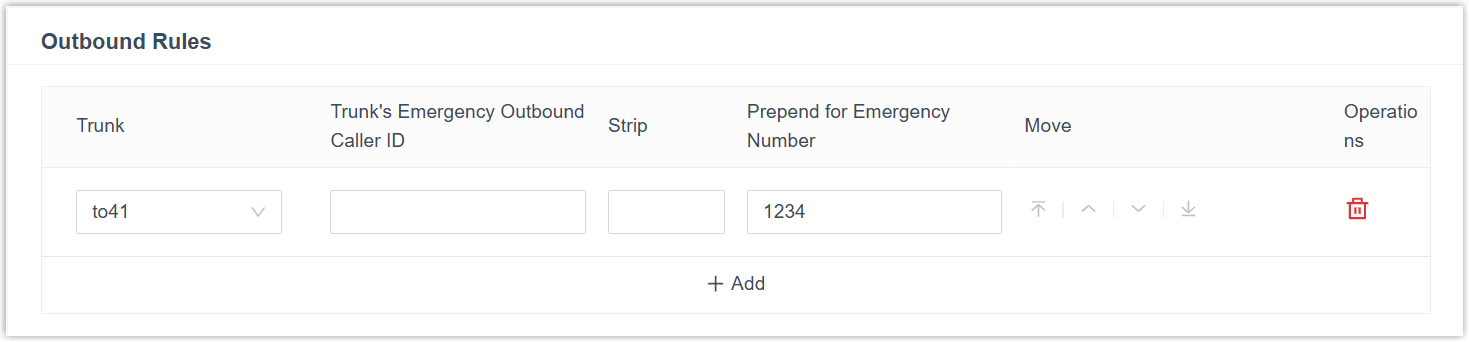
a. Click Add and complete the trunk settings.
Setting Description Trunk The trunk to route emergency calls through. Trunk’s Emergency Outbound Caller ID Leave this at its default value. Setting an emergency outbound caller ID for basic emergency calling can cause calls to fail. Strip Optional. The number of digits to remove from the front of the dialed number. For example, set this to 1so that when a user dials 8911, Cloud Voice strips the leading 8 and dials 911.Prepend for Emergency Number Optional. A prefix your ITSP (Internet Telephony Service Provider, the carrier that connects your outbound calls) requires for outbound calls. Cloud Voice adds it to the front of the dialed number. For example, set this to 1234so that a dialed 911 goes out as 1234911.Extensions/Extension Groups Optional. When only certain extensions may use this number, select the extensions permitted to use this emergency trunk. b. Repeat step a to add a second trunk. If the first trunk is unavailable, Cloud Voice falls back to the next one to place the call.
-
Click Save, then Apply.
What to do next
Section titled “What to do next”With emergency calling in place, consider these follow-up tasks:
- Set up a Route for PSAP Callbacks, direct a return call from the PSAP (Public Safety Answering Point, the emergency call center that handles 911) to on-site staff when the original caller can’t answer.
- Add an Emergency Notification Contact, alert designated people whenever someone dials an emergency number.
Question about this page?
Ask the AI assistant. It starts from this page, then searches the rest of the docs.
Ask Cloud Voice AI
Answers are AI-generated from the docs and may contain mistakes. Verify with the linked pages.