
Set Distinctive Ringtones for Internal Calls
A dedicated ringtone for internal calls lets an extension user tell, just by the sound, that an incoming call is coming from a colleague on the same phone system rather than from outside. This page explains how to give users’ desk phones (IP phones, meaning phones that connect over your data network) a distinct ringtone for internal calls.
The setup has two parts:
Define alert info for internal calls
Section titled “Define alert info for internal calls”The PBX (Private Branch Exchange, the phone system that routes your calls) tags every internal call with a small text label called alert info. It carries that label inside the call’s SIP signaling (SIP, or Session Initiation Protocol, is the standard that sets up and ends calls). When a desk phone receives a call carrying that label, it plays the ringtone you mapped to it.
-
Sign in to the PBX web portal and go to PBX Settings > SIP Settings > Advanced.
-
In the SIP Request Header section, type a label in the Internal Alert Info field.
This label is what triggers the phone to play the internal-call ringtone. For this example, enter
Internal.
Assign a ringtone to a user’s phone
Section titled “Assign a ringtone to a user’s phone”For each user who should hear a distinct internal ringtone, map the alert info to a ringtone through auto provisioning. Auto provisioning is what pushes the configuration from the PBX down to the physical phone.
Prerequisites
Section titled “Prerequisites”The user’s extension must already be bound to a phone. For guidance, see:
Procedure
Section titled “Procedure”-
Set the internal ringtone on the user’s phone.
-
Sign in to the PBX web portal, go to Extension and Trunk > Extension, and open the user’s extension for editing.
-
Select the Phone tab to edit the phone tied to that extension.
-
In the Distinctive Ringtone section, click Add.
-
In the Alert Info field, choose the label you defined earlier for internal calls. In this example, select
Internal. -
In the Ringtone field, pick the ringtone to play for internal calls. In this example, select
Ring1.wav.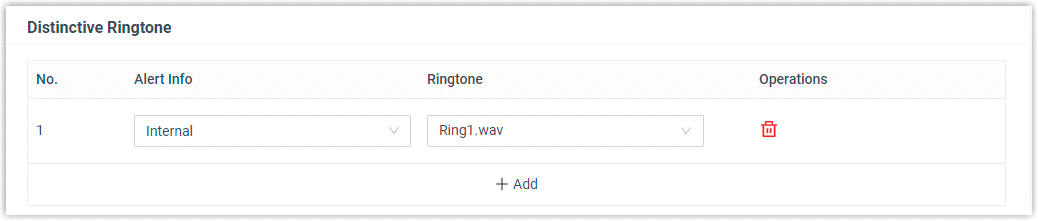
-
Click Save.
-
-
Reprovision the phone so the change takes effect.
- Go to Auto Provisioning > Phones.
- Click the reprovision icon
 next to the phone assigned to the user’s extension.
Result
Section titled “Result”When the user’s phone receives an internal call, it now rings with Ring1.wav.
Question about this page?
Ask the AI assistant. It starts from this page, then searches the rest of the docs.
Ask Cloud Voice AI
Answers are AI-generated from the docs and may contain mistakes. Verify with the linked pages.