
Key Metrics for CDR Details
A Call Detail Record (CDR) captures the specifics of every inbound and outbound call on your Cloud Voice phone system, also known as a PBX (Private Branch Exchange). When you open the full details of a single record (Reports and Recordings > CDR > CDR (Advanced) > Details), the information is organized into a set of panels. This page walks through each panel and explains what the fields mean.
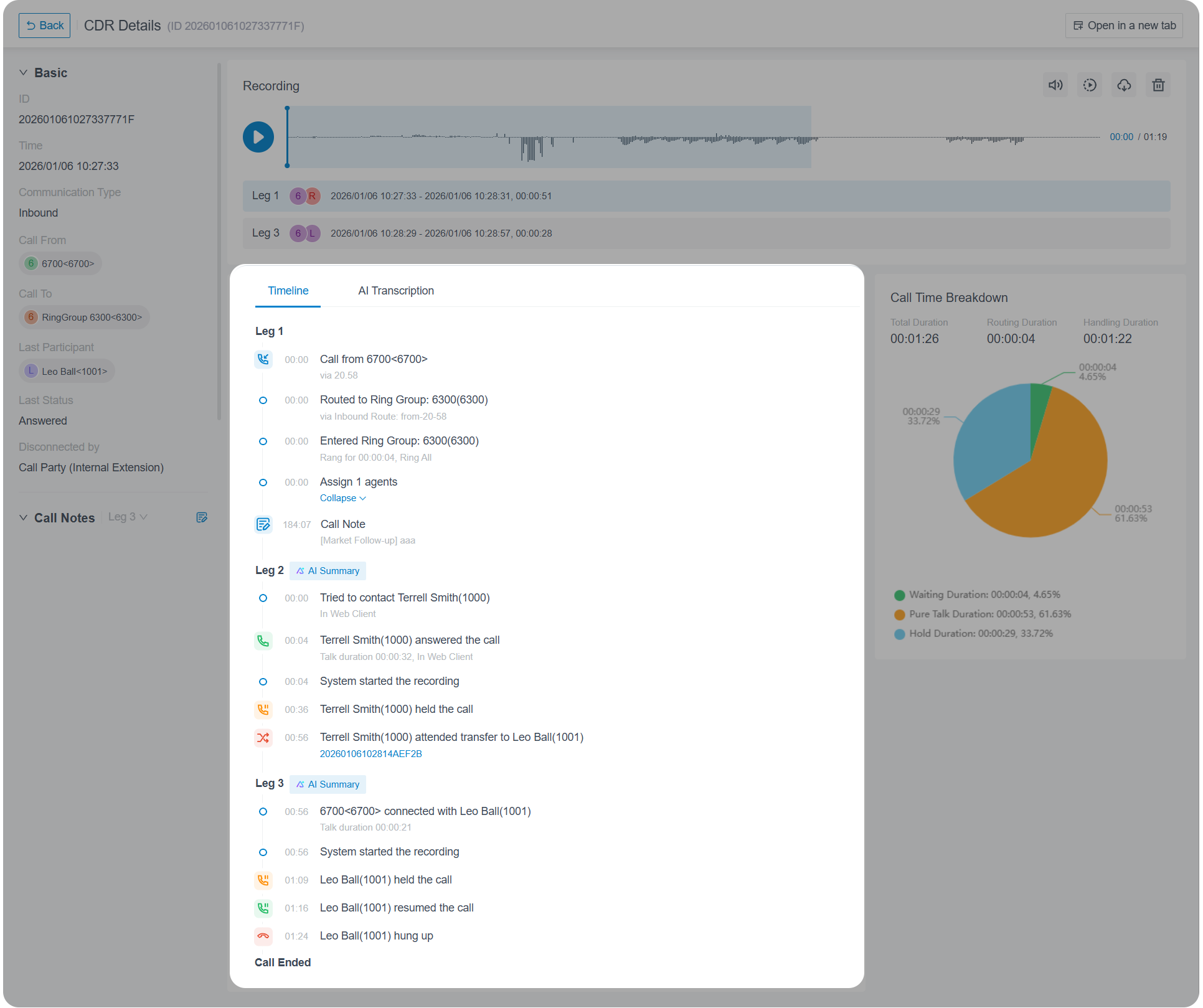
Basic call information
Section titled “Basic call information”This panel gives you a quick, at-a-glance summary of the call and where it ended up.
| Item | Description |
|---|---|
| ID | The unique identifier assigned to the call. |
| Time | When the call was placed or received. |
| Communication Type | Whether the call was Internal, Inbound, or Outbound. |
| Call From | The party that started the call. |
| Call To | The party that the call was originally placed to. |
| Last Participant | The party that received the call on its final leg. |
| Last Status | How the call ultimately ended: ANSWERED, NO ANSWER, BUSY, FAILED, VOICEMAIL, or ABANDONED. |
| Disconnected by | The party that ended the call: Call Party (Internal Extension), Call Party (External Number), or PBX Others. |
Call Notes
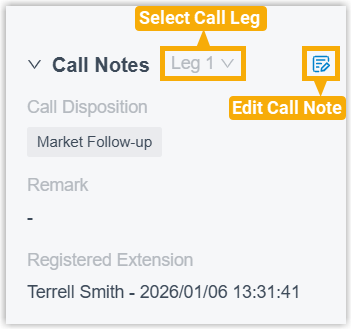
Section titled “Call Notes”This panel brings together every note attached to the call, along with the people who recorded them, so nothing important gets lost. Because notes are tracked per leg, you can drill in and view or edit the notes for any individual call leg.
| Item | Description |
|---|---|
| Call Disposition | The disposition code applied to the call. |
| Remark | The free-text notes recorded against the call. |
| Registered Extension | The extension that made the most recent edit to the note. |
Recording
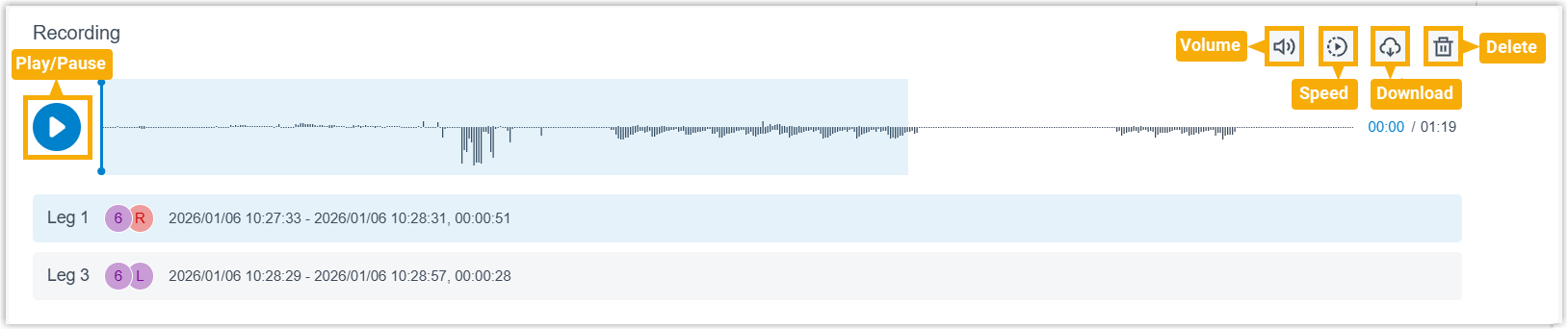
Section titled “Recording”This panel consolidates every recording captured across all legs of the call into a single waveform. The waveform lines up call duration against recording duration, making it easy to see when each party was talking and to jump straight to the segment you want to hear.
The panel also gives you hands-on control over the recordings:
- Play back a recording, adjusting the volume and the playback speed.
- Download recordings one segment at a time or as a single combined file.
- Delete recordings without leaving the panel.
| Item | Description |
|---|---|
| Leg {number} | Shows the participants in that recording, the leg’s start and end times, and the recording length. |
Timeline
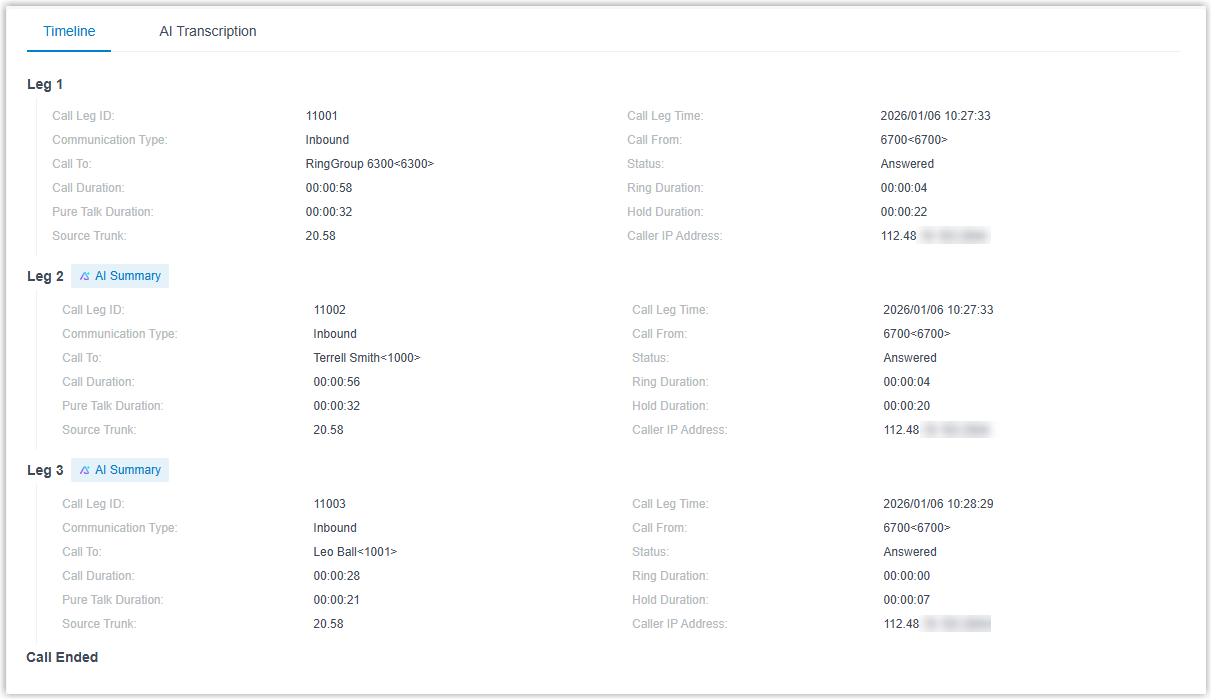
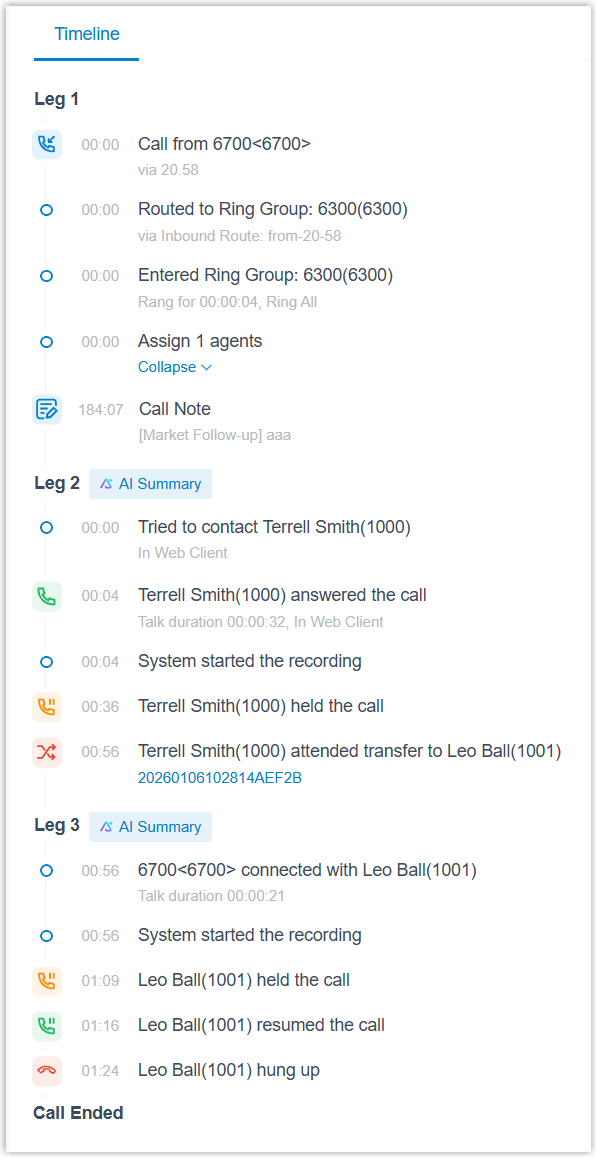
Section titled “Timeline”This panel lays out the per-leg data for the call. How much detail you see depends on whether the call timeline feature is turned on.
By default, leg data appears in a flat, consolidated layout. With the call timeline feature enabled, Cloud Voice instead records every event across the call’s lifecycle and lists them in the order they happened.
Supported views
Section titled “Supported views”| View | Description |
|---|---|
| Standard View (call timeline disabled) | Collects the essential metrics for each leg into a single flat layout for a quick overview of call activity. |
| Timeline View (call timeline enabled) | Lists every event from the start of the call to the end in chronological order, for a detailed, step-by-step picture. |
Supported metrics
Section titled “Supported metrics”| Item | Description |
|---|---|
| Call quality indicator | A colored dot that links to the call quality monitoring report for the leg: green for good quality, orange for moderate, and red for poor. See Call quality monitoring report metrics below. |
| Call Leg ID | The unique identifier for the leg. |
| Call Leg Time | When the leg started. |
| Communication Type | Whether the leg was Internal, Inbound, or Outbound. |
| Call From | The party that started the call. |
| Call To | The party that received the call. |
| Status | The status of the leg: ANSWERED, NO ANSWER, BUSY, FAILED, VOICEMAIL, or ABANDONED. |
| Call Duration | Total elapsed time from when the leg started to when it ended. Calculated as Ring Duration + Talk Duration + Hold Duration. |
| Ring Duration | Time between the leg starting and being answered. |
| Pure Talk Duration | Time between the call being answered and ending, not counting any time on hold. |
| Hold Duration | Time the call spent on hold. |
| Source Trunk | The trunk the call came in on. |
| Destination Trunk | The trunk the call went out on. |
| DID/DDI | Direct Inward Dialing (also called Direct Dialing In): the specific number the caller dialed to reach your system. |
| Outbound Caller ID | The number shown on the callee’s phone. |
| Caller IP Address | The IP address of the caller’s device. |
| PIN Code | The PIN entered to place the call through a restricted outbound route. |
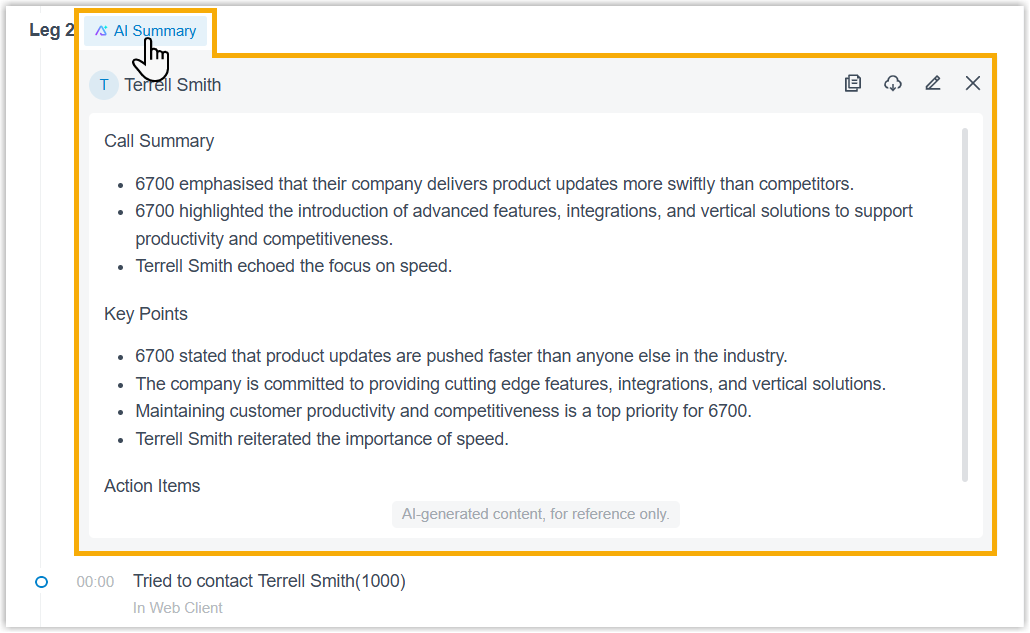
| AI Summary | An AI-generated summary of the call. Click the indicator to view, copy, edit, or download it. |
| AI Receptionist | The outcome of an AI receptionist call: Resolved (the caller’s issue was handled without a transfer), Transferred (the call was passed to another destination), or Unresolved (neither resolved nor transferred). |
Call quality monitoring report metrics
Section titled “Call quality monitoring report metrics”Opening a leg’s call quality monitoring report shows the following.
| Metric | Description |
|---|---|
| Overall Score | The overall call quality score and rating. |
| Summary | A summary of the call quality report. |
Caller and Callee
| Metric | Description |
|---|---|
| Name | Name and number. |
| Monitoring Duration | How long call quality was monitored. |
| Codec | The codec used for the call. |
| Client | The client or device used for the call: the Cloud Voice App on mobile (iOS/Android), the Cloud Voice App on desktop (Windows/Mac), the Cloud Voice App on the web, or an IP phone (vendor, model, and firmware version). |
| Round Trip Time (ms) | The round-trip transmission time for audio packets. |
| Local Address | The local IP address the client used for the call. |
| Public IP Address | The public IP address the client used for the call. |
| Network Type | The type of network connection the client used during the call. |
Audio from PBX and Audio to PBX
| Metric | Description |
|---|---|
| MOS | The Mean Opinion Score for audio quality: below 3.5 is poor, 3.5 to under 4.0 is moderate, and 4.0 to 5.0 is good. |
| Packet Loss Rate (%) | The percentage of audio packets that were lost. |
| Jitter Buffer (ms) | The buffer used to compensate for variation in packet delay. |
| Latency (ms) | The network transmission delay. |
AI Transcription
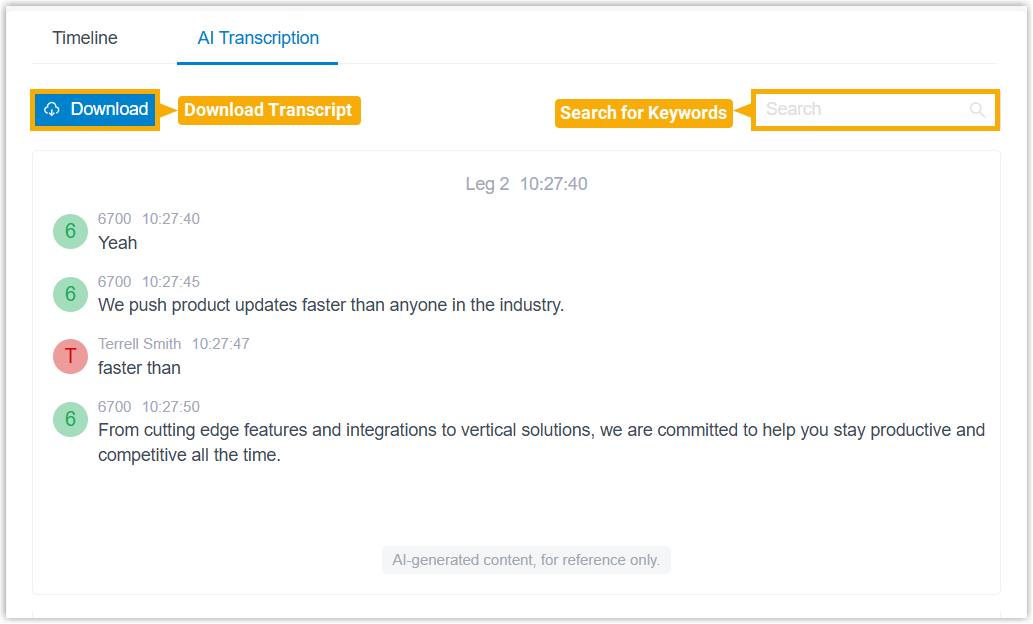
Section titled “AI Transcription”This panel shows the AI-generated transcript of the conversation so you can read through exactly what was said. It covers:
- Transcripts produced by the AI Call Transcription feature.
- Transcripts and tool-call records produced by the AI Receptionist feature.
You can search the transcript for keywords to find a specific passage, and download it as a .txt or .docx file.
Call Time Breakdown
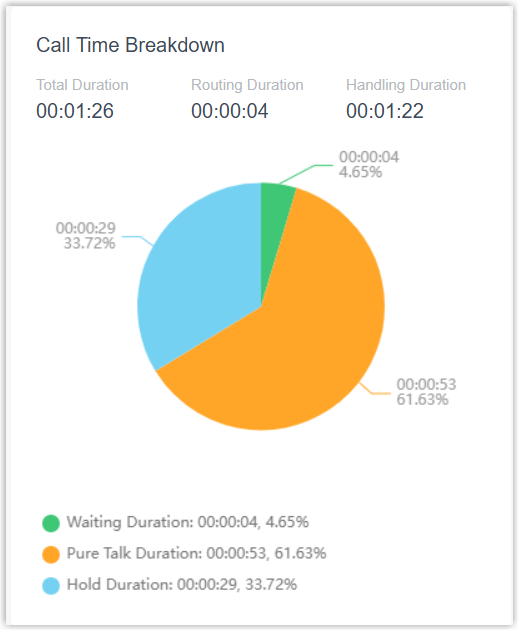
Section titled “Call Time Breakdown”This panel shows the total length of the call and how that time was distributed across the call’s lifecycle, so you can spot where time is being spent and where there is room to improve.
| Item | Description |
|---|---|
| Total Duration | The full elapsed time from the start of the call to the end. Calculated as Routing Duration + Handling Duration. |
| Routing Duration | Time between the call starting and being answered. Calculated as Waiting Duration + Time Spent in IVR/Call Flow. |
| Handling Duration | Time between the call being answered and ending, including any time on hold. Calculated as Pure Talk Duration + Hold Duration. |
| Waiting Duration | Time between the call starting and being answered. |
| Pure Talk Duration | Time between the call being answered and ending, not counting any time on hold. |
| Hold Duration | The total time the call spent on hold. |
Question about this page?
Ask the AI assistant. It starts from this page, then searches the rest of the docs.
Ask Cloud Voice AI
Answers are AI-generated from the docs and may contain mistakes. Verify with the linked pages.