
Set up IVR Custom Key
A custom key lets an IVR (Interactive Voice Response, the automated phone menu callers hear) gate part of your call flow behind a PIN (Personal Identification Number, the numeric code a caller types on the phone keypad). When a caller reaches the menu and presses the key you define, Cloud Voice asks for a code and only forwards the call if the code checks out. This is handy when you want to keep a premium service or a dedicated support line reserved for verified callers. You can accept a single shared PIN or validate entries against a whole PIN list.
Before you start
Section titled “Before you start”-
Record or upload an IVR prompt that tells callers which key to press and to enter their PIN.
-
Optionally, create a PIN list if you want to validate callers against a set of codes rather than one shared code.
Configure the custom key
Section titled “Configure the custom key”-
Sign in to the web portal and go to Call Features > IVR, then open the IVR you want to edit.
-
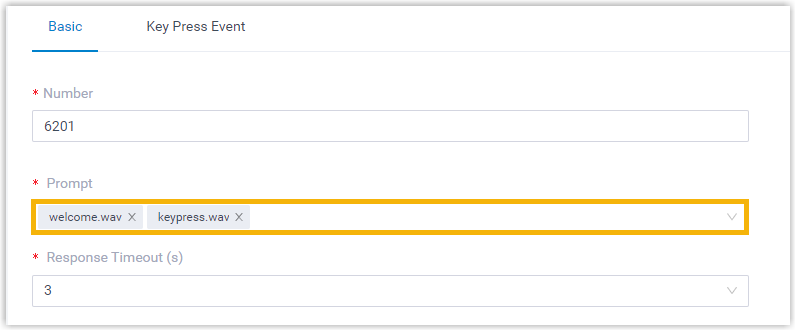
On the Basic tab, use the Prompt drop-down to choose the greeting that directs callers to the custom key.
-
Open the Key Press Event tab and turn on custom keys.
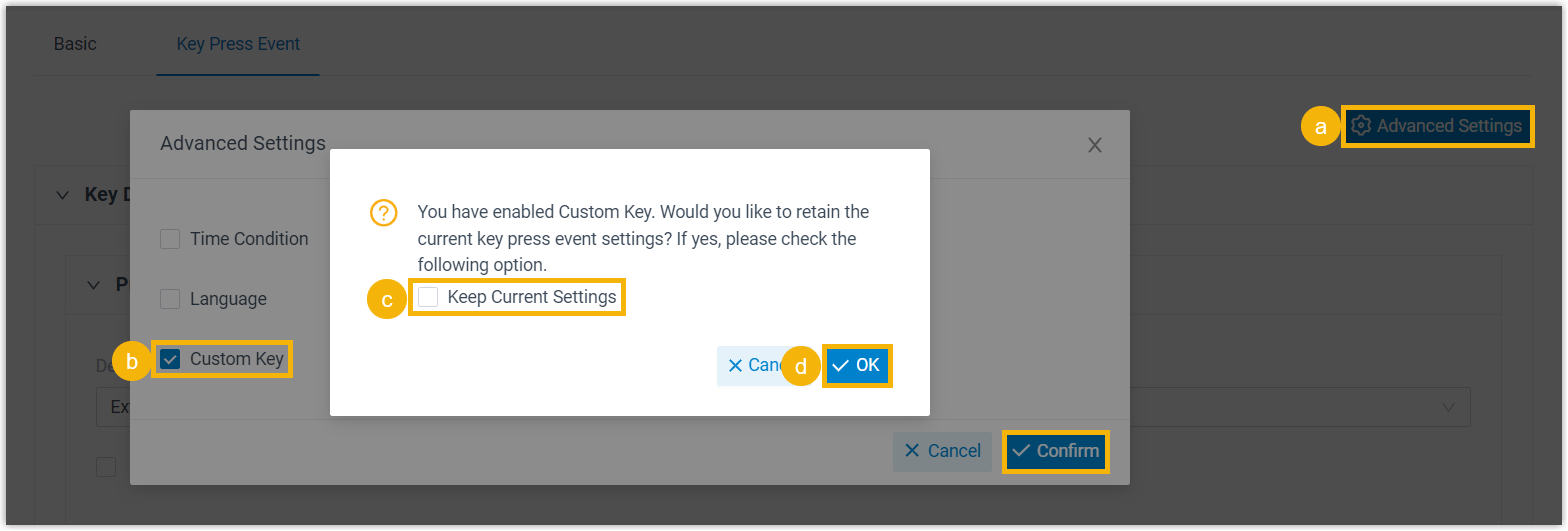
- Click Advanced Settings in the top-right corner.
- In the window that appears, tick Custom Key and click Confirm.
- Optional: Tick Keep Current Settings to preserve the key press events you already have in place.
- Click OK.
-
Define the key itself.
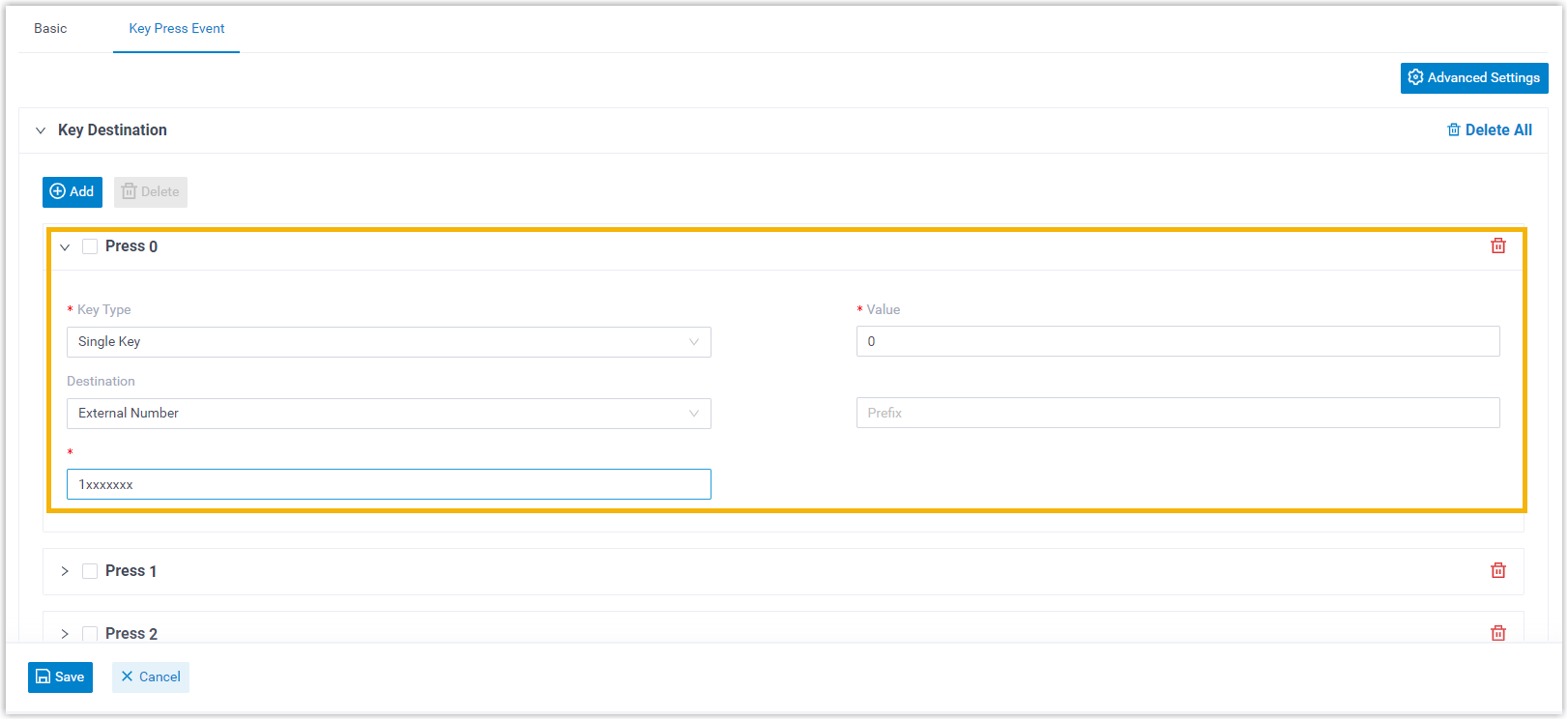
- Pick an option from the Key Type drop-down:
-
Single Key: Type the code in the Value field.
-
PIN List: Choose the list you want to validate against from the PIN List drop-down.
-
- Use the Destination drop-down to set where a caller lands after entering a valid code.
- Pick an option from the Key Type drop-down:
-
Optional: Scroll to the Options section and turn on an end key so callers can signal that they have finished typing and be routed immediately.
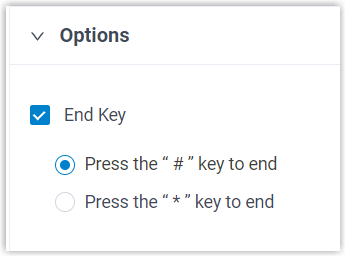
- Tick End Key.
- Choose either Press the ”#” key to end or Press the ”*” key to end.
-
Click Save, then Apply.
Result
Section titled “Result”Any caller who knows the PIN can press the key inside the IVR and be forwarded to the destination you assigned.
Question about this page?
Ask the AI assistant. It starts from this page, then searches the rest of the docs.
Ask Cloud Voice AI
Answers are AI-generated from the docs and may contain mistakes. Verify with the linked pages.