
System Preferences
Preferences are system-wide settings that apply to every extension and call on your Cloud Voice phone system. To reach them, go to PBX Settings > Preferences.
Basic preferences
Section titled “Basic preferences”| Setting | Description |
|---|---|
| Device Name | The name of the phone system. Cloud Voice uses it as the sender name on any email the system sends out. |
| Name Display Format | Controls how an extension user’s name and a contact’s name are displayed. Choose one of: First Name Last Name with Space Inbetween, Last Name First Name with Space Inbetween, or Last Name First Name without Space Inbetween. |
| Max Call Duration (s) | The longest an active call is allowed to run system-wide. Once a call hits this limit, it is disconnected. Defaults to 10800. |
| Tone Region | Pick your country, or the nearest one to it, so the correct default dial, busy, and ring tones are used. |
Organization management
Section titled “Organization management”| Setting | Description |
|---|---|
| Organization Management | Turn this on to group extension users into organizations. |
| Company Name | Your company name. It becomes the name of the root (top-level) organization. |
Caller ID name
Section titled “Caller ID name”Caller ID name display rules
Section titled “Caller ID name display rules”These rules decide how the caller’s name is shown when a call comes in.
Cloud Voice App (web and desktop) and extension endpoints (such as IP phones and softphones). Choose one:
- Show both the matched contact name and the caller ID name carried by the caller.
- Show only the matched contact name.
- Show only the caller ID name carried by the caller. If the caller sends a number with no name, the matched contact name is shown instead.
Cloud Voice App (mobile). Choose one:
- Show both the local contact name and the name carried in the From header of the SIP (Session Initiation Protocol) message. SIP is the signaling that sets up each call, and the From header is where the caller’s name and number travel.
- Show only the local contact name.
- Show only the name carried in the SIP message’s From header. If that value is a number, the local contact name is shown instead.
Distinctive Caller ID name
Section titled “Distinctive Caller ID name”| Setting | Description |
|---|---|
| Display Call Feature Name | When enabled, the caller ID shows the originating name for calls that reach a user through a ring group, queue, IVR (Interactive Voice Response menu), or call flow. |
| Display DID/DDI Name | When enabled, the caller ID shows the DID / DDI name of the trunk the call arrived on. DID (Direct Inward Dialing) and DDI (Direct Dialling In) are the same thing: a phone number on a trunk that routes straight to a destination. |
| Display the Diversion SIP Header for Extension Forwarding | When enabled, if a call to an extension is forwarded straight to the destination type configured under Extension Forwarding with Diversion SIP Header, the caller ID shows the name and number of the extension that forwarded the call. |
Masked number
Section titled “Masked number”Choose the scenarios in which external numbers are hidden. When masking applies, the number shown in the call window and in call logs is masked.
| Setting | Description |
|---|---|
| Calls initiated via “Open API” | When enabled, the destination number is masked when a third-party application places an external call through the API (Application Programming Interface, the connection other software uses to control the phone system). |
| Calls initiated via “Speed Dial” | When enabled, the destination number is masked when a user places an external call using Speed Dial. |
| Calls initiated via “Click to Call” | When enabled, the destination number is masked when a user places a call with click-to-call through the Cloud Voice Chrome extension. The extension must be version 4.11.1 or later. |
| Incoming Calls | When enabled, external numbers are masked on inbound calls. |
Call notes
Section titled “Call notes”Choose the call scenarios in which users can attach tags and remarks to a call.
| Setting | Description |
|---|---|
| Calls from Queue | When enabled, queue agents can add tags and remarks during a queue call or its wrap-up time, then review or edit those notes later in the matching call log. |
| Calls from Ring Group | When enabled, ring group members can add tags and remarks during a ring group call, then review or edit them later in the matching call log. |
| Calls to Voicemail | When enabled, users can add tags and remarks to calls that were routed to their extension’s voicemail, from the matching call log. For calls sent to a group voicemail, only administrators can add or edit notes, in the call detail records (CDR). |
| Calls to Extensions | When enabled, users can add tags and remarks during calls they answer, then review or edit them later in the matching call log. |
| Outbound Calls | When enabled, users can add tags and remarks during outbound calls they place, then review or edit them later in the matching call log. |
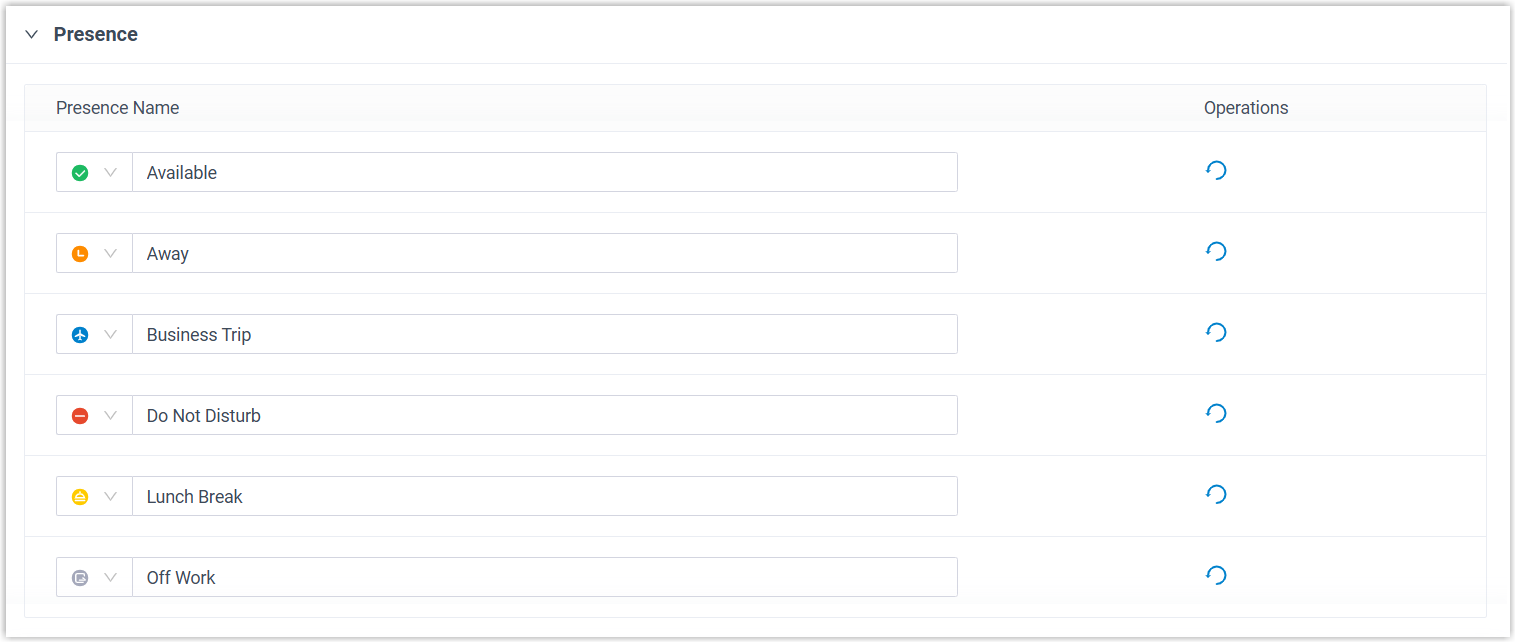
Presence
Section titled “Presence”Define custom presence statuses so extension users can signal their availability. Presence syncs across the Cloud Voice App at these versions or later:
- Cloud Voice App for iOS: version 5.15.8 or later
- Cloud Voice App for Android: version 5.15.4 or later
- Cloud Voice App for Windows: version 1.13.3 or later
- Cloud Voice App for Mac: version 1.13.3 or later
Filter number
Section titled “Filter number”When this option is on, the system strips every special character from a dialed number, keeping only digits and the +, *, and # symbols, before sending the number to the trunk.
DTMF (Dual-Tone Multi-Frequency) is the tone a phone sends when a key on the dial pad is pressed. Auto attendants, IVR menus, and voicemail systems listen for these tones to know which digit the caller entered. The settings below control how the system generates and forwards them.
| Setting | Description |
|---|---|
| DTMF Passthrough | When enabled, the system passes DTMF tones straight to the far end without processing them. |
| DTMF Duration (ms) | How long, in milliseconds, each DTMF signal the system sends lasts. Defaults to 120. |
| DTMF Gap (ms) | The interval, in milliseconds, between two DTMF signals the system sends. Defaults to 120. |
Extension preferences
Section titled “Extension preferences”The table below lists the default extension ranges. You can adjust any range to suit your numbering plan.
| Extension Type | Default Range |
|---|---|
| User Extension | 1000 - 5999 |
| Parking Extension | 6000 - 6099 |
| Group Voicemail Extension | 6100 - 6199 |
| IVR Extension | 6200 - 6299 |
| Ring Group Extension | 6300 - 6399 |
| Queue Extension | 6400 - 6499 |
| Conference Extension | 6500 - 6599 |
| Paging Extension | 6600 - 6699 |
| Account Trunk | 6700 - 6799 |
| WebRTC Trunk Number | 6800 - 6899 |
| Call Flow | 6900 - 6999 |
| AI Receptionist | 7000 - 7099 |
Question about this page?
Ask the AI assistant. It starts from this page, then searches the rest of the docs.
Ask Cloud Voice AI
Answers are AI-generated from the docs and may contain mistakes. Verify with the linked pages.