
Run the Cloud Voice App Web Client at Startup
If you use the web client every day, you can skip the routine of opening a browser and signing in each time. By combining two settings, one on your computer and one in your browser, you can have the Cloud Voice App web client launch on its own when the machine starts and remain logged in.
Setting this up takes two parts:
- Configure your browser to launch when the computer boots.
- Pin the Cloud Voice App web client so it reopens with the browser.
Both parts are required. Launching the browser alone will not reopen the web client, and pinning the tab alone will not start the browser.
Part 1: Launch your browser at startup
Section titled “Part 1: Launch your browser at startup”Follow the instructions for your operating system.
Windows
Section titled “Windows”-
Press the Windows logo key + R to open the Run dialog.
-
Type
shell:startupand click OK. The Startup folder opens.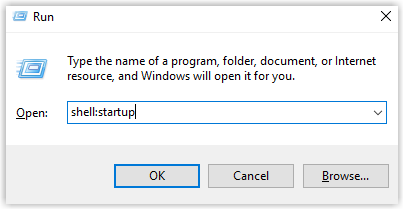
-
Copy the shortcut for your browser.
-
Paste the shortcut into the Startup folder.
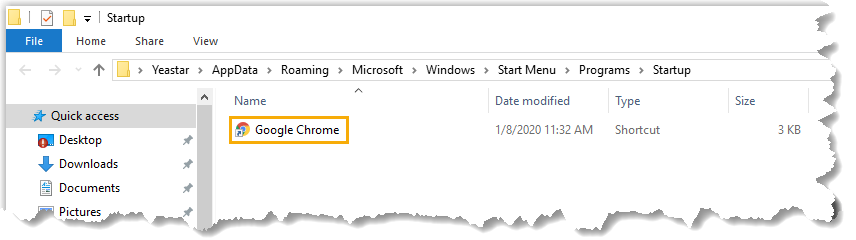
The browser now opens automatically whenever Windows starts.
-
Open System Preferences > Users & Groups, then select the Login Items tab.
-
Click the Add (+) button to add an application.
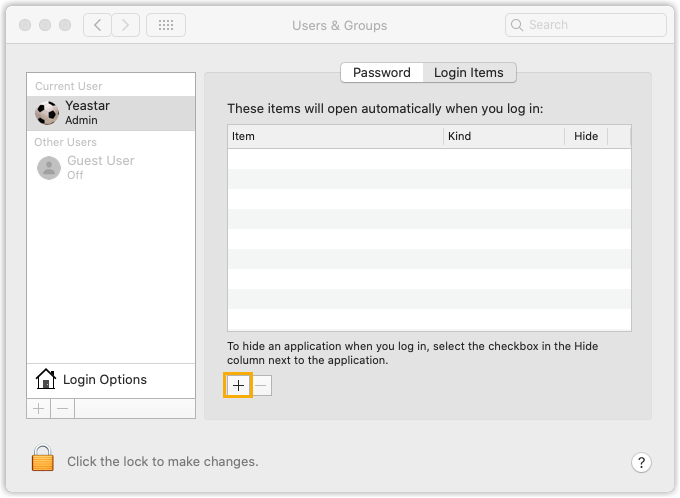
-
Choose your browser in the picker and click Add.
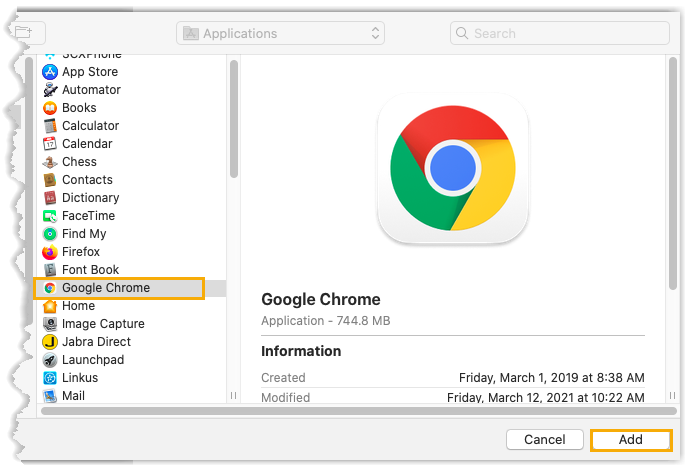
The browser now opens automatically whenever macOS starts.
Part 2: Pin the web client in your browser
Section titled “Part 2: Pin the web client in your browser”-
Sign in to the Cloud Voice App web client.
-
Right-click its browser tab.
-
Select Pin.
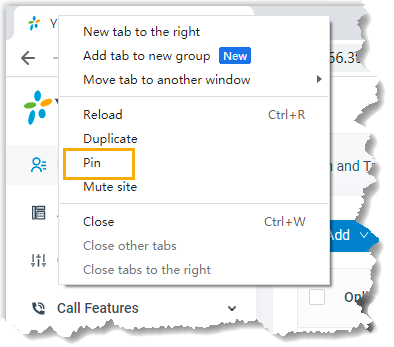
A pinned tab reopens automatically each time the browser launches, so the web client comes back with it.
Result
Section titled “Result”The Cloud Voice App web client now starts with your computer and remains signed in.
Question about this page?
Ask the AI assistant. It starts from this page, then searches the rest of the docs.
Ask Cloud Voice AI
Answers are AI-generated from the docs and may contain mistakes. Verify with the linked pages.