
Integrate HID-compliant Headsets with the Cloud Voice App
A HID-compliant headset (HID stands for Human Interface Device, the same device class your keyboard and mouse belong to) can act as the audio device for the Cloud Voice App web client, letting you handle calls straight from the buttons on the headset instead of clicking in the browser. This page covers the versions and hardware you need, then walks through connecting the headset and assigning it as your audio device.
Before you begin
Section titled “Before you begin”Headset integration only works when your setup meets all of the following. If any item falls short, the steps below won’t apply.
| Item | Requirement |
|---|---|
| Cloud Voice App web client | Version 84.7.0.17 or later |
| Web browser | Google Chrome 89 or later, Microsoft Edge 89 or later, or Opera 75 or later |
| Headset | Any HID-compatible headset connected over USB or a Bluetooth transmitter |
Step 1: Confirm the web client is in Web Client mode
Section titled “Step 1: Confirm the web client is in Web Client mode”The headset can only be set as your audio device while the client runs in Web Client mode.
-
Sign in to the Cloud Voice App web client.
-
On the toolbar, look for the
 icon.
icon.
-
If the icon isn’t shown, open the drop-down list and choose Web Client.
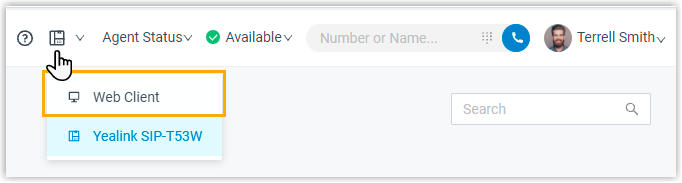
Step 2: Connect the headset
Section titled “Step 2: Connect the headset”-
Plug the headset into a USB port on your computer (or connect its Bluetooth transmitter).
-
Go to Preferences > Audio & Video > Headset Integration and select Connect Headset.
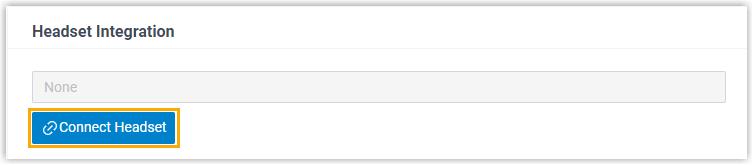
-
In the pop-up window, pick your headset from the list and select Connect.
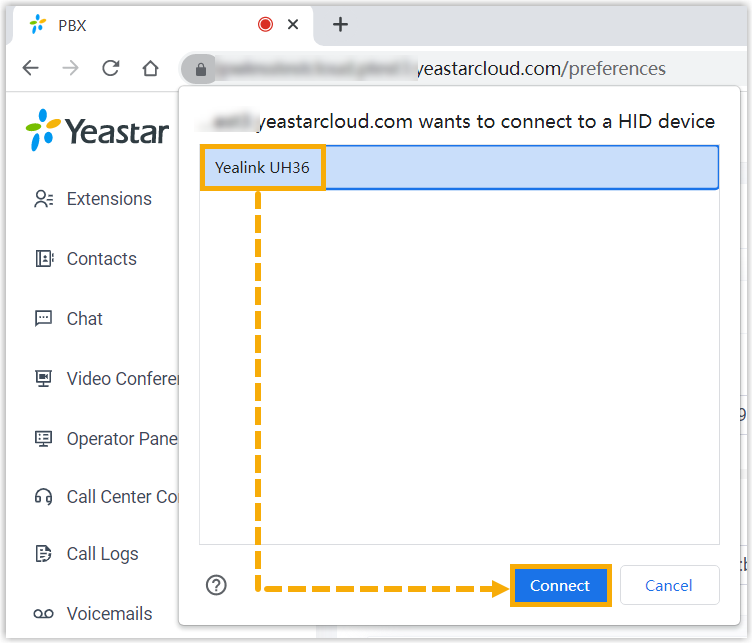
Once paired, the headset appears as connected.
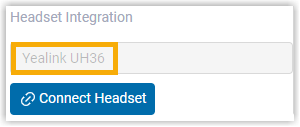
Step 3: Set the headset as your audio device
Section titled “Step 3: Set the headset as your audio device”In the Multimedia Device section, point each audio channel at the headset.
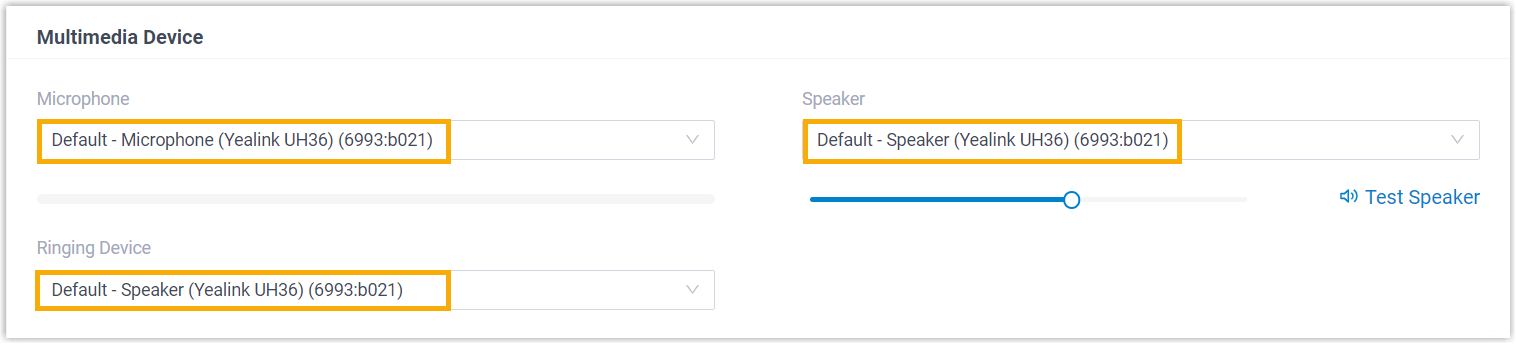
- Microphone: Select the headset.
- Speaker: Select the headset.
- Ringing Device: Select the headset, or any other device you’d rather hear the ring on.
Select Save to apply your choices.
Result
Section titled “Result”You can now manage calls directly from the headset. Supported controls are:
- Answer or reject a call
- Answer or reject a second incoming call
- End a call
- Hold or resume a call
- Mute or unmute a call
- Adjust the system volume
Question about this page?
Ask the AI assistant. It starts from this page, then searches the rest of the docs.
Ask Cloud Voice AI
Answers are AI-generated from the docs and may contain mistakes. Verify with the linked pages.