
Configure Audio Codec for the Cloud Voice App Mobile Client
A codec (short for coder/decoder) is the method the app uses to compress and decompress call audio. Cloud Voice supports several codecs so you can balance call quality against how much bandwidth each call uses on the Cloud Voice App mobile client. From the PBX (Private Branch Exchange, the phone system) web portal you can apply one codec to every user as a default, or assign a specific codec to an individual extension when their needs differ.
Requirements
Section titled “Requirements”Before you begin, confirm these minimum versions:
- PBX server:
84.15.0.22or later. - Cloud Voice App mobile client:
- iOS: version 5.5.9 or later.
- Android: version 5.5.8 or later.
Set a default codec for all mobile clients
Section titled “Set a default codec for all mobile clients”Use this procedure to define the codec that applies across every user’s Cloud Voice App mobile client.
- Sign in to the PBX web portal and go to Extension and Trunk > Extension.
- Above the extension list, click Cloud Voice App Server.
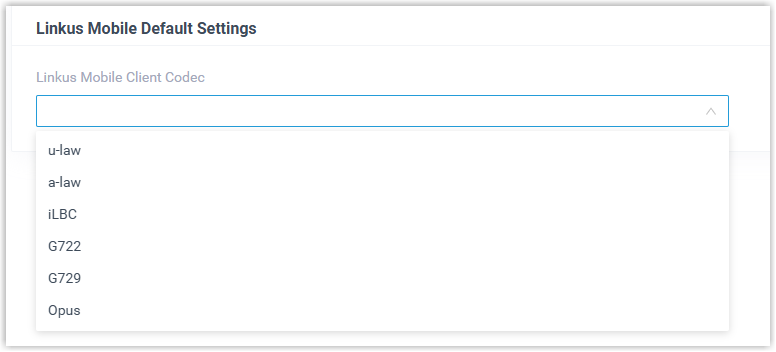
- Scroll to the Cloud Voice App Mobile Default Settings section and do the following:
-
From the Cloud Voice App Mobile Client Codec drop-down list, choose an audio codec.
-
Click Save.
-
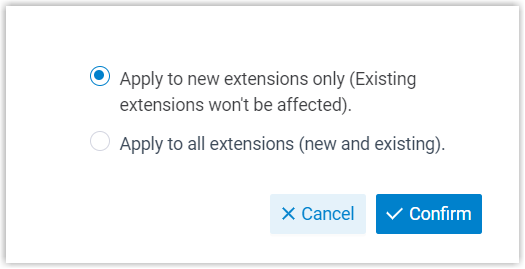
In the window that appears, decide whether the codec should apply only to new extensions or to all extensions (both new and existing), then click Confirm.
-
The codec is pushed to users’ Cloud Voice App mobile clients and takes effect right away.
Set a codec for a single user
Section titled “Set a codec for a single user”Use this procedure when one extension needs a different codec than the default.
-
Sign in to the PBX web portal and go to Extension and Trunk > Extension.
-
Click the edit icon
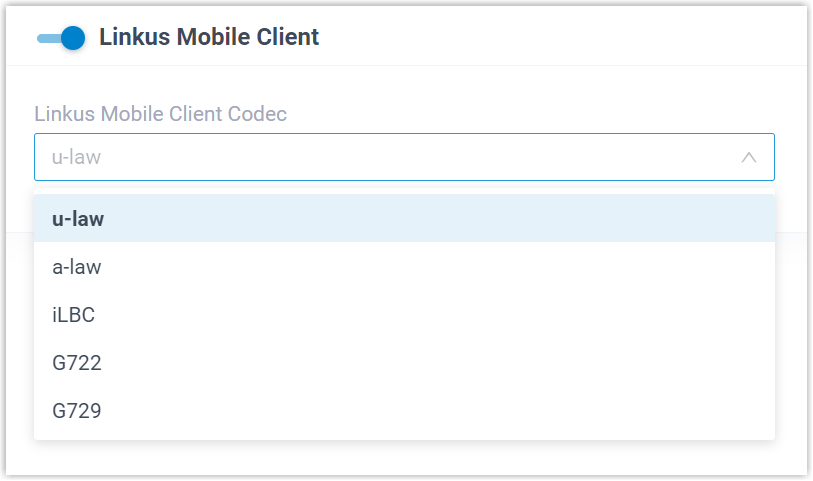
 next to the extension you want to change, then open the Cloud Voice App Clients tab.
 -
From the Cloud Voice App Mobile Client Codec drop-down list, choose an audio codec.
-
Click Save.
The codec is pushed to that user’s Cloud Voice App mobile client and takes effect right away.
Question about this page?
Ask the AI assistant. It starts from this page, then searches the rest of the docs.
Ask Cloud Voice AI
Answers are AI-generated from the docs and may contain mistakes. Verify with the linked pages.