
View Colleague Extensions
The Cloud Voice App keeps your whole organization’s directory at hand. Open the extension list to see who’s available, look up a coworker’s details, and start a call, video call, or voicemail without dialing a number.
Open the extension directory
Section titled “Open the extension directory”- Sign in to the Cloud Voice App on your desktop.
- Select Extensions.
Narrow the list by group or department
Section titled “Narrow the list by group or department”The full directory can be long, so you can filter it down to a specific group or department.
-
By group: Click the group icon
 in the top-left corner, then pick a group from the drop-down. The app shows every extension in that group.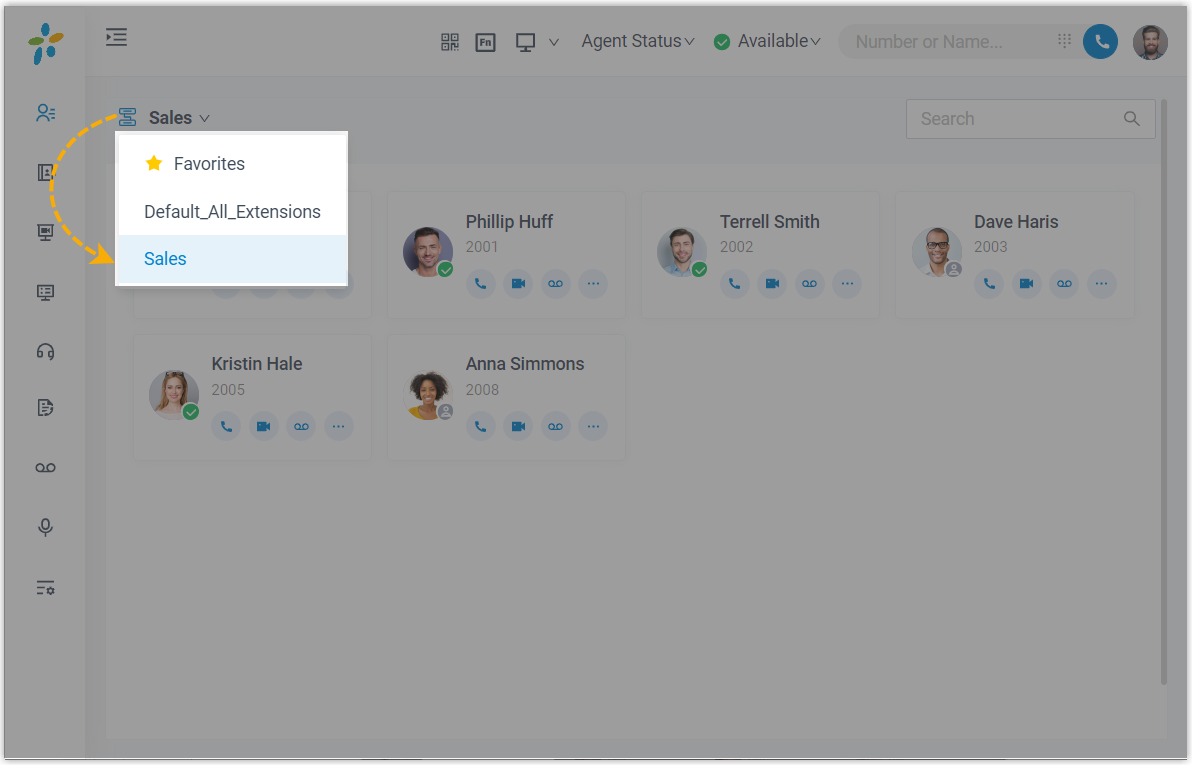
-
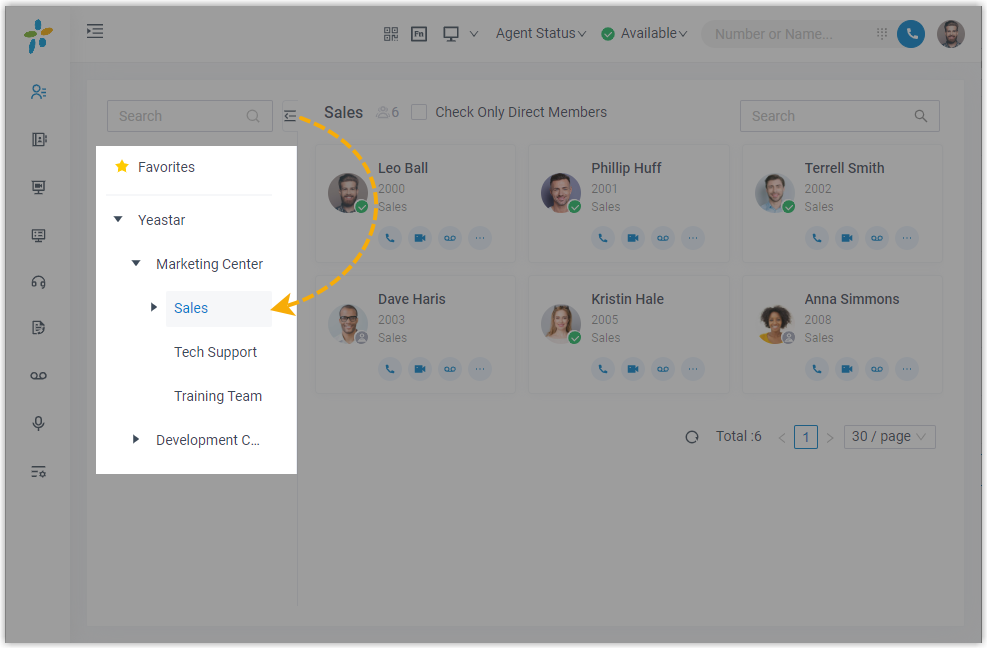
By department: Click a department in the organizational tree. The app shows every extension in that department.
Look up a coworker’s details
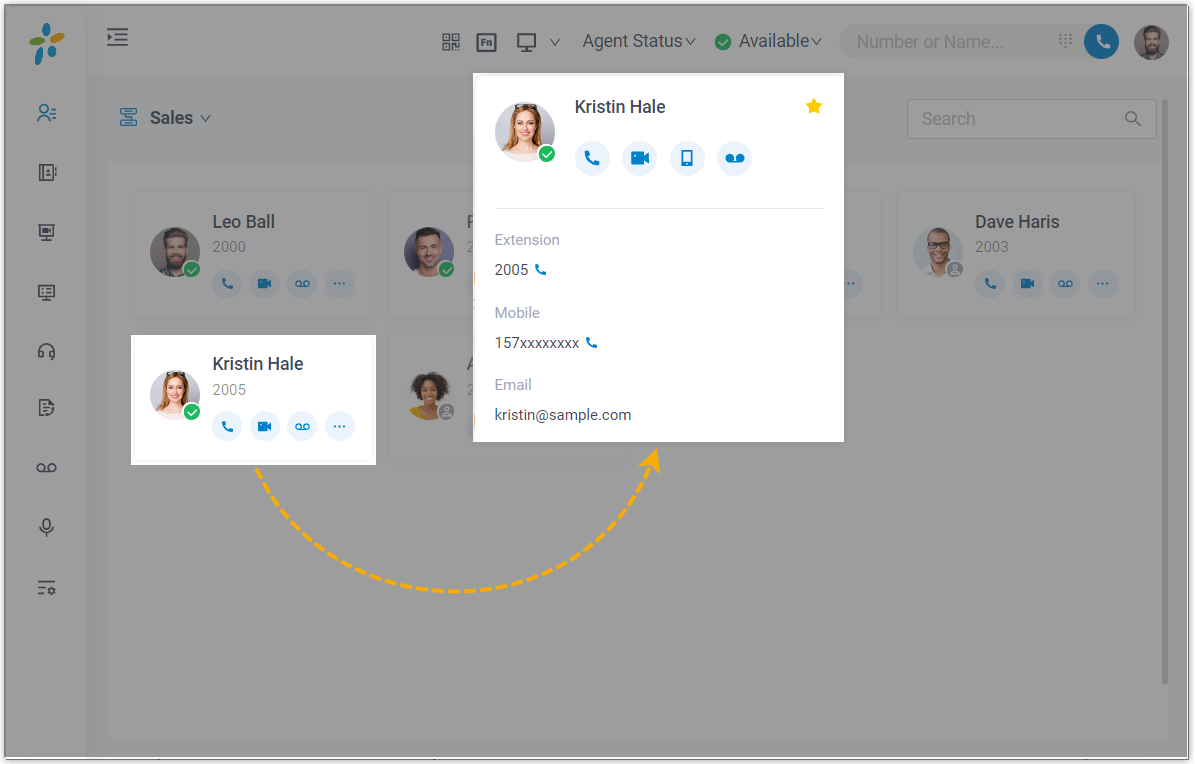
Section titled “Look up a coworker’s details”Click a colleague’s contact card to open their full details.
Reach a colleague from their card
Section titled “Reach a colleague from their card”Each card carries a row of action icons for contacting or organizing that extension:
| Icon | What it does |
|---|---|
 | Adds the extension to your Favorites list. |
 | Starts an audio call to the extension. |
 | Starts a video call to the extension. |
 | Calls the colleague’s mobile number. |
 | Leaves a voicemail for the extension. |
Question about this page?
Ask the AI assistant. It starts from this page, then searches the rest of the docs.
Ask Cloud Voice AI
Answers are AI-generated from the docs and may contain mistakes. Verify with the linked pages.