
Manage Company Contacts
Company contacts are shared directories that everyone with access can reach from the Cloud Voice App. From the desktop app you can correct a contact’s details or remove an entry entirely, and any change you make is pushed back to the server and mirrored on your other Cloud Voice Apps automatically.
Before you begin
Section titled “Before you begin”Your system administrator must have given you permission to manage company contacts, or at least the specific phonebook you want to work in. If you cannot edit or delete an entry, ask your administrator to check your access.
Edit a company contact
Section titled “Edit a company contact”-
In the desktop Cloud Voice App, open Contacts.
-
In the top-left corner, click the phonebook selector
 , then choose Company Contacts or the phonebook that holds the contact you want to change.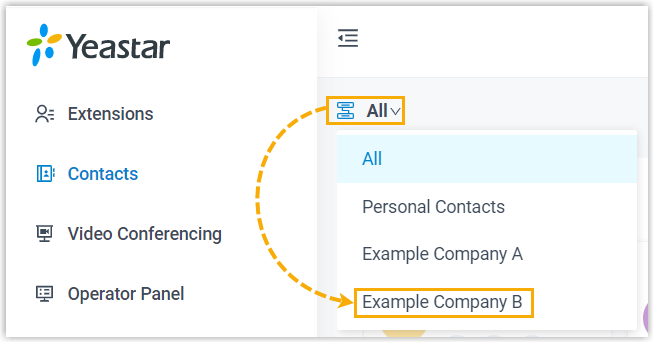
-
Find the contact card and click the edit icon
 .
. -
Update the fields you need to change, then click Save.
Delete a company contact
Section titled “Delete a company contact”- In the desktop Cloud Voice App, open Contacts.
- In the top-left corner, click the phonebook selector , then choose Company Contacts or the phonebook that holds the contact.
- On the contact card, click the more-options icon
 , then click Delete.
 - Click OK in the confirmation window.
Question about this page?
Ask the AI assistant. It starts from this page, then searches the rest of the docs.
Ask Cloud Voice AI
Answers are AI-generated from the docs and may contain mistakes. Verify with the linked pages.