
Transcribe a Call
AI (artificial intelligence) call transcription converts a live conversation between you and the other party into readable text as the call happens. When the call ends, it can also produce an automatic summary so you can review what was discussed without replaying the recording.
Before you begin
Section titled “Before you begin”Confirm the following before you try to transcribe a call:
Phone system
- The system firmware is version 84.20.0.74 or later.
- Your administrator has turned on Call Transcription for your extension.
- Enough transcription time remains on the account for AI transcription to run.
Cloud Voice App (Desktop)
- You are running version 1.15.3 or later.
Transcribe an active call
Section titled “Transcribe an active call”-
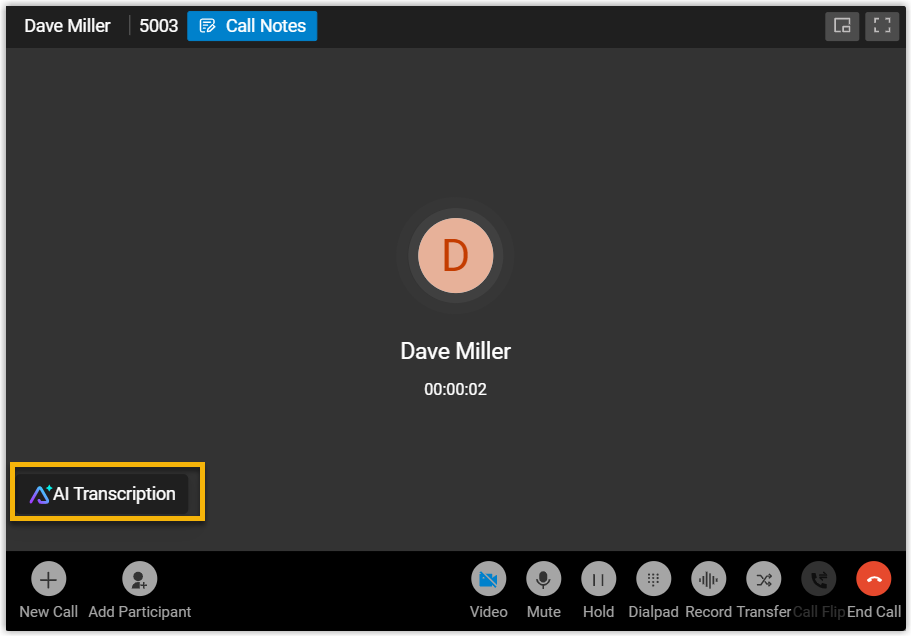
While a call is connected, click AI Transcription to open the transcription panel.
-
Set up transcription to suit the call.
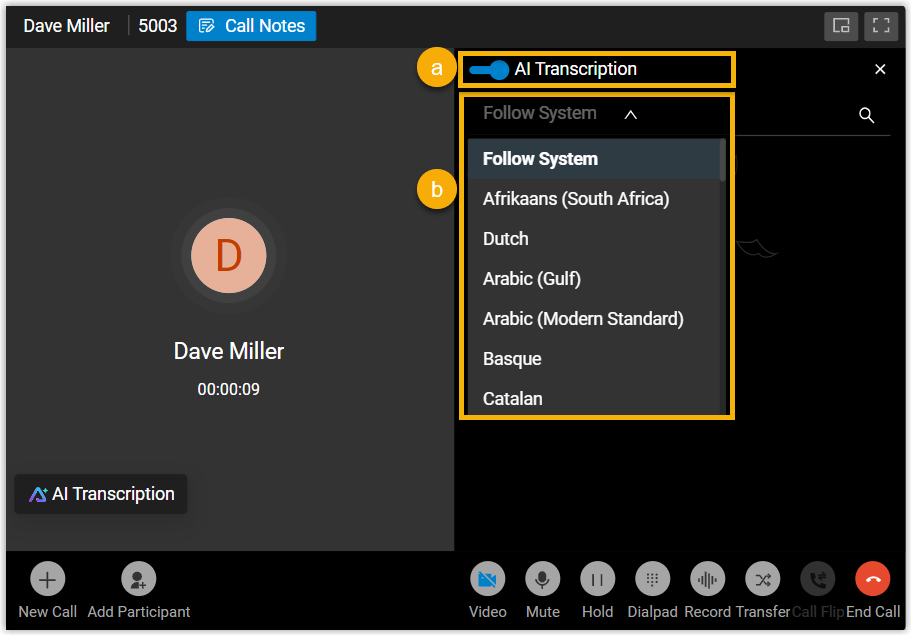
a. Switch on AI Transcription. Once it is on, both sides of the conversation are transcribed into text in real time.
b. Optional: Use the language drop-down list to change the transcription language for the current call.
What you get
Section titled “What you get”-
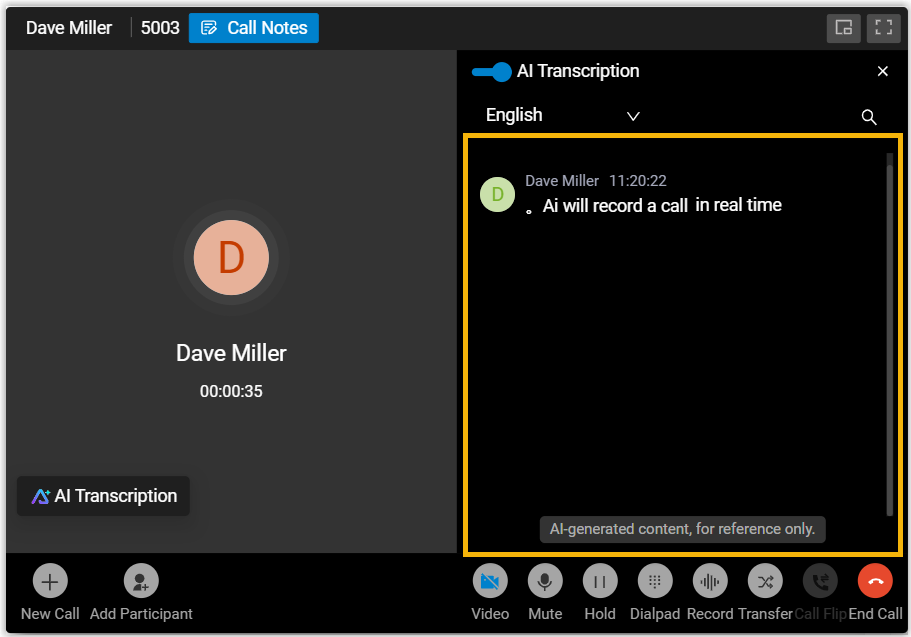
The conversation is transcribed live and appears in the panel on the right as the call continues.
-
After you hang up, the AI-generated summary and transcript are available in the call log. A transcribed call is flagged with an
 icon.
icon.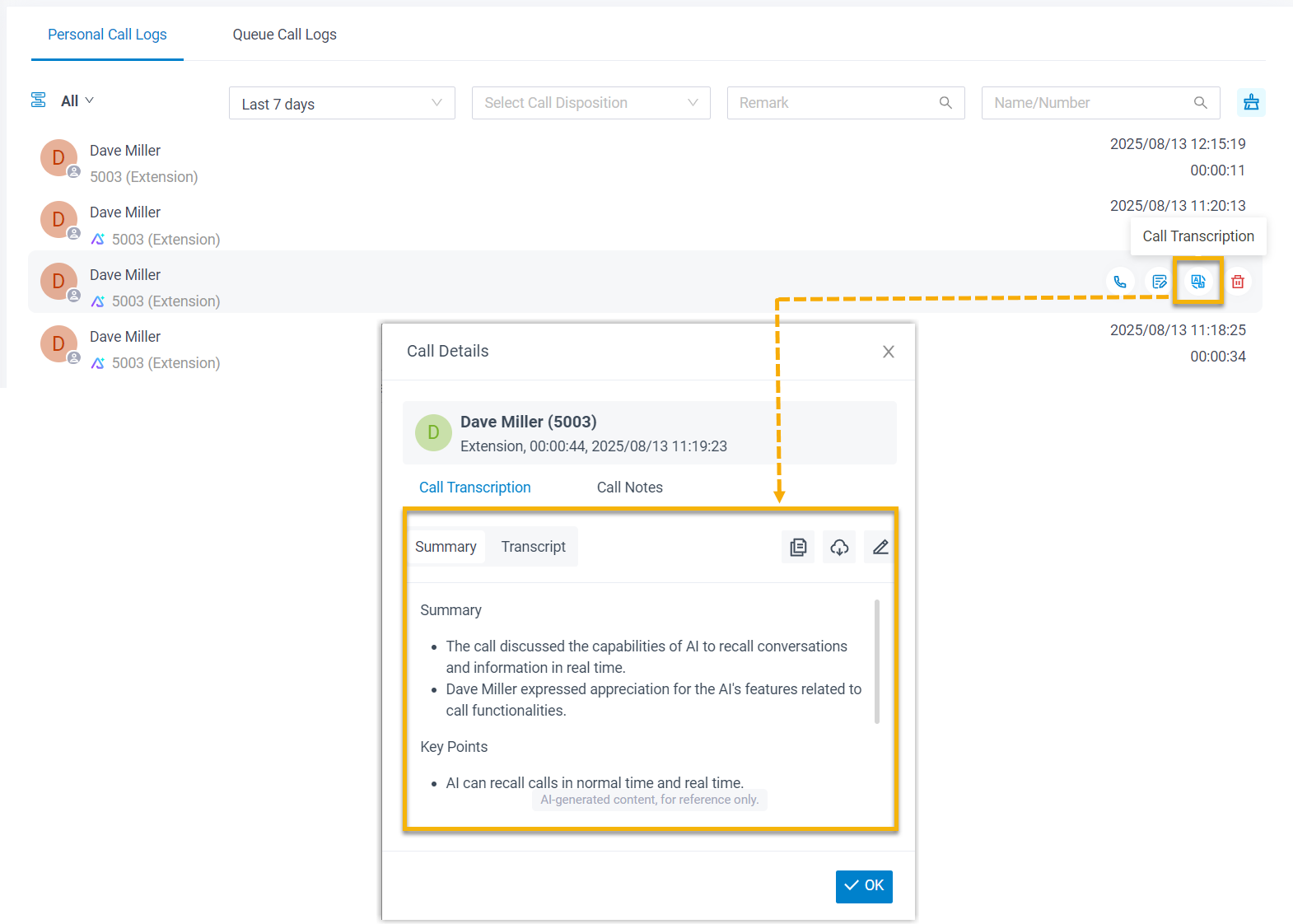
Question about this page?
Ask the AI assistant. It starts from this page, then searches the rest of the docs.
Ask Cloud Voice AI
Answers are AI-generated from the docs and may contain mistakes. Verify with the linked pages.