
Manage Your Call Logs
Your personal call logs record every call you place, receive, and miss. From the Call Logs page in the Cloud Voice App web client you can review that history, narrow it down with filters, and follow up on individual records without leaving the page.
Open your call logs
Section titled “Open your call logs”Sign in to the Cloud Voice App web client and select Call Logs.
Filter the list
Section titled “Filter the list”Two optional filters help you find a specific record.
-
To show only one kind of activity, open the communication-type drop-down on the group icon
 and choose a type.
-
To search by other criteria, filter on time range, name, number, remark, AI summary, or disposition code.

Work with a record
Section titled “Work with a record”Each entry supports the actions below.
Refresh the list
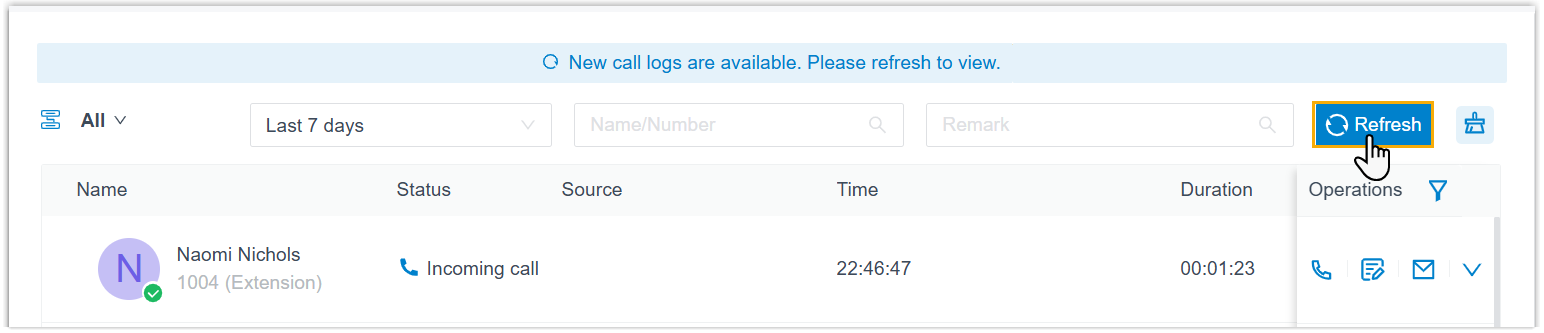
Section titled “Refresh the list”When new calls arrive while you are viewing the Call Logs page, a banner appears at the top. Click Refresh to load the latest entries.
Start a chat
Section titled “Start a chat”- Right-click the record you want.
- Select Chat.
View or edit call notes
Section titled “View or edit call notes”Click  next to the record to open its notes for review or editing.
View or edit a call transcription
Section titled “View or edit a call transcription”-
Click
 next to the record.
 -
In the window that opens, review or change the Transcript and Summary as needed.
-
To change the summary, click
 in the Summary section, make your edits, then click Save in the top-right corner.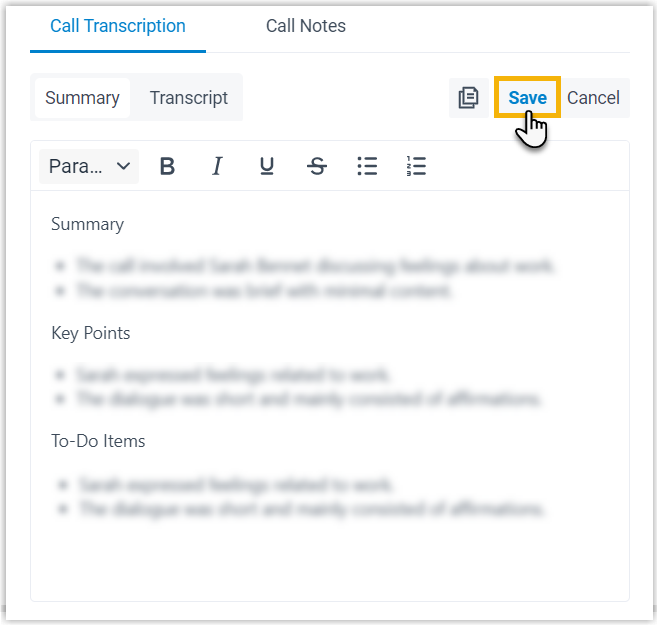
-
To copy the summary text, click
 in the Summary section.
 -
To find text within the transcript, click
 in the Transcript section.
 -
To save a copy, click
 and pick a file type for the summary or transcript.
-
-
Click OK to close the window.
Follow up by email
Section titled “Follow up by email”Click  next to the record. The Cloud Voice App opens your default email client and drafts a new message pre-filled with the call details.
Place a call
Section titled “Place a call”Do either of the following:
- Double-click the record.
- Click
 next to the record.
Delete a single record
Section titled “Delete a single record”- Click
 next to the record.
 - Click OK to confirm.
Clear all records
Section titled “Clear all records”- In the top-right corner, click
 .
. - Click OK to confirm.
Question about this page?
Ask the AI assistant. It starts from this page, then searches the rest of the docs.
Ask Cloud Voice AI
Answers are AI-generated from the docs and may contain mistakes. Verify with the linked pages.