
Extension Registration Security
Extension registration is a common target for attackers who try to hijack an account and place fraudulent calls. Cloud Voice treats the endpoint (the desk phone or app that signs in to an extension) as the third line of defense in a multi-layered security strategy, and it ships with default protection that watches for suspicious registration attempts. On top of those defaults, you can tighten who is allowed to register an extension by controlling the credentials, the number of simultaneous sessions, the client user agent, and the source IP address.
Lock out accounts after repeated failed registrations
Section titled “Lock out accounts after repeated failed registrations”Cloud Voice enforces an account lockout policy out of the box, so no setup is required to turn the basic protection on. When it sees too many failed registration attempts coming from a single IP address, it treats that account as at risk and locks it automatically. The source IP is then blocked, added to the Blocked IPs list, and an Extension Registration Blocked Out event is raised so your team can react.
So that a lockout actually reaches someone, enable the matching event notification and choose who should receive it.
-
Go to System > Event Notification.
-
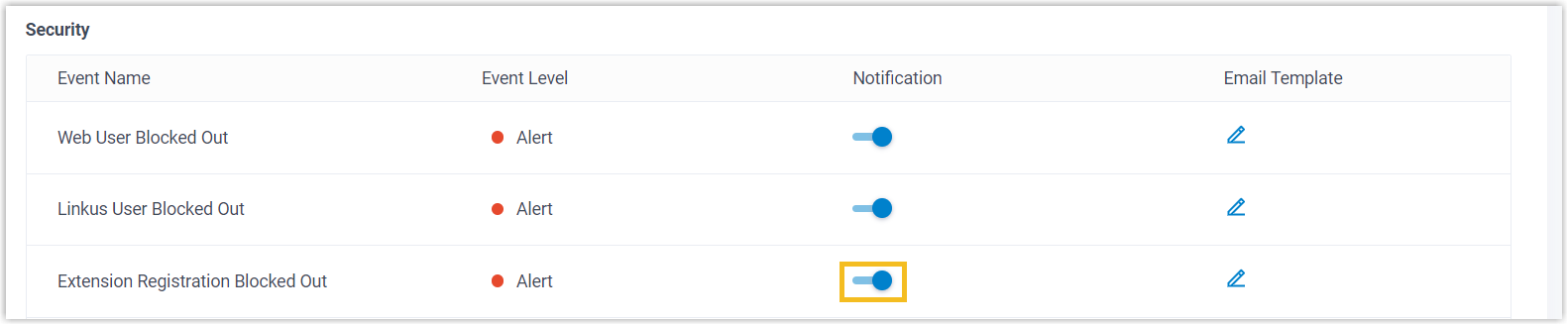
On the Event Type tab, turn on the Extension Registration Blocked Out notification.
-
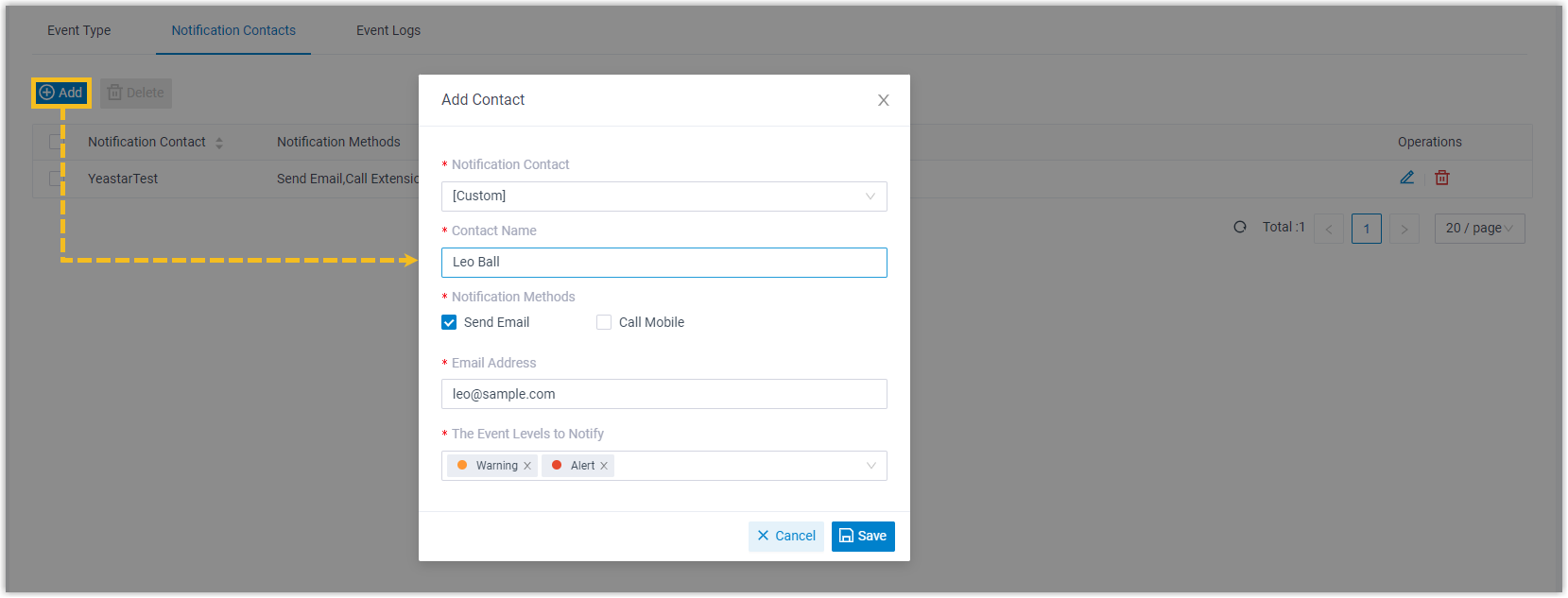
On the Notification Contacts tab, add the people who should be alerted.
Once you are notified of a lockout, review the specifics from the web portal under Security > Security Rules > Blocked IPs.

Require complex SIP registration credentials
Section titled “Require complex SIP registration credentials”Weak registration names and passwords are one of the easiest gaps for an attacker to exploit. Close it by setting a system-wide minimum password length and by giving each extension strong, hard-to-guess credentials.
Set a minimum registration password length
Section titled “Set a minimum registration password length”-
Go to Security > Security Settings > Security Options.
-
Under Extension Password Rules, set the minimum number of characters a registration password must contain.

-
Click Save, then Apply.
Strengthen an individual extension’s credentials
Section titled “Strengthen an individual extension’s credentials”-
Go to Extension and Trunk > Extension and open the extension you want to edit.
-
In the Extension Information section, enter a complex registration name and registration password.

-
Click Save, then Apply.
Limit concurrent registrations on an extension
Section titled “Limit concurrent registrations on an extension”By default, an extension can register on a single IP phone and sign in once per Cloud Voice App client type. If a user genuinely needs more devices or sessions, raise the concurrent registration limits on that extension.
-
Go to Extension and Trunk > Extension and open the extension you want to edit.
-
In the Extension Information section, set the concurrent registration allowances you need.
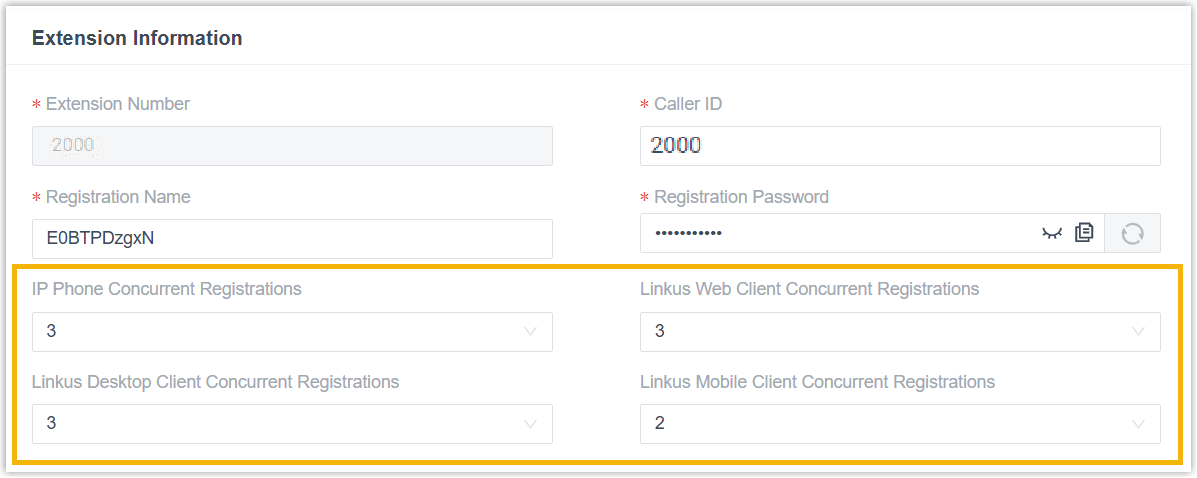
Setting Description IP Phone Concurrent Registrations Choose how many SIP endpoints may register with the extension at the same time. The maximum is 5. Cloud Voice App Web Client Concurrent Registrations Choose how many web clients may be signed in to the extension at once. The maximum is 3. Cloud Voice App Desktop Client Concurrent Registrations Choose how many desktop clients may be signed in to the extension at once. The maximum is 3. Cloud Voice App Mobile Client Concurrent Registrations Choose how many mobile clients may be signed in to the extension at once. The maximum is 3. -
Click Save, then Apply.
Restrict registration by user agent
Section titled “Restrict registration by user agent”A user agent is a short text label a device includes in its registration packets to identify what kind of phone or software it is. You can require that label to begin with a value you define; if the prefix does not match, the registration is rejected. This is a lightweight way to keep unexpected phone models or scanning tools from registering.
-
Go to Extension and Trunk > Extension and open the extension you want to edit.
-
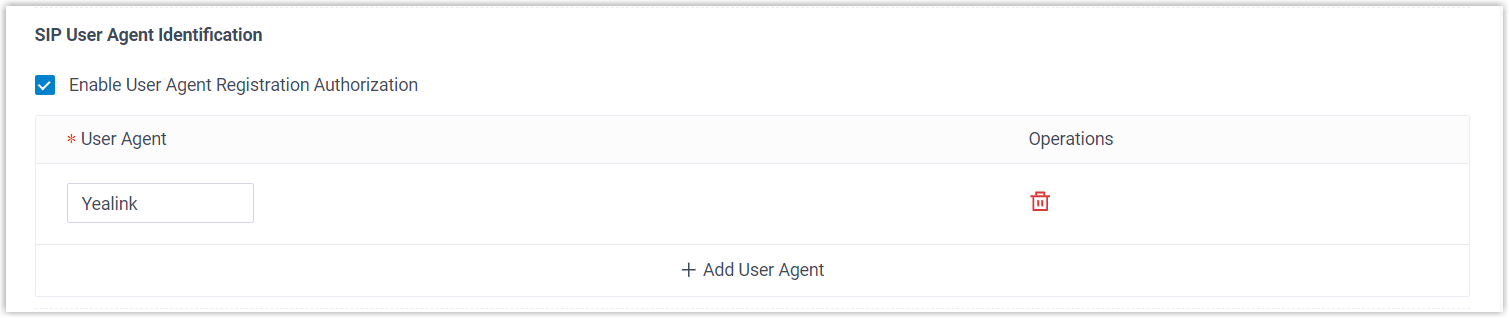
On the Security tab, select Enable User Agent Registration Authorization and enter the user agent to allow.
-
Click Save, then Apply.
Restrict registration by IP address
Section titled “Restrict registration by IP address”You can also tie an extension to a set of trusted IP addresses. Registration requests from any other address are dropped automatically, which keeps unknown devices from registering.
-
Go to Extension and Trunk > Extension and open the extension you want to edit.
-
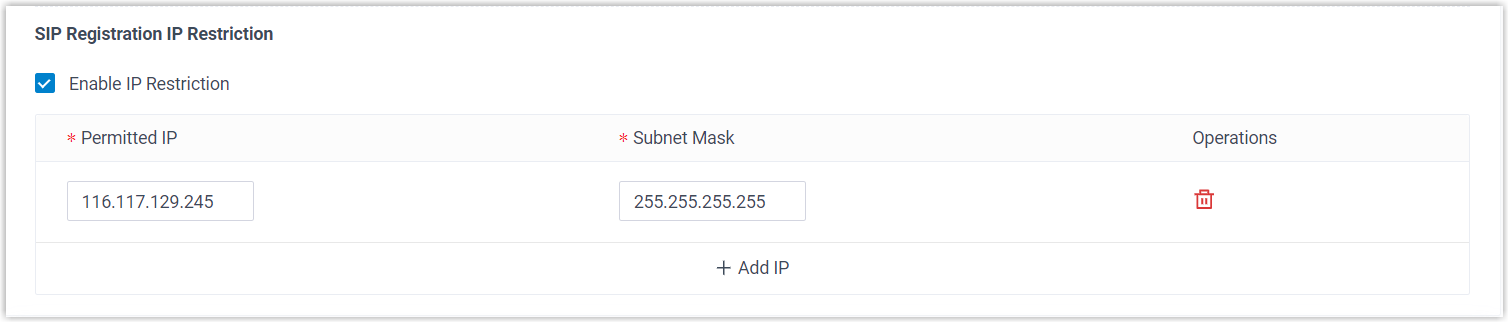
On the Security tab, select Enable IP Restriction and add the IP addresses that are allowed to register.
-
Click Save, then Apply.
Question about this page?
Ask the AI assistant. It starts from this page, then searches the rest of the docs.
Ask Cloud Voice AI
Answers are AI-generated from the docs and may contain mistakes. Verify with the linked pages.