
Satisfaction Survey Report
The Satisfaction Survey report summarizes the feedback keys that callers press after speaking with a queue and its agents. A satisfaction survey prompts the caller to press a key to rate the service they received, and each key is worth a set number of points. This report collects those key presses for a queue (a line that holds waiting callers and routes them to agents) and rolls them up per queue and per agent. Use it to see which keys came in, how many responses were collected, and the average score behind them. This page walks through opening the report and explains what each metric means.
Access the Satisfaction Survey report
Section titled “Access the Satisfaction Survey report”-
Sign in to the PBX (Private Branch Exchange, your phone system) web portal and go to Reports and Recordings > Call Reports.
-
Open the report:
-
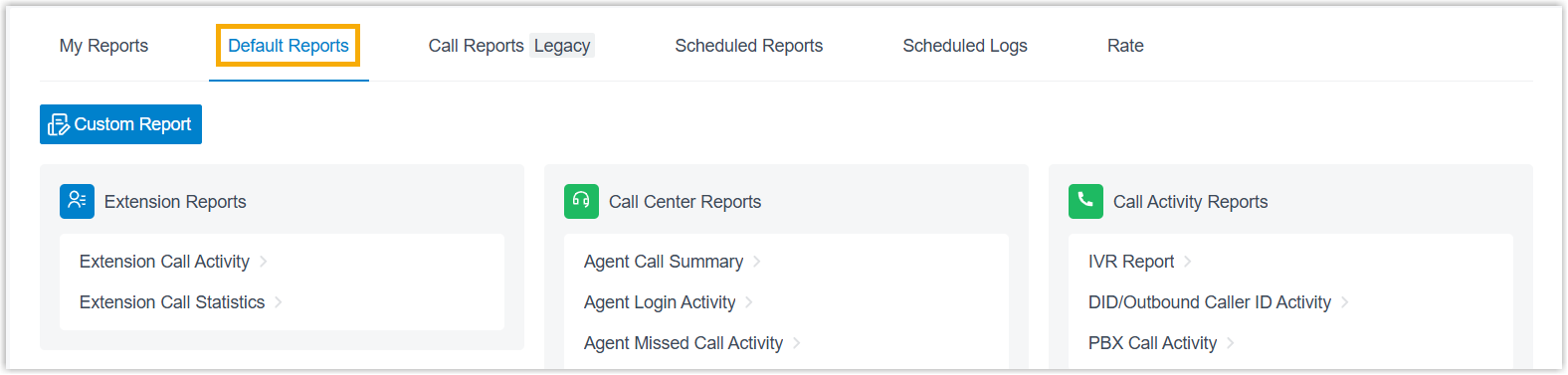
Select the Default Reports tab.
-
In the Call Center Reports pane, click Satisfaction Survey.
-
-
Set the report filters.

- In the Time field, choose the date range the report should cover.
- From the Queue drop-down list, select a queue.
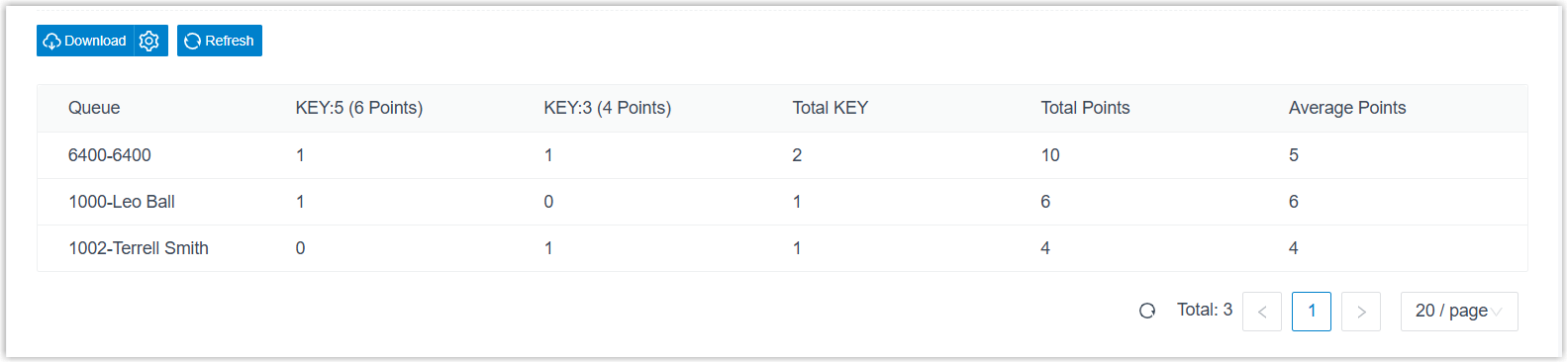
The report that matches your filters appears on the page.
-
(Optional) Save the report for later or export it:
-
Add to Scheduled Reports: have the report emailed automatically on a schedule. Click Add to Scheduled Reports at the bottom of the page, then complete the scheduled task settings.
-
Download: export the report to your computer for offline review and further analysis.
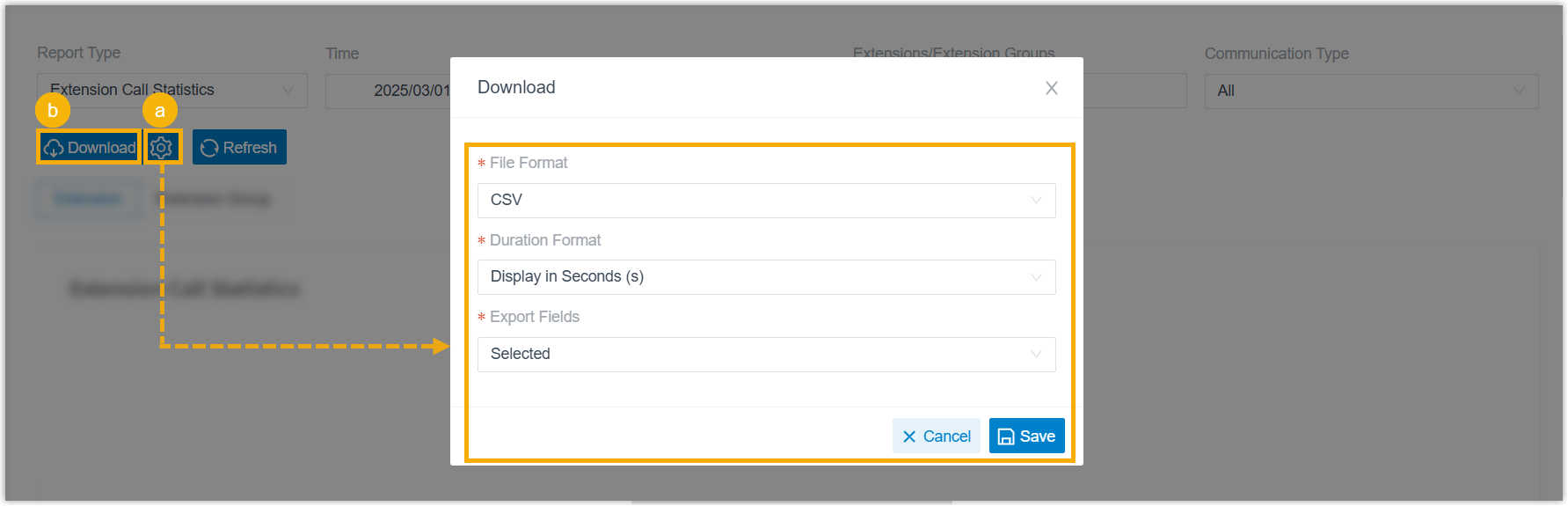
Optionally click the settings icon
 to adjust the download options and save them, then click Download:
- File Format: the file type to produce: CSV, XLS, PDF, or HTML.
- Duration Format: how every duration field is shown: Display in Second (s) or Display as HH:MM:SS.
- Export Fields: export All fields or only the Selected ones.
-
Report details
Section titled “Report details”The table below explains each metric in the report.
| Metric | Description |
|---|---|
| KEY: {key_pressed} ({numeric} Points) | A key the caller pressed and the score assigned to that key. |
| Total KEY | The total number of keys collected for the queue or an agent. |
| Total Points | The combined satisfaction survey score for the queue or an agent. |
| Average Points | The average satisfaction survey score for the queue or an agent. Formula: Total Points / Total KEY, with the result truncated to two decimal places rather than rounded up. |
Question about this page?
Ask the AI assistant. It starts from this page, then searches the rest of the docs.
Ask Cloud Voice AI
Answers are AI-generated from the docs and may contain mistakes. Verify with the linked pages.