
Enable or Disable Automatic Reset of Time Condition
When someone overrides a time condition and never clears that override manually, Cloud Voice restores the normal schedule on its own at the start of the next period. This behavior is on by default, but you control it. You can let the system reset the time condition automatically, or you can have it keep whatever state the override left in place until a person switches it back.
Enable automatic reset of time condition
Section titled “Enable automatic reset of time condition”Turn this on when you want the system to fall back to its regular schedule after an override, without anyone needing to remember to clear it.
-
Sign in to the Cloud Voice management portal and open Call Features > Feature Code.
-
Scroll down to the Switch Business Hours and Holidays Status section.
-
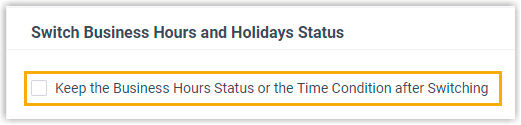
Clear the Keep the Business Hours Status or the Time Condition after Switching checkbox.
-
Click Save, then Apply.
With automatic reset enabled, the override lasts only until the next boundary is reached. As soon as business hours, outside business hours, or a holiday begins, the system drops the override and follows the normal schedule again. For worked examples of when each boundary triggers a reset, see Automatic Reset of Time Condition.
Disable automatic reset of time condition
Section titled “Disable automatic reset of time condition”Turn this off when an override should stay in effect indefinitely, so a manual switch is the only thing that changes it.
-
Sign in to the Cloud Voice management portal and open Call Features > Feature Code.
-
Scroll down to the Switch Business Hours and Holidays Status section.
-
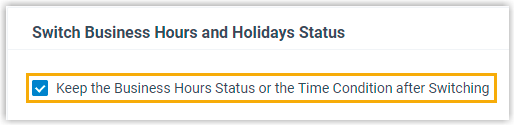
Select the Keep the Business Hours Status or the Time Condition after Switching checkbox.
-
Click Save, then Apply.
Now an override holds until someone clears it. The system stays in the overridden state through every period boundary and only changes when the override is reset by hand.
Question about this page?
Ask the AI assistant. It starts from this page, then searches the rest of the docs.
Ask Cloud Voice AI
Answers are AI-generated from the docs and may contain mistakes. Verify with the linked pages.