
Monitor Specific Pause Status of an Agent by Function Key
A BLF (Busy Lamp Field) function key can track more than call state. By combining the pause and pause-reason feature codes into a single key value, you can see at a glance whether a specific agent is paused for a specific reason. This walkthrough builds those keys for three agents in one queue, and the same key works in the Cloud Voice App or on a provisioned desk phone.
Before you start
Section titled “Before you start”Collect the two feature codes you will string together in the key value:
- Pause feature code: found under Call Features > Feature Code > Queue > Pause/Unpause.
- Pause Reason feature code: found under Call Features > Feature Code > Pause Reason.
If you plan to watch the status from a desk phone rather than the Cloud Voice App, the phone must already be onboarded to Cloud Voice through auto provisioning and assigned an extension before you continue.
Configure the function keys
Section titled “Configure the function keys”For this example, you want to monitor the three built-in pause reasons for agents 1001, 1002, and 1003 in queue 6400. Add the keys to your own extension.
-
Sign in to the PBX (Private Branch Exchange) web portal and open Extension and Trunk > Extension, then edit your extension.
-
Open the Function Keys tab.
-
Add one function key per status you want to watch, using these settings:
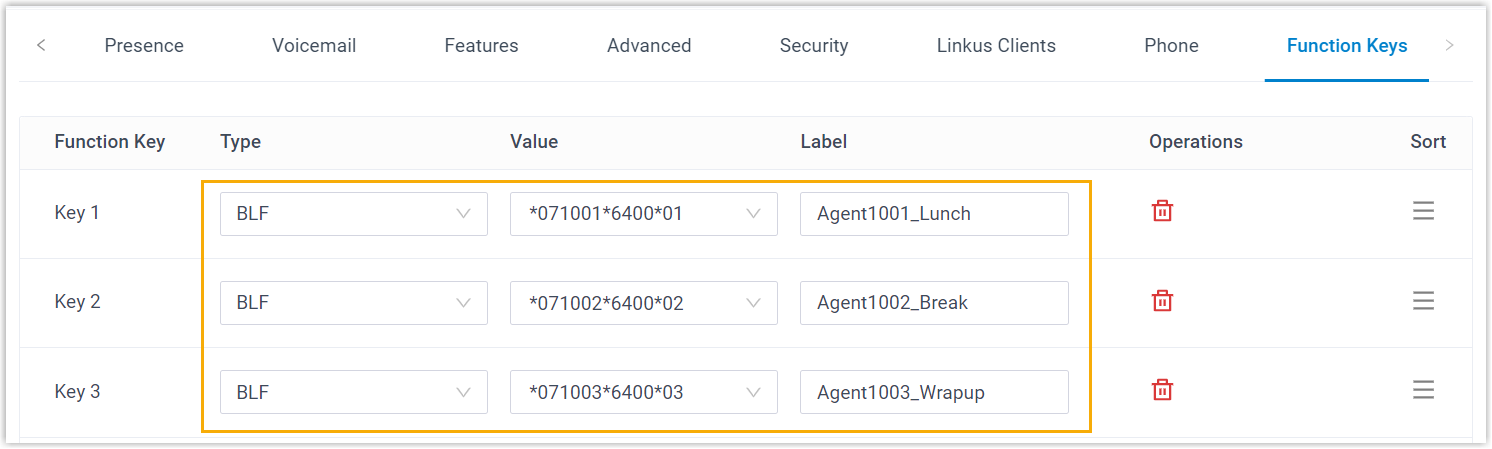
- Type: Choose BLF.
- Value: Enter the combined feature-code string. The pattern is
Pause feature code+extension number+*+queue number+pause reason feature code, for example,*071001*6400*01. - Label: Optional. A friendly name shown on the key.
-
Click Save.
Push the keys to a desk phone
Section titled “Push the keys to a desk phone”Skip this step if you only need the status inside the Cloud Voice App. To send the keys to a provisioned IP phone:
- Go to Auto Provisioning > Phones and click
 next to the phone you want to update.
 - Confirm by clicking OK in the dialog that appears.
How to read the status
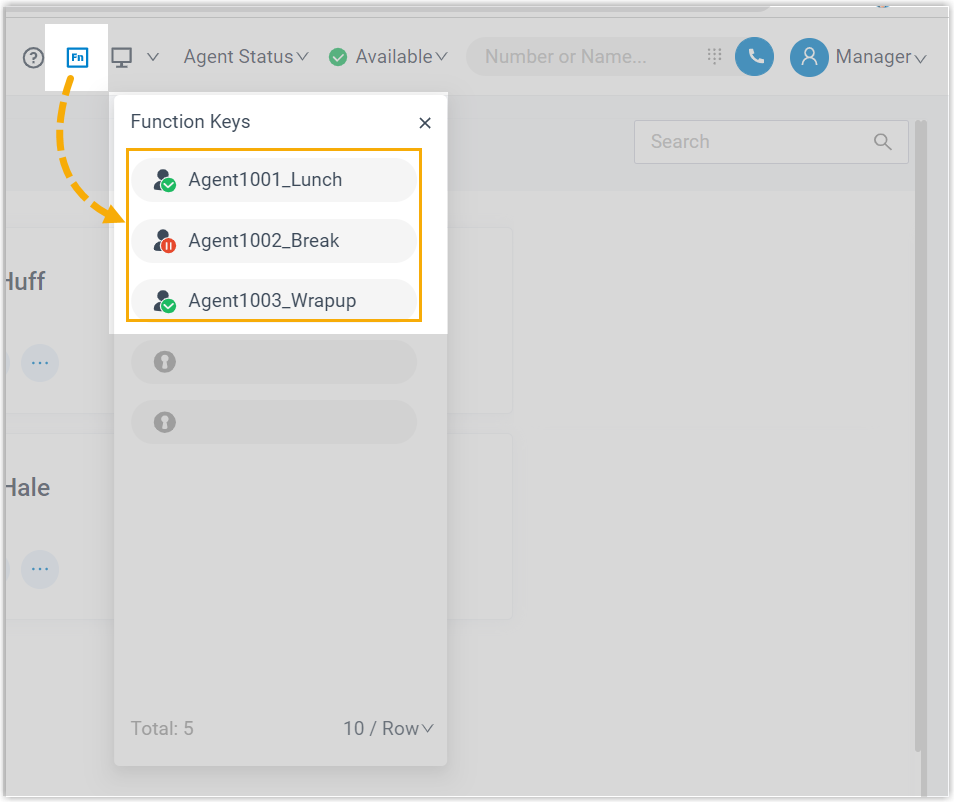
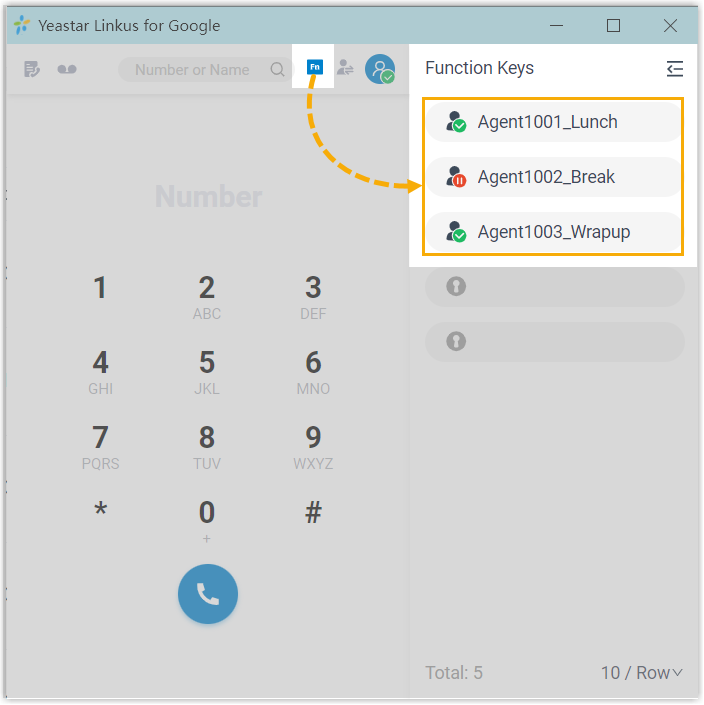
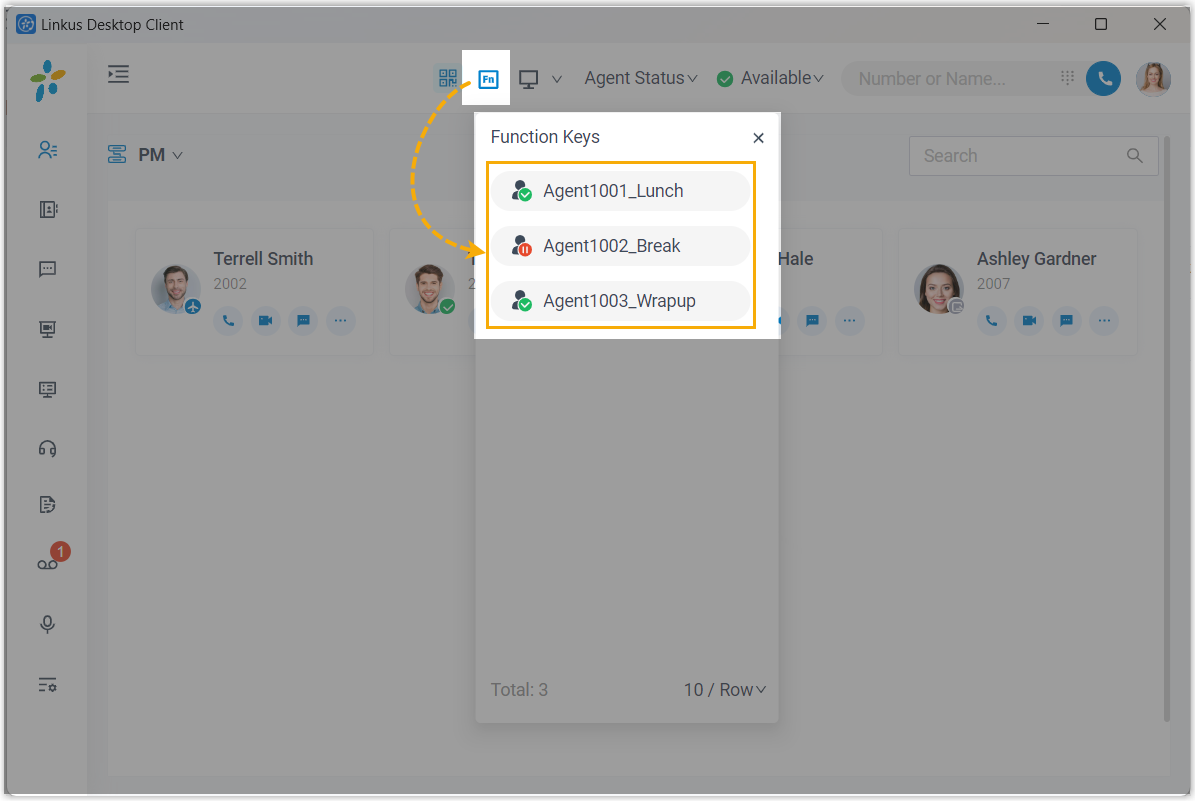
Section titled “How to read the status”Once the keys are in place, the indicator reflects the monitored agent in real time.
In the Cloud Voice App
Section titled “In the Cloud Voice App”This applies to the Cloud Voice App on the web, the Chrome extension, and the desktop app.
 , The agent is not in the pause status you are watching.
 , The agent is in that pause status.
 , The function key could not be configured.
The same indicator appears across each client surface:
| Cloud Voice App (web) | Cloud Voice App (Chrome extension) | Cloud Voice App (desktop) |
|---|---|---|
 |  |  |
On a desk phone (BLF LED)
Section titled “On a desk phone (BLF LED)”The physical key’s LED (Light Emitting Diode) shows the same three states:
- Solid green: The agent is not in the monitored pause status.
- Flashing red: The agent is in the monitored pause status.
- Off: The BLF key could not be configured.
Question about this page?
Ask the AI assistant. It starts from this page, then searches the rest of the docs.
Ask Cloud Voice AI
Answers are AI-generated from the docs and may contain mistakes. Verify with the linked pages.