
Allow Users to Request a Callback in a Queue
Queue callback lets a caller leave the queue while holding on to their spot, then get a return call once an agent is free. Callers avoid dead time on hold, and you cut down on abandoned calls while keeping the queue running smoothly. You can offer the callback in two ways: as an option the caller triggers by pressing a key, or as an option the system offers automatically once the caller has waited too long.
Offer callback when the caller presses a key
Section titled “Offer callback when the caller presses a key”With this method, callers are told during the wait that they can press a specific key to request a callback whenever they choose.
-
Sign in to the PBX (Private Branch Exchange, your phone system’s admin portal) web portal and open Call Features > Queue.
-
Click the edit icon
 next to the queue you want to change.
 -
Open the Preferences tab and scroll to the Callback section.
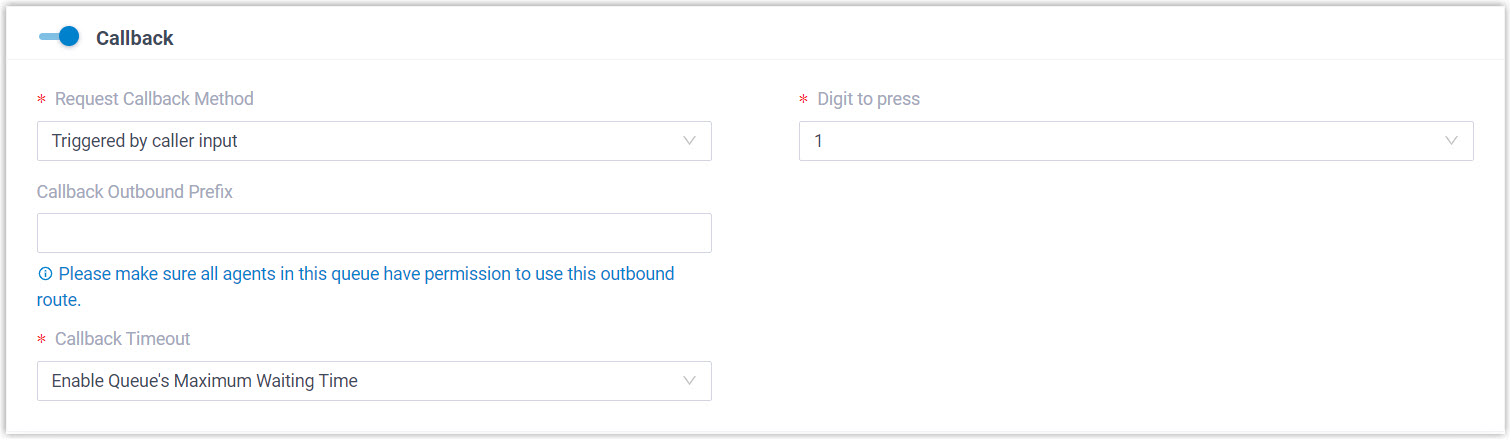
a. Switch Callback on. b. Set Request Callback Method to Triggered by caller input. c. Choose a key from the Digit to press list. This is the key callers press while waiting to ask for a callback.
d. Optional: In Callback Outbound Prefix, enter the prefix of the outbound route the system should use to place the callback.
e. In the Callback Timeout list, set how long a callback request stays reserved in the queue. If no agent becomes available before this timeout expires, the request is dropped.
-
Open the Basic tab and scroll to the Prompt section to pick the announcement that tells callers which key to press.

a. Choose an announcement from the Periodic Announcement list. The list contains the prompts you have already recorded or uploaded to the system.
b. Optional: In Frequency (s), set how often the announcement replays.
-
Click Save, then Apply.
Callers can now press the chosen key at any point during the wait to request a callback.
Offer callback automatically after a wait
Section titled “Offer callback automatically after a wait”With this method, the system waits until a caller has been in the queue for a set time, then plays the callback option to them without any action on their part.
-
Sign in to the PBX web portal and open Call Features > Queue.
-
Click the edit icon
next to the queue you want to change. -
Open the Preferences tab and scroll to the Callback section.
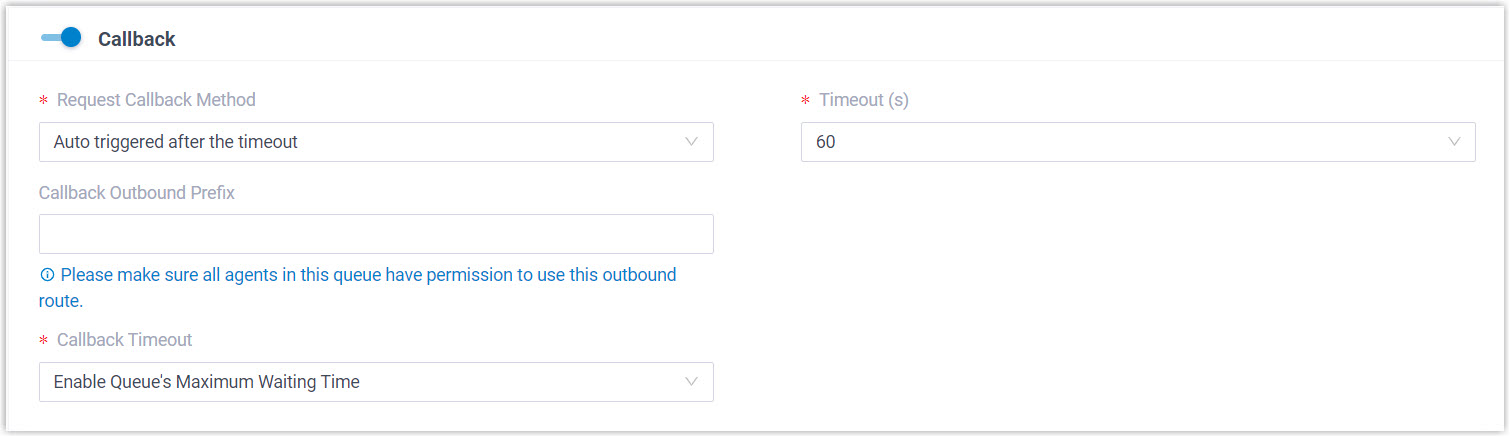
a. Switch Callback on. b. Set Request Callback Method to Auto triggered after the timeout. c. In Timeout (s), enter or select how long a caller waits before the system offers the callback.
d. Optional: In Callback Outbound Prefix, enter the prefix of the outbound route the system should use to place the callback.
e. In the Callback Timeout list, set how long a callback request stays reserved in the queue. If no agent becomes available before this timeout expires, the request is dropped.
-
Click Save, then Apply.
Once a caller has waited the set time, the system plays the callback option automatically, and the caller presses the offered key to request a callback.
How a callback plays out
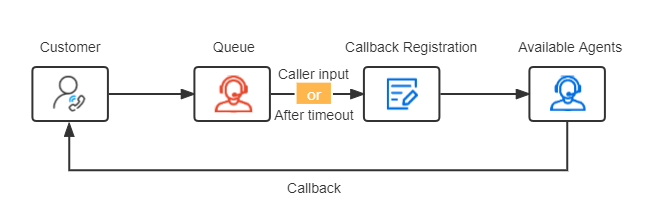
Section titled “How a callback plays out”The following walkthrough shows the full callback flow from start to finish.
-
A caller reaches the queue, but no agent is free to take the call.
-
The caller requests a callback in one of two ways, depending on how the queue is configured:
- They press the chosen key after hearing the periodic announcement.
- They press the offered key once they have waited the set time.
-
The caller confirms a callback number and hangs up. Their position in the queue is held.
-
When an agent becomes free, the system calls the agent and the caller in turn. Once both answer, the queue call is connected.
What to do next
Section titled “What to do next”- Turn on email alerts so queue managers are notified when a callback is requested or when one fails. See Customize Queue Notification.
- Review callback performance for the queue. See Queue Callback Summary Report and Queue Callback Activity Report.
Question about this page?
Ask the AI assistant. It starts from this page, then searches the rest of the docs.
Ask Cloud Voice AI
Answers are AI-generated from the docs and may contain mistakes. Verify with the linked pages.