
Set up the Cloud Voice App with Apple CarPlay
Apple CarPlay mirrors a simplified version of your iPhone on the car’s built-in screen so you can use a few approved apps safely while driving. Pairing the Cloud Voice App with CarPlay keeps you reachable on the road: once the two are linked, you can dial contacts, answer incoming calls, and review voicemail from the car’s screen or by voice with Siri, so your phone can stay in your pocket.
Requirements
Section titled “Requirements”Before you begin, confirm that your setup meets the following minimums.
| Item | Requirement |
|---|---|
| iPhone | iOS 15 or later |
| Cloud Voice App | iOS client 5.15.8 or later; Android client 5.15.4 or later |
| Phone system | Optional, but version 84.19.0.70 or later is recommended so that every feature described here is available |
Add the Cloud Voice App to Apple CarPlay
Section titled “Add the Cloud Voice App to Apple CarPlay”-
Link your iPhone to CarPlay.
-
Plug your iPhone into the car with a USB cable, or connect over wireless Apple CarPlay.
-
If your iPhone asks you to confirm, tap Connect.
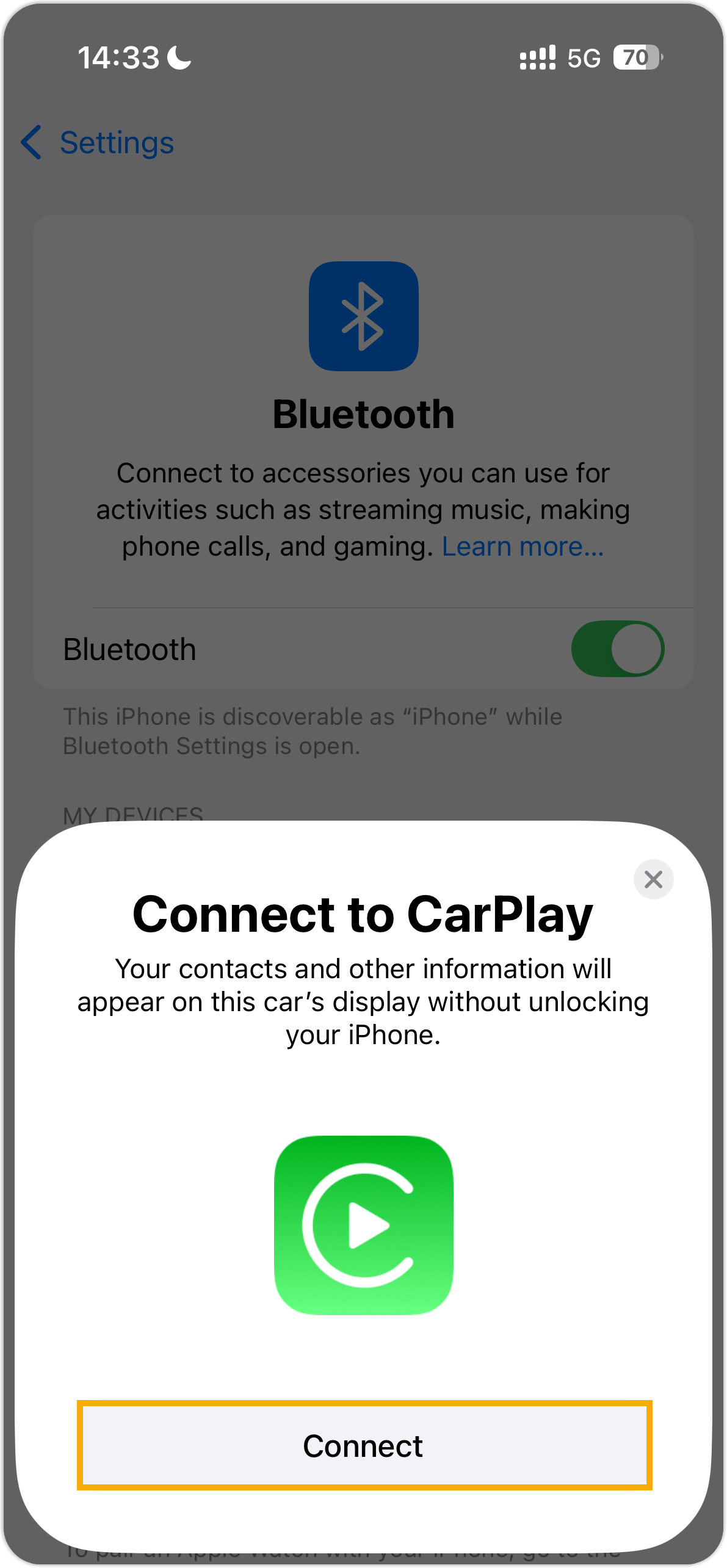
The Cloud Voice App now shows up on the car’s display.
-
-
Sign in to the Cloud Voice App on your iPhone.
-
On the car’s display, tap Cloud Voice App to open its main communication tools.
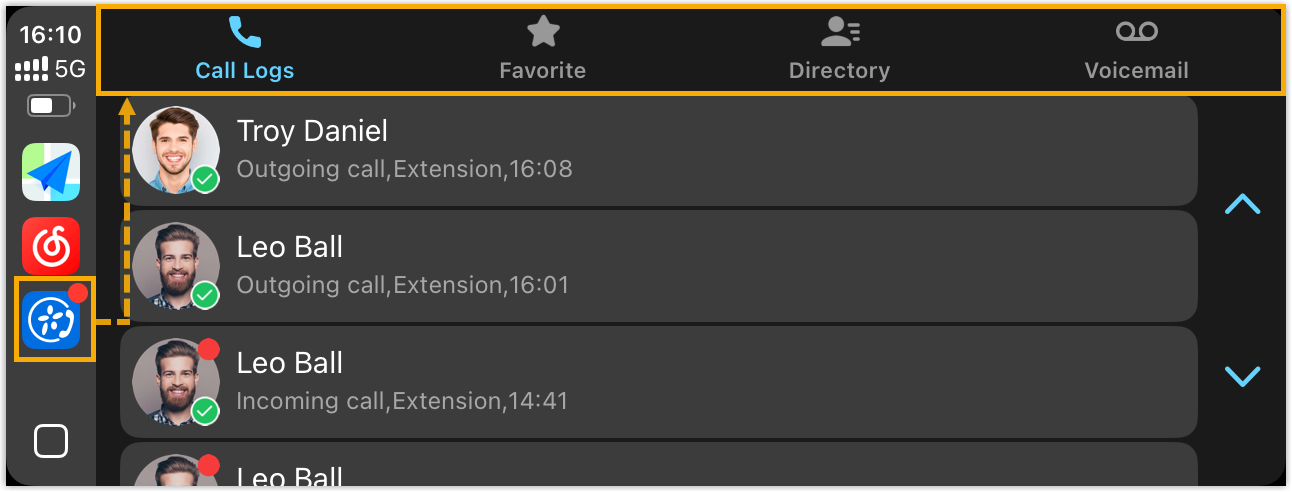
- Call Logs: Review your recent calls and tap an entry to return it right away.
- Favorite: See the extensions and external contacts you reach most often, and tap one to call.
- Directory: Browse extensions, phone contacts, and external contacts, and tap any of them to call.
- Voicemail: Play your voicemail messages or return the call.
Use the Cloud Voice App with Apple CarPlay
Section titled “Use the Cloud Voice App with Apple CarPlay”With the app added to CarPlay, you can start calls from the display or with Siri, take incoming calls, and work through your voicemail. The sections below walk through each task.
Make calls with CarPlay or Siri
Section titled “Make calls with CarPlay or Siri”From the CarPlay display
-
Open your contacts in CarPlay.
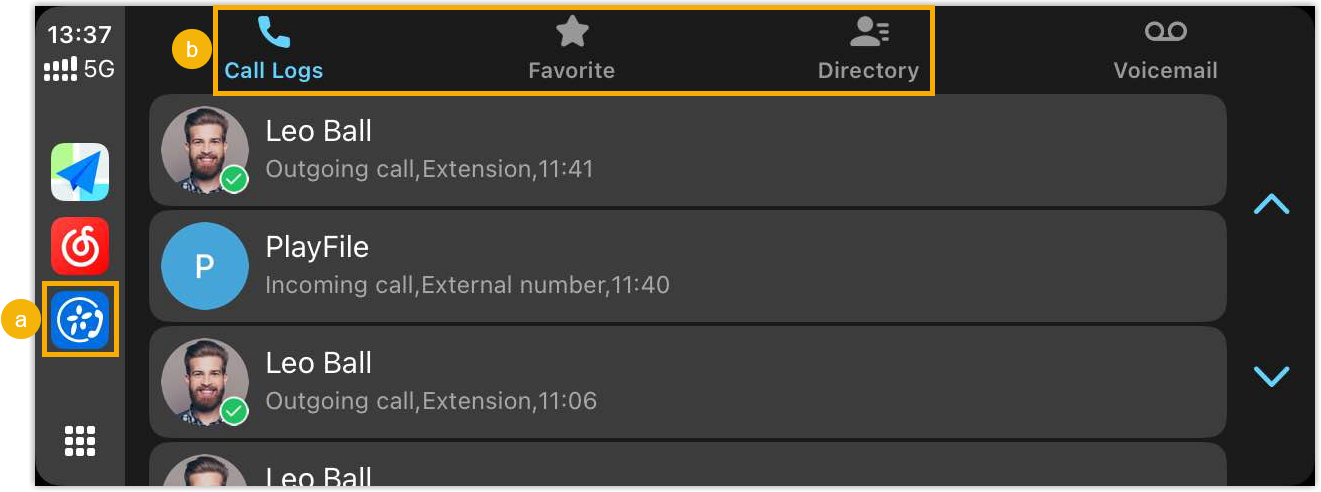
- Tap Cloud Voice App on the car’s display.
- Locate the person you want under the Call Logs, Favorite, or Directory tab.
-
Tap the contact to place the call.
With Siri
You have two ways to start a call by voice:
-
Method 1: Trigger Siri with a spoken command, for example “Hey Siri, call 5503301 using Cloud Voice App.”
-
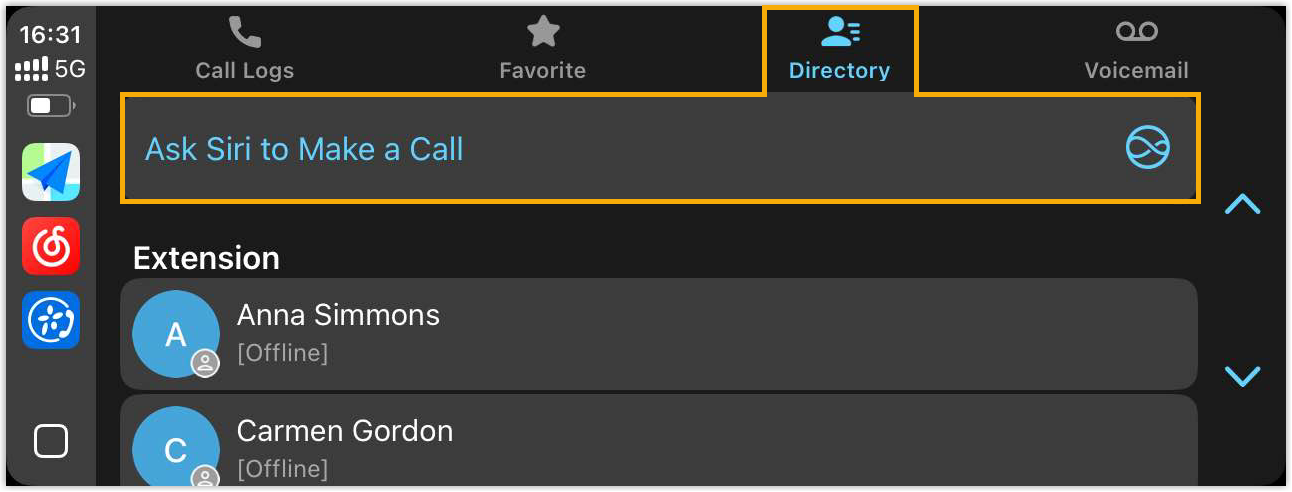
Method 2: Launch Siri from within the app. Open the Directory tab, tap Ask Siri to Make a Call, then say something like “Call 5503301 using Cloud Voice App.”
Receive calls with CarPlay
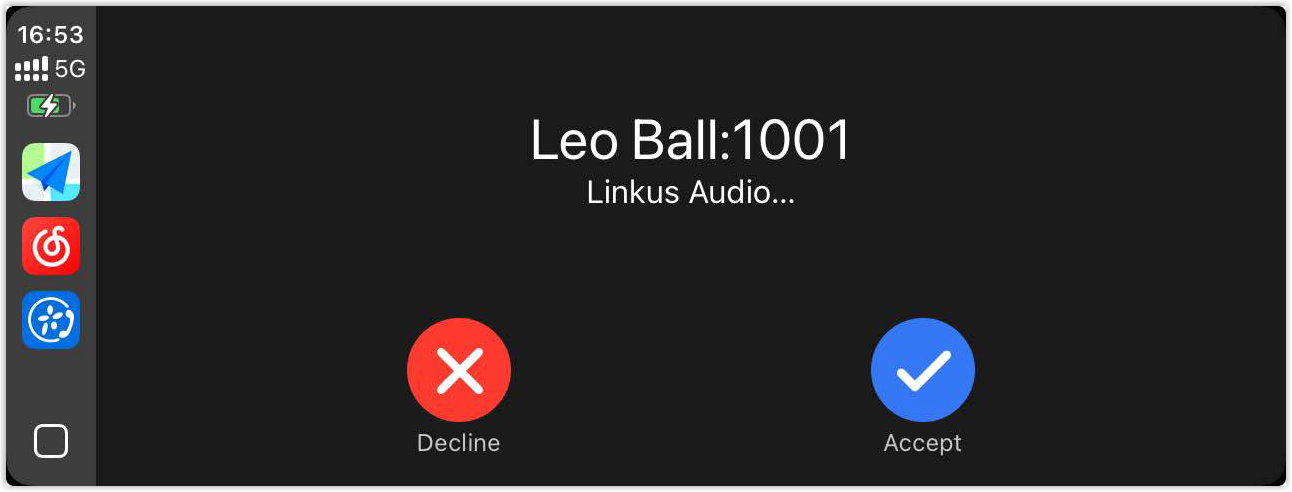
Section titled “Receive calls with CarPlay”When a call comes in, tap Accept or Decline on the CarPlay display to answer or dismiss it.
Check voicemail
Section titled “Check voicemail”-
Open your voicemail from CarPlay.
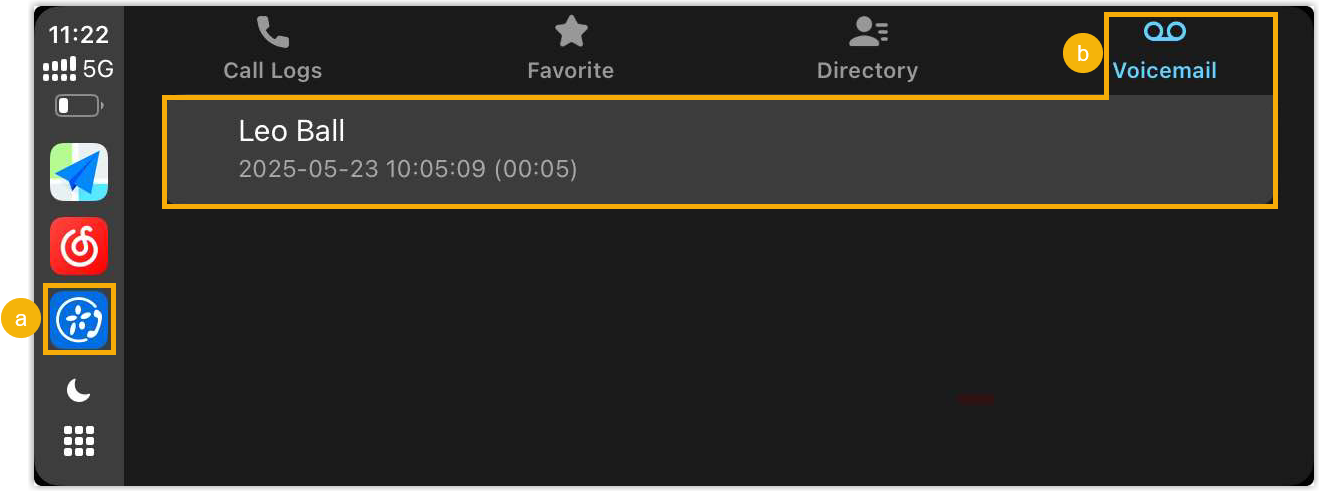
- Tap Cloud Voice App on the car’s display.
- Tap the Voicemail tab, then choose the message you want.
-
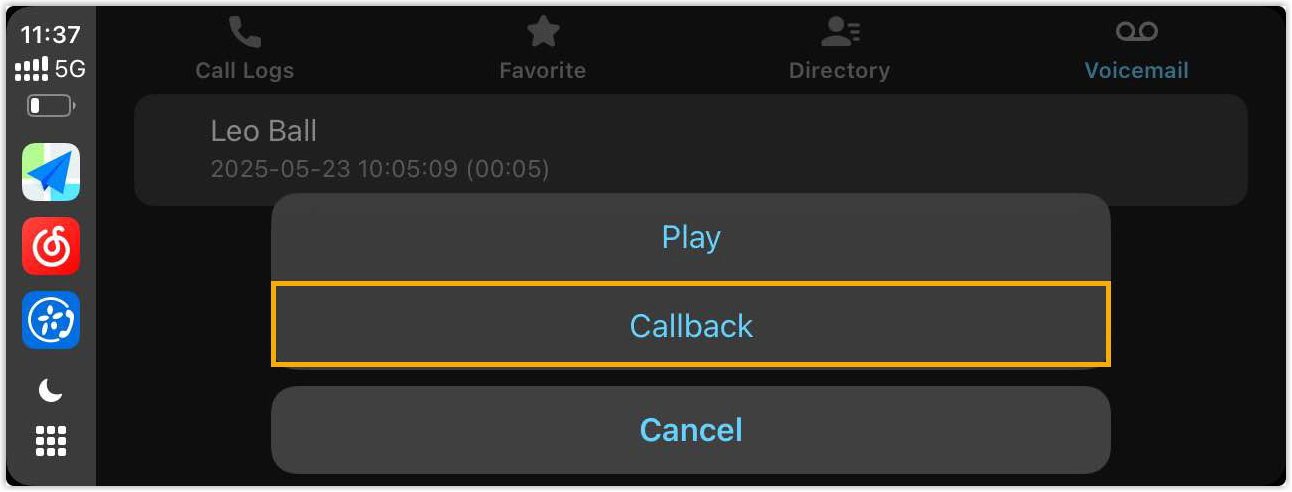
Play the message or call the person back.
Listen to a voicemail message
-
Tap Play.
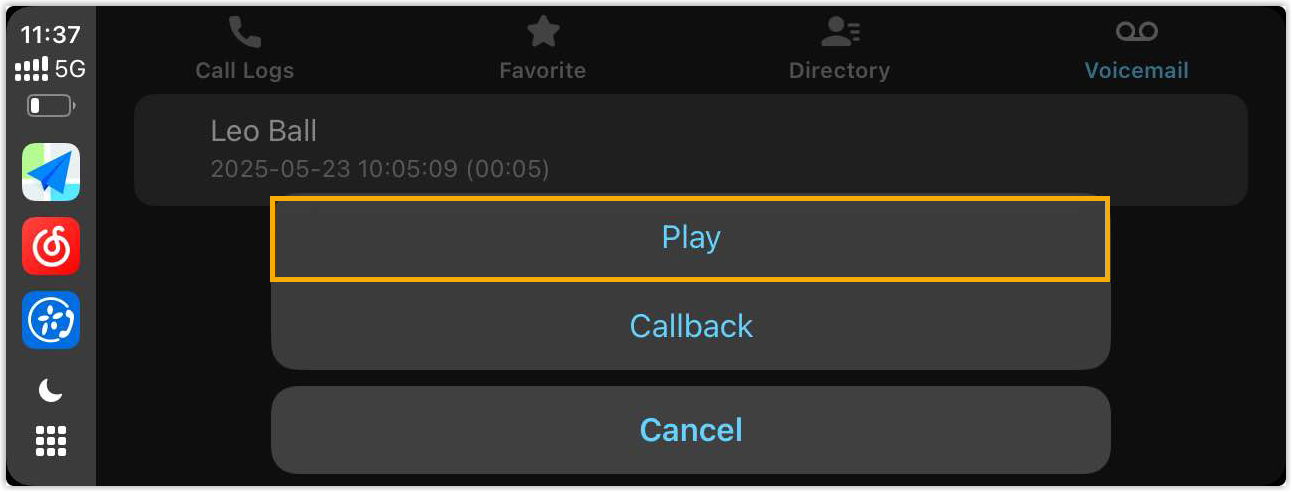
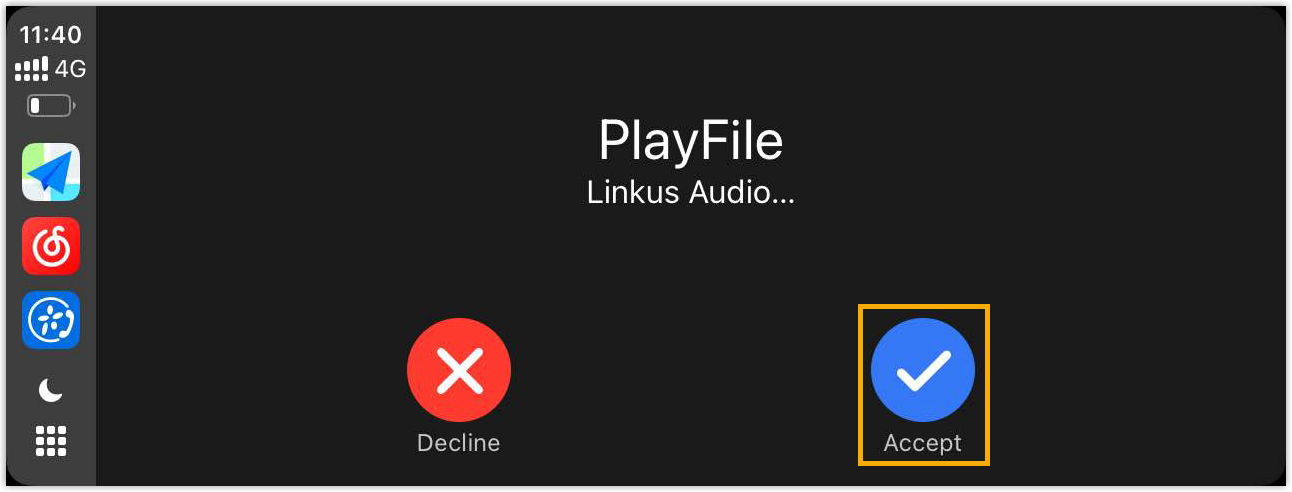
An incoming call is placed to you.
-
Tap Accept to hear the message.
Call the caller back
Tap Callback.
-
Question about this page?
Ask the AI assistant. It starts from this page, then searches the rest of the docs.
Ask Cloud Voice AI
Answers are AI-generated from the docs and may contain mistakes. Verify with the linked pages.