
Manage Logged-in Cloud Voice App Clients
Your extension can stay signed in on more than one Cloud Voice App at a time. From the Web Client you can review every session tied to your extension, see details about each associated device (its name, the client type, and when it last signed in), attach your own remark to a device, and remotely sign out of any session you no longer need.
Label a device with a remark
Section titled “Label a device with a remark”Add a note to any device so it is easy to recognize in the list. This is useful when the same client type is signed in on several devices and the device names alone do not tell them apart.
-
Sign in to the Cloud Voice App Web Client.
-
In the top-right corner, click your account.
-
From the drop-down menu, choose Currently Logged-in Devices.
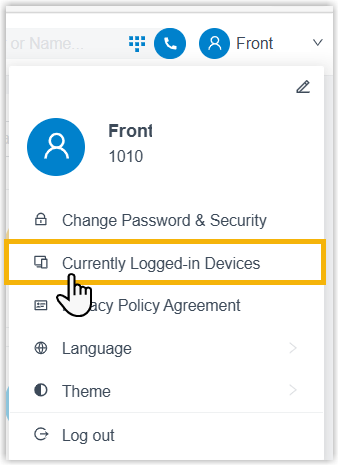
A window opens listing every device currently signed in to your extension.
-
Find the device you want to label, then type a note in its Remark column.
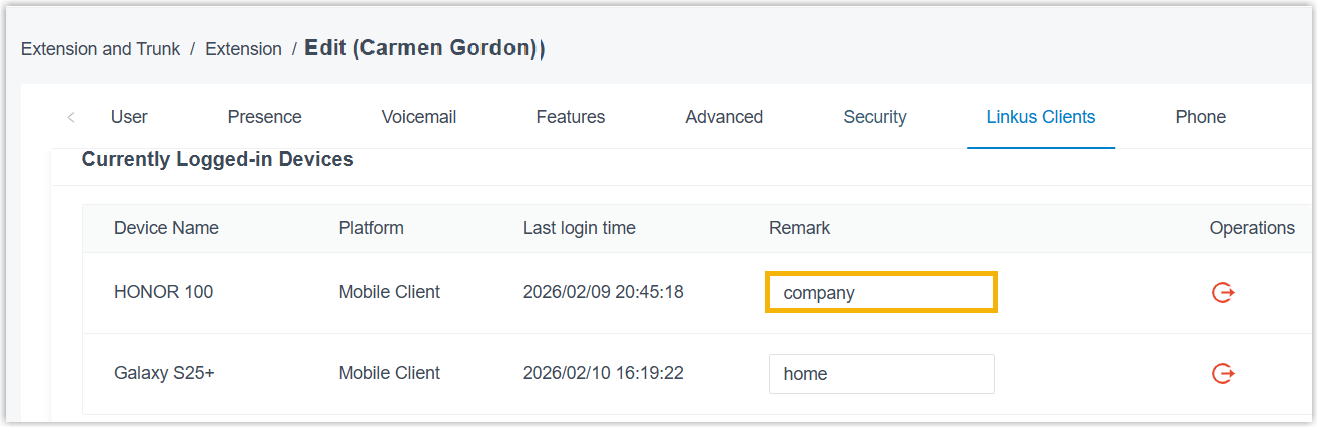
-
Click Save.
The remark you enter is kept in sync across all of your Cloud Voice App clients, so it shows the same on every device.
Sign out of a device
Section titled “Sign out of a device”Use these steps to remotely end your extension’s session on another Cloud Voice App. This is the fastest way to cut off access if a device is lost or stolen, or if you spot a session in the list that you do not recognize.
-
Sign in to the Cloud Voice App Web Client.
-
In the top-right corner, click your account.
-
From the drop-down menu, choose Currently Logged-in Devices.
A window opens listing every device currently signed in to your extension.
-
Click the sign-out icon (
 ) next to the device you want to end.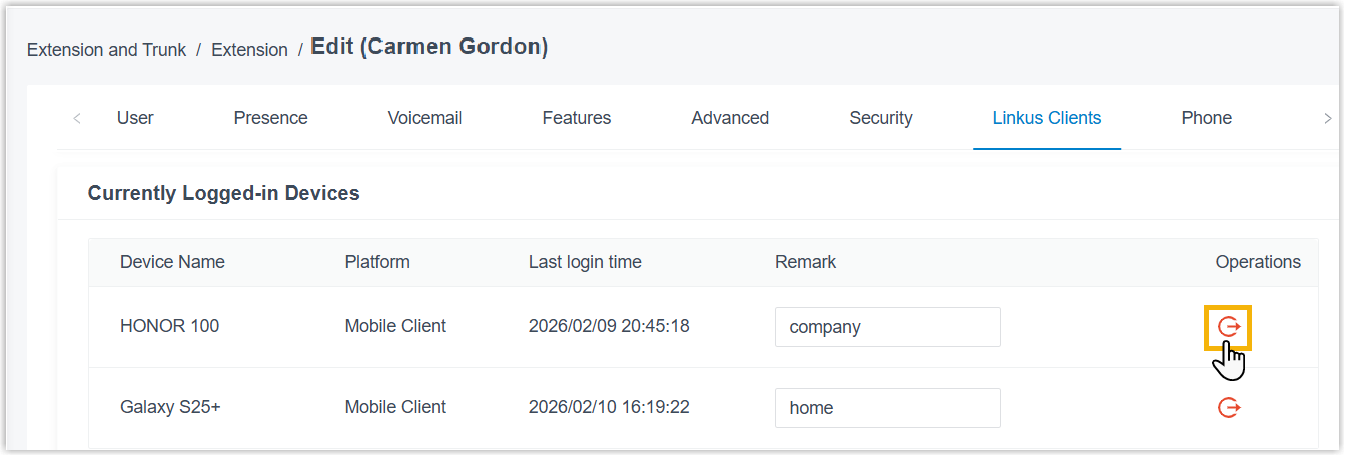
-
In the confirmation window, click OK.
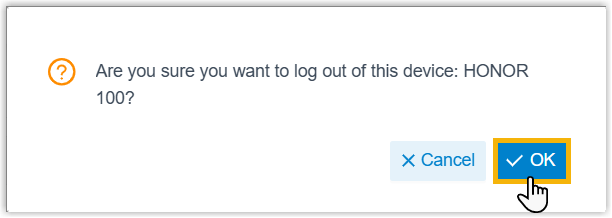
Your extension is signed out of the selected device, and the message “This device has been logged out by you or the administrator” appears on that device’s screen.
Question about this page?
Ask the AI assistant. It starts from this page, then searches the rest of the docs.
Ask Cloud Voice AI
Answers are AI-generated from the docs and may contain mistakes. Verify with the linked pages.