
Configure AI Call Transcription
AI Call Transcription turns a two-party call into readable text as it happens and produces a summary when the call wraps up, so you can quickly revisit what was said, the main points, and any follow-up tasks. Use the settings below to control how transcription behaves in the Cloud Voice App.
Before you start
Section titled “Before you start”- Your Cloud Voice system is running firmware 84.20.0.74 or later.
- Your administrator has enabled Call Transcription for your extension.
Turn on and configure transcription
Section titled “Turn on and configure transcription”-
Sign in to the Cloud Voice App and open Preferences > AI.
-
Under Call Transcription, adjust the options to suit how you work.
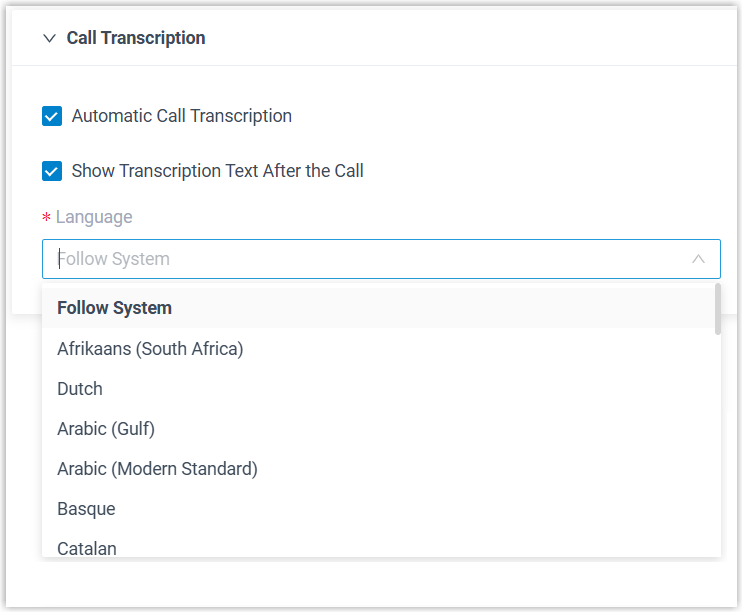
Setting What it does Automatic Call Transcription Controls whether your calls are transcribed live without any action from you. With this off, you can still start transcription by hand during a specific call from the call screen, see Transcribe a Call. Show Transcription Text After the Call Decides whether the transcript and summary pop up automatically once the call ends. Language Sets the language used to transcribe your calls. -
Click Save.
What happens next
Section titled “What happens next”- During a call, audio is recognized and written out in your chosen language in real time, and a summary is produced automatically after the call ends.
- The AI-generated transcript and summary for each transcribed call are available in your call logs.
Question about this page?
Ask the AI assistant. It starts from this page, then searches the rest of the docs.
Ask Cloud Voice AI
About
Answers are AI-generated from the docs and may contain mistakes. Verify with the linked pages.