
Start a Chat Session with Colleagues
When something can wait, instant messaging lets you reach a coworker without interrupting them with a call. From the Cloud Voice App desktop app you can open a private conversation with a single person or spin up a group chat for a whole team. This page walks through both.
Before you start
Section titled “Before you start”- Ask your system administrator to confirm that the phone system meets these requirements:
- Version: 84.12.0.32 or later
- Plan: Enterprise Plan or Ultimate Plan
- Confirm your desktop app is on a supported version:
- Windows: 1.2.14 or later
- macOS: 1.2.10 or later
Start a one-on-one chat
Section titled “Start a one-on-one chat”- Sign in to the Cloud Voice App desktop app.
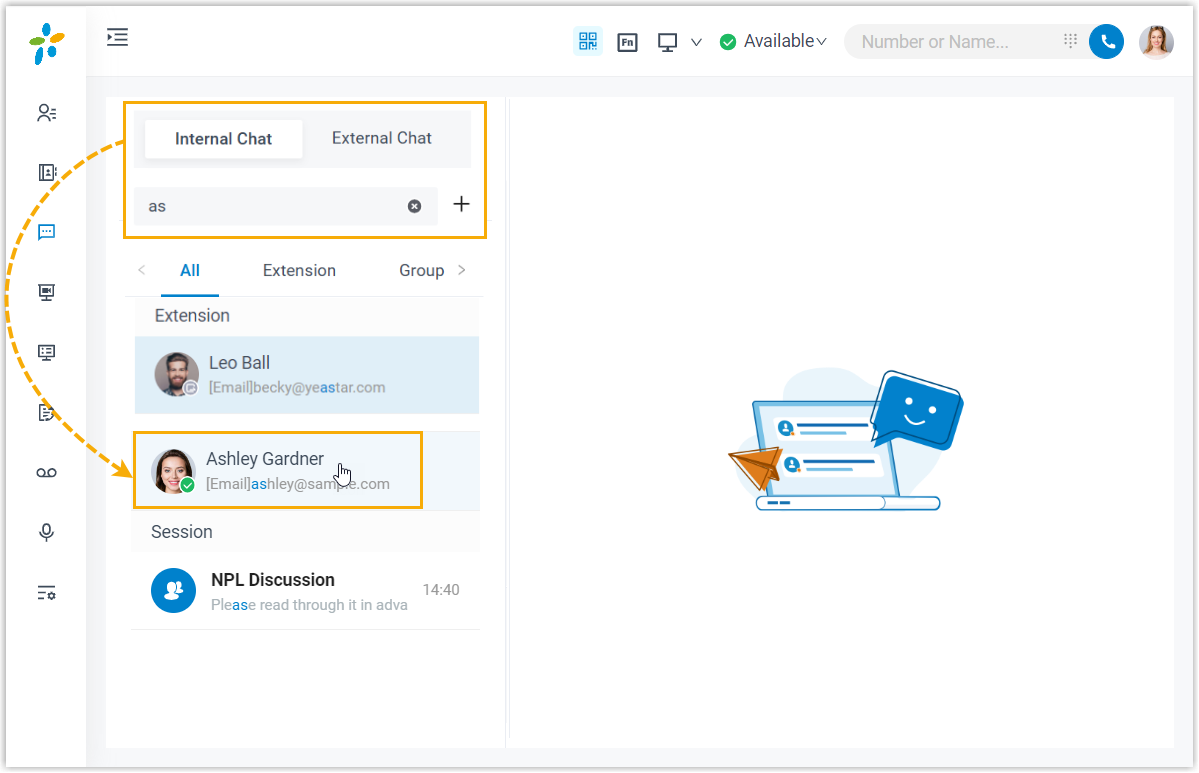
- In the left navigation bar, select Chat, then open the Internal Chat tab.
- Use the search bar in the left panel to locate the coworker you want. You can search by name, extension number, email address, or a snippet from an earlier conversation.
- Select the person from the results to open the conversation and begin typing.
Start a group chat
Section titled “Start a group chat”-
Sign in to the Cloud Voice App desktop app.
-
In the left navigation bar, select Chat, then open the Internal Chat tab.
-
Select the add icon
 next to the search bar.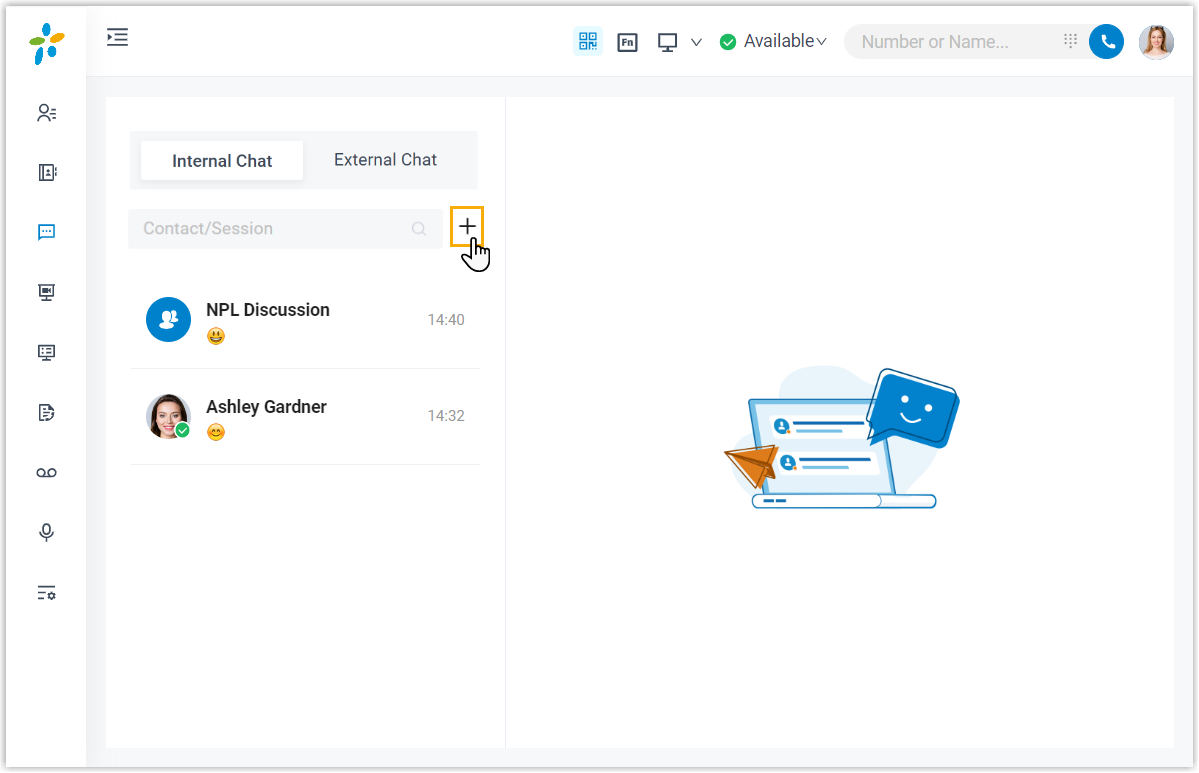
-
In the pop-up window, choose the coworkers you want to include, then select Create.
Question about this page?
Ask the AI assistant. It starts from this page, then searches the rest of the docs.
Ask Cloud Voice AI
About
Answers are AI-generated from the docs and may contain mistakes. Verify with the linked pages.